With Virtualisation technology and programs becoming increasingly popular, it makes sense to look at Virtualising your server prior to a major upgrade or migration, keeping the source server as a fully reliable backup/roll back.
Using tools like Shadow Protect, you can very quickly take a running server, and turn it into a bootable virtual machine.
The drawback is it is an expensive product, and, for some smaller consultancy’s it may be a ‘nice to have’ but not something that is looked at as a serious option when preparing to migrate a client.
Hopefully we can change that idea.
Using the Sysinternals tool, disk2VHD, we can take our running system and create a VHD from it. Using this VHD and Microsoft’s Free Hyper-V Server, we can build a VM from that VHD and using this we can begin to prepare our migration or upgrade.)
So, to follow me through this article you will need…
- A source server ( i am running SBS 2003 R2 Standard)
- Some available hardware to host your virtual server (ideally with at least the same amount of ram as your physical server, but remember your server needs to have hardware that supports hyper-v)
- The Sysinternals disk2VHD tool
- USB/eSata Storage to transfer VHD (or local network access to the source server)
- Microsoft’s free Hyper-V server (this is the pre SP1 version)(1.5gb)
- Hyper-V Management Tools (Install the update, then use ‘turn windows features on or off’ to activate) (240mb)
Considerations: Make sure your source server is correctly licensed to allow for virtualisation, Keep in mind technically you are moving the server to new hardware, so a typical OEM license would not cover you for this. That being said, I’m sure we can all use our common sense on the licensing front!
Can i just REITERATE – if you are running an OEM install of SBS 2003 (or any OS) it is highly likely your server will require activation when it boots on the virtual hardware. Reactivation will be at Microsoft’s discretion and i can make no guarantees or whatever :p
Also as we are on new hardware, we will need to follow procedures for your particular OS to change NICs.
This article is split into 10 steps…
Step One – disk2VHD
Step Two – Install Hyper-V Server
Step Three – Initial Hyper-V Configuration
Step Four – Hyper-V Network Configuration
Step Five – Connect to Hyper-V Server
Step Six – Configure your VM
Step Seven -VM Network Configuration
Step Eight – Power Up your VM!
Step Nine – Testing your VM
Step Ten- Back to the Future!!
Step One. disk2VHD
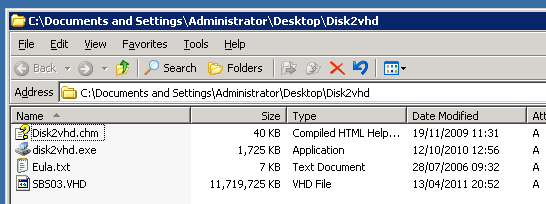
So first of all we will run our disk2VHD tool on our source server, the size of your servers disk drive(s) will determine the time it takes for the VHD to be built, luckily on my source server i only have a single C: drive, and the used space is quite low.
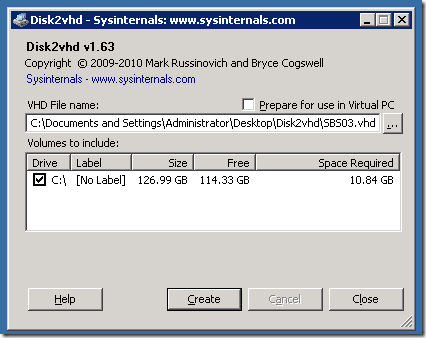
Under VHD File name, you can choose the destination VHD path and file name, once you are happy with that simply click on ‘Create’, to start building your VHD.
You will then have a short, or long, period where the volume(s) are snapshotted, and then you will see some progress and a quite accurate ETA for the time the process will complete.
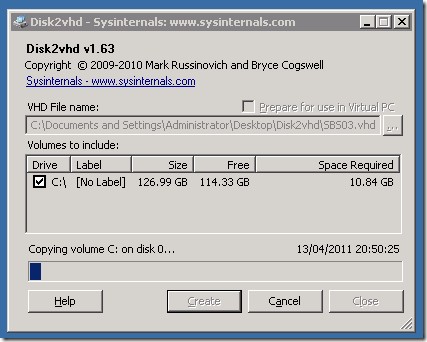
Once this process is completed i can copy the VHD off to removable media, and begin working with it in Hyper-V.

Step Two. Install Hyper-V Server
SO i guess we should get our Hyper-V server ready.
You’ll want to burn that ISO to a DVD or extract to bootable USB media, and boot.
As usual, press the any key to boot…

Windows loads files from your media..

Windows is starting..

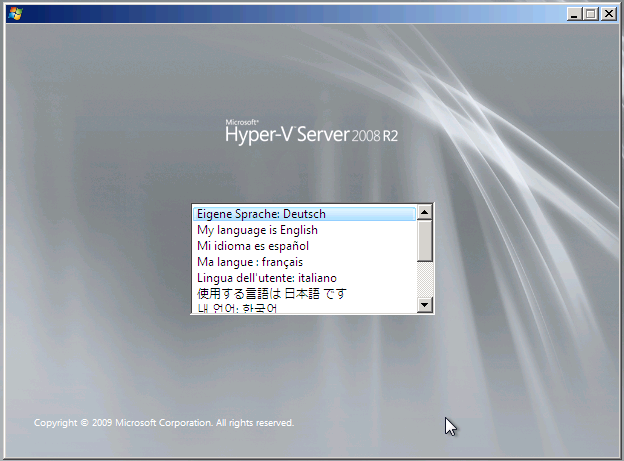
Choose your installation language..

Choose your time and date / keyboard preferences..
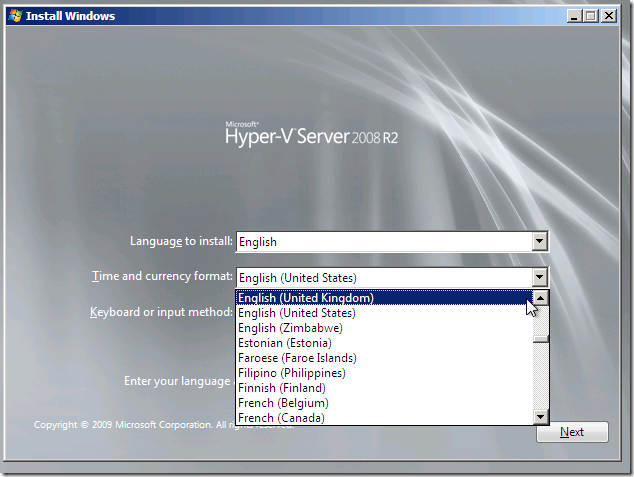
Confirm your settings, and click next..

Choose ‘Install Now’…

Setup will begin..

Review the license agreement.. If you accept the terms, check the box and click Next..

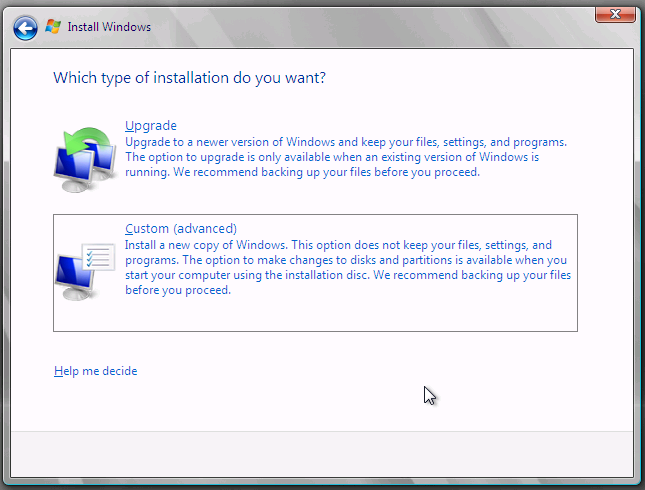
Choose a ‘Custom’ install..
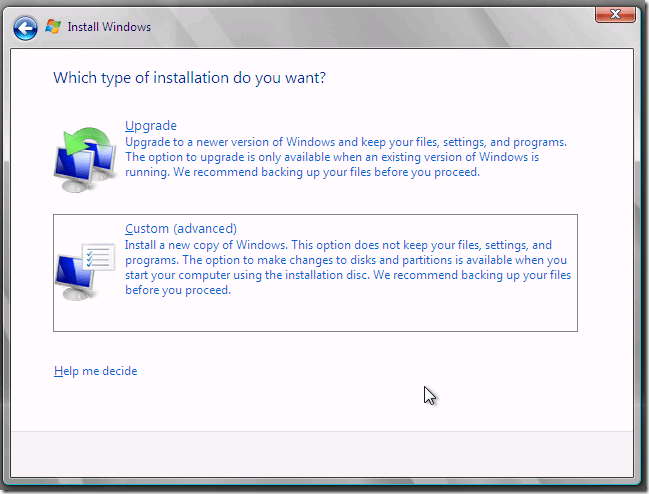
Here you can choose your disk formatting options, or install raid controller drivers if needed. I just have a single disk in my system and i am not using RAID – this is my lab system remember. If you are doing a real, live, migration you may want to consider the redundancy of your virtual machine. Yes you can always go back to your VHD if you took a copy before you started, but you don’t really want to start again if you can avoid it!
You can click on Drive Options, if you have to partition format the drive in a specific way, or just click Next if you have a blank drive to let the system format and partition the drive for you.

Setup will now run through, copying files, expanding files, installing features etc etc…
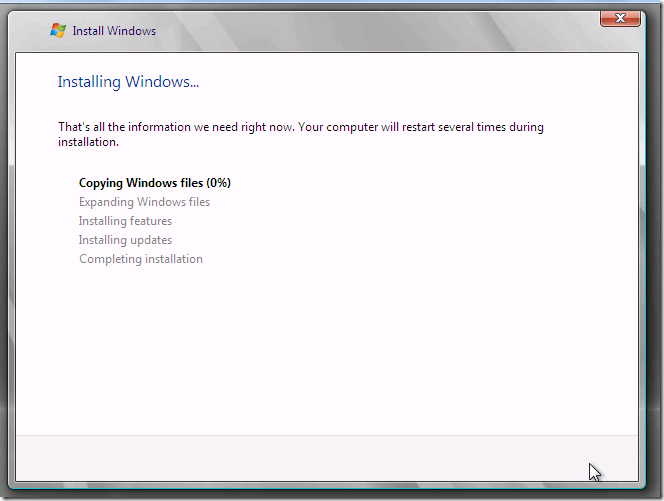

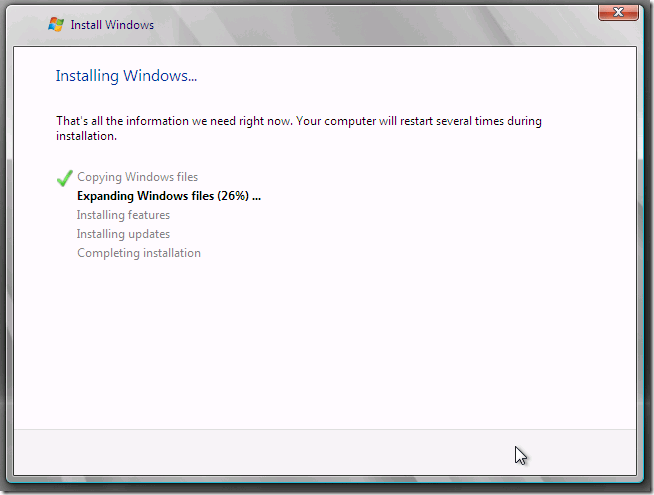


Step Three. Initial Hyper-V Configuration
At first boot, you will need to setup a password for your account. Put some thought in to this, i am running my Hyper-V server in a workgroup. My laptop is also in a workgroup. That means to authenticate between the two we need identically named accounts. (Both username and password) For example if i login to my laptop as Administrator with a password of Rob123 i should set the Hyper-V server username to Administrator, and use a password Rob123. However i wouldn’t recommend you use those :p

Enter your password and confirm..

Success!

Now the system will log you on, and you will get your first look at the Hyper-V Core.

So from the home screen, you can get a little bit of info about the server itself, you can see the default hostname, and domain status, you can configure any one of these options by selecting the corresponding number.

First thing i will do is add a new local admin, as stated above we need identically named accounts on our workstation with the Hyper-V tools installed.
So press ‘3’ and Enter.

Type the new account name, and press enter. The screen will switch over to a traditional command prompt, where you are asked to enter the password for the account, and confirm.

If you confirmed correctly, you will be given a congratulatory message!

Now i want to enable the remote management of the Hyper-V server, so press 4 and enter.

You have several options here, we will go through 1-3 in turn. Start with number 1.


You will receive a message to say this has completed..

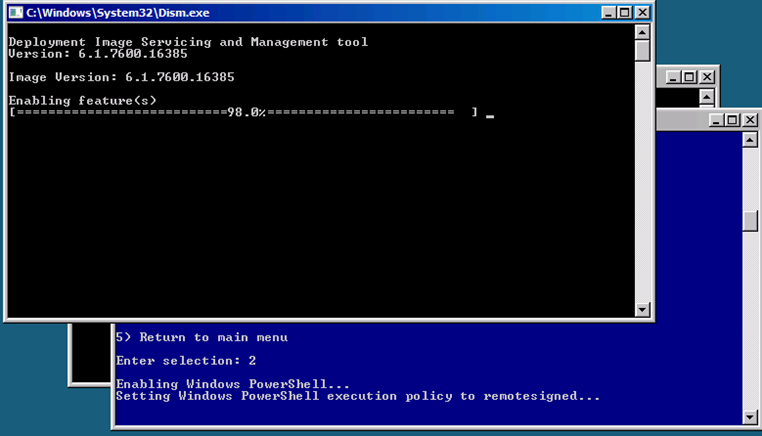
Next, use option 2 to enable PowerShell.


Once the powershell commands have completed you will need to restart.
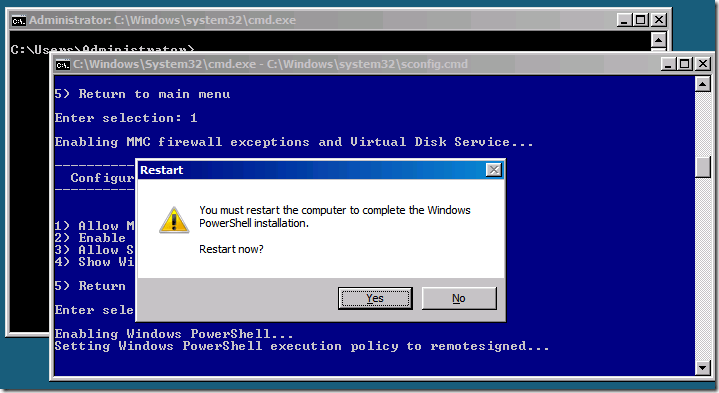
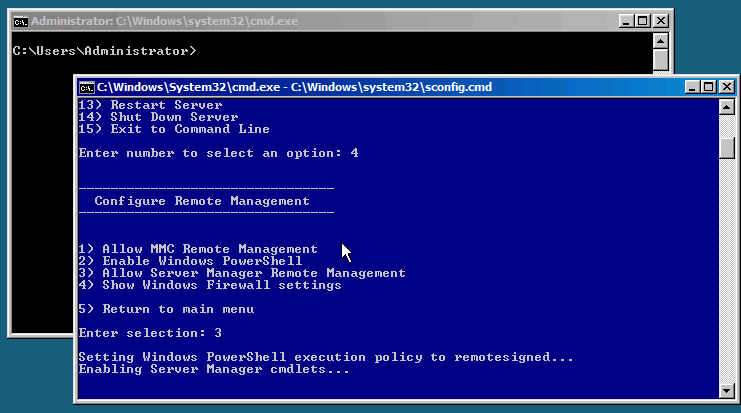
Log back in, and go back to option 4 (Enabled Remote Management), to complete the setup, go to option 3 to enable ‘Remote Server Management’.


It will take a few moments for all the commands to run and complete…


Once that has finished, you can press 5 to return to the main menu. (Reminds me of DOS)

Step Four. Hyper-V Network Configuration
If you want to change the system name at all, just press 2, then enter. I am happy to leave mine on the random name assigned by setup.
Let’s have a quick look at our network settings.. press 8 and Enter.
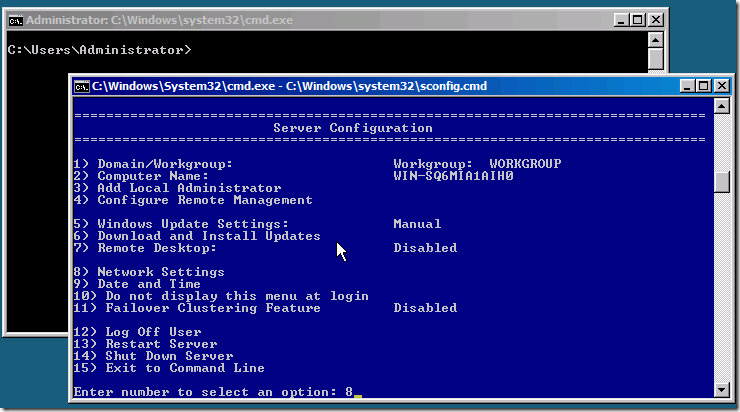
We can see the NIC’s installed, and the current IP Address. If you want to configure the NIC, press the index number that represents that NIC. So i only have 1 NIC so i can press 0 (zero)

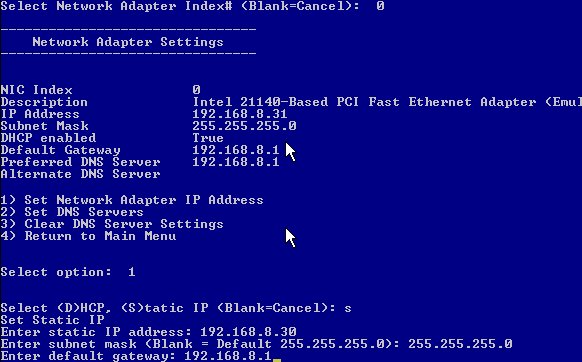
You might want to configure a static IP or any other network setting, this is the place to do it. I am going to put my server on a static IP, so i will need to use option 1.
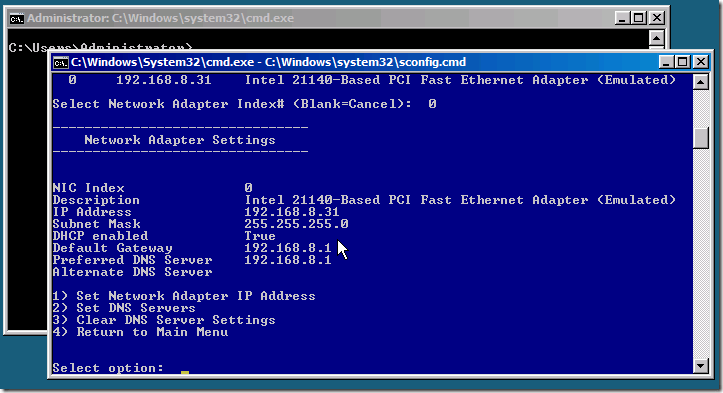
Choosing option 1, prompts me then to use either DHCP (D), Static (S) or to cancel..
Choose S for Static. Then enter your IP details.
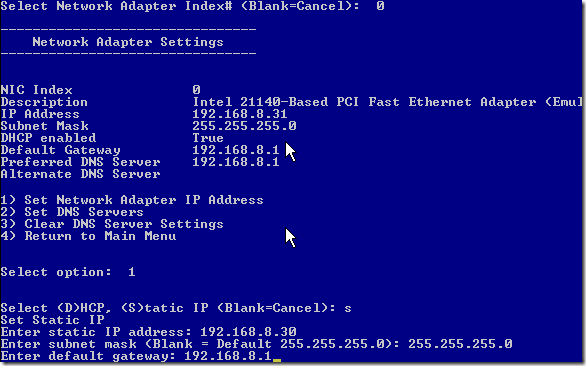
When you enter the default gateway you will see the screen refresh and reflect your new address details.

So you can see DHCP is now showing as false (disabled) and my new static IP is displayed
You can press 4 to go back to the main menu.

From testing i know that the firewall configuration can be tricky.
However, as this will not be a production box i have decided on my system to just switch off the firewall.
There is a great little tool called HVRemote.WSF which you can obtain from here… this takes a lot of the pain out of configuring the Hyper-V core, especially when you follow the instructions, which IMHO could be just a little clearer, but nether the less work well.
You run it both from the Hyper-V server, and the Client that will control the Hyper-V server (most commands are run from the client) it even has a great switch for diagnosing connectivity issues between the two!
To disable the firewall..
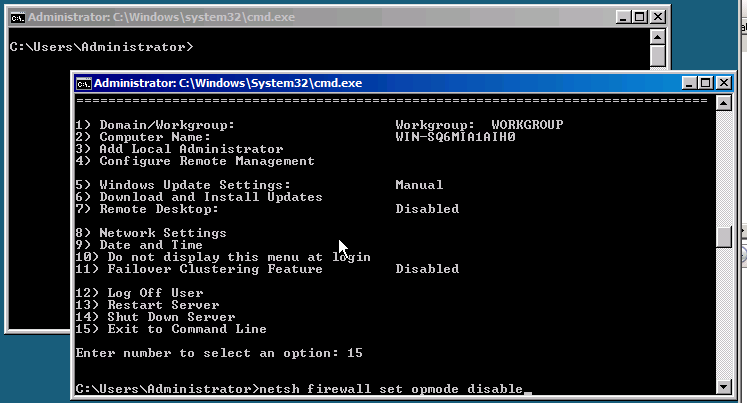
Exit to the command line (option 15) and then type:
netsh firewall set opmode disable
(If you choose to Disable the firewall, instead of configuring, You will need to run that command each time you reboot the Hyper-V Server)

As you can see in the screen shot, this command is deprecated now and you are told you should use ‘netsh advfirewall’ instead, but since this command still works, why should we bother??

Quick Recap
Now just to recap, at this point we have installed the Hyper-V core, we have configured it for remote management, we have added a like named user to match our workstation/system with the Hyper-V tools running. We have configured our network adapters and turned off the firewall.
Step Five. Connect to Hyper-V Server
Now that your Hyper-V server is up and running, you probably want to add some Virtual Machines, and finish our server virtualisation project?
You will need a machine running the Hyper-V management tools, you can install these as part of the RSAT, or if you already have a server running Hyper-V you can add it as an additional server.
I have a Windows 7 Pro machine running the Hyper-V tools, so i will connect to the Hyper-V Server from there.
Open up the Hyper-V console.

Right click ‘Hyper-V Manager’ and click on ‘Connect to Server’

Choose to connect to ‘Another Computer’ and enter the IP or HOSTNAME of your Hyper-V Server, and click on OK.

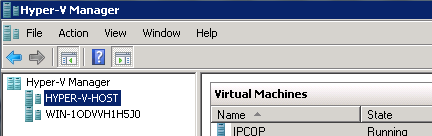
After a short delay, you will see your server is added to the console tree. It will display the hostname, whether you added the server by IP or HOSTNAME.

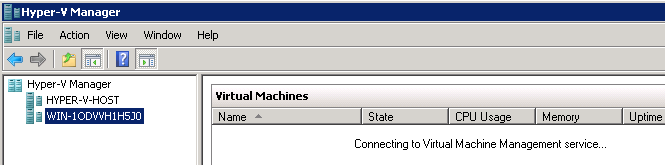
Select your server from the list, to begin working with Hyper-V on that server. You will see that the Hyper-V console is attempting to connect to the Virtual Machine Management service on the remote server..

And hopefully in a few seconds you will see….

Step Six. Configure your VM
Now we will need to copy our VHD across to the Server, and build our VM.
I am going to attempt to copy my VHD across the network firstly, and then i will walk through the process using removable media.
Before you attempt to power up your VM you MUST move the Hyper-V server to a separate network. You cannot run two Servers on the same Subnet with the same name and IP address.
I ran the disk2VHD tool directly on my SBS server, and stored the created VHD there, so from the Server i will attempt to browse to the Hyper-V server.
So, Click Start, then Run in the run box , enter the UNC path to your server, and as we don’t yet have any shares on the server, let’s try to go for the c$ share.
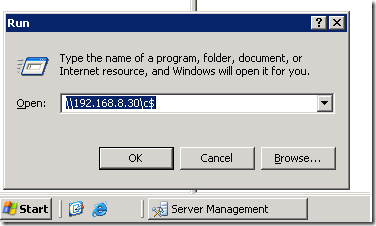
Hopefully you are prompted to login, so enter the administrator username and password.

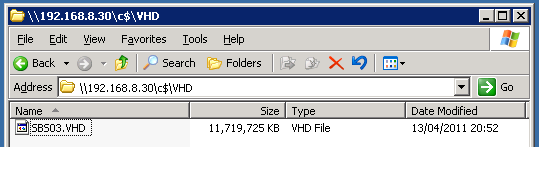
If you entered the correct credentials you should now see your C: on the Hyper-V server. Add a new Folder to store your VHD file.
Right click, new > folder. Name the folder VHD and press enter.

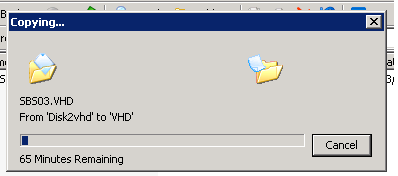
Now we can just try to drag and drop our VHD file across..
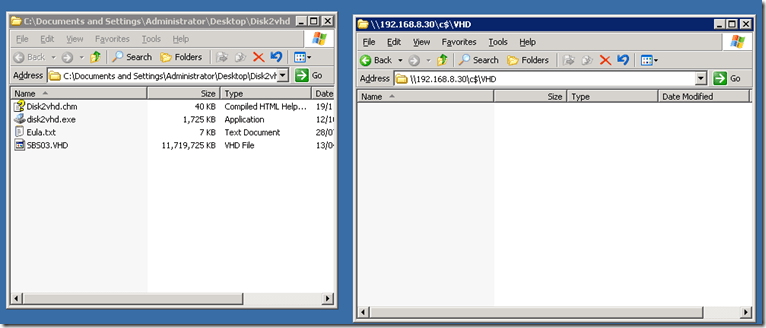
Sit back and grab a coffee, it might take a while!

When the copy has completed we can switch back to our Hyper-V server and configure the VM.

If you want to use removable media instead, copy the VHD to your media from the source server, plug that media into your Hyper-V server, and you can use the xcopy tool from a command line to copy it across. You might want to use DISKPART to identify which Drive letter your Media has been assigned.
From a command prompt, type..
DISKPART <enter>
LIST VOLUME <enter>
This will show you the volumes on your system, their size, and assigned drive letter.
From here you can gauge which drive is your removable media, and it should be simple enough to copy the file across.
Now we need to configure our networking. My Microserver only has one NIC so i am not able to have a dedicated NIC for management and one for the VM.
In the Hyper-V console, load up the ‘Virtual Network Manager’

Our VM will need physical network access, so we will need to create an ‘External’ Network. Click Add.

You will need to enter a name for your network, you may want to add some notes about it’s purpose/function within your Hyper-V setup, you also need to confirm the physical NIC the network will bind to, and whether or not the Host OS will have access to share this NIC. There are also some other settings which we do not need to worry about.

As i said, i only have the one NIC, so i am leaving all of the defaults here.
Enter a name you are happy with, and click on OK to setup the network.

With a single NIC configuration you may have some temporary disruption when you click on OK. You will be prompted to acknowledge this by clicking ‘Yes’ in a warning dialogue box.


Once the server has applied your networking configuration, you can go ahead and run the New Virtual Machine Wizard.

Right click the Server Name, highlight New, then select Virtual Machine.

Review the information on the ‘Before you Begin’ page, even if you have done it before it is always useful to review this type of information.
Click Next when you are ready.
We will need to name our Virtual Machine – this name will be what is shown within the Hyper-V console. You may also choose to move the configuration information to a non default location.


When you are ready, click Next.
Choose your memory allocation. My Physical server had 1GB of Ram, so i am going to allocate 1GB here. You may want to allocate more if your system has the free memory. My Microserver only has 2GB installed, and remember SBS 2003 only supports up to 4GB of RAM.
When you are ready click Next.
Choose your Network from the dropdown menu. I only have the one to choose. Click Next. (You can ignore this step for Windows 2003 as it does not support the Hyper-V synthetic NIC by default)

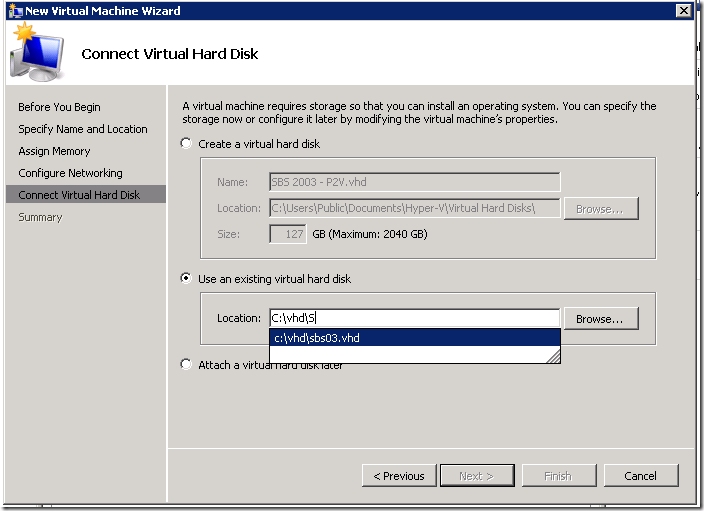
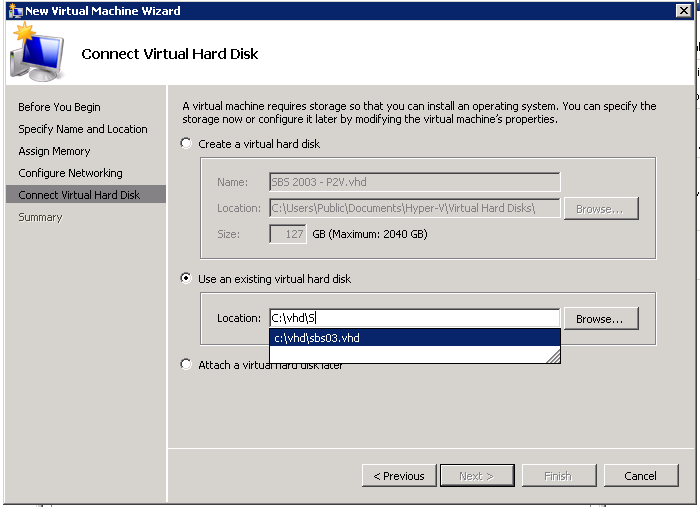
Next we choose our VHD. We don’t want to create a New VHD here, so choose to ‘Use an Existing VHD’ and type the path information to the VHD file, you ‘may see it auto-completes for you!
When you are happy with the VHD information, click Next.
Review the settings shown, and if you are happy, click on Finish.

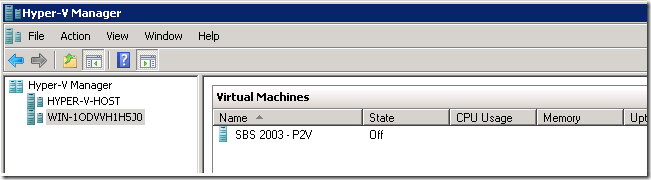
Your new Virtual Machine will now be shown in the details pane of the Hyper-V console.
Step Seven. VM Network Configuration
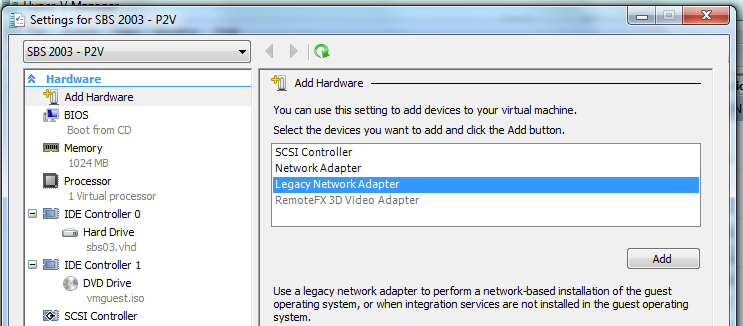
Now, because we are running Windows Server 2003, we will need to use a ‘Legacy Network Adapter’
Right click the VM, and click Settings.

It should open on the ‘add hardware’ screen, select ‘Legacy Network Adapter’ and click Add.

Again, here you need to choose which network to connect the NIC to, and click on Apply.

Click on OK to close down the settings page.

Your NIC is now installed.
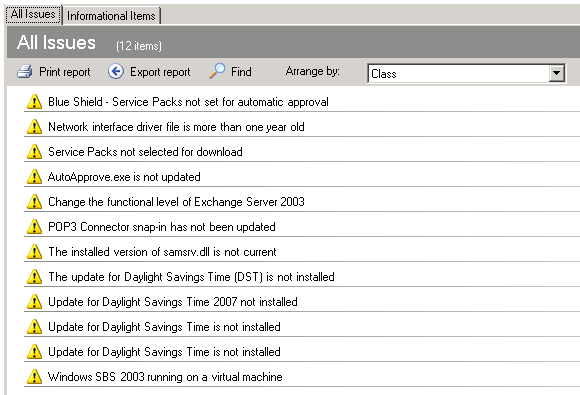
Now remember when we startup, it will be like we have replaced the NIC in a physical server, so there will be some configuration required and the SBS BPA can help us with that.
All that is left to do is start it up!
Step Eight. Power Up your VM!
Remember, your Hyper-V Server should now not be located on the same LAN as your source server.
Double click the VM to connect to it, then click on the green Power Button to power on.

You may be prompted for credentials due to the way the VM, and Hyper-V interact with the remote Hyper-V system, simply login with credentials valid on the remote Hyper-V Server.

Once you have logged in you will see the VM at whatever state it has got to in the boot process, it does not wait whilst you enter credentials!

After a short time you will be at the CTRL-ALT-DEL screen and you can login. (CTRL ALT END on Hyper-V) (CTRL ALT LEFT ARROW, to get your mouse focus back to your local pc)
Once logged on, you can see your server is at exactly the point when we made the disk2VHD snapshot.
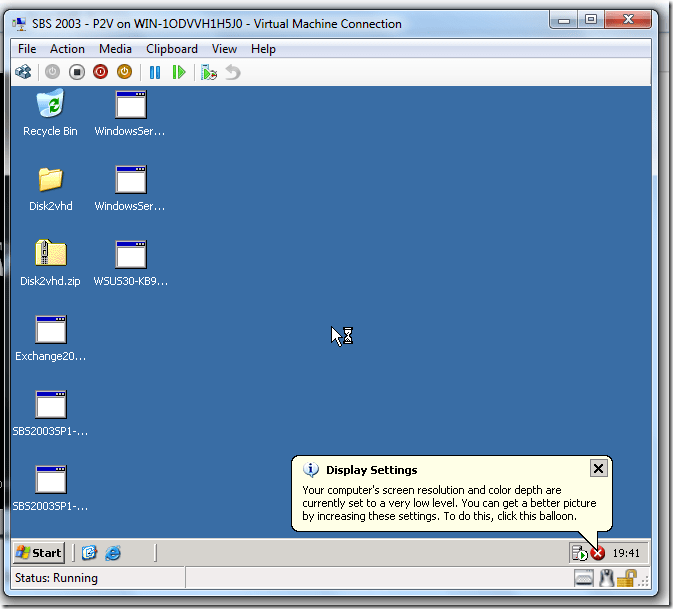
At this point you should have a booted SBS 2003 system.
Step Nine. Testing your VM
Your next step is to run the SBS BPA and resolve any issues highlighted. Remember your VM functions just like the real thing, so any issues in the registry that pre-existed for example, still exist. The main issue you are likely to see relates to having a new NIC installed on the system when SBS is tied to the other NIC. This error is the result in a change in the ‘LANNIC’ registry value.. the registry key is located here:
HKLM>Software>Microsoft>SmallBusinessServer>LANNIC

The above shows the current value of the GUID for our LANNIC. If that NIC is removed you might experience errors on the system, and services like DHCP may not work as expected.
The solution is to find the GUID of your actual LAN NIC, copy it down, and replace the value shown above, with your actual GUID.
To find the GUID of your NIC, go to, HKLM>System>Services>TCPIP>Parameters>Interfaces

Step Ten. Back to the Future..
No not a direction to sit in front of a DVD, but i needed a good name for the last step.
At this point you should have a fully functional SBS 2003 Virtualised, on Microsoft’s free Hyper-V server. You are now free to test migrations, patches, backups, anything you like, safe in the knowledge that your physical server, is safe from, well, you!
So you are back, where you started, which is, looking to the future… of your network and a server upgrade? ok that was awful but hopefully you get the point!
I hope you have found this useful, if not a little entertaining.
Links..
HP Microserver
http://h10010.www1.hp.com/wwpc/us/en/sm/WF05a/15351-15351-4237916-4237918-4237917-4248009.html
Hyper-V system Requirements
http://www.microsoft.com/hyper-v-server/en/us/system-requirements.aspx
Disk2VHD
http://technet.microsoft.com/en-us/sysinternals/ee656415.aspx
Hyper-V Download
http://www.microsoft.com/downloads/en/details.aspx?FamilyID=48359dd2-1c3d-4506-ae0a-232d0314ccf6&displaylang=en
Hyper-V Management Tools (RSAT Updated for Windows 7 w/SP1)
http://www.microsoft.com/downloads/en/details.aspx?FamilyID=7d2f6ad7-656b-4313-a005-4e344e43997d&displaylang=en
ISO Extraction
http://www.magiciso.com/download.htm
USB Bootable Media Guide
http://www.nogeekleftbehind.com/2010/12/22/how-to-install-sbs-2011-with-a-bootable-usb-drive/
HVRemote
http://archive.msdn.microsoft.com/HVRemote
Thanks to Tim Barrett, for his awesome editing and ideas!







































 Title (Required)