Quick Fix : Removing a disconnected network drive

A client of mine needed to move a Data folder from one of there servers, to another.

Easy enough right? Just Copy the data off ahead of time, like a seed copy, then on the day of the switchover just do another, to copy the changes. Robocopy is great for that and a great resource for Robocopy is here, stop sharing the source and start sharing the destination.

The complicating factor here, was that they access this folder via a mapped drive. Ordinarily not an issue, you can simply disconnect the drive, and remap to the new server. Except – you cannot do this if your mapped drive is showing disconnected.

At this client, all the mappings to this particular folder were showing disconnected – however the drive still worked. It was one of those issues we looked at and thought, huh, that is weird, oh well it still works so we will look at that tomorrow.

Tomorrow being that 8th day in the week.

So here i was on  Sunday evening, thinking ah, i hadn’t thought of that – how can i get this drive switchover completed with minimal disruption to the users?

Well firstly i had to solve the problem of not being able to remove the drive letter.

If you search on the internet you can find a large amount of posts from people suffering from this issue, occurring on both XP and Vista, and probably Win 7 as well.

Things like net use x: /delete or net use * /delete, were not working, and neither was simply right clicking the drive and saying disconnect.

I hit upon this article which shows the possible cause of the problem, and the solution. http://support.microsoft.com/kb/932463

“A mapped network drive appears to be disconnected after you install or upgrade to Symantec AntiVirus 10.0 or to Symantec Client Security 3.0 on a Windows Server 2003-based computer or on a Windows XP-based computer”

Well, this client did indeed use Symantec, so, cause identified, move on to the solution.

Quite simply, a registry edit.

Navigate to this path in the registry:

HKEY_CURRENT_USER\Software\Microsoft\Windows\CurrentVersion\Explorer\MountPoints2

You should see at the top, a number of entries like this:

1

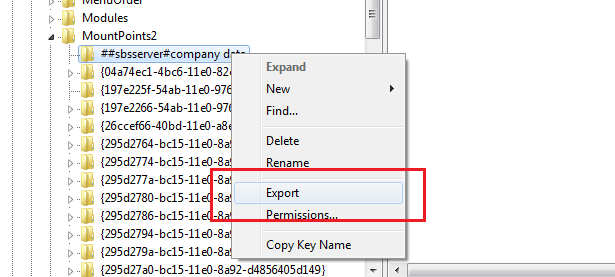
Each entry that starts ##SERVERNAME is a mapped drive. Not much help from the DWORD values in the details pane to tell you which Drive Letter, but, after ##SERVERNAME is #Folder – so from that you can hopefully narrow down which entry relates to your ‘Disconnected Drive’

So now we have the solution, how to roll this out to 20 client machines with the least effort?

Enter this Article: http://support.microsoft.com/kb/310516 

Reading through this article we learn about how to use a .REG file to modify the registry and how to use a .REG file in conjunction with a BAT file.

You may be way ahead of me now, but for those that aren’t..

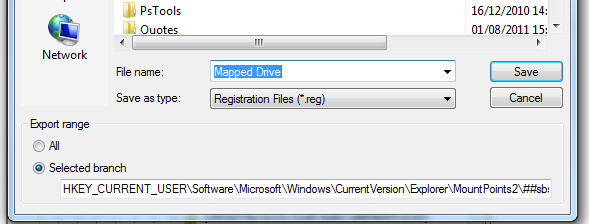
First, i exported the registry key and saved it. You can do that by Right Clicking the key, and clicking Export.
3

Then save it..

4

Now, open your file in notepad.

5

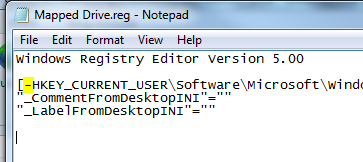
Insert a “-“ minus sign in front of HKEY
6

Save your file.

You now have a .REG file that will remove this drive mapping from your computer. To run the file just double click it,

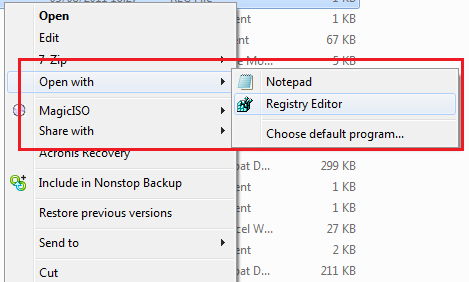
If you find this just opens the file in Notepad again, right click the file, choose ‘open with’ and then choose Registry Editor.
7

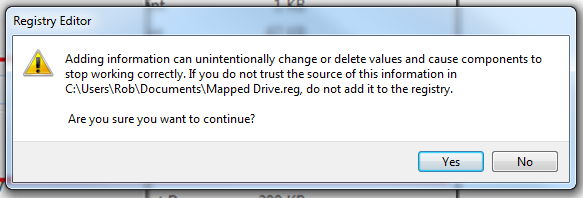
Either way, you should be shown this prompt..
8

It may vary slightly from OS to OS, but essentially it is the same warning. You want to say YES at this point.

When you click Yes, the entries defined inside our .REG file are removed from the Registry. A reboot of the PC and the ‘Disconnected Drive’ is now gone!

Ok, i know what your thinking – how does this help us with 20 computers? Get 20 users to run it? NO!

Well, you could, but try getting a user to do anything even remotley dif… anything, and you hit resistance :p

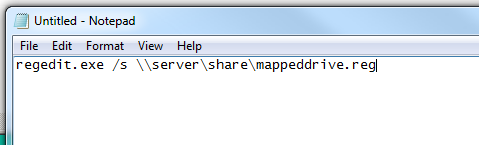
As i mentioned above, the article http://support.microsoft.com/kb/310516 , not only shows us how to delete entries from the registry with a .REG file, it also tells us how to run .REG files silently within a BAT file.

So what i did was to put my .REG file on a server share that was open to all users.

I then wrote a BAT file to call that .REG and run it silently.
9

To save this as a ‘BAT’ file, choose file, then save as, set to all files, and type your file name.

10

I then added this as a logon script using a Group Policy Object. I am not going to cover how to setup a GPO as it is a little beyond the scope of this post.

So come Monday morning, all users logged on and had their Drive deleted, they were all told to reboot after logon.

I had also written a new BAT file to map their drive to the new location, and how many support calls did i get? ZERO!


Ok i got one, but that guy was on a mac Smile with tongue out

Quick Fix : SBS 2011 Essentials RDP Timeouts (Remote Web Access)

If you are using RWA in SBS 2011 you may find that having connected to your Computer, then working on something else for a period of time, you go to switch back to your Computer and find you have been Disconnected! This can be a source of annoyance to those multi-tasking users we look after, and we don’t really want to give them any more reasons to be annoyed right?

5

Luckily it is relatively simple to increase the period of inactivity before a timeout occurs, likewise you can decrease it if you wish to as well.

The default for a disconnect is 60 Minutes.

To edit these settings, we first have to enable the Remote Desktop Gateway Manager tool.

Even though this ‘Role’ is installed into SBS by default, the management tool itself is hidden

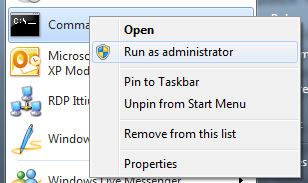
You will need to open an Elevated Command Prompt, to do that, find the CMD.exe icon, right click and click on ‘Run As Administrator’

6

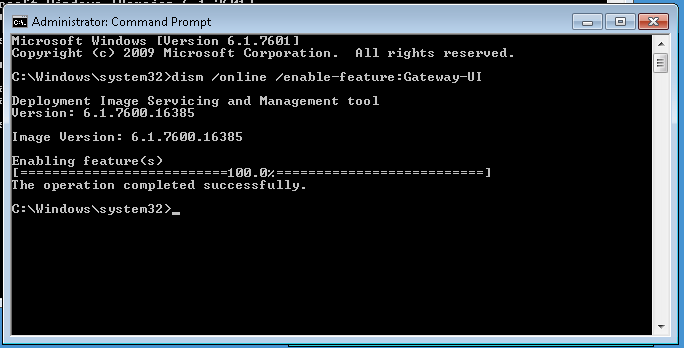
Next you need to enter:

dism /online /Enable-Feature:Gateway-UI

1

You will see the status of the Imaging Servicing and Maintenance tool, and after a few moments be returned to a CMD prompt.

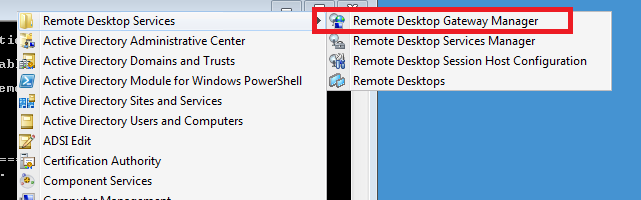
Now you can open up the Management tool from your Administrative Tools menu.

2

Expand your Servername and then expand Policies. In the details pane, right click the policy ‘DOMAIN_CAP_DEFAULT’ and go to properties.

3

You can see clearly here the ‘Disconnect Session after Idle’ setting, and change the value to suit your needs.

4

When you have changed the setting click OK. Your settings will be active immediately but may not affect sessions that are already in progress.

To change the timeouts for the entire Remote Web Access site, you can follow Tim Barrett’s blog post for SBS 2008.

http://www.nogeekleftbehind.com/2009/10/02/changing-the-companyweb-timeout-in-sbs-2008/

Changing this setting will affect the timeouts for the RWA page, for accessing files and folders stored on the Server.

The article mentions ‘Companyweb’ for SBS 2008, but can be transferred for The Default Website on SBS 2011 Essentials to affect the RWA page.

Quick Fix : Office 2011 Outlook for Mac – Wrong name shown in Sent Items..

I had a customer email me to show me a very weird issue.

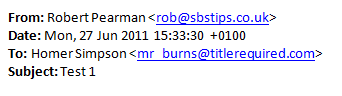
When a user of a mac replied to one of there messages, the email came through showing the display name as a previous user of that mac.

ie. Homer Simpson

(as you can see in the example to the right, even emails received by the user showed the wrong name)

Of course Mr Burns wanted this corrected.

The issue did not occur in Outlook for PC or using OWA / iPhone ActiveSync.

It was definatley an issue caused by the Mac.

I checked everywhere i could to find a setting – but couldnt find one within Outlook.

The only thing i could find referencing Homer Simpson was the reigstration info of Office.

So we followed this article – http://support.microsoft.com/kb/2394111

Unfortunatley this did not help, and actually left Excel a little unstable but that was easily fixed with a few restarts.

We then resolved to research the issue for a few days and come back to it.

A second conversation started up when i questioned if the same thing happend on a secondary account that Mr Burns had setup in Outlook.

It did.

Again i hit google, this time i turned up this page..

http://www.officeformac.com/ms/ProductForums/Outlook/3510/4

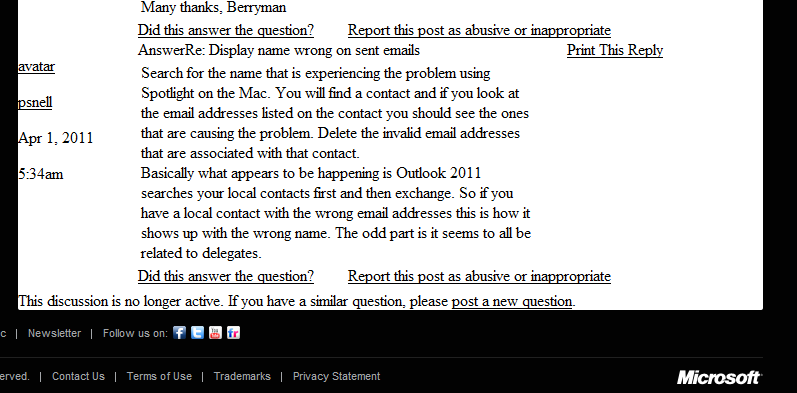
The very bottom comment solves the problem.

So thank you very much PSnell – i once again have a happy mac user. (And we all want to keep Mr Burns happy right?)

EDIT – 14/07/2011

It seems that after posting this, erm, post, that the office mac site has gone down. I don’t know if that is permanent or just a glitch, but having just posted a link to the solution was obvioulsy not my smartest move. Thanks to Adrian for pointing this out to me, i found the post in google’s cache, so i did a quick screen shot of the solution entry.

Quick Fix : SBS 2011 Standard OWA – 500 Internal Server Error?

I came in this morning to write some documentation for a client after a migration to SBS 2011 Standard. Focussing on the differences in the new RWA and how to use it effectively.

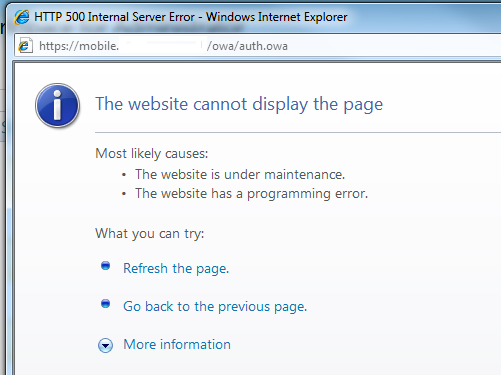
When i logged into the RWA and clicked on check email i was presented with this:

17

Oh, i thought, maybe i logged in with an admin account that doesn’t have a mailbox. Not a problem, so i logged back into the RWA with an account that definatley does have one.

Nope, same problem.

I logged onto the server and checked that all of the URLs for OWA were correct in the EMC, i turned to IIS – i tried to browse the OWA site directly through IIS and received the same problem.

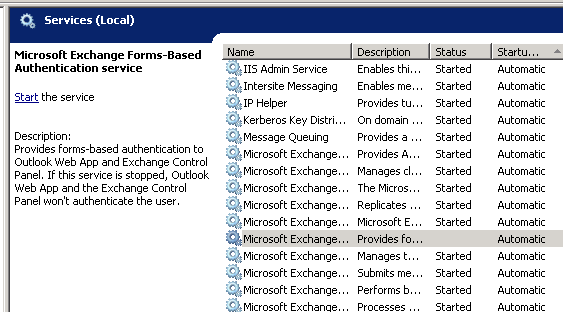
Loading up the services.msc console i sorted all services by their startup type and noticed that one service for exchange was not running.

18

Starting this service and reattempting the login to OWA resolved the problem.

Quick Fix : Uninstall Symantec Endpoint Protection (SEPM) 11 Without Uninstall Password

So i have a clients laptop (XP SP3) which is bluescreening on startup with a NAVEX15.sys error.

(This from Nirsoft – Blue Screen View)

The system would boot into safe mode with networking, but not full windows.

I tried all sorts to clear this, System Restore, msconfig – disabling all non MS services and everything not in c:\windows from the startup tab.
I also uninstalled the NAVEX and any Symantec devices from Device Manager, (look for show hidden devices)

This didnt help.

I then searched the registry for navex15.sys and deleted the related keys from the registry.

This allowed me to boot up.

I then uninstalled symantec.. but wait it asked me for a password, and i dont remember that (like i ever knew it!)

Enter this great little tip from of all places, the symantec forums..

http://http://www.symantec.com/connect/forums/uninstall-sep-11-without-password

Specifically this entry from reza akhlaghy:

“..Hi Richard,

There’s an easy way, when password prompt opens, run task manager and END
task called MSIEXEC that runs under your user account (not system). The password
go away and uninstall continues !!

So far this trick works both for SEP and older versions…”

Bingo. Symantec now uninstalled.

I am using NiNite.com to update all web related apps on this system, and then, unfortunatley, i have to reinstall Symantec. :(

Quick Fix – Exchange Server Version?

Just noticed a new KB pop up on the RSS Feed – here

(How to determine the version number, the build number, and the service pack level of Exchange Server)

Bit of a mouthfull!

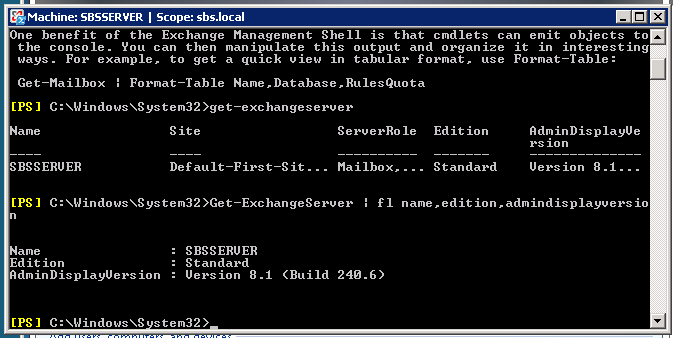
Anyway, the powershell command they suggest is pretty basic and does not give us a real friendly out put..

Get-ExchangeServer

1

I much prefer this command that i snagged from this guys blog

Get-ExchangeServer | fl name,edition,admindisplayversion

2

Much cleaner results – and you can actually see the important info!

Update 25/10/2011

Try this command instead:

get-exchangeserver | select-object Name, ExchangeVersion, Admindisplayversion, serverrole, edition | fl

You can then match the ‘Exchange Version’ using this wiki post and find out how up to date you are.


Quick Fix : Internet explorer cannot display the Webpage SBS 2011 RWA (RWW)

(I did screen shot this post but for some reason when i posted they got all jumbled, and the formatting was messed up! so enjoy the plain text, 56k dialup version)

I have my lab server situated at home, but from time to time a question crops up during the working day that requires me to login to my lab setup and look things up.

As part of my lab setup i have SBS 2011 Standard running, but curiously i have been unable to access this from my work PC using IE and RWA(RWW).

If i RDP to the host Hyper-V box, it works perfectly. If i attempt to go to the external IP of the router at home in IE, it works perfectly.

If i use Firefox to go to the RWA page, it works perfectly, i just get a blank response from IE.

The question is, what could be causing it? Skip to Solution?

First, i am trying the obvious things, Resetting IE to defaults, restoring advanced settings.

What i find interesting here, is that IE is seemingly not even attempting to connect to the page – if you hit F5 to refresh the page it is instantly coming back with the failure.

I am now going to switch to WireShark to see if i can see anything happening on that level. For those of you who don’t know – Wireshark is a protocol analyser, and allows you to see in real time the traffic going across ‘the wire’, of your LAN connections. You can download it for free from here: http://www.wireshark.org/

There are tutorials and help files, and if you haven’t used the program before it can be a bit overwhelming to see the packet captures whizzing past.. so i would recommend you run through those before you start using the program.

I know what i want to find out here, so, i can go straight to inputting a capture filter, to only show me traffic destined for my SBS 2011 server.

The filters can be quite tricky, but to only display traffic destined for one IP enter – ‘ip.addr == <ip address>’

You will then need to go into ‘Interfaces’, (click Capture, then Interfaces) to select which Interface you want to monitor (Click Start, next to the interface you want to monitor)

Once you have clicked start, you will see a blank screen, because there is no traffic flow to that destination IP. To test your filter, you may want to PING that IP address to verify the capture shows those packets.

Now, lets try to gain access to our RWA site.

I see nothing in my packet capture.. (only my ping responses)

It seems as though IE has cached some bad response, or unavailability of the service, and is refusing to attempt a connection.. Very Odd.

Just to confirm that or packet capture would actually pick up an RWA access attempt, switching back to Firefox i refresh my page..

Lots of info flows past – so we are definitely seeing a connection attempt from FF. Still – why nothing from IE?

So, i decided to reinstall IE on my computer.

Just a note for those of you running Win7 (i am running Win7 x64) IE8 ships installed on Win7, so you cannot download it!

To reinstall you must go to Control Panel, then Programs and Features. Choose to ‘Turn Windows Features On or Off’ then find IE8 in the list and uncheck it. Reboot, and then Check it to kick off the reinstall.

After a reinstall i was quietly confident this would solve the issue. Unfortunately not.#

At this point i was beginning to run out of ideas.

I decided to turn to some of my online friends for some pointers. Enter Tim Barrett.

Tim offered to connect up to my pc so we could both play around with settings to see if we could solve the issue.

We went through several things, including adding an entry to the hosts file, resetting IE (including using the clear personal settings option), we ran IE with and without Add-ons, and we ran it in both x64 and x86 (32bit) mode.

Nothing worked, and what was stumping us was the lack of activity in WireShark.

We then loaded up Windows XP Mode on my PC and confirmed that it was working correctly.

It was and i could access RWA perfectly well through XP Mode

Solution

Tim began searching online, and turned up a post from Experts Exchange that mentioned if you were using a Self Signed Certificate to make sure it was installed correctly and that eventually lead us to the solution.

I was indeed using a self signed certificate on my SBS box. But that shouldn’t stop me visiting the site, right?

Well as it turns out, it was.

I got the root CA certificate exported into .cer format and onto my machine, and installed it. As soon as i did this i was able to load RWA in IE. I removed the certificate again to test, and sure enough my access was once again failing.

So, to install the certificate..

Firstly you will need your SBS Server CA certificate.  This can be distributed in a number of different ways.

On my network i have a share where the certificate resides. This is accessible via RWA – so via Firefox i could download this to the pc. Other methods would be through email, or pen drive transfer.

Once you have the file on your computer, open an MMC.

Click Start, then type MMC in the search box.

Click on MMC, then accept the UAC prompt.

Click File, then Add/remove snapin.

Find Certificates in the list of snapins, and click Add.

In the next box select ‘Computer Account’ and click OK.

Click OK to accept the default ‘Local Computer’

Click Ok to close the ‘Add Snapin’ Dialogue.

Now, expand ‘Trusted Root Certificate Authorities’

Expand ‘Certificates’ and right click, then click All Tasks, and then Import..

Follow the import certificate wizard, find your .CER file and continue to import it. When you have finished you will see a successful import message.

Now test your RWA access and you should find you can now connect!