Quick Fix : SBS 2011 Essentials RDP Timeouts (Remote Web Access)

If you are using RWA in SBS 2011 you may find that having connected to your Computer, then working on something else for a period of time, you go to switch back to your Computer and find you have been Disconnected! This can be a source of annoyance to those multi-tasking users we look after, and we don’t really want to give them any more reasons to be annoyed right?

5

Luckily it is relatively simple to increase the period of inactivity before a timeout occurs, likewise you can decrease it if you wish to as well.

The default for a disconnect is 60 Minutes.

To edit these settings, we first have to enable the Remote Desktop Gateway Manager tool.

Even though this ‘Role’ is installed into SBS by default, the management tool itself is hidden

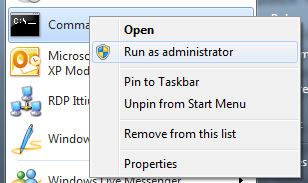
You will need to open an Elevated Command Prompt, to do that, find the CMD.exe icon, right click and click on ‘Run As Administrator’

6

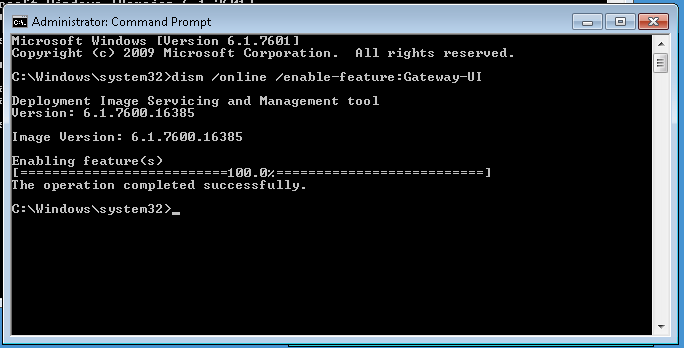
Next you need to enter:

dism /online /Enable-Feature:Gateway-UI

1

You will see the status of the Imaging Servicing and Maintenance tool, and after a few moments be returned to a CMD prompt.

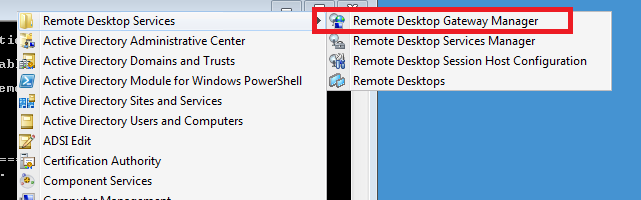
Now you can open up the Management tool from your Administrative Tools menu.

2

Expand your Servername and then expand Policies. In the details pane, right click the policy ‘DOMAIN_CAP_DEFAULT’ and go to properties.

3

You can see clearly here the ‘Disconnect Session after Idle’ setting, and change the value to suit your needs.

4

When you have changed the setting click OK. Your settings will be active immediately but may not affect sessions that are already in progress.

To change the timeouts for the entire Remote Web Access site, you can follow Tim Barrett’s blog post for SBS 2008.

http://www.nogeekleftbehind.com/2009/10/02/changing-the-companyweb-timeout-in-sbs-2008/

Changing this setting will affect the timeouts for the RWA page, for accessing files and folders stored on the Server.

The article mentions ‘Companyweb’ for SBS 2008, but can be transferred for The Default Website on SBS 2011 Essentials to affect the RWA page.

Installing SBS Essentials using an Answer File

sbsessA question came up on the SBS Essentials forum about how to install SBS Essentials with a domain name that ended in a suffix other than .local

The answer to that question was yes you can, but you need to use an Answer File.

Another question popped up about the layout of your disks, and the way SBS Essentials works with disks during installation.

As you may know SBS Essentials has a minimum requirement of a single 160gb hard disk for installation. If your system does not meet this requirement the install will fail.

The default install process will create a 60gb partition for Windows, and use the rest of your drive for a D drive (data). I think 60gb is woefully small, and i think most IT Pro’s would agree, however you do not have to stick with this, you can make use of an entire disk for C:, by using an Answer file.

There is an online resource here that explains the different values you can use with your Answer File.

Firstly, to build your answer file, you need to open Notepad, and save a text file as ‘cfg.ini’ You may need to save it with the file name in quotes, and with ‘all files’ selected.

1

Once you have this we can start to populate the file. But let’s review some of the things we can set through the answer file.

[WinPE]
Drivers
InstallDisk
WindowsPartitionId
PID
ConfigDisk
WindowsPartitionSize

Drivers

Here we can set a path to a folder that contains the drivers for the server. This is an option setting and should be self explanatory, you can only use the setting once to point the install to a driver folder, you can either use a known path to a drive letter, or a wild card.

[WinPE]
Drivers=x:\serverdrivers

[WinPE]
Drivers=_:\serverdrivers   (_:\ denotes a wildcard)

InstallDisk

Another optional setting. This setting relates to the Physical Disk ID of the drive on which you wish to install Windows. It might prove difficult to actually identify the drive ID you want to use, especially with a RAID configuration, however it should follow some logic somewhere, so if you have multiple disks, it would be OK to assume that the disk on Channel 0 – will be found by the install as Disk0 etc. For Raid Arrays the same would apply, Array0 would become Disk0.

This is based on my assumptions – for example you may not have a disk connected to channel 0, in that event the disk on the lowest numbered channel would become disk 0.

Just remember that the installation of SBS Essentials will WIPE ALL disks, so please do test this before you begin, and don’t come crying to me if it wipes something important!

[WinPE]
Drivers=x:\serverdrivers
InstallDisk=0

WindowsPartitionId

Another option setting for disk management. This can be used in conjunction with the InstallDisk parameter and specifies which partition to install Windows to, on the disk specified. There are considerations to make here depending on whether you are using an MBR based system, or a UEFI based system. I think mainly this parameter is used when you have a preconfigured disk – i have not used this setting in my testing so i don’t have any experience with it. I cant really see a situation where i would use it myself as i imagine i would be formatting an entire disk in most cases. You can get more information from the Online Help (which is where i am getting my information) This setting is also related to the ConfigDisk parameter.

[WinPE]
Drivers=x:\serverdrivers
InstallDisk=0
WindowsPartitionId=2

PID

This parameter is where you would enter your servers License Key if you have one, and if you want to. I have personally stopped entering License keys during setup, i prefer to wait until my server is up and running and configured, then take a backup prior to Activation. With a ‘trial’ period available it seems to make sense to save your activation until you are happy that the server is going into production and will not be re-installed.

(Note this PID is invalid and your install will fail if you try to use it)

[WinPE]
Drivers=x:\serverdrivers
InstallDisk=0
WindowsPartitionId=2
PID=1234-5678-9101-1121-3141

ConfigDisk

Optional parameter. This can be either a 0 or a 1. The online help explains this quite clearly. If it is missing, then all disks and partitions are deleted, and new partitions are created.

If it is set to 1, then all disks and partitions are deleted, and new partitions are created.

If we set to 0, then nothing is done to the disks, and the WindowsPartitionId parameter is used to determine where Windows will be installed on the available disks.

If you set this to 0 and omit the WindowsPartitionId parameter, then setup will ignore your answer file.

[WinPE]
Drivers=x:\serverdrivers
InstallDisk=0
WindowsPartitionId=2
PID=1234-5678-9101-1121-3141
ConfigDisk=0

WindowsPartitionSize

The last parameter used in the WinPE section. As the name suggests, here we set the value for the size of the Windows Partition. The value here is in MB. NOT GB. The valid range here is 20480 – 102400. You can also specify a value of MAX which will format the entire disk as the Windows Partition. If you don’t specify this parameter, then the default value of 61440 is used.

So with the above configured, we would have SBS Essentials installed to disk 0, Partition 2. With a 100GB partition for Windows. The WindowsPartitionID parameter is ignored as the ConfigDisk parameter is set to 0 – there fore the disk would have to be preconfigured.

[WinPE]
Drivers=x:\serverdrivers
InstallDisk=0
WindowsPartitionId=2
PID=1234-5678-9101-1121-3141
ConfigDisk=0
WindowsPartitionSize=102400

In order to get the answer file to format a drive, and configure a partition size of our choosing we must change the parameters.

[WinPE]
Drivers=x:\serverdrivers
InstallDisk=0
WindowsPartitionId=2
PID=1234-5678-9101-1121-3141
ConfigDisk=1
WindowsPartitionSize=102400

With this configuration the Answer File will install SBS Essentials to disk 0, but it will ignore the WindowsPartitionId parameter. ConfigDisk has been set to a value of 1, meaning it will format Disk 0 and create a partition of 100gb.

Example of an SBS Essentials Answer File

The last parameter you may see, is Processed. This parameter is added to the answer file after the disk configuration has been completed. This stops the server being stuck in an endless install loop of formatting the disks, and i guess it also allows the Installer to skip ahead to the next part of setup.

The only value that the installer will enter is True. Any other value will most likely be ignored, and function as though it does not say True. Since that results in the same behaviour, i.e. False.

If a value of True is detected and you boot into Setup, then the Answer file is ignored and you are presented with the options you would get if you were not using an Answer File.

3

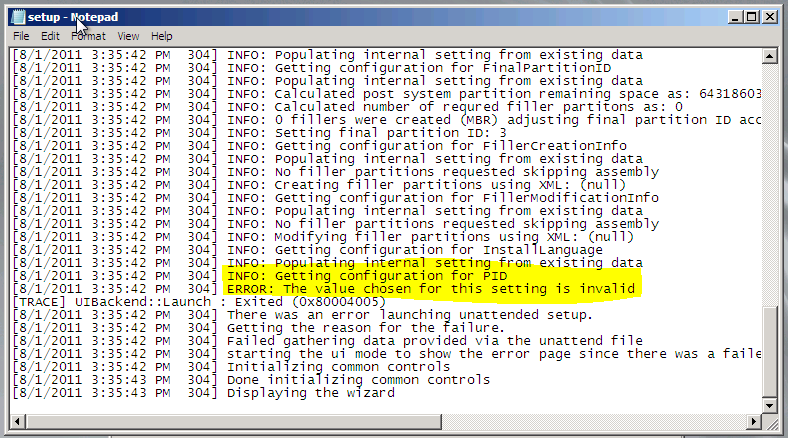
If you have anything wrong in your answer file you will receive an error, and a log is create that will show you what has gone wrong.

4

You can click on the hyperlink ‘Installation Error Logs’ to view the setup log file and try to identify what is wrong with your answer file.

5

As you can see from the above, it has detected an invalid PID and the installation has failed.

In the second part of the answer file, we look at the Initial Configuration of the server. This includes the Locale to install to and the regional settings, the name of the company, server, and the domain name you want to use, and you also set the name of an administrator account, the password and that of a standard user account.

Again the information is available at the online help page.

[InitialConfiguration]
AcceptEula
AcceptOEMEula
CompanyName
Country
ServerName
DNSName
NetbiosName
Language
Locale
Keyboard
Settings
UserName
PlanTextPassword
StdUserName
StdUserPlainTextPassword

AcceptEula

Easy – do you, or do you not accept the end user license agreement. Let’s see how far you get if you set this to false!

Valid settings here are true or false.

[InitialConfiguration]
AcceptEula=True

AcceptOEMEula

This is another optional parameter, and one only used by OEM’s, same deal as above, True or False, with True being the only setting that will allow the install to continue. This is a separate License Agreement specific to your OEM hardware provider.

[InitialConfiguration]
AcceptEula=True
AcceptOEMEula=True

CompanyName

An easy one this – What is your company name? Up to 254 Characters.

[InitialConfiguration]
AcceptEula=True
AcceptOEMEula=True

CompanyName=CompuGlobalHyperMegaNet

Country

Your country abbreviated into a string. The only example given is for the USA, which surprisingly enough is US.

There doesn’t appear to be any additional help available for Country Codes.

[InitialConfiguration]
AcceptEula=True
AcceptOEMEula=True
CompanyName=CompuGlobalHyperMegaNet
Country=GB

ServerName

What do you want your server name to be? From the Online Help

The server name uniquely identifies the server on the network. Your server name must meet the following criteria:

  • Can be up to 15 characters long
  • Can contain letters, numbers and hyphens (-)
  • Must not start with a hyphen
  • Must not contain any spaces
  • Must not contain only numbers Example: ContosoServer

[InitialConfiguration]
AcceptEula=True
AcceptOEMEula=True
CompanyName=CompuGlobalHyperMegaNet
Country=GB
ServerName=CompuServer

DNSName

Your internal DNS domain name. When installing using the GUI, SBS Essentials will use a .local extension. The gui will base the prefix on your company name to start with, so if your company is SBS, then your domain name, prefix, would be SBS. This prefix can be changed in the GUI, however you cannot change the suffix (.local) If you want to install using a domain name other then you need to use the answer file, and this is the parameter to change. The same limitations are placed on domain names as in a standard Active Directory domain (AD) (More Here) and you should also consider the NetBIOS name limits as well (More Here). Another consideration is, how often will i have to type this? So keep it short if you can. I usually recommend using SBS, but in my example below i am using a different company name for a change.

[InitialConfiguration]
AcceptEula=True
AcceptOEMEula=True
CompanyName=CompuGlobalHyperMegaNet
Country=GB
ServerName=CompuServer
DNSName=COMPUGL.com

NetbiosName

We are still using NetBIOS names, despite it’s demise being heralded at each new dawn… ok that’s a little dramatic and it, seemingly, does still have a place in modern networks. Keep this under 15 characters are your good.

Match it with your domain prefix to keep things simple.

[InitialConfiguration]
AcceptEula=True
AcceptOEMEula=True
CompanyName=CompuGlobalHyperMegaNet
Country=GB
ServerName=CompuServer
DNSName=COMPUGL.com
NetbiosName=COMPUGL

Language

A straight forward setting, you would think. What language do you want to install in? Well, let me tell you, unless you set this to EN-US you wont get very far. I am in the process of investigating this with Microsoft, but don’t worry, it does seem to ignore this setting in favour of one of the other Regional settings. But i don’t know which one. I tried setting this to match many different language codes, found here, but each time i hit this error:

IMG_0956

If setup detects any errors in the [InitialConfiguration] part of your Answer File you will see the above. It is actually really useful, it doesn’t just error out, it actually gives you the chance to fix your Answer File and then retry. You can see above, one of my many attempts to get it to recognise the UK variant of English, that being, English.

[InitialConfiguration]
AcceptEula=True
AcceptOEMEula=True
CompanyName=CompuGlobalHyperMegaNet
Country=GB
ServerName=CompuServer
DNSName=COMPUGL.com
NetbiosName=COMPUGL
Language=en-US

Locale

Again, another regional setting. Default, and only published option is en-US, However i set mine to en-GB and it passed.

[InitialConfiguration]
AcceptEula=True
AcceptOEMEula=True
CompanyName=CompuGlobalHyperMegaNet
Country=GB
ServerName=CompuServer
DNSName=COMPUGL.com
NetbiosName=COMPUGL
Language=en-US
Locale=en-GB

If you do decide to use an Answer File to install, please check your time zone is correct when installation is complete.

Keyboard

Self explanatory, keyboard layout. We do have some published parameters here, and setting mine to English_United_Kingdom which is, 00000809 works.

[InitialConfiguration]
AcceptEula=True
AcceptOEMEula=True
CompanyName=CompuGlobalHyperMegaNet
Country=GB
ServerName=CompuServer
DNSName=COMPUGL.com
NetbiosName=COMPUGL
Language=en-US
Locale=en-GB
Keyboard=00000809

As i have explained i did have some issues with the Regional Settings of the Answer File, however i found that once i had installed with the above Regional Settings i got the result i wanted. I would assume then, that one of these settings takes precedence, over the Language setting.

CaptureCapture2

Settings

From the Online Help.. This parameter relates to your Automatic Updates setting.

  • All equals “Use recommended settings”
  • Updates equals “Install important updates only”
  • None equals “Do not check for updates”

[InitialConfiguration]
AcceptEula=True
AcceptOEMEula=True
CompanyName=CompuGlobalHyperMegaNet
Country=GB
ServerName=CompuServer
DNSName=COMPUGL.com
NetbiosName=COMPUGL
Language=en-US
Locale=en-GB
Keyboard=00000809
Settings=ALL

The last 4 parameters are straight forward. With the GUI Installation of SBS Essentials, you are prompted to create both an Administrator account, and also a Standard user account. The Password you enter here, is, clearly, in plain text. So please do make sure your answer file is kept secure, or that you use a default password for installation, and then change it when the installation is completed.

UserName

PlanTextPassword

StdUserName

StdUserPlainTextPassword

[InitialConfiguration]
AcceptEula=True
AcceptOEMEula=True
CompanyName=CompuGlobalHyperMegaNet
Country=GB
ServerName=CompuServer
DNSName=COMPUGL.com
NetbiosName=COMPUGL
Language=en-US
Locale=en-GB
Keyboard=00000809
Settings=ALL
UserName=HSimpson
PlainTextPassword=P@55word
StdUserName=SHomer
StdUserPlainTextPassword=MyP@ssw0rd

26

Information on using an Answer File was published to this page http://onlinehelp.microsoft.com/en-us/sbs2011essentials/answer-file-install-1.aspx and that has been the basis of where i got the information for this post. I found that the documentation did leave me with some questions which is why i wrote this post. Hopefully used in conjunction they will serve as a good reference for anyone wanting to use an Answer File to install SBS 2011 Essentials.

EDIT : 20/09/2011 Those clever chaps over at UsingWindowsHomeServer.com Managed to find a workaround to the issue of using an install disk smaller than 160gb, Despite my being told it was not possible in the RTM Build of SBS Essentials by Microsoft.. (I am not bitter or anything)  If you are in need of using a smaller install disk check out this link.

How to Install SBS 2011 CALS

sbsstdsbsess

You Don’t!

Since SBS 2008 CALS are now based on Microsoft’s honour system, and they are no longer ‘installed’ and ‘activated’ when you buy them.

You just purchase the number of CALS you need, and keep them safe.

Small Business Server 2011 Standard, still ships with 5 CALs.

Even better, with SBS 2011 Essentials, there are no CALS to purchase. SBS Essentials, is a one off purchase. If you buy it today and have 4 users, you pay the same price as someone who has 10 users, or someone who has 25 users.

So, for Essentials think ‘all 25 CALS included’

(although on a technical licensing point of law, political correctness’ and outright Microsoft craziness – there is no such thing as a SBS Essentials CAL)

The Essentials OS is licensed for up to 25 users, but those ‘licenses’ are included in the fee you pay to purchase the software.

I know, i can see some of you at the back sneaking up your hands to ask..

“…i only have X amount of users, can i get a discount…”

No. Don’t be so cheap Smile with tongue out

Because of the unique way Essentials is ‘licensed’ those invisible CALs only allow you to access the Essentials box itself, so unlike it’s big brother, SBS Standard, if you purchase a standalone member server (not a PAO Server) you must also buy full Windows Server CALs. SBS Standard has a more traditional CAL model, so SBS Standard CALs grant access to ANY member server, regardless of whether it is a PAO or not.

SBS 2011 CAL


An SBS 2011 CAL

SBS 2011 Premium Add-on (PAO)

sbspao

With the Premium Add-on (PAO, or Kung PAO as Susan Bradley calls it) Licensing is the same, whether you are adding the PAO to Essentials or Standard (The PAO is available to both SBS Standard & Essentials)

When you purchase the PAO, it includes 5 PAO CALS which allows those 5 Clients to access the SQL Services of the PAO Server. (The SQL services are sometimes called the Premium Services)

If you don’t install the SQL component, then you don’t need to purchase any additional PAO CALS.

The CALS for SBS 2011 Standard or Essentials, allow you to access the Windows Server technologies of the PAO server, as long as you are not accessing the ‘Premium’ services, so you could install it as File and Print, Domain Controller, RDS Server etc., and you would not need any additional PAO CALS, or Standard CALS."

Just to add another level of complexity, if you did install the PAO server as an RDS Server, you would need to purchase RDS CALS.

Clear?

Well i hope you were taking notes because we now have a short test!

Licensing Examples

Scenario 1.

I have Windows SBS 2011 Essentials, 10 Users all requiring access to SQL Services.

What components/licensing do i need?

Scenario 2.

I have Windows SBS 2011 Essentials, 10 Users, 1 NON PAO Member Server.

What components/licensing do i need?

Scenario 3.

Windows SBS 2011 Standard, 10 Users (Total), 5 Users Require access to SQL

What components/licensing do i need?

Scenario 4.

I have Windows SBS 2011 Standard, 10 Users, 1 NON PAO Member Server,

What components/licensing do i need?

Answers

Scenario 1.

In this scenario you would have 1x Windows SBS 2011 Essentials Server, 1x PAO Server, and need to purchase 5 PAO CALs.

Scenario 2.

In this scenario you would have 1x Windows SBS 2011 Essentials Server, 1 Windows Server OS License (required for member server) and 10 Windows Server CALs

Scenario 3.

In this scenario you would have 1x Windows SBS 2011 Standard, 1x PAO Server and you would not need any additional PAO CALs

Scenario 4.

In this scenario you would have 1x Windows SBS 2011 Standard, 1x Windows Server OS License (required for member server) You would need to purchase an additional 5 SBS CALs

Thanks to Michael Leworthy of Microsoft for clarification on licensing points.

Setting up Remote Web Access on SBS 2011 Essentials Part 2

In the last part of this post, i went through how, and how not to setup RWA on SBS 2011.

I had problems with the GoDaddy process, so wanted to give eNom a try.

So i had just removed the domain from the RWA site, and i am starting afresh.

This time i am going to purchase the domain name through the wizard.

1

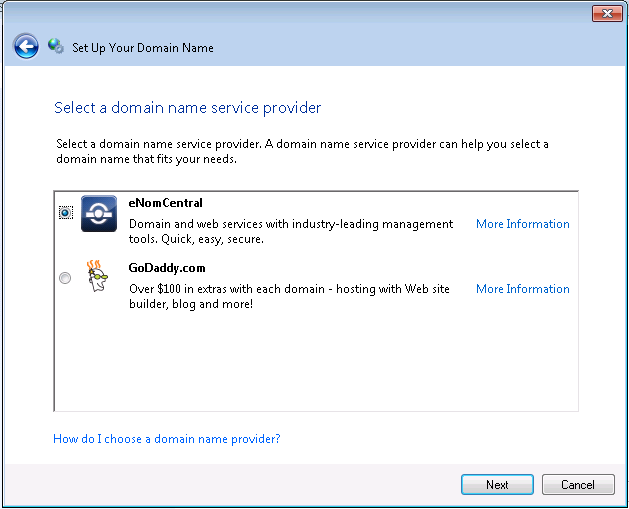
I want to use one of the supported providers..

2

I want to use eNom

3

This is the domain name i want to try…

4

Aha, it is available – great i want to register it, so i click on Register Now.

5

I am taken to eNom’s website..

6

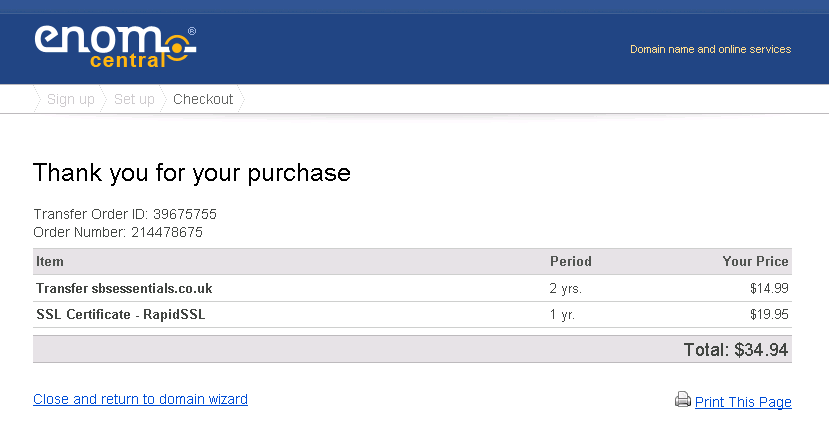
I wont bore you with setting up an account, but i also chose their very kind offer of an SSL certificate as well!

7

(i can see here it is actually saying ‘transfer’ i believe this is related to something a little further along. At this point i did everything i was prompted to do, and did not change anything)

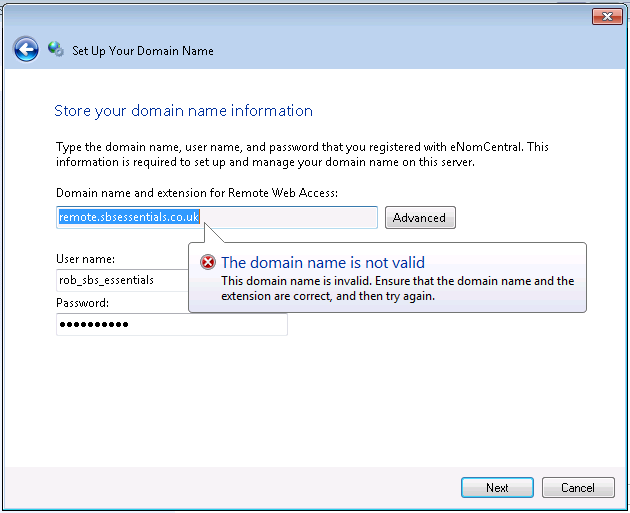
Purchase complete, and i am now back to the wizard. You need to enter the credentials you created when signing up with eNom and click next.

8

9

What’s that now? Invalid, surely not, i just purchased this domain with your wizard?

So it would seem, that at this point, something went wrong with eNom, as i review my emailed receipt and i was only charged for the SSL, not the domain. Weird!

OK i thought, no big deal.

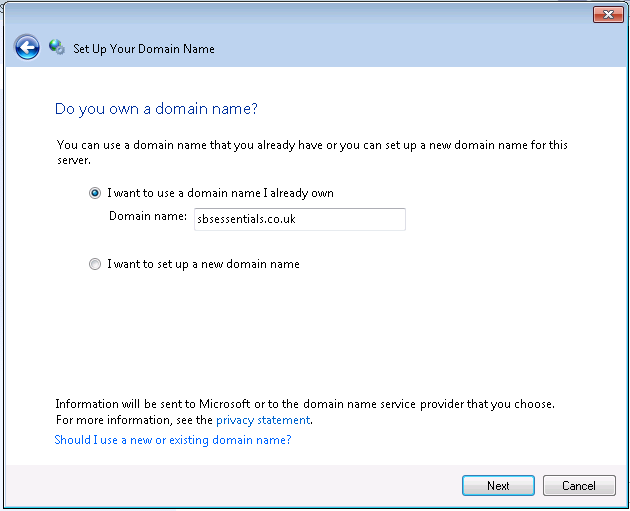
I went to the site directly and registered the domain name manually. Restarted the wizard, of course this time i already owned the domain.

10

I am lazy, so i want to setup my domain automatically..

11

Hmm, i was expecting this to pickup the fact my domain was at eNom.. it didn’t. So i choose eNom and click Next.

12

Eh, what now?

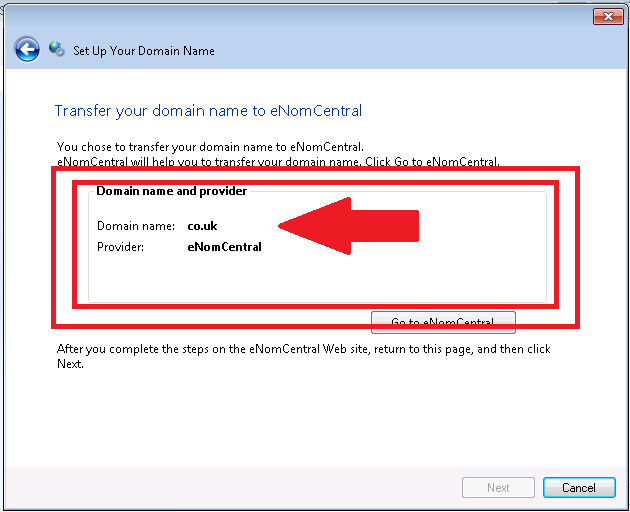
Transfer? What Transfer? i just bought the domain.

I thought for a few moments, and figured, well it is a new domain, maybe it is not setup – so yeah ok, lets continue..

13

Now the interesting point, it shows my domain as co.uk – which obviously is not right.

14

This appears to be a problem with the wizard itself, not handling second level domains correctly.

This is an annoyance of course, however we can work around this.

So let’s review at this point.

We have purchased an SSL Certificate and a domain name.

I am restarting the wizard..

15

If you choose to manually setup the domain you will need to be able to edit the DNS records for your domain and point them to your router.

You will need at the very least to add an A record for ‘remote.yourdomain.com’ for the public IP of your router, and make sure that email is either being forwarded to another provider, or set MX records to go to your preferred email provider.

You may also need an A record for WWW to point your public website.

That is beyond the scope of todays debacle however..

17

You will need to confirm that you have setup your domain name manually, and then you can click next.

18

Now for the SSL, as we already purchased our SSL Cert, the options here are not straight forward.

We have purchased our certificate, but it is not ‘existing’.

Existing is for certificates already in place on the server. You need to select, i want to purchase..

20

Before you click next, you need to click Advanced. If you don’t then the Certificate Signing Request (CSR) will be for the domain shown – not the full name we want to use.

Click Advanced, then fill out the domain name as shown – we need to have our prefix as shown, and you can see below how the domain name for RWA will actually look..

21

Click on OK, and you are back to the previous page.. this time with the correct name for your CSR.

22

When you click Next you will be presented with your CSR. You can copy this or save it to a file for later use.

23

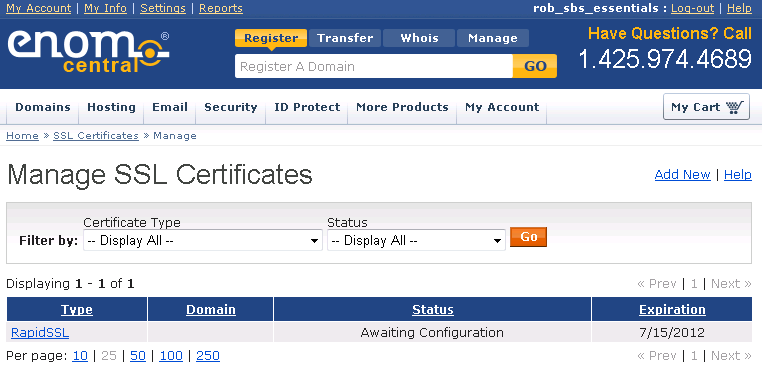
So i copy this info to my clipboard and go to the eNom site, login and head for SSL Certificates..

24

Click on the RapidSSL option..

25

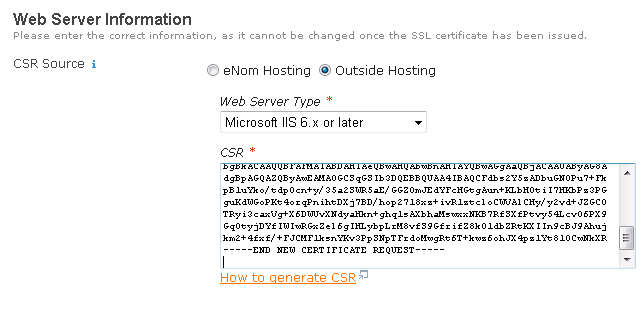
You need to choose Outside Hosting, and i also chose the type of server i have..

26

27

Delete the text in the CSR field, and paste in your CSR.

28

Scroll down and click Submite Certificate.

29

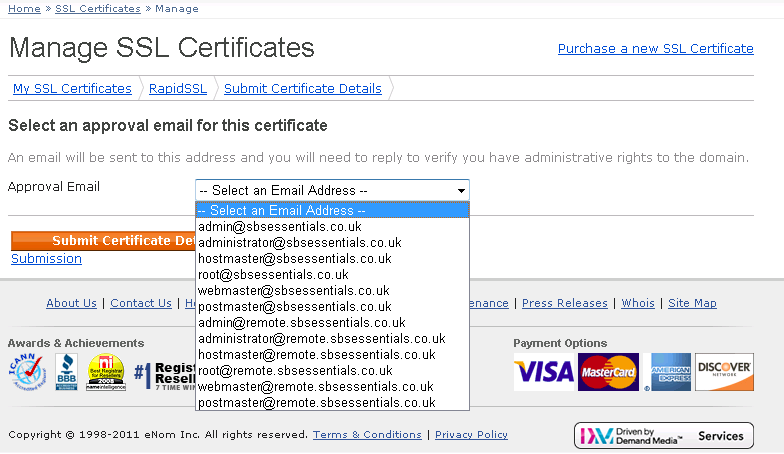
At this point you may say something rude – if you dont have email already setup for your domain, as i didnt. Of course i was forgetting that the SSL authorisation procedure will require authorisation from the domain owner, which is usually done by email. I quickly had to go and setup email forwarding for this test domain to my actual email address..

30

I chose a suitable email address and submitted the details..

31

32

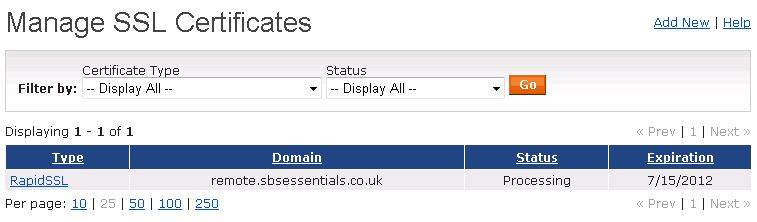
You are then returned to your Manage SSL home page, and the status is now Processing.

33

Switch over to your email client and keep an eye out for a SSL Certificate request type email..

IMG_0864

Scroll down and follow the link to approve..

You will be taken to a GeoTrust website and have to click on the Approve button.

IMG_0865

Your certificate will then be emailed to you as plain text, and it will look almost identical to your CSR.

IMG_0866

My advice here is to copy and paste this into a new text file and save it as SBS.cer

Now back to our Wizard.. we can now choose that we have our SSL information and click Next.

34

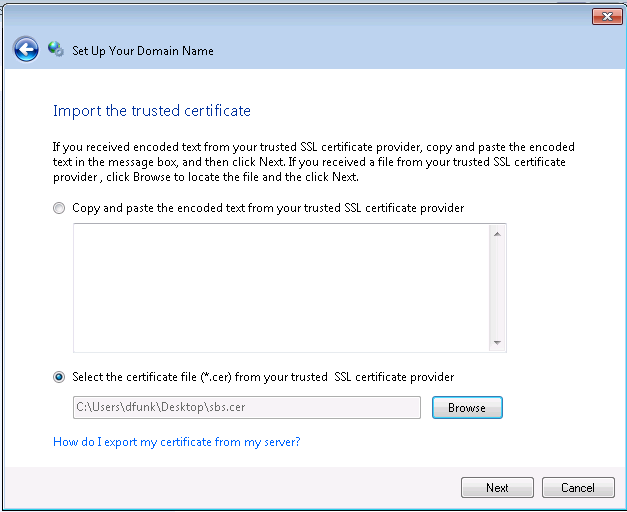
As i saved my certificate to a file, i can now browse to it, alternatively you can just paste that info into this box..

35

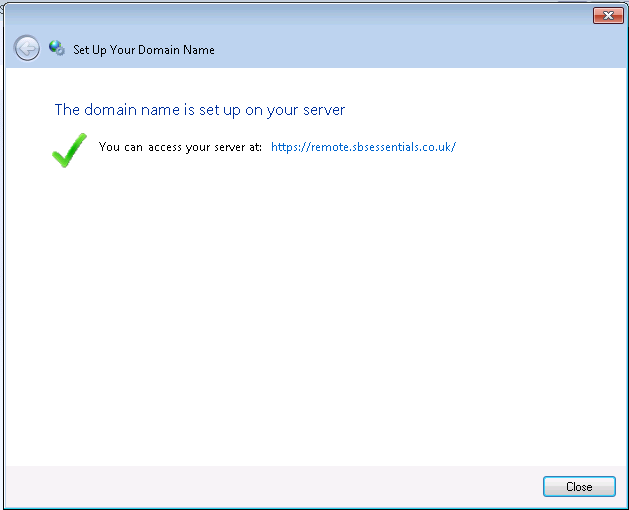
Click next, and we are all done!

36

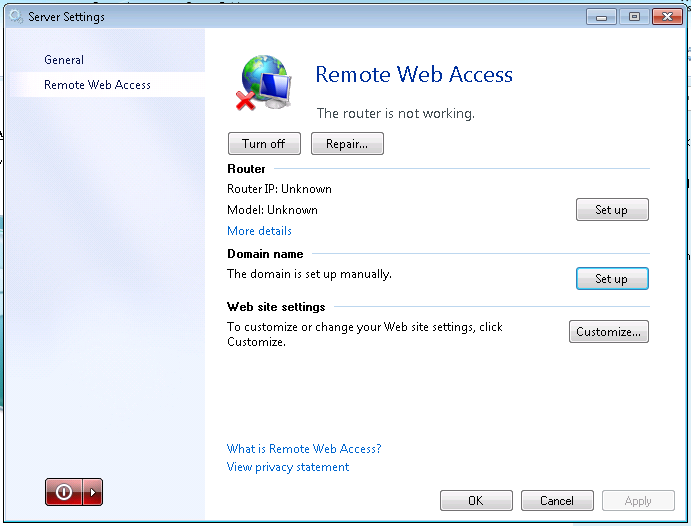
Click Close to go back to the Server Settings\RWA page.

37

So what has all of this taught me?

I am afraid i can only so far draw a negative conclusion on this process.

I think Microsoft have to be applauded for the idea, and the theory is sound, however in practice i think this is a huge undertaking, and as always the more you try to cater for, the more variables you have to account for – the more places something can fall down.

I do not think a DIY’er (or off the shelf purchase of essentials) would have got through this without resorting to calling in an expert, giving up, or died of old age waiting for a non existent certificate to show up.. Smile with tongue out

Having said that, i am also confident that this can be resolved with feedback given to the right people.

So to end on a positive, soothing that people do not seem to be aware of yet – is that Microsoft are giving away a free domain name, AND, a free SSL certificate with SBS Essentials.

Yes, you heard me right!

So, how do i get one?

Just like this…

40

Choose a new domain name…

41

You want the free one!

42

You will need a Windows LIVE ID!!

43

44

Read and accept the license agreement…

45

Choose your prefix. All of the free domains will be domain.remotewebaccess.com

46

Click to check availability.. if it is available, click Set Up!

47

48

DONE!

49

Is it ironic that i am using firefox in this shot?

50

That is a number of ways the RWA wizard can work out for you!

As i said above, you have to applaud the idea, the execution at this time has been poor.

But on a plus, the freebie domain and SSL work perfectly, and who can argue with that price?

Setting up Remote Web Access on SBS 2011 Essentials Part 1

EDIT- A lot of the issues in the wizard are resolved by installing Update Rollup 1 for SBS Essentials

I have seen a number of questions on the SBS Essentials forum relating to setting up domains and SSL certificates on SBS 2011 Essentials.

I hadn’t run through this procedure fully as i did not have any domains hosted on one of the supported registrars, so i decided to bite the bullet and buy one.

SBS2011-Essentials.com is now mine, and i registered it with GoDaddy – directly on there website, not using the SBS Essentials ‘Setup Domain Wizard’ i chose to do that because i am thinking most people will already have a domain name they want to use.

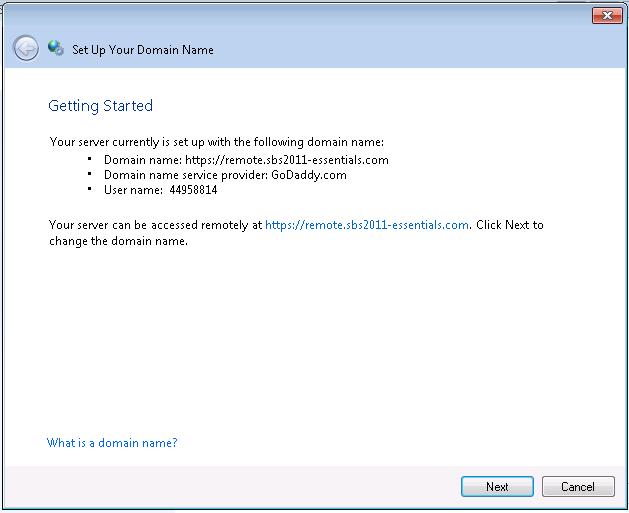
1

Now my domain is all up and running i can use the Setup Domain Wizard on the SBS Essentials server to configure my server to use this domain for remote access.

I have two choices here, i can either run this from my workstation, or i can logon to the server console directly to do it.

I am going to run mine from the server console, just because i think most people will be doing that.

Firstly before you start, disable IESC (please make sure to enable it again when you are finished)

SBS MVP Wayne Small wrote a neat blog post on how to do that and you can find that here

Secondly, if you are using GoDaddy.com, make sure to add *.godaddy.com to your trusted sites in Internet Explorer (i didnt do this to start with and had a lot of trouble with the website) I also changed my Trusted Sites security level to Medium-Low for this task.

2221

To start the wizard, go to Dashboard and click Server Settings, then go to Remote Web Access, then click Set Up

2

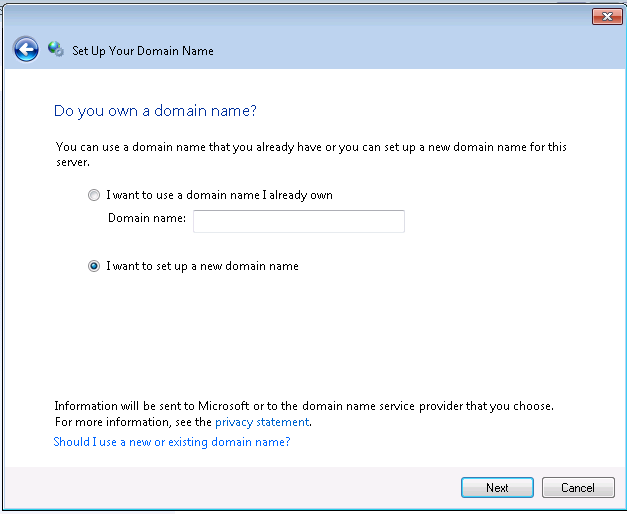
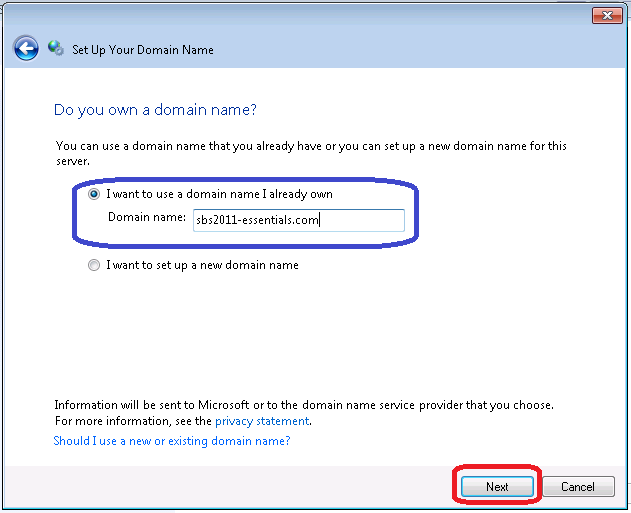
You will be asked if you already have a domain name, or if you want to setup a new one. I have one i want to use so that is what i choose.

4

The wizard will lookup your domain name to see if it’s hosted with one of the two current supported registrars – GoDaddy or Enom. If it is detected you will be prompted to go to their site to purchase an SSL certificate, if not you’re asked if you want to transfer it, or setup manually.

5

NB, this wizard can skew off into about a million different possible directions, its like trying to map the universe using a pen and paper trying to blog this thing Smile with tongue out

So anyway,  let’s assume it was detected at GoDaddy and you go to their site. If you havent followed my advice above you will have to do so now, adding the site to trusted sites etc to get the GoDaddy website to function correctly.

7

You will also have to close the windows and open it up again ‘As Administrator’ I don’t know why this could not have been coded up to do that for you, but there you go.

So copy the URL from the IE address bar, and then launch IE as administrator.

Click on Start, then right click IE and click Run as Adminisatrator

When the IE window opens, paste the address into the address bar.

You will now be prompted for your credentials.

8

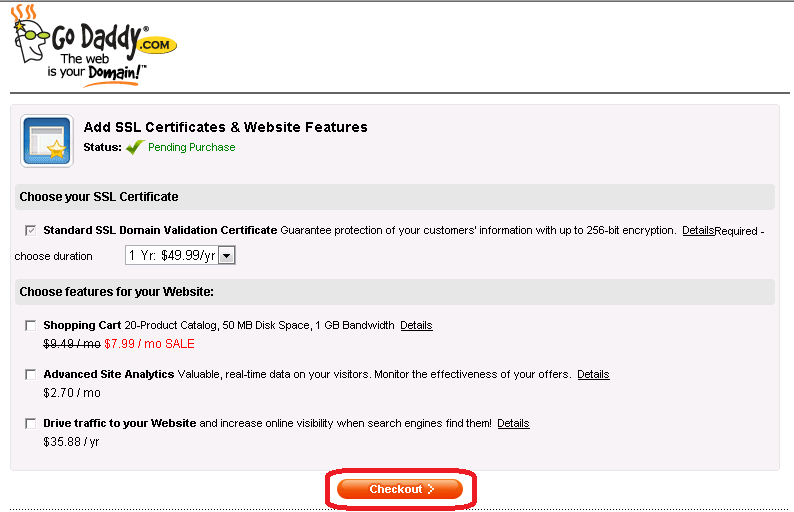
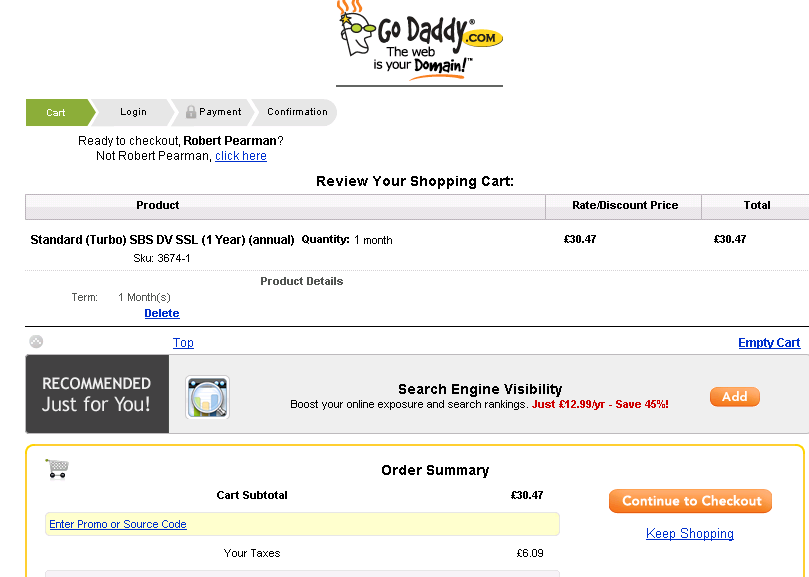
When you login you are presented with a few options. Choose whichever services you want, and go to the checkout.

9

Again, fun and games with the website here for me, it wouldn’t let me ‘checkout’ unless i selected an additional service, or chose to have the SSL for more than one year. You can choose whatever you like here to get to the checkout/basket then simply remove the items you don’t want.

13


Continue on to the checkout and pay for your items.

14

Now you can close out, and go back to your wizard.

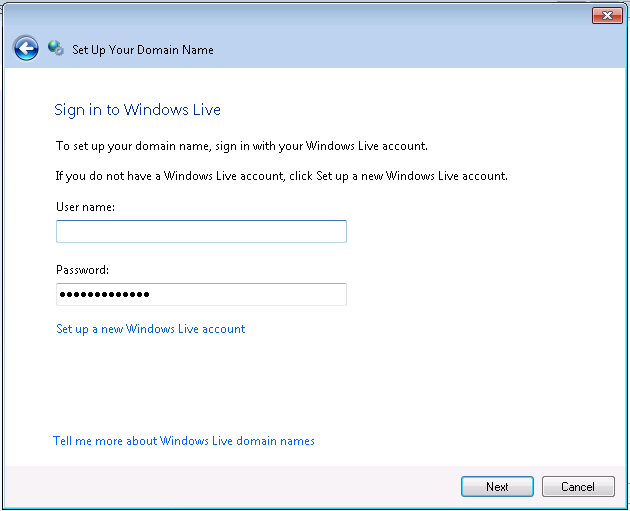
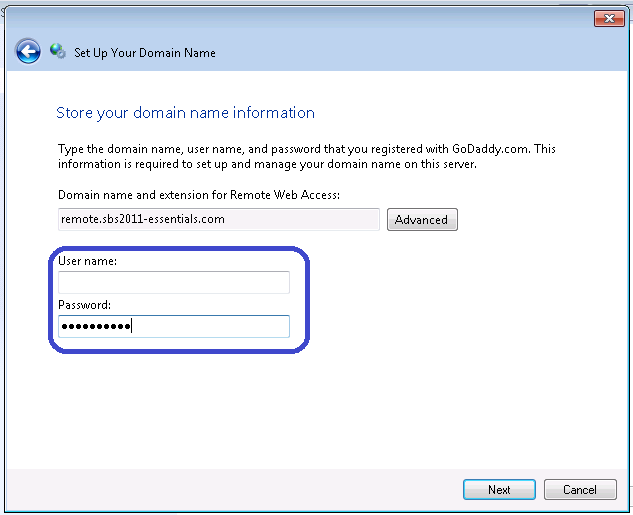
You will be prompted for the credentials of your GoDaddy account.

17

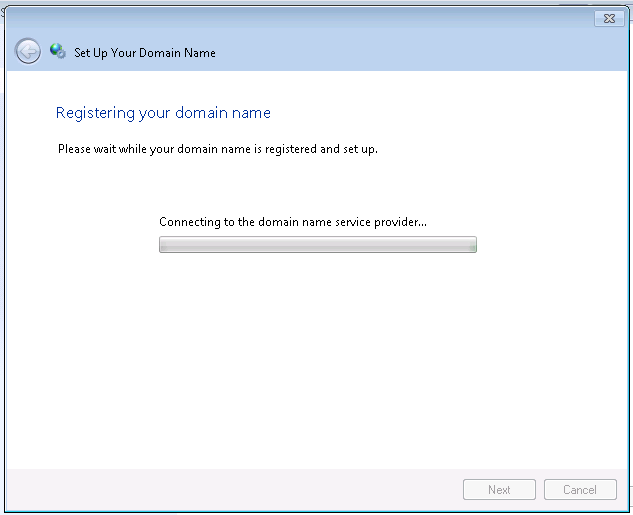
Click on Next to continue..

18

19

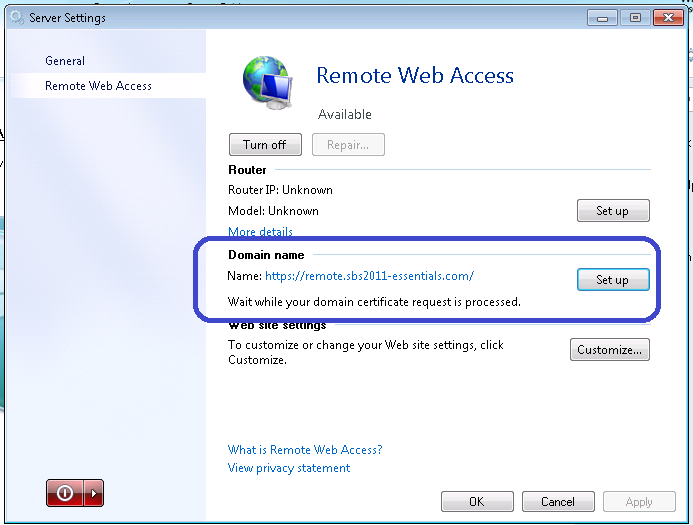
I was expecting this to be the end of the process, unfortunately not.

At this point – i broke things.

Being the impatient person i am, i wanted to hurry things along, so i logged into the GoDaddy site and managed to ‘use’ my SSL credit. This is normal procedure for SSL purchases with GoDaddy, however you must not do this with SBS Essentials. I am informed by Sean Daniel of Microsoft who helped me with this process, and also his contacts at GoDaddy that basically i broke things, which is why my SSL purchase failed.

(ok the purchase didnt fail, the CSR and Signing Process failed,

Having said that, SBS Essentials did not tell me any of that Smile with tongue out it sat there quite happily waiting for a certificate to be issued by GoDaddy, which was never ever going to happen.

I gave it aproximatley 48 hours as well.

If you are interested you can find the logs for the wizards and other aspects of SBS Essentials here:

c:\ProgramData\Microsoft\Windows Server\Logs\ and the log file for this process is…  SharedServiceHost-DomainManagerServiceConfig.log )

20

I am told however, that if i had not done this, it would have worked.

If you do find yourself in that situation the only resolution is to get support to refund your SSL purchase or, go through the SSL Install manually. I chose a refund and this i have to say was very easy and their support staff were both charming and efficient.

So anyway, being the kind of guy i am , i thought OK, well lets have another go.

This also proved to be a bad idea. It seems that either my server, or my domain name are now stuck in some sort of crazy loop, where i am unable to purchase an SSL using the Wizard.

Not to worry, i am an uber rich MVP who has money to burn, and time to test the latest and greatest Microsoft has to offer, ill buy another domain name and another SSL.

This time i turned to eNom.

it is relatively easy to remove any domain name from SBS Essentials, you just click Setup, from Server Settings/Remote Access, and follow the wizard to remove the domain name.

30

31

32

33

I will continue this story in Part 2

Microsoft MVP 2011 : Small Business Server

I am more than proud to say i have been re-awarded as a Microsoft MVP for Small Business Server.

(i had a whole speech worked out for not getting renewed so this totally messes that up, maybe next year you will get to read it ;o) )

Special thanks to all the great people i have met over the last year especially, Tim Barrett, Susan Bradley, Dave Shackleford, Mr Eriq ‘Q’ Neale, Magical Marina Roos,  Wayne Small and Dean Calvert, could name more but sure you are already bored.

mvp_wallpaper_800x600

SBS 2011 Essentials vs. WHS 2011- What’s the Difference?

A question came up on my twitter feed search about the differences between SBS Essentials and Windows Home Server. I tweeted back a simple reply, but got to thinking that perhaps those differences are not being explained or that the info is just not out there or easy to find. So i drew up this quick overview table showing the key differences between the two systems, and go into a bit more detail below.

SBSessntapture_thumb[9]

Domain Controller

SBS Essentials, like all versions of SBS, HAS to be a domain controller. It HAS to hold all of the FSMO roles, and there can be only one SBS box per domain. The SBS domain cannot form trusts with other domains or forests.

WHS cannot be a domain controller.

Domain Join

SBS Essentials cannot join another domain as a member server, it can join an existing domain IF the FSMO roles are transferred and any other SBS Server is demoted down and removed.

WHS cannot join a domain as a member server,

Remote Web Access (RWW/RWA)

Both SBS Essentials and WHS have a remote web access portal page, Differences here are that WHS now includes the ability to access and stream your media through the RWA, Essentials does not have the ability to stream media.

Server Backup

This could be misleading to some, SBS Essentials will backup itself (a server) it will not backup member servers, save for a server running Windows Multipoint 2011.

WHS Cannot backup servers.

Client Backup

The feature first introduced with WHSv1, that many of us in the SBSC jumped on for business use – was client backup. This feature is now available to SBS Essentials to include up to the maximum of the 25 clients you are allowed on the network (storage permitting) WHSv2 is limited to 10 clients.

Health Reporting

SBS Essentials Health Reporting is much like that you will find in SBS Standard with reports and email alerts also in some cases recommended actions on how to fix problems. WHS Health reporting is limited to alerts only.

Home Group

SBS Essentials cannot be a member of a home group. WHS of course can be a member of a Home Group

Addins (Third Party Apps)

SBS Essentials and WHS can take advantage of custom addins, built by you, or by ISV’s. Notable addins include the cloudberry app, OWN’s integration for their email products, LightsOut and MyMovies for WHS. You will find that a lot if not all of the addins work across the platforms. More addins here.

Office 365 Integration

The big one! As you may be aware SBS Essentials is designed with a cloud email solution in mind, in fact most Small Business do already use Cloud Email in the form of POP3 or IMAP or plain old Webmail. The Office365 integration addin will be launched sometime this year and will allow you to sync your users to and from OF365, syncing passwords between systems Details on this are still being confirmed so this is subject to change.

No plans currently to have console integration with WHS – but this also may change.

Media Sharing

SBS Essentials will not have the ability to share media – this is related to the RWA access as above. I don’t believe there is any block on simply putting media files on a normal server share on the SBS.

WHS of course will host your media and stream it to you through the RWA.

Media Center

SBS Essentials does not have the ability to be integrated with a media center, and of course WHS Does have Media Center

So there you have it. As i said these details are subject to change, but these are the core differences, if you think SBS Essentials – Business use / WHS – Home use, you wont go far wrong.

You can find more information on SBS Essentials and WHS 2011 here:

SBS Essentials WHS 2011

get the bits…

SBS Essentials here and WHS 2011 here and here