Small Business Server Demo–Handout Slides..

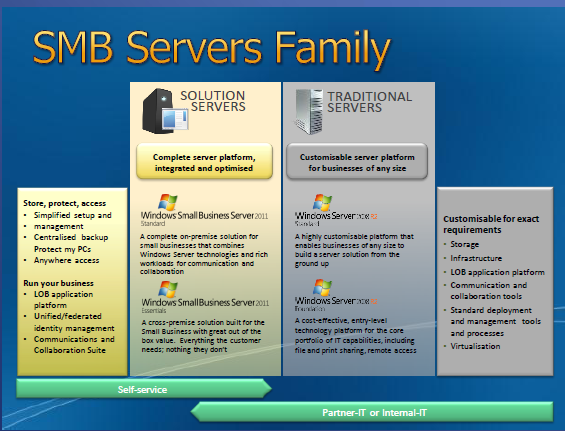
The East Anglia SBSC group was visited by Steve Wheeler of Microsoft last night to provide a non technical overview of SBS 2011 Standard, SBS 2011 Essentials, and a brief look at Storage Server 2008 R2 Essentials (Code Name Breckenridge) and also Multipoint Server.

You can get yourself a copy of the slide deck here…

sbs-slide

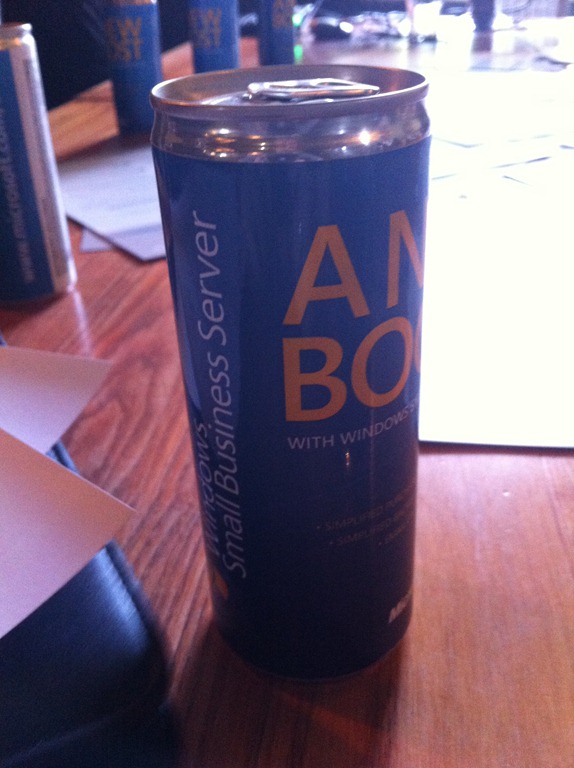
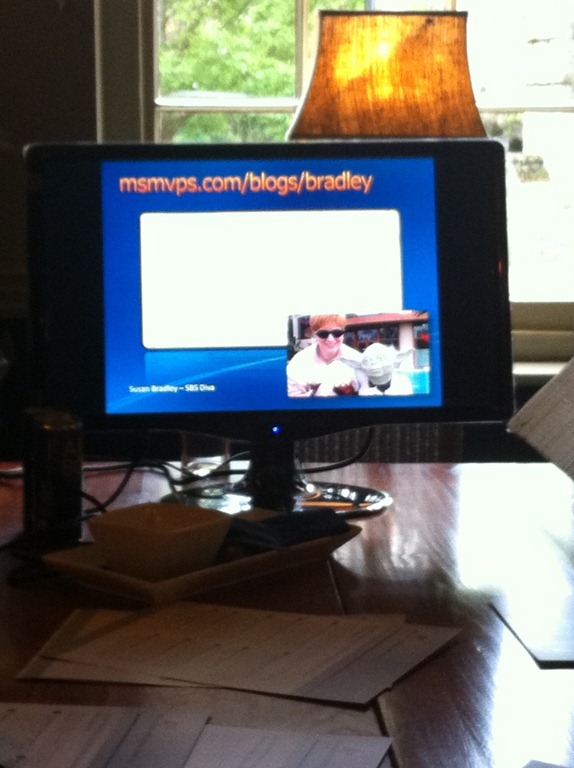
We were also treated to a ‘Small Business Server’ branded energy drink.. and proof if we needed it, that Susan Bradley is the centre of the SBS Universe..

IMG_0795IMG_0796

Small Business Server 2003 R2 Standard, Migration to Small Business Server 2011 Essentials (Continued)

Back to our migration now and more preparation to our source server…

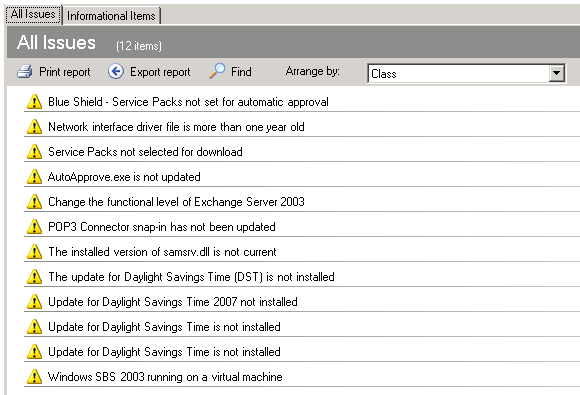
I am running another BPA scan to showup which issues remain to be resolved.

35

So as you can see we are now down to only 12 highlighted issues.

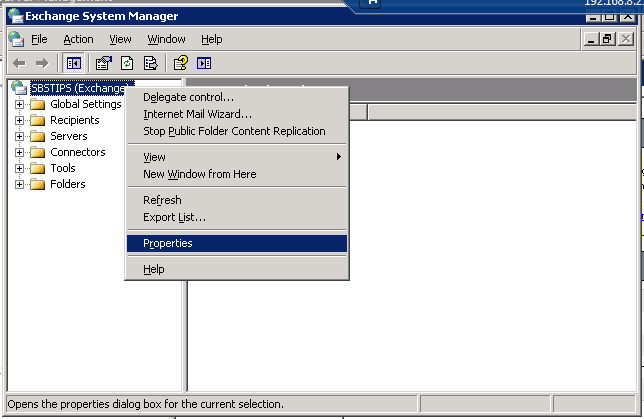
Let’s tackle the functional level of Exchange first, we need to load up the Exchange System Manager, which you can launch from the SBS Server management console, or navigate to it.

36

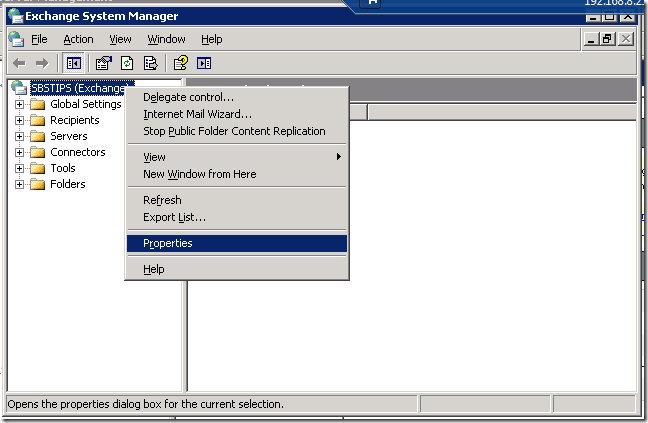
When System Manager opens up,  right click the Servername at the top of the tree, and click on Properties.
37 

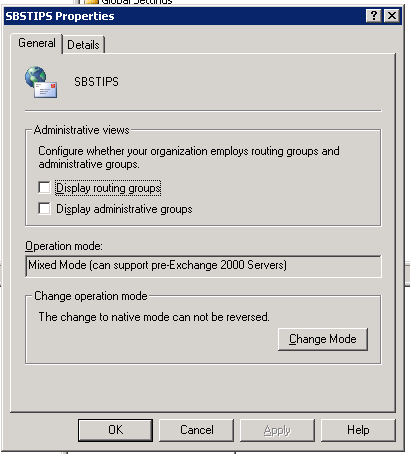
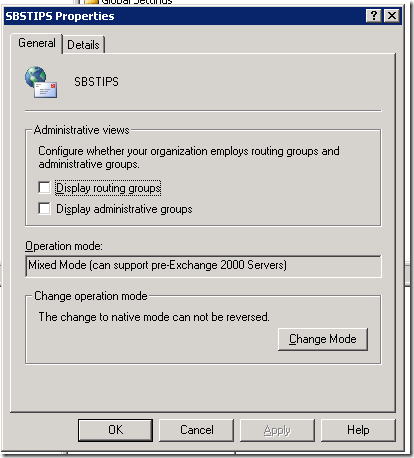
On the properties page, you will see the details about which mode you are currently in, and also which Exchange Server versions this mode supports.
38

In the unlikely event you, a) have additional exchange servers, and b) they are running a Version other than 2003 (or newer), please make sure to migrate these out prior to changing this setting. It is one way, and cannot be changed back (without restoring the server)

SO when you are happy, click on ‘Change Mode’

39

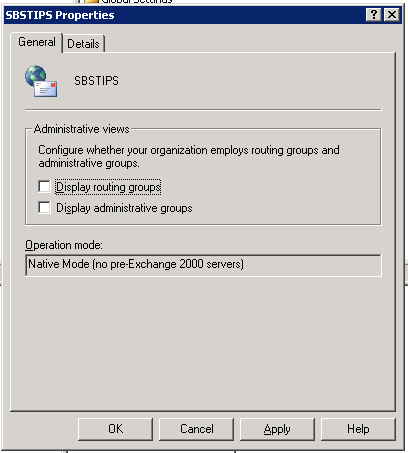
A warning is displayed detailing the change and that it cannot be reversed, this is your last chance to back out, so make sure you are sure. I am sure you are sure, you wouldn’t be doing it otherwise right?

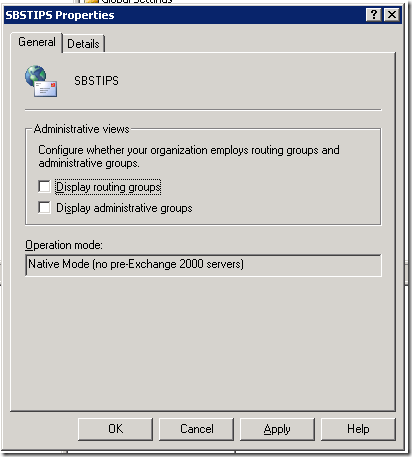
On clicking on Yes, you are returned to the properties page. Click OK to close the page and your changes will apply.
40

Next we can move onto fixing the WSUS warnings.

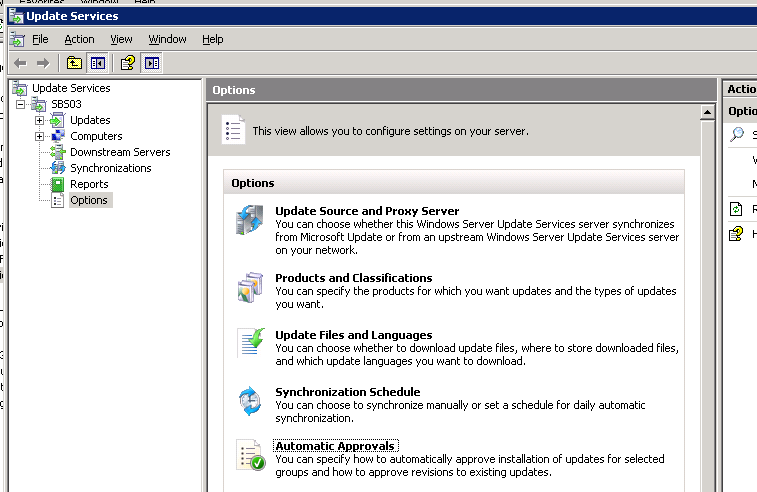
First we will load up the native WSUS console. Changing too many settings here can lead to the ‘blue shield’ state which was quite difficult to recover from in SBS 2003, in later version it is a lot easier. What did this state mean? just that the default settings for SBS/WSUS integration were changed. WSUS still functioned perfectly well but the integration with he SBS console and reports was broken. More info on that here.

Click on Start, Administrative Tools, then on Windows Server Update Services.

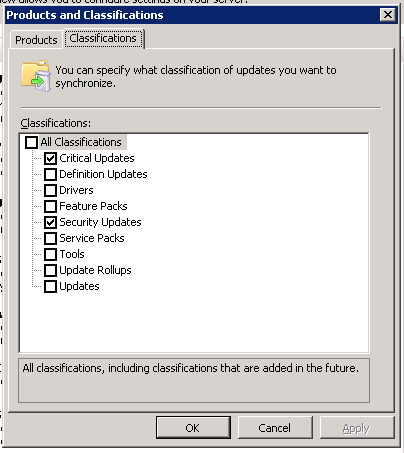
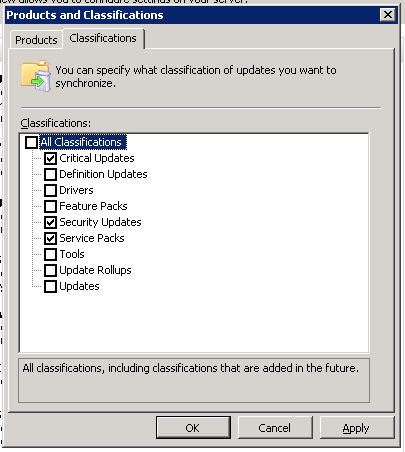
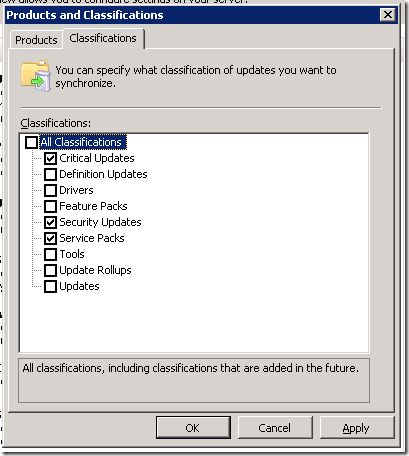
When the console opens, we will go to the Products and Classifications section first. We need to add ‘Service Packs’ to be downloaded.
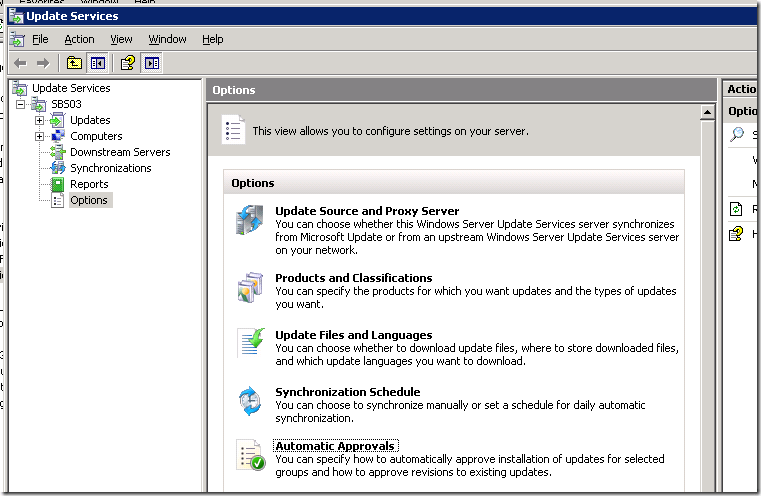
41

Click on Products and Classifications, then on the Classifications tab.

42

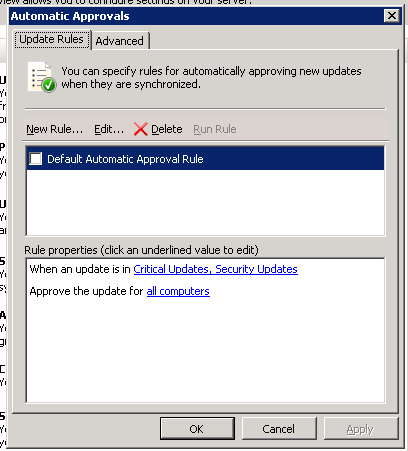
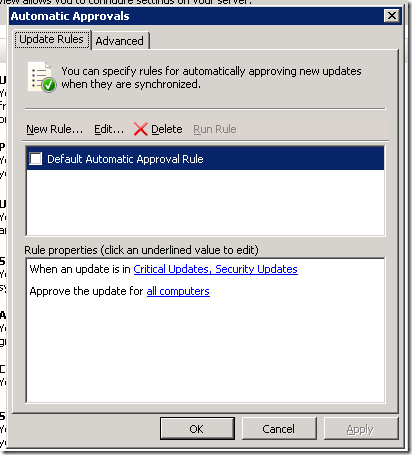
Check the box marked ‘Service Packs’ and click Ok. Next move to ‘Automatic Approvals’
43

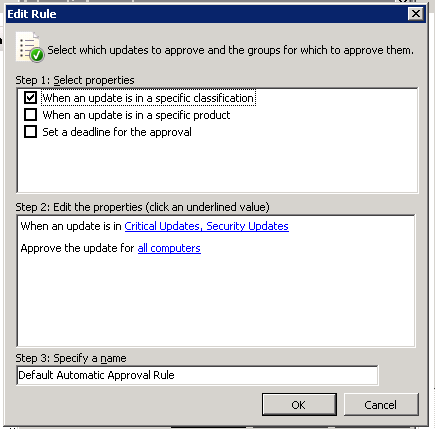
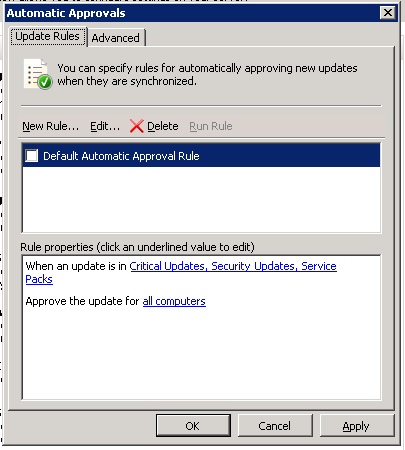
Click to Edit the ‘Default Automatic Approval Rule’
44

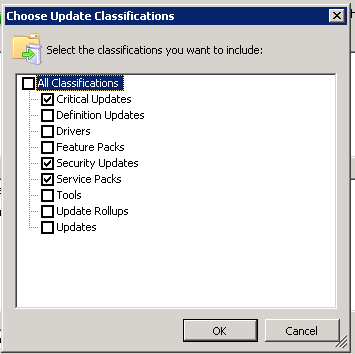
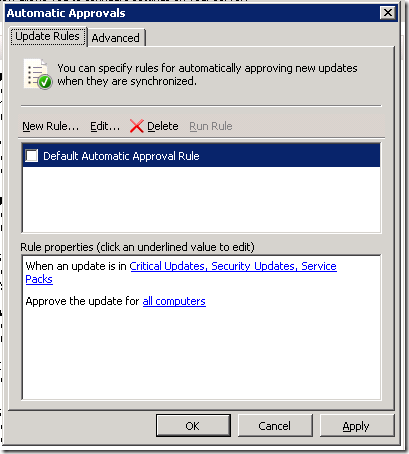
On the edit page, click the hyperlinked option ‘When an Update is in..’

45

Put a check next to ‘Service Packs’ and click Ok. Click Ok to close down the Default Automatic Approval Rule page, and close the WSUS Console.

47 

48

AutoApprove.exe Is not Updated.

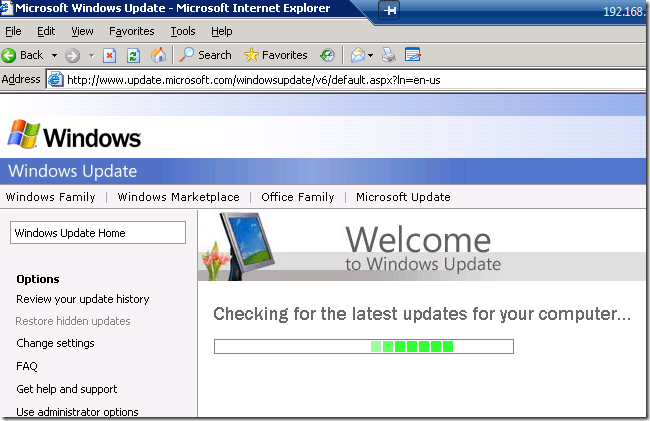
We need to install an update now to resolve this next issue, so we will need to load up Windows Update on the server.

Open up IE, and click Tools, then Windows Update.

Choose to run a Custom check..
50

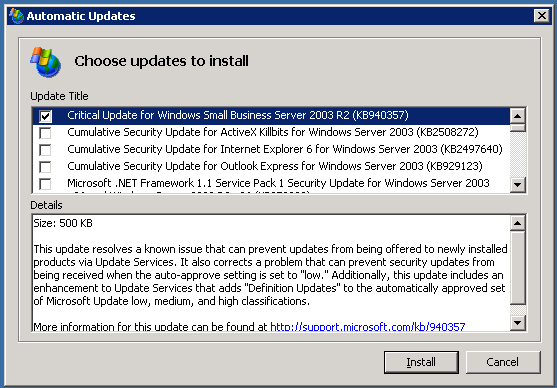
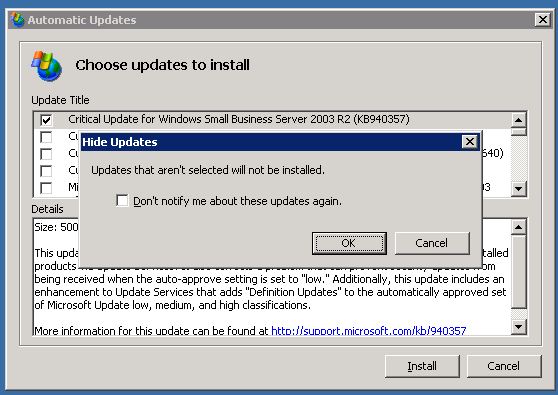
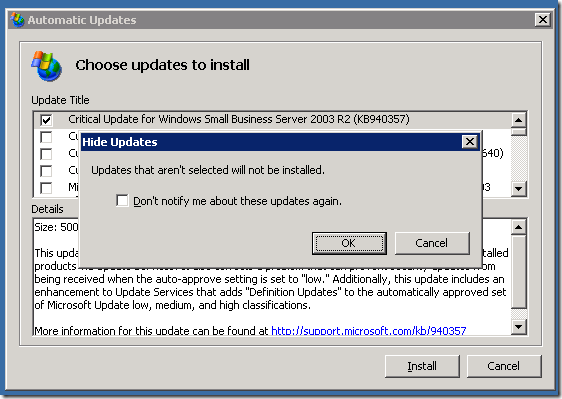
Well, after waiting for WU to check my server, it didn’t actually offer me the update in question. Luckily in the system tray was the Updates icon and it was top of the list. As i only want to install this one update at the moment i had to manually deselect all the other 100+ updates being offered. Tip here is the down arrow and the space bar!

51

Click on Install to kick off the installation.. it is a small update and it installs quite quickly.

You will need to acknowledge a message about what will happen to unselected updates.
52

Click on OK and the updates will stay in the system tray for Installation at a later date.

Pop3 Connector has not been updated.

Again we will run a WU check to see if i we can download this update.

It seems this update is also not being offered to me by MU at this time either, and i cannot see it in my System tray updates notification window.

When i re-read the KB article, it states ‘Microsoft Update’ not Windows Update.

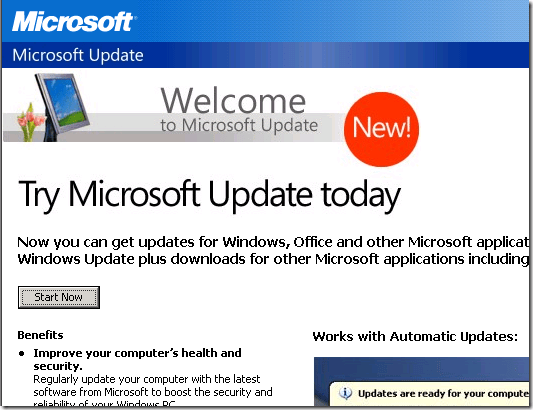
So we need to upgrade our server to use MU instead of WU.

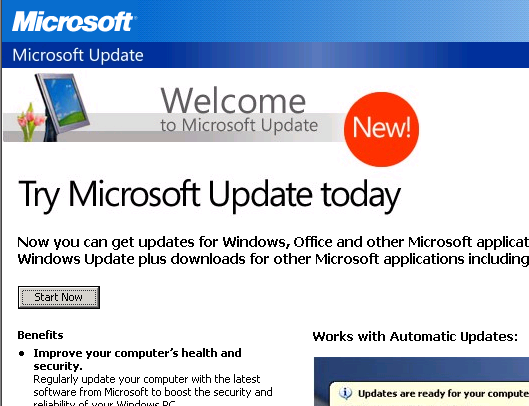
Navigate to this link on your server, http://update.microsoft.com/microsoftupdate/v6/default.aspx?ln=en-us
53

Click on ‘Start Now’

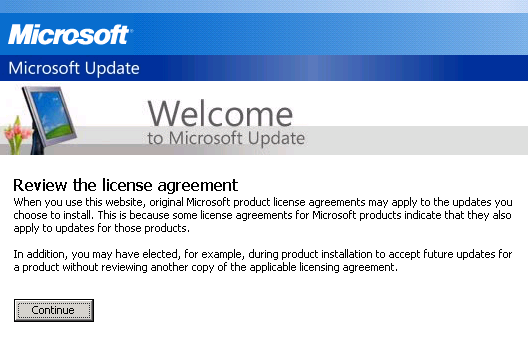
You will need to review the license agreement, and click to continue if you agree.

54

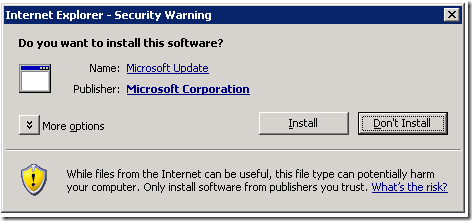
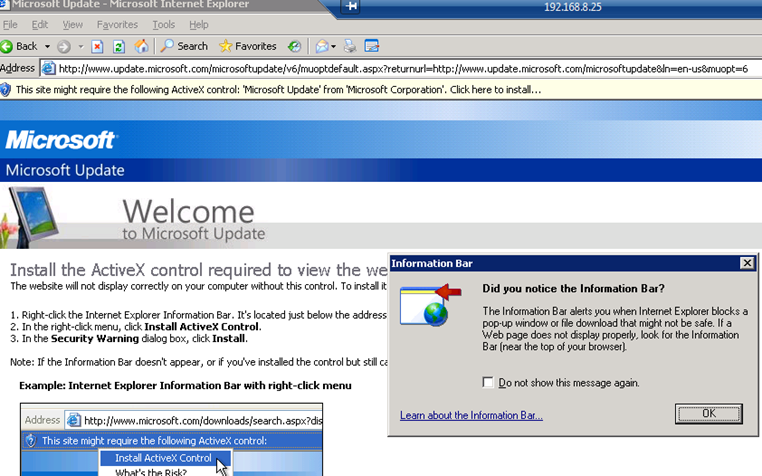
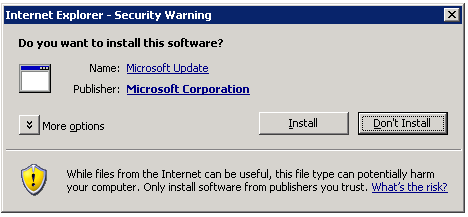
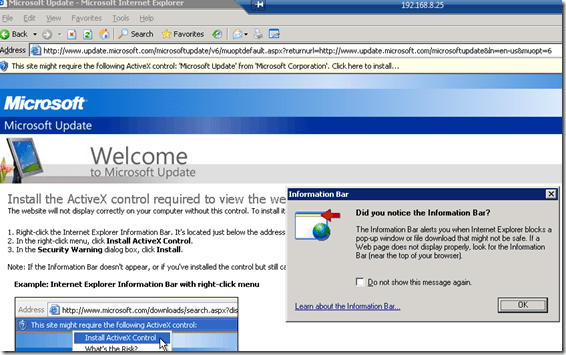
A new ActiveX is required to be installed..
55

Install the ActiveX.

56

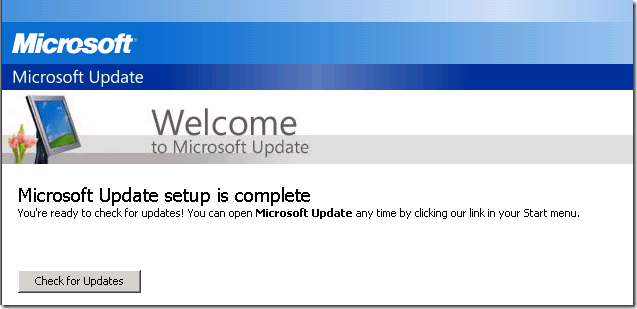
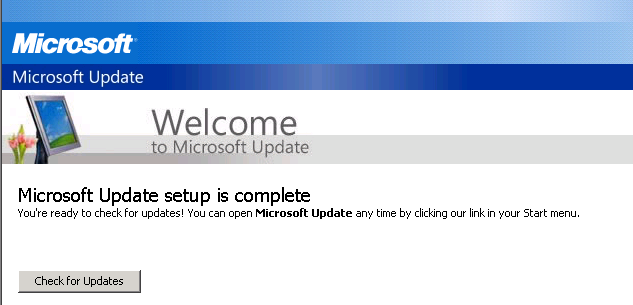
And check for updates…

57

You’ll find the POP3 Update under ‘Software, Optional’ and then under, Microsoft Windows Small Business Server 2003
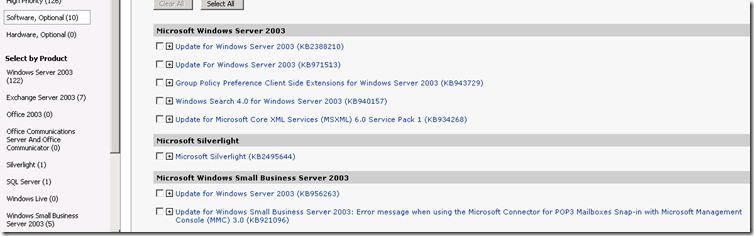
58

Make sure to clear all the security updates, and only select the POP3 connector update.
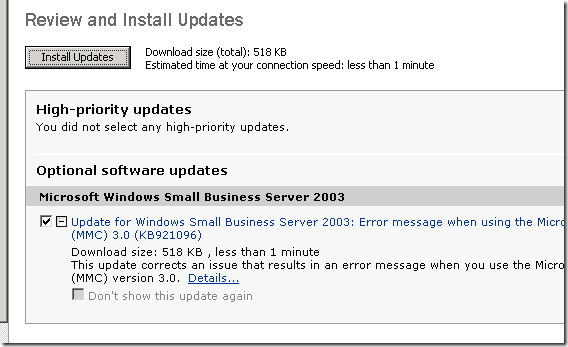
60

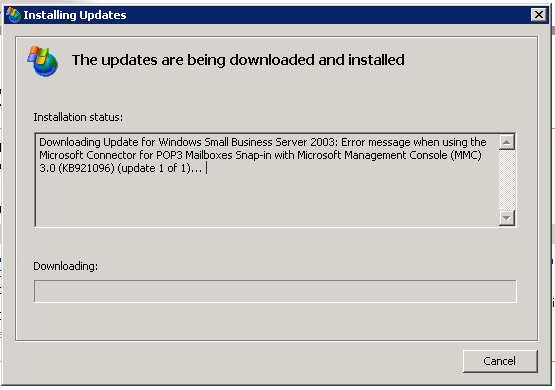
Click on Review and Install updates, and then on Install updates.
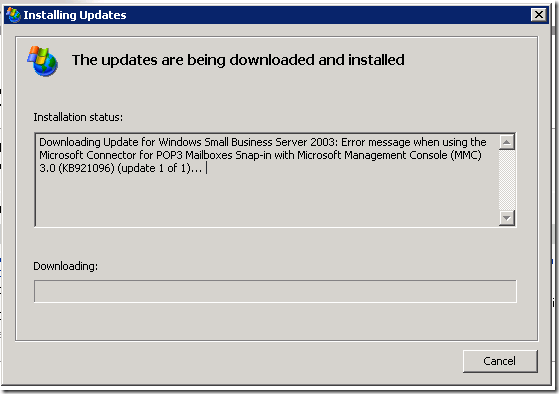
61

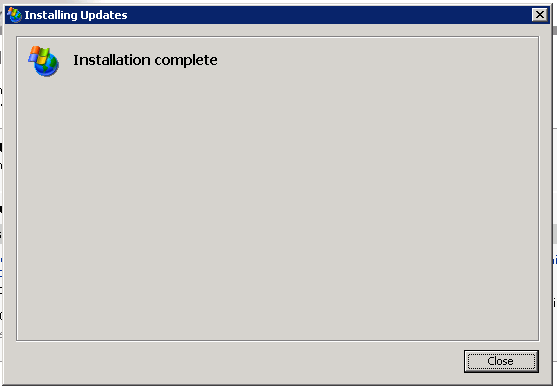
Installation should complete quite quickly.
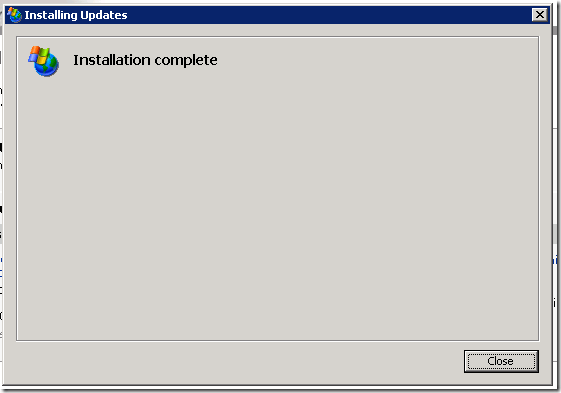
62

Next we will tackle the Daylight Saving Time updates.
Small Business Server 2003 R2 Standard, Migration to Small Business Server 2011 Essentials (Continued)

Having installed Windows 2003 Service Pack 2 to our source server, we will need to now rerun the SBS BPA to find any new issues that the SP introduces. You may recall there are some new features such as RSS that are enabled by the installation of this SP.
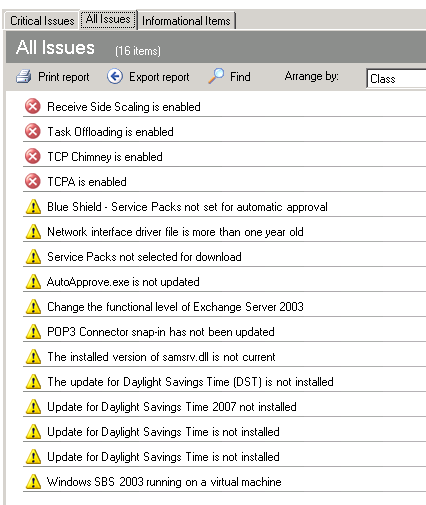
The results of the SBS BPA show the following issues:

25

Looks like that list is a little shorter now! So let’s address the issues in red to start with.

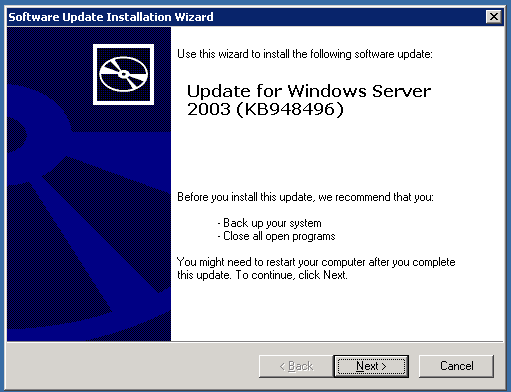
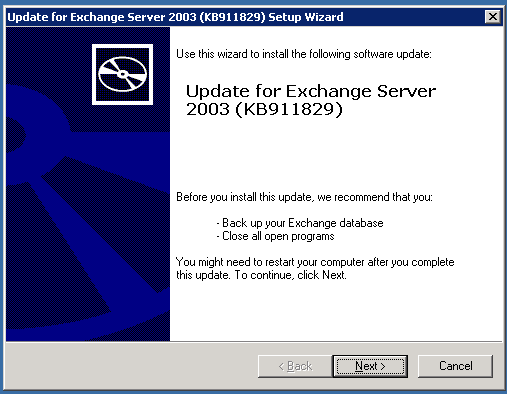
Receive Side Scaling (RSS) is enabled and should be disabled on Windows SBS 2003. This issue is highlighted as fixable in the BPA results using this KB article, however if you follow the link you will need to redirect to this newer KB to get the right patch.

Download and run the x86 version of the hot fix..

26

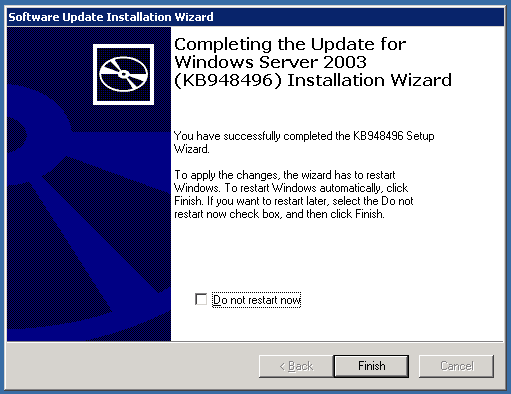
Again accept the license agreement and click next to start the install, it is a very small update and should apply in a matter of seconds.
27

This update should also resolve the ‘TCPA Enabled’ BPA critical issue, but a reboot is required prior to the changes becoming active.
To minimise our reboots let’s look at the other two critical items and see if we can apply any of the fixes.

Task offloading is enabled & TCP Chimney is enabled, are both fixed without the need to install any other patches. So let’s apply those fixes before our reboot. (Task Offload fix is documented here)

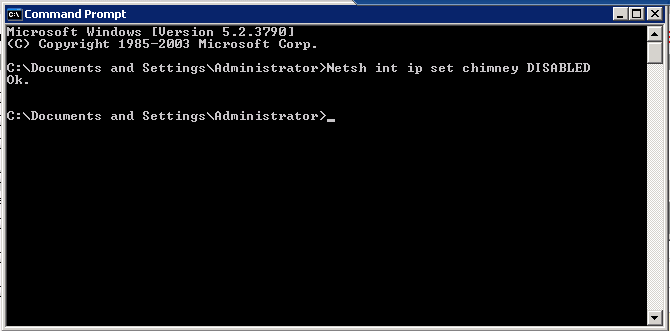
To disable TCP Chimney, open up a command prompt and type..

Netsh int ip set chimney DISABLED 

29

Press enter, and the command simple returns ‘OK’, moving on to disabling ‘Task Offload’

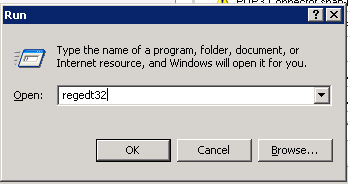
You’ll want to open up the registry editor, Start > Run > regedt32

28

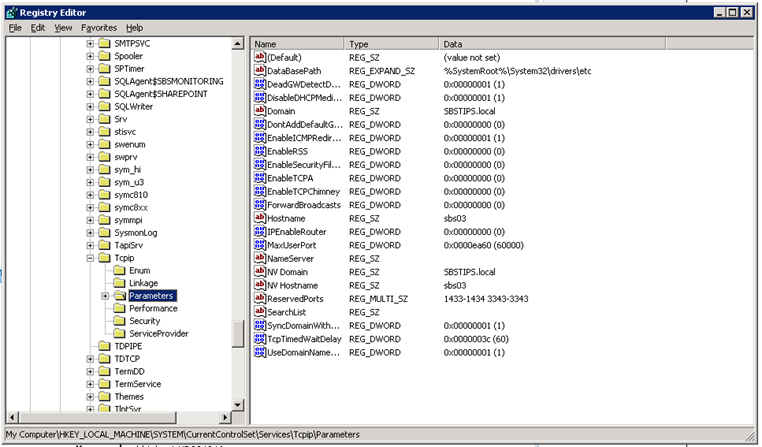
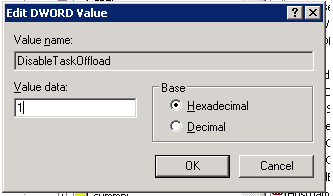
Now navigate to HKEY_LOCAL_MACHINE\SYSTEM\CurrentControlSet\Services\Tcpip\Parameters

30

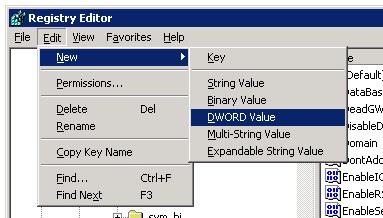
On the Edit menu, click New, then DWORD Value

31

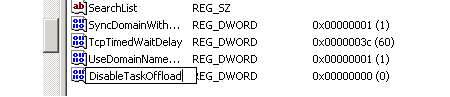
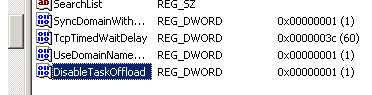
Name the value ‘DisableTaskOffload’

32

Press enter to accept the name change, then enter again to edit the value. Enter a 1 in place of the 0 (0 = disable 1 = enabled) )that is to say, 0 disables, disabletaskoffload and 1 enables, disabletaskoffload)

33

Click on OK to accept your changes, and then you are good to go ahead and reboot.

34

That takes care of the 4 critical issues highlighted by the BPA, and now we can focus on the remaining warnings shown.

Small Business Server 2003 R2 Standard, Migration to Small Business Server 2011 Essentials (Continued)

Last time we had just finished updating WSUS and now we will move on to some more patches to our SBS 2003 source server.

OWA Update for Exchange Server is not Installed

This patch improves OWA for Windows Vista clients, again not something that will probably influence our migration much but for the sake of getting the server up to date, i am going to apply it.

15

You’ll want to click on next, accept the license agreement, and the update will start to install.

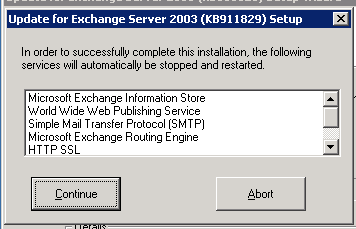
You will get a popup that some services will need to be restarted, again if you are running this through RWW you will be cut off for a short time!

16

Click on continue, and sit back and wait.

17

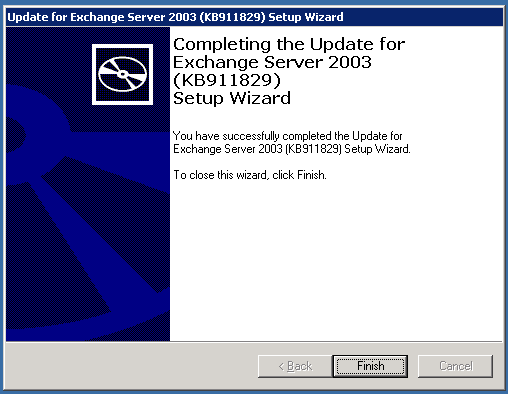
With any luck after about 5 minutes you can login and you will see a successful installation message.

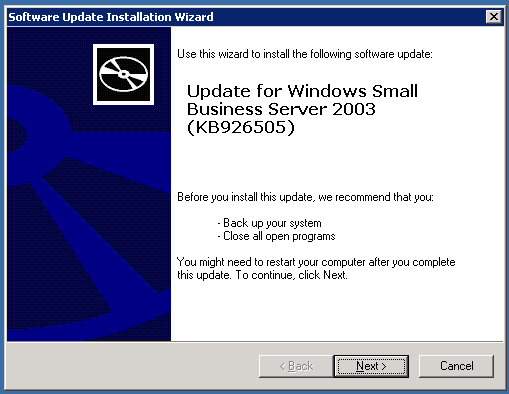
This patch improves compatibility for Outlook 2007 and Windows Vista. This update will also apply for Windows 7 Clients,

18

Again, click next, accept the license agreement and the install will start, no services to restart this time so no need to log back in. It is a small update and runs quite quickly.

19

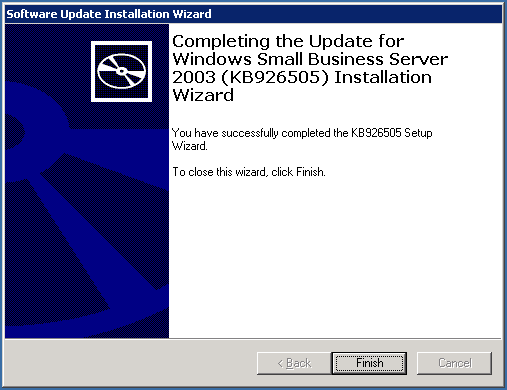
Another successful install!

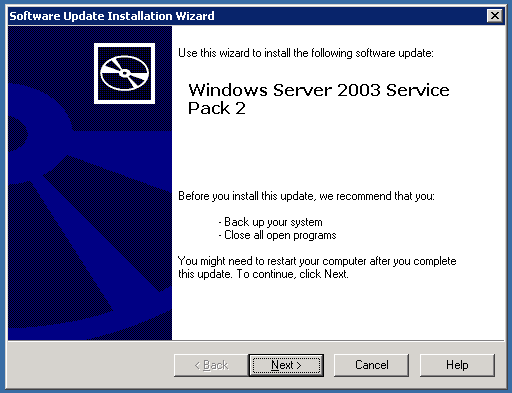
Moving on, we can go ahead and install Windows 2003 Service Pack 2. You may recall that this update introduces new features etc, it also introduces new errors that the SBS BPA will detect. So after a successful SP2 install, we will run a new BPA Scan.

You can download the SP here  it is a 372mb download, so sit back as it may take a while….

21

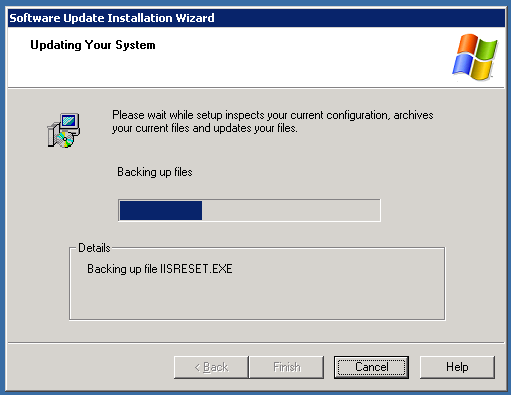
Clicking next and accepting the license agreement will start the process off, you will see that a lot of key files are backed up prior to the SP starting to install…

22

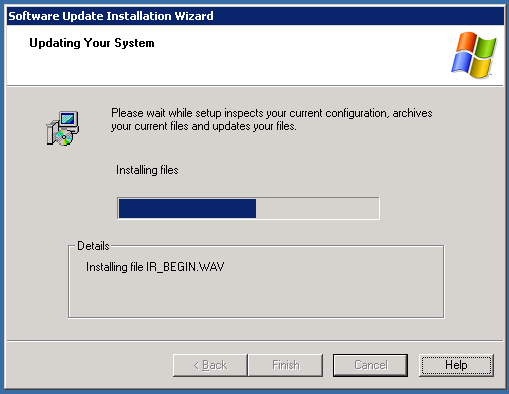
Eventually you will see it start to install…

23

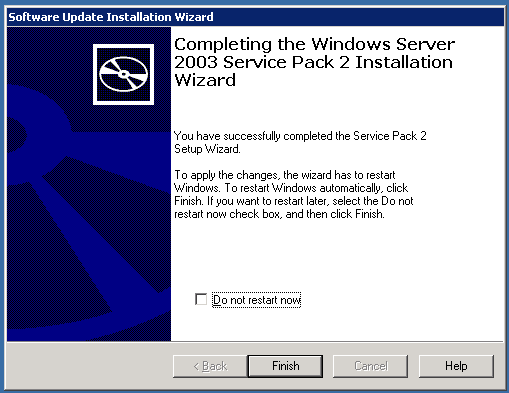
And finally with any luck you will see this..

23

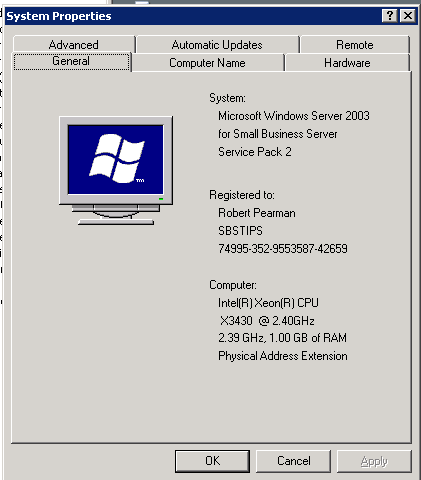
You will need to reboot now to complete the installation, and then you can verify the install by accessing your system properties.

24

Next we will be performing another SBS BPA scan, finishing off the remaining issues and finalising our preparations to begin the migration.

Small Business Server 2003 R2 Standard, Migration to Small Business Server 2011 Essentials (Continued)

So in the last chapter we had run the SBS BPA and gotten a list of all the fixes it recommended we apply, and also the major updates missing.

Starting randomly on the list i am going to fix the EDNS issue first. There probably numerous blog posts and resources on this, not to mention the fix itself is detailed for you in the BPA result.

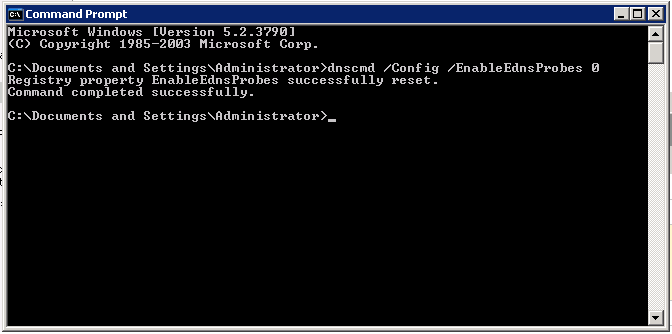
From a Command Prompt, simply enter : dnscmd /Config /EnableEdnsProbes 0 (thats a zero) then you can restart the DNS Server service to resolve that issue.

2

Next, SBSMonitoring Service is not set to its default value. If we look further down you can see that i haven’t actually run the monitoring wizard on this server yet, ill run that now which should take care of both of those issues.

You can find the wizard in the server management console, Click on Start, then Server Management, find Monitoring and Reporting in the console, and then to left of the screen is the option to Setup Monitoring and Reporting.

The wizard is straight forward enough and does not need detailed explanation here, when completed you can open up the Services console, Start, Run, Services.msc and then scroll down to find the SQLAgent$SBSMonitoring service, you can see that it is now running and set to automatic start-up.

3

Windows Server Update Services 2.0 is running, WSUS 3 is available.

A bit more involved this one, follow the link to the TechNet article detailing how to install WSUS 3.

Reading the prerequisites on upgrading WSUS i can see that it advises not to do this, if the update services show a Blue Shield, this condition can be caused by a few things, one of the most common being if you have customised the WSUS Settings. A KB exists for repairing these settings, so you might need to review that first if you have a blue shield condition – looking at my BPA i do have this, but because my WSUS has not been configured at all.

So i am going to just download the latest version, WSUS 3.0 SP2 (here) and upgrade. Taking care to note any special instructions here

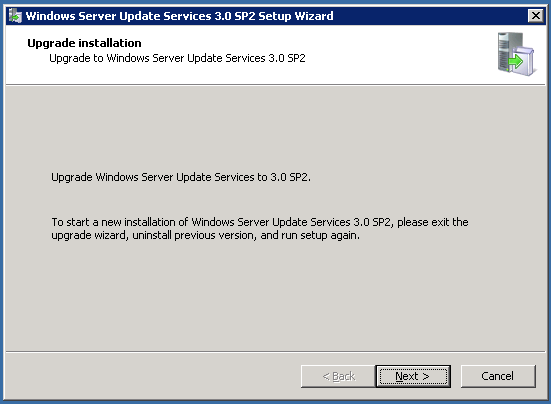
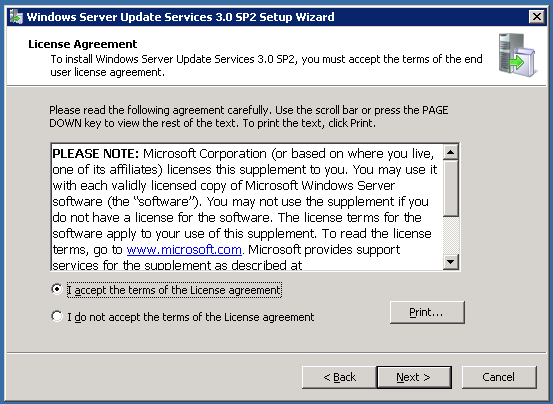
Running the file i am prompted to confirm i want to upgrade rather than perform a clean install (requires uninstall of version 2) clicking next, i need to accept the license agreement. 

7

8

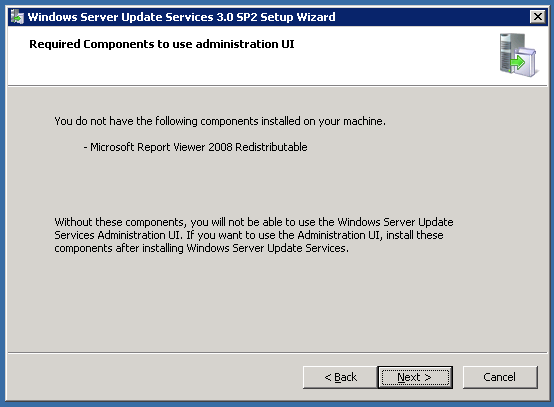
I am warned i don’t have the 2008 version of the Report Viewer, in this case it isn’t a big deal as i don’t plan to to view many reports on the server once it is migrated. Interesting point you could wonder why i am bothering to do the WSUS upgrade if i am migrating? Well the simple answer is i want my server to be as up to date and ‘supportable’ prior to the migration beginning, and that means i need to do the WSUS upgrade!

9

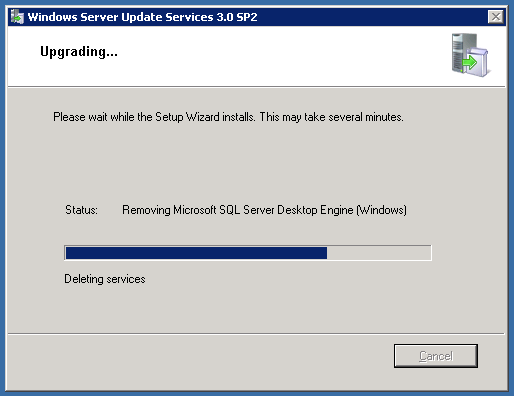
Next your server will attempt to connect to your local WSUS database, it should detect it and let you move on tot he next step, which is to let you know that the MS SQL Desktop Engine is no longer supported on WSUS 3, and that you will be migrated to the WID (Windows Internal Database)

11

Clicking next will begin the upgrade process.

12

If like me you’re running this over an RWW session you may be cut off several times during the process as services are restarted.

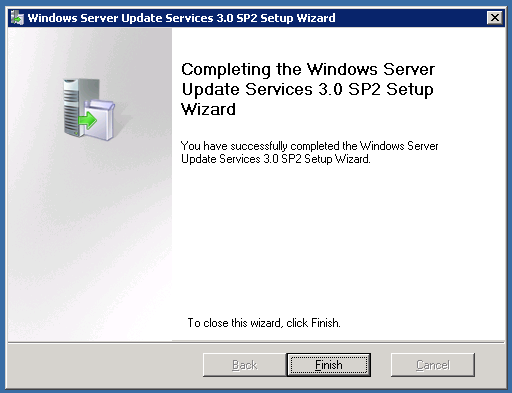
Sit tight, give it some time and hopefully you will log back into see this!

13

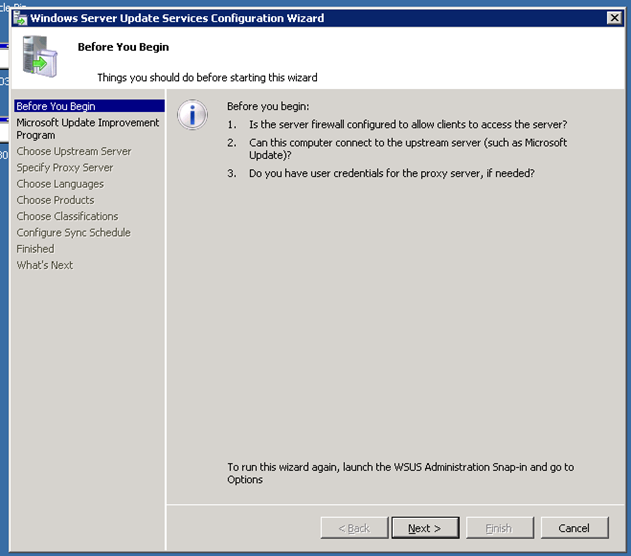
Now, when you click finish you will be presented with the WSUS Server Configuration wizard, in SBS Land we usually love our Wizards, in this case we do not! Click Cancel.

14 

Next we will look at installing the patches for Vista, and Office 2007 compatibility, working towards installing SP2 for Windows 2003.

Small Business Server 2003 R2 Standard, Migration to Small Business Server 2011 Essentials

I have never done a live migration, SHOCK HORROR!

I have always taken the easier road (some would argue) of doing a clean install, and rejoining the client machines afterwards. It was a conversation with Jeff Middleton of SBSMigration.com that really got me thinking of migration as a viable option for installing a new server into a network. Let me just clarify that for a moment, of course migration has always been viable, but for me, on the small(ish) networks i have supported, a migration always posed far more headaches than a clean install did. At least, that is my point of view.

So, i decided i would do a migration to SBS Essentials, as i plan to to install a few of these boxes as they become available and also document the procedure and the things i do wrong ;o)

So, step one, my current server, SBS 2003 Standard R2, Single NIC configuration, nothing special about it, and more or less out of the box install – so ill need to bring it up to current patch levels and make any configuration changes recommended from the 7/8 years SBS 2003 has been around (is it really that long?) experience tells us are wise!

So i am downloading the SBS BPA from here choosing the 2003 version of course. You may need to adjust your IE security settings, or better yet download to a client PC and copy across.

So, go ahead and install this, then load it up.

I always attempt to download any updates available, as new rules are released and quite often can pick up something previously missed.

Once this has completed, click on Select options for a new scan, a bit of a left over i think from other BPA’s as there is only one option, which is the name of the report. I am calling mine, SBS Essentials Migration Scan.

You should now sit back for a few minutes whilst your server is scanned, and you see your report.

1

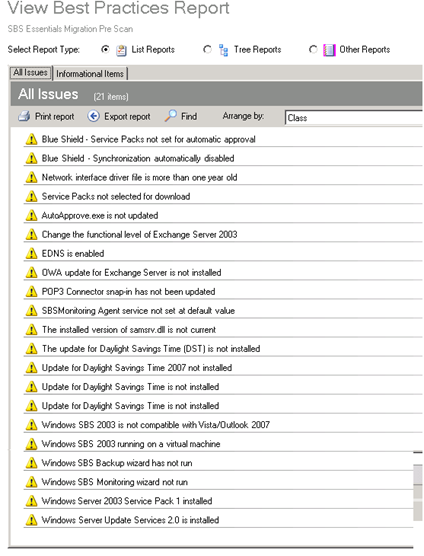
So as you can see on my report i have 21 items that are recommended (warnings) to be resolved, and luckily no critical ones.

I am going to go through each one in turn and it’s resolution and then move onto the next stage of my migration.

But for now it is late, and i seem to have been struck by the Flu that has taken out most of the HSBS MVP’s that made the trip to Summit last week, so i am off to bed.