SBS 2011 Essentials Log Collector RTM

sbsessThe SBS 2011 Essentials Log Collector tool has finished its beta test and is now available as an RTM Download.

The download is available as an MSI, or as an Add-in for SBS Essentials in WSSX format. The cool thing about using the Add-in on the server is it will automatically push out the Log Collector out to any client machine you have connected on the network.

The Log Collector is really simple to use, and will take a lot of the Read more of this post

Quick Fix : Did I Update or Did I Not Update, that is the question!

powershell2xa4I currently have a number of books on my desk that i use for reference, you may have heard of them, read them, bought them, stolen them, sorry, borrowed them etc, Anyway they wont be a new idea to you, i don’t mean books in general i mean these particular books. I am of course referring to the Administrators Pocket Consultant series from Microsoft Press.

All of them unnervingly seem to be written by the same person, Mr William R Stanek. Anyway there is a point to this.

I have been answering questions in the forum recently and i find myself asking the OP, hey do you have XYZ update installed?

They usually reply, how do i check?

Of course i refer them to their Administration journal, which clearly shows the date and time any update had passed testing and was approved for installation, the name of the tech who logged onto the server, the colour of his socks he had on whilst he installed it. Of course it could have been a her.

Knowing many of you don’t keep such a journal only saddens me, i like to know what colour socks i had on, on a given day and i frequently go back and check.

I turned of course to my PowerShell Administrators Companion, and found the following command.

Never again shall you be left red faced by the question, do you have XYZ update installed? Not only will you be able to answer with confidence, you will be able to give all sorts of other detail that will really impress me.

Loading up PowerShell, you can simply type…

Get-Hotfix

get-hotfix

This will list all of the Updates, Hotfixes and Service Packs that have been installed onto the system, it will also list the date, and who installed them.

But how does that help you find a specific update? Simply add the KB number you are looking for.

Get-Hotfix –id <KB Number>

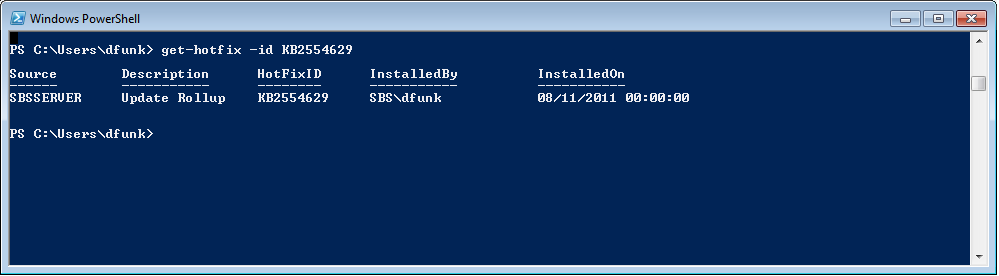
For example if i want to know if i have installed SBS Essentials Update Rollup 1, i can type..

Get-Hotfix –id KB2554629

get-hotfix-ur1

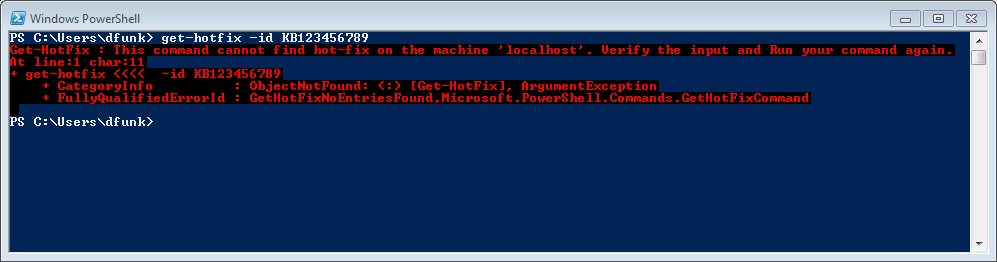
If the hotfix is not installed you will get an error.

get-hotfix-err

As easy as that.

By the way, I’m not selling these books nor do i earn commission out of their sale, but i have one of these books for pretty much every Microsoft Server/Client OS i support. They are cheap and are just full of brilliant tips such like the one i just ripped off and turned into a blog post.

Installing a Second Server : SBS 2011 Essentials & Premium Add on Server

SBS Essentials LogoIt seems like a lot of businesses are bringing a second server online lately, perhaps discovering the benefits a Terminal Server (or Remote Desktop Services Server or even Multipoint) can bring, or maybe it is a Server that will run SQL for an LOB application. Personally i prefer to keep the SBS free of Apps if possible, especially accounts programs.

The SBS PAO (Premium Add on) Is a great way to get that second server and SQL license, but it may not be the most cost effective route to get what you want, so make sure you do your research before purchasing.

That’s my little marketing pledge done, now on to the technical stuff.

If you are familiar with installing SBS and general networking, likely you know already how to add a second server to an SBS Standard network, but what about essentials?

    • Do you try to install the connector?
    • Do you use the traditional ‘Computer Name’ tab in System Properties?
    • Does it show up in the Dashboard?
    • Does it get backed up?

Connector or Not Connector that is the question!

Firstly you need to ask what OS is your server. Is it Server 2008, 2008 R2 or maybe an older 2003?

The connector software will install on Server 2008 R2 Standard, IF you are running SP1, and also if your Server is NOT a Domain Controller.

If you are not running SP1 you will see this message if you attempt to install the Connector software.

SBS Essentials Connect Error

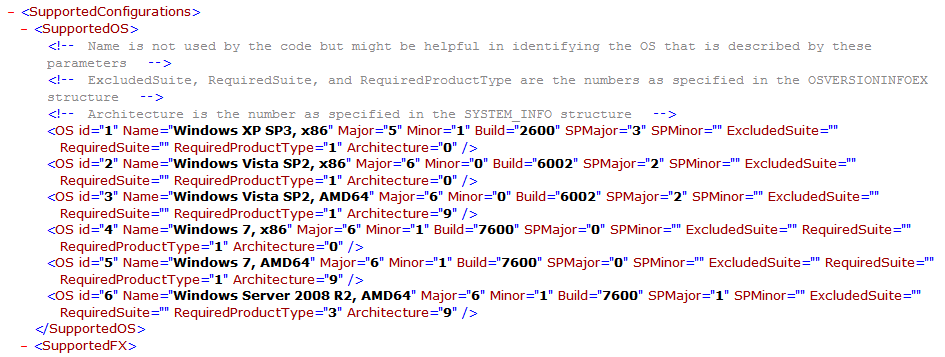
If you want to know which OS’s and Versions are supported, check out the ‘supportedOS’  XML file on your essentials box.

You will find that file in this directory

C:\Program Files\Windows Server\Bin\WebApps\Client\Package\

supported OS XML pathsupportedOS XML File

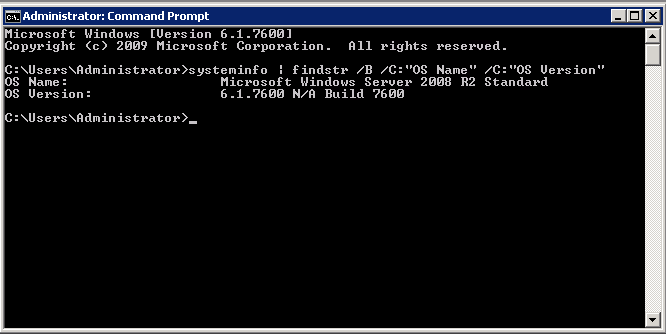
If you want to know what version of Windows you are running, you can type this command into an Elevated command prompt:

systeminfo | findstr /B /C:”OS Name” /C:”OS Version”

Check OS VersionCheck OS Version

Assuming you meet the requirements you will be presented with a warning about Supported Client OS’s and you can click on ‘Continue Anyway’ to continue the installation.

SBS Essentials Connect Warning

You may want to note that it is not possible to install the connect when logged on using Remote Desktop. Also the same problems affecting install on Client OS’s can strike on a Server install. Plenty of resources out there for those, but my post is where i will point you.

Now for my disclaimer.

Adding the connector is not supported. You get a big warning to the same effect. If you do decide to install the connector it is at your own risk, i am not going to be held responsible for anything, whether it works or doesn’t work, whether it works some of the time and whether it makes you look silly. By reading this disclaimer in your head or out loud you have waived any legal responsibility on my part in perpetuity throughout the universe.

    .

Is it in the Dashboard?

Yes. If you install the connector then it will indeed show up in the dashboard.

SBS Essentials Dashboard

Does it get backed up?

The short answer? Yes it does.

It does appear that the SBS Essentials ‘Client Backup’ will backup the server OS.

However, i have to stress this is not supported, and because of that there is no guarantee from anyone, Not me, Not Microsoft that you could successfully restore your server from that backup.

The SBSE client backup does not contain ‘agents’ for the Server OS or any applications you may be running on it, like SQL, so a backup with the SBSE client backup cannot be trusted, or guaranteed.

If you are going to have the Server show up in the dashboard, i recommend you disable the SBSE backup, and instead rely on your own backup strategy for the Server, but i am not discussing that in this post.

You can disable the backup from the dashboard, by clicking ‘Customise Client Backup for the computer’ and clicking disable backup.

You may also want to disable the launch pad.

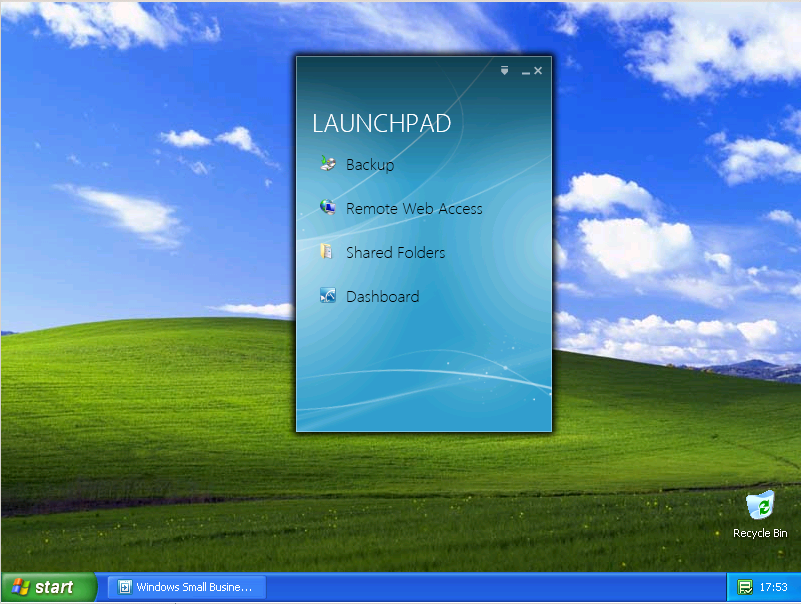
RDP Server running LaunchpadThe launch pad runs, or at least seems to run, perfectly well on the server. I set my test server up as a RDS (TS / Terminal Server) and logged into with two separate accounts, and the Launchpad ran fine for both. The only thing i didn’t like was that a helpful or considerate user may want to poke around the backup settings, and that could be bad, so to remove temptation, my advice would be disable it.

    Likely as not you wont need the Launchpad on that server anyway.
    You can disable the Launchpad through the registry, or via MSCONFIG.

Multipoint Server

All of the above is subject to one exception. Windows Multipoint Server 2011. (WMS)

This Server OS, is supported for use with Essentials, can handle the Connector install, and perhaps most importantly, is also supported to be used with the SBSE Client backup.

If you haven’t heard of, seen, or used WMS, then get yourself along to the SMB MVP Community Road Show and see it in action.

Useful links for Multipoint

sbs-mvp

Troubleshooting Client Connector Install : SBS2011 Essentials

sbse-conThere are countless reports of problems installing the Client Connector on SBS Essentials and WHS. I’ll not mention WSSE as i don’t think anyone has even bought one yet Smile with tongue out

(that’s not true i do know people who have already deployed it)

Far more common at least, is for it to be an issue with SBSe or WHS2011.

I wanted to put together a resource for people who are struggling to get this installed, not built by me, but a collation of forum posts, solutions and tips that should either fix the issues, or point you in the right direction.

So first off, you might want to have a quick read through of this, which is my own post on how the process should work. It also gives some guidance on what to do if the profile move doesn’t work.

You may also be interested to know where the log files are for the Connector Install..

Windows XP

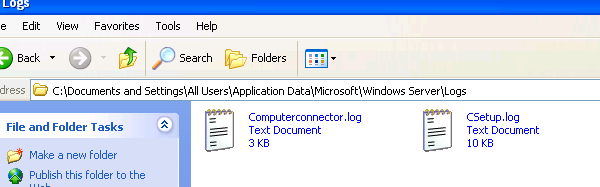
Log File Location, C:\Documents and Settings\All Users\Application Data\Microsoft\Windows Server\Logs

This is a hidden folder.

Windows Vista / 7

Log file location, C:\ProgramData\Microsoft\Windows Server\Logs

This is a hidden folder

Did you know about the SBS 2011 Log Collector Tool?  You can read about that here

Troubleshooting the Installation

I thought it might be good to run through an install and try to monitor the logs and find out which log is most useful at which time.

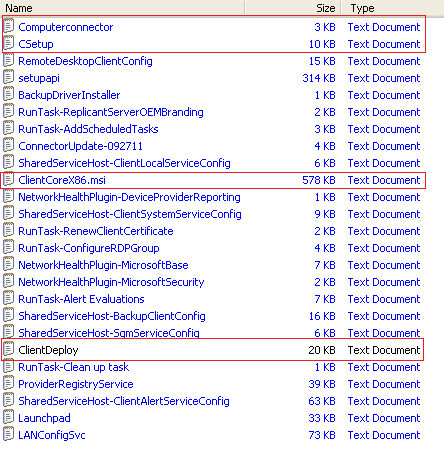
The first log file, is Computerconnector.log, this shows a very high level progress indicator of the first steps of the install.

1

If you are a bit sad like me, and you do monitor the logs folder during a connector install, you will see the second log file to be generated is CSetup.log, which gives us a more detailed view of the early setup stages, for example when .NET 4 is installed.

csetup.log

You can also see that the CSetup.log file is 10kb, as opposed to Computerconnector.log 3kb.

3

When we get to the stage where you are prompted to enter your network username and password, we have a third log file. ClientDeploy.log, 

This log file picks up from CSetup.log

4

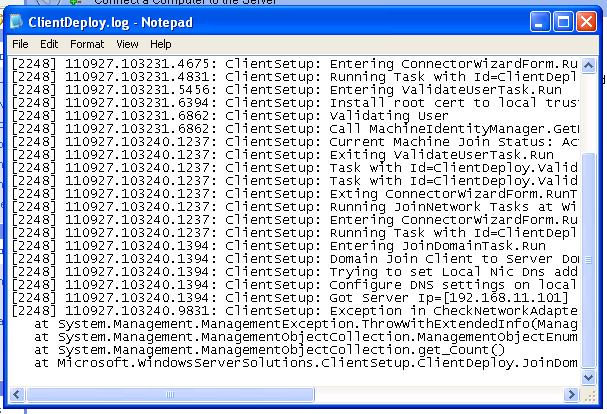
You can follow the progress of the next stage of deployment through this log file. You can see things like the tasks to locate the SBS Server, configuration of the local NIC DNS settings, and you can also spot errors and problems.

For example…

6

The log shows it has found a duplicate machine name, so it pauses the Join Domain task, to give you a chance, in the GUI to confirm you want to continue

5

And now i have hit a problem.

7

8

What you can see from the log here is that there is an Access Denied condition when trying to join the domain.

Why would that be?

In this instance, as mentioned above, a machine already existed in the domain with this name. Therefore, to join this current machine with the same name, i would need certain Active Directory (AD) permissions, which a normal network user account doesn’t have.

So how come a normal user can add a computer to the domain usually?

Whilst i don’t have the full technical answer to that question, i imagine it is something to do with certain settings have been set so that ANY account has the right to join a computer to the domain, but only the Domain Admin has the permissions to reset a machine account password, remove a machine from the domain, or overwrite a machine account in AD.

So, the solution here to get a clean join, would be to ensure any duplicate machine names have been removed from the server, either by the dashboard or through AD directly. Or simply rename the computer.

That being said, you can work around this issue by installing the connector using the Domain Admin credentials, and that will work in this situation, but doing so has it’s own caveats described here.

You might say, well i haven’t had a complete install on this PC yet so how can it possibly have a duplicate name.

To that i would say – maybe the first time you tried it, it failed on a different error? You fixed that and now attempt it again, but didn’t know to remove the account from the dashboard?

On this client, i removed the computer from the Dashboard, and re ran the connect software, using the same, NON ADMIN credentials.

In this screen shot i highlighted in Blue, where we started in the last screen shot ‘Calling Join Domain’ and ended in Red on the ‘JoinNetwork Tasks Task Status’ in Red.

9

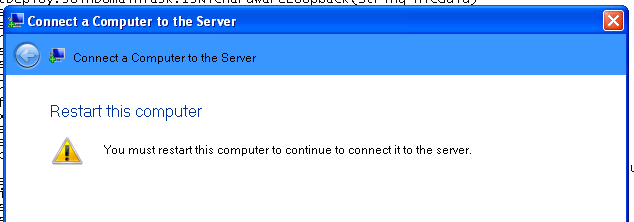
The GUI of the wizard now shows us we need to reboot.

image

After the reboot, it is a little trickier to keep track of the logs because ‘Explorer.exe’ is not loaded up yet and we have no way to browse the logs folder.

11

So, if you want to, hit CTRL-ALT-DEL and go into task manager.

12

From task manager, click File, New Task, and then you can type in the folder path to the logs folder. (you may need to put it into quotes)

C:\Documents and Settings\All Users\Application Data\Microsoft\Windows Server\Logs

13

At this point we still have just our 3 log files.

Computerconnector.log

CSetup.log

ClientDeploy.log

Looking at ClientDeploy.log again, we can see in Red where we left off, and then where the process continued, and finally in Green the reboot.

15

Let’s move on through the GUI and see what happens to the logs. I am going to leave all of the options on their defaults.

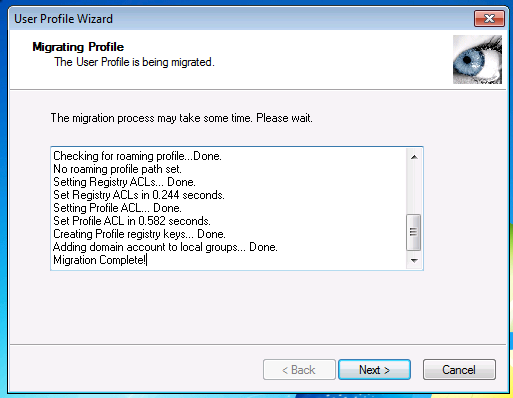
We can see the profile is migrated.

16

In the GUI i am setting to wake the computer for backup and I am setting that i want to participate in the Customer Experience program.

When clicking next in the GUI on the Customer Experience program page, the GUI will display ‘Connecting this Computer to the network’ with a nice progress indicator.

17

At this point our ClientDeploy.log file is finished up, and we can now see a new Log File appears, ClientCoreX86.msi.log

After a few minutes, you will see a whole host of new log files appears.

18

With any luck in the GUI you will then see this..

19

I’m guessing you may not have done, which is why you are reading this… So let’s go and have a quick look through the ClientCoreX86.msi.log,

We now have 19 Log files by the way… and i am slowly starting to regret getting into this. Anyway..

20

We know that ClientDeploy.log finished, and ClientCoreX86.msi.log took over. That then spawned all of these other logs, but looking at the size of ClientDeploy.log i would say that also had some more info appended.

Switching to details view, we can see in what order these logs were written to.

21

In the first stages of ClientCoreX86.msi.log we can see that UR1 for SBS Essentials is referenced, and installed.

22

Moving on you can follow a huge amount of detail in this log – far too much for me to interpret or comment on, but this will be the place to look if you get errors in your install at this point.

You may notice a reference to the other Colorado products..

23a

(Cropped here to enlarge)

24

So NAS = Windows Storage Server 2008 R2… Nice.

You can follow the log file all the way though the installation of the Launchpad program and the setting up of things like allowing remote desktop to the machine. The other logs show the progress of individual tasks like adding of scheduled tasks or installing a backup driver. (not applicable on Windows XP)

When you have finished the installation, you will total 25 log files. The key ones for the installation have already been mentioned.

26

I hope that may of been some use to anyone struggling to find a reason why their connector may not install. If it doesn’t answer the question it may at least shed some light on where you can look for the answer. Of course failing that I have Susan Bradleys home address if you need it :p

Have a look at the links below if you need more specific help.

Client Connector Installation failures :  links to forums and known solutions

Please feel free to send me any solutions i don’t have, i want to have as many as possible!

These links, have been highlighted as answering the issues in the OP, i am not making any guarantee they will solve your issue, this is just somewhere to link them all together.

Microsoft’s Official Troubleshooting Resource For SBSE Connector

Microsoft Online Help

Pending File Rename

Susan Bradleys blog post

Trust Relationship (Time Zone Error / Certificate Policy)

TechNet forum post (Time Zone)

WeGotServed forum post

Microsoft Support KB Article 278381

TechNet forum post (Certificate Policy)

Username and Password Error

TechNet forum post (Username and Password)

Installation Cancelled

TechNet forum post (Installation Cancelled)

WeGotServed forum post

TitleRequired.com Quick Fix: Installation Cancelled

Cannot Find ‘Temp Client’

WeGotServed forum post

Task Scheduler

Susan Bradleys blog post

Wiki Links

Official SBS Wiki for Client Deployment

SBS MVPs wiki for Client Deployment

General Tips

Check the system time of both the server and the client. Check the Time Zone matches as well.

You shouldn’t need to use a static IP on the client machine, but it might help during troubleshooting.

Check for the overall health of your client PC. You don’t need a client to be fully patched, nor does it need the latest browser (examples above are all from IE6) but you do need a ‘healthy’ client. If you are having problems, take a backup, use tools like CCleaner, MalwareBytes, Look for issues on the client that stop it running normally rather than an issue with the Connector itself. A good example of that is from Eriq Neale, who had an issue with a machine installing the connector, which he traced back to a screwed up Task Manager.

Tips for a Migration

I have also seen some success on migrated computers, which are already in the domain but won’t install the connector, by creating a new local user, making that account a local admin, and then running the connect installer as that person.

Performing a System State Backup on SBS 2011 (Standard & Essentials)

sbsstdsbsess

Hands up if you use Image Based Backup?

Good, all of you.

Or is that bad?

There was a lively discussion recently on the topic of Image Based backups in an Active Directory environment.

It seems a lot of people have potentially overlooked the issue of having to restore a Domain Controller, or part of Active Directory.

If you are using solely image based backups and you loose a domain controller, what can you do?

Sure you can restore that server, using an image.

Thinking back to the days before image based backup, using NTBackup or similar provided us with a System State backup, which for those who don’t know, was basically a backup of the registry and any other critical system files and in the case of a domain controller, it also provided us with a backup of Active Directory. (Susan Bradley’s Blog Post on a System State Backup in the 2003 era)

This backup was special, separated from a normal all files backup.

With that backup you could perform either a non authoritative restore, or an authoritative restore, depending on your needs. I wont go into to much here but basically a non authoritative restore would allow the local server’s AD to be overwritten by any other DC, an authoritative restore told the local DC to overwrite all the other DC’s, But the key was, you need a System State backup in order to kick off either type of restore.

You can find more info here:

http://technet.microsoft.com/en-us/library/cc779573%28WS.10%29.aspx

http://support.microsoft.com/kb/241594

http://blogs.technet.com/b/qzaidi/archive/2010/10/07/quickly-explained-active-directory-authoritative-restore.aspx

So, armed with that, you might have a shiver running down your spine, where you have been sitting comfortably knowing your well thought out and carefully monitored image based backup is fool proof – I’m afraid not.

(Having said all of that, there is actually a way around not having a system state backup, but telling you how would encourage bad practice so i’m not going to,  and it only works for one of the scenarios Smile with tongue out )

If you are using the built-in SBS backup, then a system state is included as part of that backup.

http://blogs.technet.com/b/sbs/archive/2011/02/15/introducing-the-small-business-server-2011-backup-wizard.aspx

http://blogs.technet.com/b/sbs/archive/2011/03/31/how-to-perform-an-authoritative-system-state-restore-in-sbs-2008-2011-standard.aspx

Now it has to be said that there will only be a handful of occasions where this would be useful, but wow, if you are in one of those situations you will be glad you have one.

What is it going to protect you against? A corrupted Active Directory (yes it does happen) An accidentally deleted user or other object. Locking yourself out of the domain admin account?

(for SBS Essentials we can easily enable something called the Active Directory Recycle Bin more on that later)

Without the system state backup included in our daily backup – what do we do?

Well lucky for us on SBS the Windows Server Backup feature is already enabled. So it is very easy to setup and perform a System State backup. Open up a command prompt as an administrator..

1

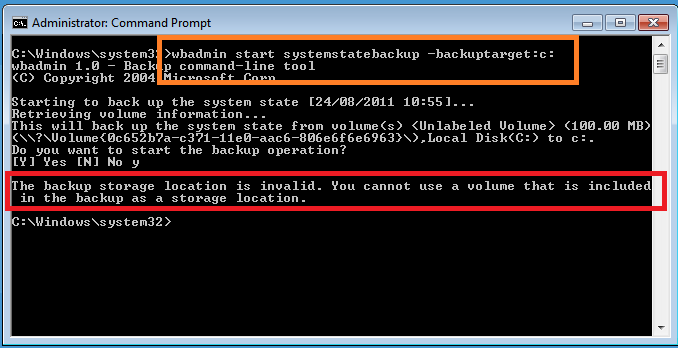
To run a system state backup we can use the wbadmin command tool. You choose to run your system state backup to a volume, not a folder, however you cannot use a location that is included in the backup as the destination, so for example the below command will fail.

wbadmin start systemstatebackup –backuptarget:c:

4

Lets look at the parameters available for the backupsystemstate command.

From TechNet:

100

So, we know that a network location is out, that leaves either a separate Data volume, or an external drive.

I suppose could use the same disks here that we use for our daily backups however I think a better solution is to backup to our Data partition and then that will be included within our normal daily backup (image based or otherwise) Of course, once we have backed up the System State, there is nothing to say we can’t copy it to a network share or anywhere else.

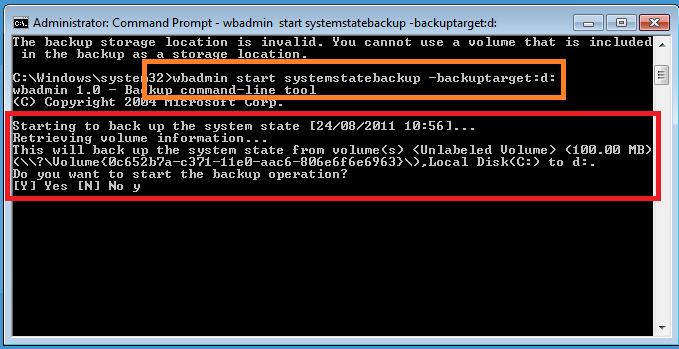
So, let’s try this command instead.

wbadmin start systemstatebackup –backuptarget:d:

You will need to confirm that yes you really do want to start a backup.

6

The backup will then start, and create shadow copies for the volumes the system detects as part of the ‘system state’

It will show you how many files are being detected, and continue on with the backup.

10

Now it might take quite some time for the backup to run as being an SBS server there is a lot of data to be backed up.

11

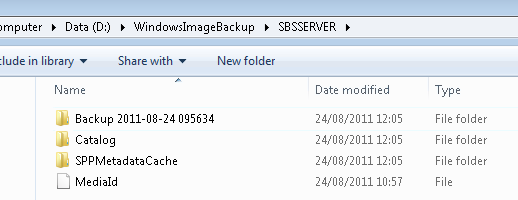
Once the backup is completed, we can see we now have a new folder on our D drive.

If we try to access this we are blocked, so in order to show you what is inside ill click Continue here.

12

We see a folder named after the server, again we need to gain access.

13

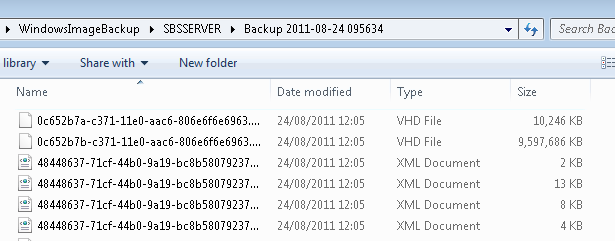
Now inside here we have several folders, the backup itself is contained within the Backup folder, and it is named with a date and time that the backup was launched. Inside this folder will be some XML files and a VHD per volume backed up.

1

2

Below shows the size of the backup folder of a fairly standard SBS Essentials System State.

15

Moving on to schedule the backup we can just build a simple scheduled task to run the wbadmin command, but you will want to add on the –quiet switch so it runs silently. I will leave it up to you to decide if you want to copy that off to a different location.

Here is a sample script you can run to do perform a System State backup, then copy to a network share.

wbadmin start systemstatebackup –BackupTarget:d: -quiet

ping 127.0.0.1

robocopy d:\WindowsImageBackup \\networkcomputer\SBSSystemState /E /COPY:DATSO /Z

I added the ping in there to give it a few seconds after the backup had completed before it starts to copy, and not being a script wizard, that’s the best i can do. You can just dump that into notepad and save it as a BAT file and use your task scheduler to run that file.

I know what you are thinking, how do i restore this?

First off, you need to boot the server into a special mode called Directory Services Restore Mode. You do this by pressing F8 at startup (just after post has completed but before the windows logo appears) Then you need to logon.

You cant logon using your domain admin password, as the domain is not running. So instead you need to use a special account.

Enter this:

Username: .\administrator 

(yes that is .\ this tells the logon process to logon locally as opposed to onto the domain)

Password: domain admin password

(your domain admin password)

Once logged in, you can browse the system as though you were booted up in normal mode. This is good if you need to copy the backup back from a network share or similar (you don’t need to as the restore supports a backup stored on a network share)

So from our elevated command prompt we can run..

wbadmin get versions

restore

This will list all the available versions of the backups you have to restore.

Pay attention to the version identifier as we will need this to initiate a restore.

To start the restore enter.

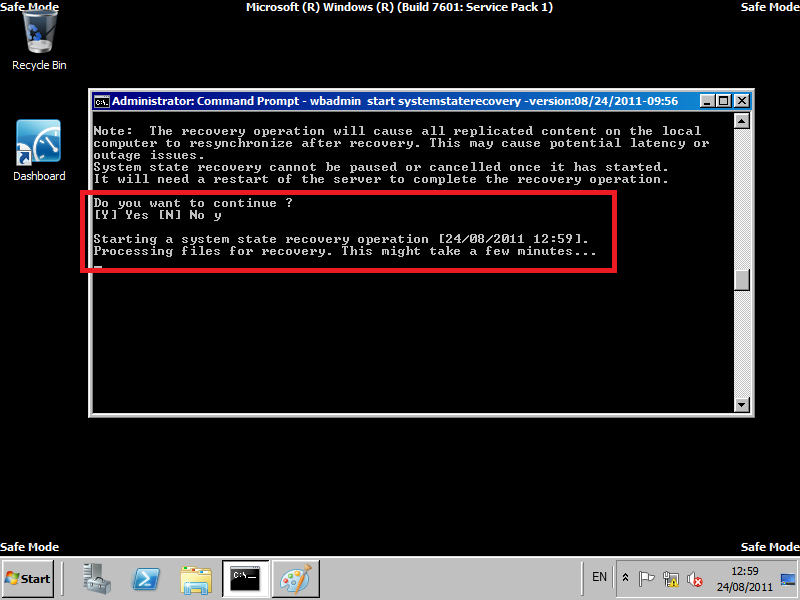
wbadmin start systemstaterecovery –version:08/24/2011-09:56

restore2

You will need to say Yes i want to start the recovery, and then also say yes to confirm you understand about potential impact on replication (only applicable in multi DC environments)

restore4a

The backup will then whizz off and restore.

Once the restore is complete, you need to reboot.. then when you log in you should see…

restore5

For more examples and a list of syntax, check this out.

AD Recycle Bin (AD RB)

Being up front and honest, never used it.

it is a new feature with Windows Server 2008 R2, and, well it looks pretty cool. This will help protect against items that were accidentally deleted, and should help stop you having to do a full restore of AD.

Check out this blog post for an introduction:

http://blogs.technet.com/b/activedirectoryua/archive/2009/01/30/introducing-active-directory-recycle-bin.aspx

And for more info:

http://blogs.technet.com/b/askds/archive/2009/08/27/the-ad-recycle-bin-understanding-implementing-best-practices-and-troubleshooting.aspx

http://technet.microsoft.com/en-us/library/dd391916%28WS.10%29.aspx

http://technet.microsoft.com/en-us/library/dd392261%28WS.10%29.aspx

Now, you read all that right?

So you know then, that to enable AD RB your Forest Functional Level must be at Server 2008 R2 which is good news for SBS 2011 Essentials customers, as it is by default.

Potentially bad news for SBS 2011 Standard customers, as it isn’t.

Even worse for those of you on SBS 2008, as that is plain old Server 2008, not R2.

Check out this TechNet page for more info http://technet.microsoft.com/en-us/library/cc730985.aspx

Very quickly, if you have, or plan to have any DC’s that will not be running Windows Server 2008 R2, then the AD RB is not going to be an option for you in an SBS network.

Assuming all is well, and you have followed the guidance and planning advice in the links above, and also done all your own research and promise not to blame me if anything goes wrong..

Enabling the AD RB is straight forward. You need to use the AD PowerShell  Module, from Administrative tools, and also run this As Administrator.

This article does such a great job of explaining it,  you should just read that instead!

http://blogs.technet.com/b/askds/archive/2009/08/27/the-ad-recycle-bin-understanding-implementing-best-practices-and-troubleshooting.aspx


Joining a client to an SBS 2011 Essentials network

sbsessAdding client computers to an SBS Essentials network should be straight forward, you just go to the sbs essentials server ‘connect’ website, install the software and it does the rest.. Or so it should.

Lots of threads on the SBS forums suggest otherwise, and also there are questions relating to profiles not being moved with the accounts and it can all get a bit messy.

I wanted to know for myself what actually happens as although i have added clients in a lab system, it is not something i had really paid much attention to.

So i have picked Windows XP and Windows 7. The Windows XP machine is at SP3 but apart from that is out of the box (fresh install) and the Win 7 is Win 7 Professional and is running SP1, i have multiple accounts on both and a mixture of local admin and standard user. My aim is to show what happens when you add one of these computers to the Essentials network and to add some guidance on what to do if things don’t happen as you expect.

Where’s my stuff gone?

When you run the connect wizard there are a few different paths it can take, and the results will vary depending on what is true about who is running the wizard. I put together a little flow chart to try and show you what is likely to happen.

SBS Essentials Connect Flow Chart

What we see from the above, is that if you are logged on as a standard user account, then you cannot run the connect wizard.

If you are logged on as a local admin, you can. When you get to enter your domain credentials, make sure to enter those of the person who uses the computer, not the administrator (unless they are the same person)

Why? Because, if you enter a network administrator account, for say, DonF, and the user of this computer is PeterVenkman, then Peters profile is migrated into the DonF profile on that computer.

Peter is free to logon and create a new profile, but he wont have any of his documents or settings.

Below i go into more detailed explanation of what happens on the machine, and what happens if you have multiple local accounts.

Windows XP

The first thing we should do, is backup our computer. I know i know, a lot of you will skip this step, but i think having a roll back point prior to attempting this is critical, especially given that a number of people have struggled with getting this working.

You can use your favourite disk imaging tool to a USB drive, but i am just going to make use of System Restore, i am going to make sure it is enabled and create a restore point before we start.

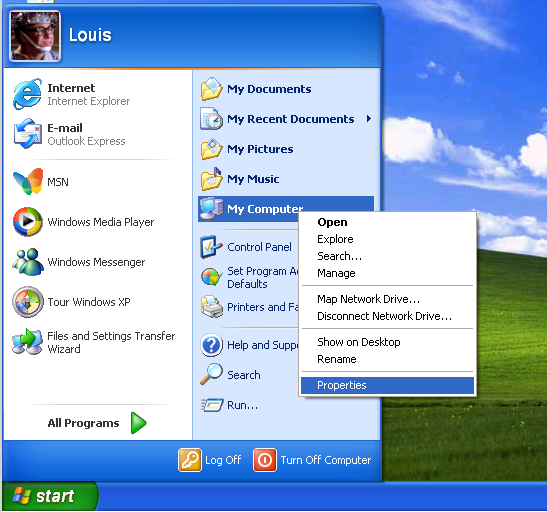
So, Click on Start, then right click on My Computer, then select properties with a left click.

1

Switch to the System Restore Tab.

We can see System Restore is running, as it shows the status of C is Monitoring. Also the Check box marked ‘turn off system restore’ is unchecked.

2

Click Ok to close.

Now we can go ahead and create a restore point.

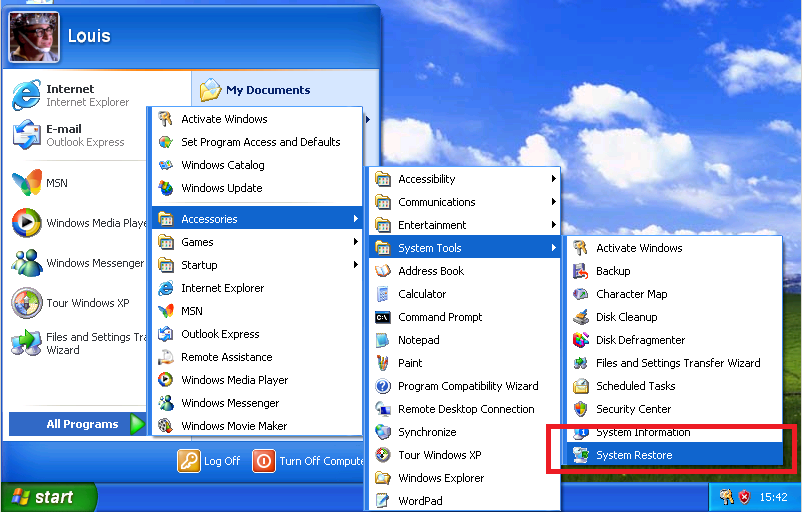
Click Start, All Programs, Accessories, System Tools and finally System Restore.

3

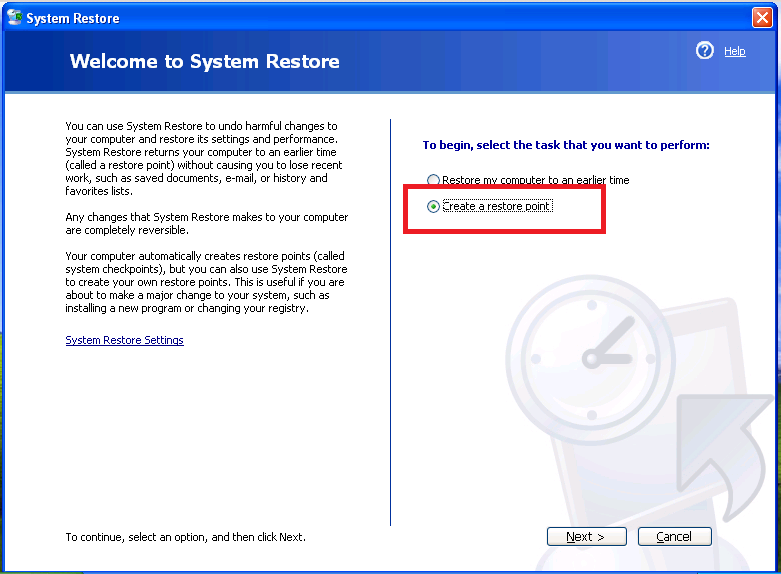
System Restore Opens up, and you have the choice to Create a Restore Point. Select the radio button for that, and click Next.

4

You will need to enter a name for the Restore Point so you can identify it later.

5

Click on Create to finish the process.

Click on Close when the Restore Point has been created.

So now we know we have a fall back position, we can move on to running the connect wizard.

Just as a side note i’m assuming your PC is already in a workgroup, as moving from an existing domain, to an SBS Essentials domain would be part of a migration, which i am not covering here.

So, next open up Internet Explorer and browse to http://sbsserver/connect There are prerequisites you will need to have installed before you can complete the /connect process lucky for us, it will detect and fix most if not all of them silently.

7

Click On the Download Software for Windows link. When prompted, you want to Run the software.

8

Just as another side note, i am currently logged onto the Windows XP machine with a local admin account.

You will be prompted again whether you want to run or don’t run the software. There is a second option named, ‘more options’ click that, and then choose to always run software from Microsoft. Then click Run.

9

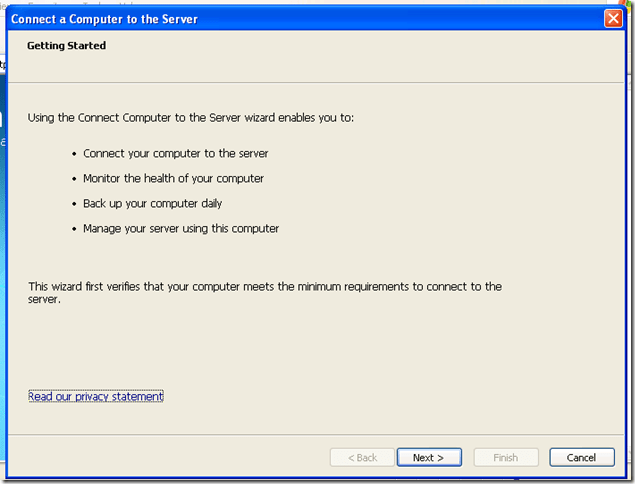
The Connect wizard begins, and helpfully tells you what using the wizard enables you to do. First off it is going to verify we meet the requirements.. click next.
10

This section of the wizard installed the .NET Framework for me silently, so don’t be surprised it it takes some time to complete.

11

12

It will then prompt for your username and password on the network. You might want to add in the Domain Admin username and password – if you do you will see a warning.

13

So, click Yes, and let’s enter a normal standard user account.

I have setup accounts for the users of this PC already on the Dashboard,

Enter the details for the user who will be using this PC and click next, it will whizz away and prompt you to reboot.

15

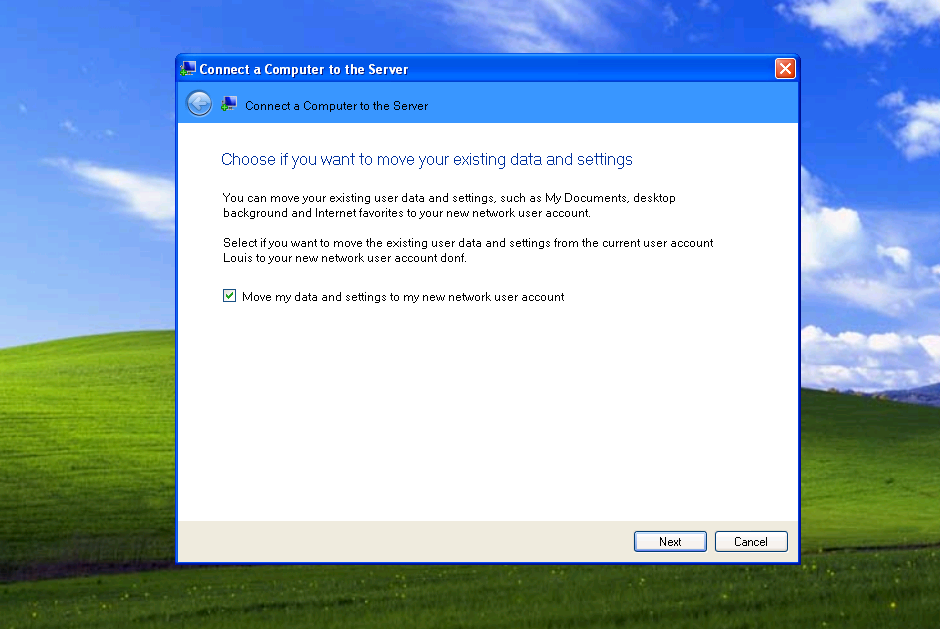
After a reboot you will be shown a screen asking you to choose if you want to move your data and settings to your new account, you can leave the box checked if you agree, or un-check if you don’t. Click next to continue.

16

You will then be asked to enter a computer description, fill this out and click next.

17

Do you want to wake up the computer for backups – umm let me think… (actually you may need to make a decision here based on whether this is a mobile computer or desktop, ultimately you want to backup but it can freak out users if their laptop starts up of it’s own accord in the middle of the night)

19

Do you want to join the Windows Customer Experience Improvement Program?

20

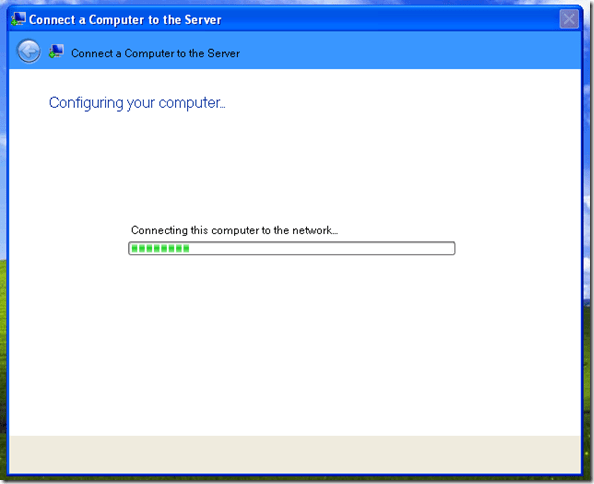
That, thankfully is the last question for now. Clicking next will begin configuration of your computer.
21

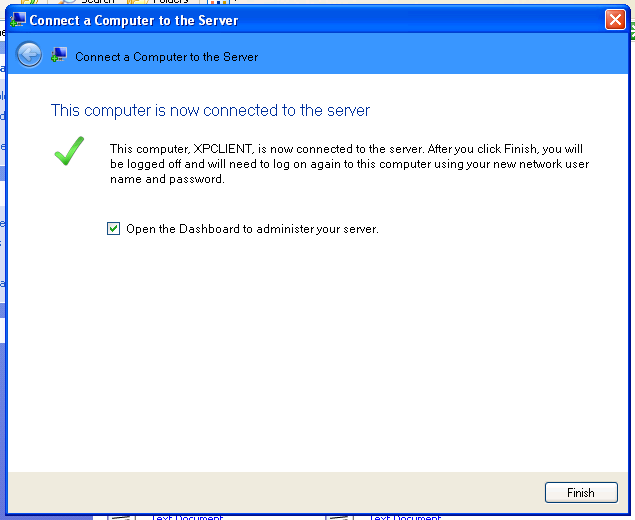
And with any luck it should complete successfully.

22

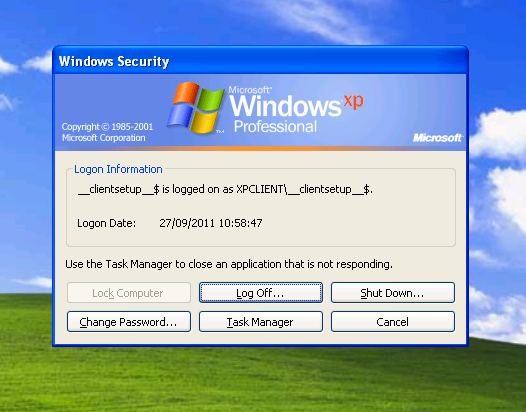
Now let’s logon to our computer using our domain credentials.

23

We can see that the file i had on the desktop has moved across, that’s good..

24

So, all in all, it looks like that has worked.

Now let’s move to the second user, Janine, who also uses this computer..

25

Unfortunately no, Janine’s documents have not been moved across.

So, why is that? Well the Connect wizard is only designed to transfer across documents and settings that are stored in the profile of the person running the wizard. So if you have other accounts on the computer manual intervention is then required to move these into their domain profile.

Let’s have a look at some folders on the PC to get a better idea of how the wizard does this.

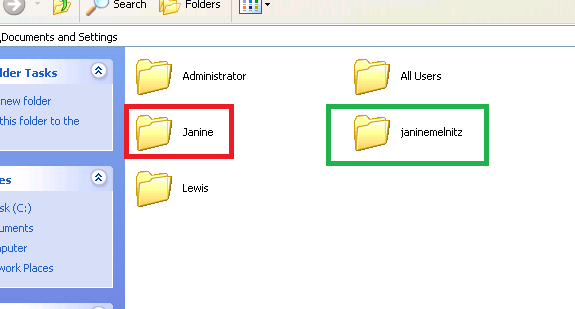
Obvious place to look first, is the C:\Documents and Settings\ folder.

27

Interestingly here we can see a single folder for Louis (albeit spelt incorrectly) and two folders for Janine.

What’s gone on here?

Well firstly, when Louis joined the company, they spelled his name wrong, so although his logon name was renamed correctly to Louis, his profile folder was not changed.

So how does Windows know where to store or look for his data?

To answer that question we need to look in the registry.

Lets open up Regedt32.

Click Start, Run, type Regdt32 and click Ok.
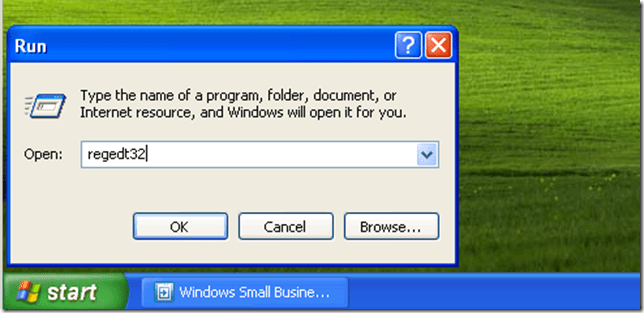
28

Expand HKEY_Local_Machine > Software > Microsoft > Windows NT > CurrentVersion > ProfileList

30

Here you can see registry keys defined for each profile stored on the system, and some default ones.

If we take a closer look at the keys we can see that this key, relates to Janines Domain user profile.

31

And this key is for Janine’s Local user profile.

33

There is only one key for Louis.

32

The keys are a series of letters and numbers, and actually are the users, user account SIDs – which is a security identifier. More on that here

When comparing these two sets of SIDs we can see that the Connect process has deleted Louis’s local account SID and replaced it with that of his Domain account. But what else has it done?

It has also changed the NTFS Permissions on the Lewis folder to give the domain account Full Control and remove the local account from the Access Control List (ACL)

If we re-create that process, we can link Janines Domain profile folder to that of her Local profile folder, restoring access to her documents and settings, and saving you the time of copying everything across.

It has to be said, that doing this is likely to produce unexpected results, and i would not recommend it.

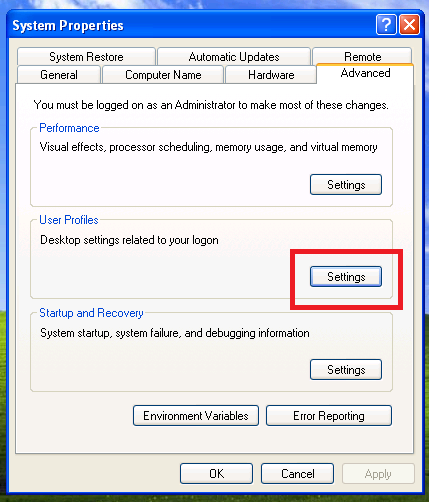
A much better way to achieve this would be to use the System Properties applet, and use the User Profile settings section on the Advanced tab.

This produces consistent results and should be a preferred way to do this.

From System Properties you can go to the Advanced Tab, under User Profiles click Settings.

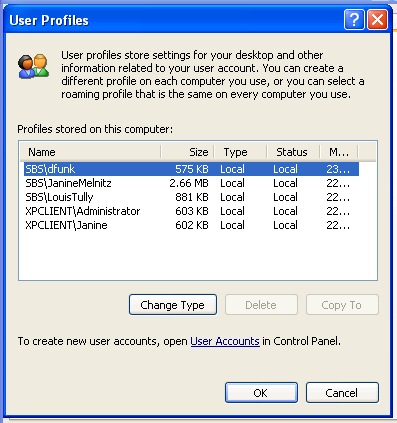
48

You can see all the profiles stored on the local computer.

49

Select the local profile you want to transfer, you will see the ‘copy to’ button becomes available. Click This.

50

Clicking Browse will allow you to search for the folder location to copy the profile folder to. We want to choose to overwrite Janine’s domain user profile folder. (this requires Janine’s domain use account to have logged on already to this pc)

51

You then need to use the ‘change’ button to select a user who is permitted to use this profile. Obviously we are looking for Janine’s domain account. Then click OK.

52

Click Yes to acknowledge you will be overwriting this folder.
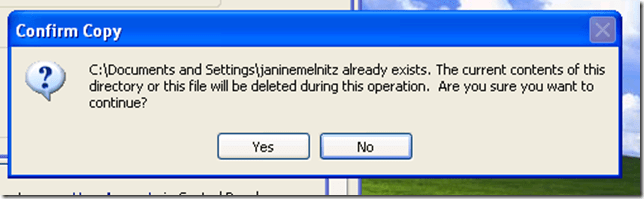
53

That is all!

There is also a third method using Forensit’s Profile Wizard, which i am covering under the Windows 7 Machines.

This is a very simple wizard and will allow you to move profiles very quickly.


Windows 7

On the Windows 7 Machine we actually have 4 local user accounts. So what we are going to do is run through the connect wizard, as a network admin, not migrate any of the data, then use Forensit’s wizard to migrate the user profiles.

1

I am choosing to logon as my Local Admin account, as we know from above this is the only account we can use to run the Connect wizard.

Again before we start we should verify System Restore is running, and create a Restore Point.

Click on Start, then right click Computer and go to properties.

4

Switch to System Protection.

5

You can see the status of System Restore highlighted, and you can click on Create, to create a new system restore point.
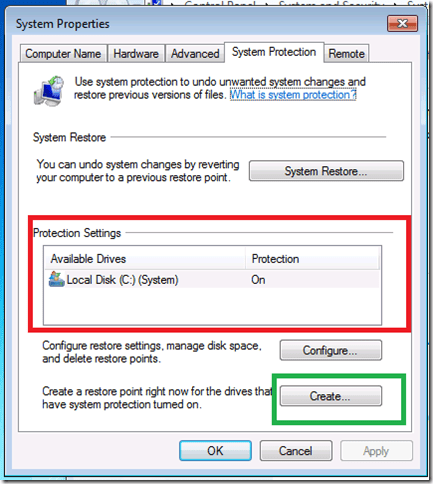
6

Enter a name and click on Create to start creation.

7

8

After a few moments your restore point will have completed. You can now close all the open windows and open up IE ready to launch Connect.

9

When you go to http://sbsserver/connect on the Win7 machine you will notice a message appears about Intranet Settings, you can ignore this for now as it will not affect the connect wizard.

The Wizard itself is identical to that on XP so i wont go into much detail here.

Just remember to un-check the box to make sure you don’t migrate documents and settings into your network administrator account.

12

Once you have finished the wizard, you are ready to logon.
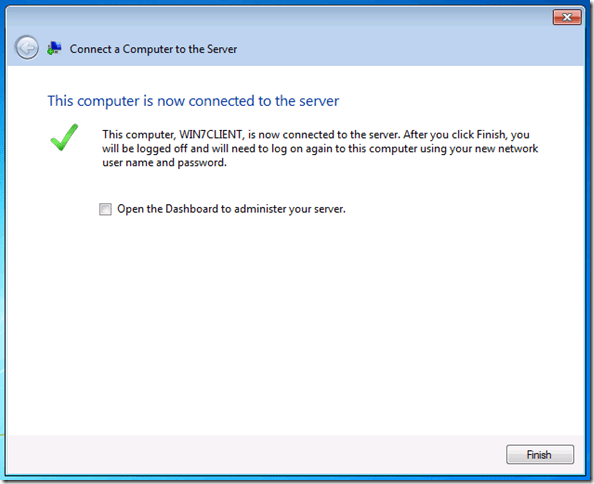
13

Login as the Network Administrator, and load up a copy of Forensit’s Profile Wizard.

15

Forensit’s wizard will guide us through the process.

16

You will need to uncheck, Join Domain and Also Uncheck Set Default Logon, Enter in your Destination account name, in this case PeterVenkman and click Next,

17

Select the Source Profile Folder and click Next

18

When the wizard has completed the task, click next and then you are finished.

19

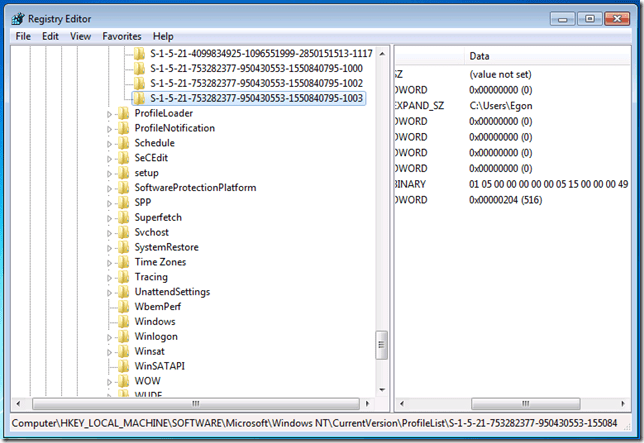
If we take a look in the registry at the profiles section, we can see that just like the connect wizard it is replacing the Local registry key with a domain one.

20

We can do the same process again for Egon’s account, and then look at a before and after shot.

Before – Showing the local SID for Egon’s account.
21

After – Showing the Domain SID for Egon’s account.

26

25

Hopefully this has given you some insight in to how the connect wizard behaves, and what it does to your user profiles when joining and SBS Essentials Network.

SBS 2011 Essentials : Update Rollup 1 Releasing 23rd August 2011

sbsessYou may have seen the tweets and posts that SBS Essentials (and the other two Colorado products) will be getting their first Update Rollup (UR) on the 23rd of August.

But what does it do?

It will address and resolve some of the more prominent bugs that have been reported since the release of the OS, as well as tie in some other updates, but this is not a security update. You will be able to read about what it is does in full when the KB is published here.

I will update with a link to the Download and the KB when it goes live.

EDIT – The KB is showing the UR is available through Windows Update. If i find a link to a standalone download i will post it here.

There are at least 11 Fixes contained within UR1, but i am not going to talk about all of them.

RWA Wizard SSL and .co.uk Domains

The first issue that is fixed, and i can confirm that it is FIXED in UR1 is the issue that many of us here in the UK have hit, which is the inability to use a second level root domain with the RWA Setup Wizard. I blogged (some would say extensivley here & here) on this subject a while back and the pain it was causing to setup a .co.uk domain using the RWA wizard, it was just plain broken.
Good news is, when you apply UR1 – this is no longer the case, you can use a .co.uk or any second level root domain.

Special Characters in Domain Admin password

Some special characters (eg of special characters %^&*?~¬ ) characters in passwords were causing issues when using the /connect site to join a computer to the Essentials domain, this is also now fixed.

RWA/RDP Failure when using OpenDNS

Some people were reporting seeing odd behaviour and failures in RWA when they were using OpenDNS as a DNS provider. This is issue is now resolved in UR1.

Improvements to Server Alerting

Issues were being reported whereby the server was seemingly ignoring someone’s responses to Alert Notifications, This is now improved in UR1.

Dashboard Management of Users

We were seeing issues in Dashboard when a user account was edited, or deleted, also a lot of issues were reported in the forums where people who had migrated were having problems managing user accounts via the Dashboard.  The behaviour here should be much improved and in most cases will solve issues with Users and the Dashboard.

(nb. i am not going to say it is 100% fixed because, well, anyone can do a migration and make all sorts of wonderful things occur which probably wouldn’t be fixed by UR1)
Hopefully this is enough to explain what is going to be in UR1, as i said there is at least 11 fixes and i have mentioned 5 of them. These 5 are the issues i have seen mentioned or personally experienced.

Don’t worry if an issue you have is not mentioned it may well be included, if you find it isn’t, why not open a bug on the connect site?

You will need to visit this page.. http://connect.microsoft.com/directory/accepting-bugs find Windows Small Business Server in the list and Join, make sure you are signed up with a Windows Live ID and then have fun submitting bugs.