Troubleshooting Client Connector Install : SBS2011 Essentials

sbse-conThere are countless reports of problems installing the Client Connector on SBS Essentials and WHS. I’ll not mention WSSE as i don’t think anyone has even bought one yet Smile with tongue out

(that’s not true i do know people who have already deployed it)

Far more common at least, is for it to be an issue with SBSe or WHS2011.

I wanted to put together a resource for people who are struggling to get this installed, not built by me, but a collation of forum posts, solutions and tips that should either fix the issues, or point you in the right direction.

So first off, you might want to have a quick read through of this, which is my own post on how the process should work. It also gives some guidance on what to do if the profile move doesn’t work.

You may also be interested to know where the log files are for the Connector Install..

Windows XP

Log File Location, C:\Documents and Settings\All Users\Application Data\Microsoft\Windows Server\Logs

This is a hidden folder.

Windows Vista / 7

Log file location, C:\ProgramData\Microsoft\Windows Server\Logs

This is a hidden folder

Did you know about the SBS 2011 Log Collector Tool?  You can read about that here

Troubleshooting the Installation

I thought it might be good to run through an install and try to monitor the logs and find out which log is most useful at which time.

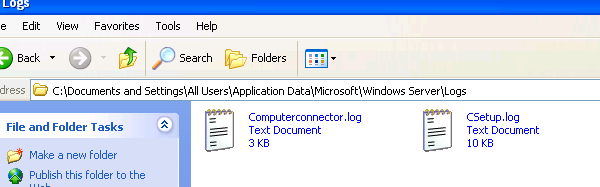
The first log file, is Computerconnector.log, this shows a very high level progress indicator of the first steps of the install.

1

If you are a bit sad like me, and you do monitor the logs folder during a connector install, you will see the second log file to be generated is CSetup.log, which gives us a more detailed view of the early setup stages, for example when .NET 4 is installed.

csetup.log

You can also see that the CSetup.log file is 10kb, as opposed to Computerconnector.log 3kb.
3

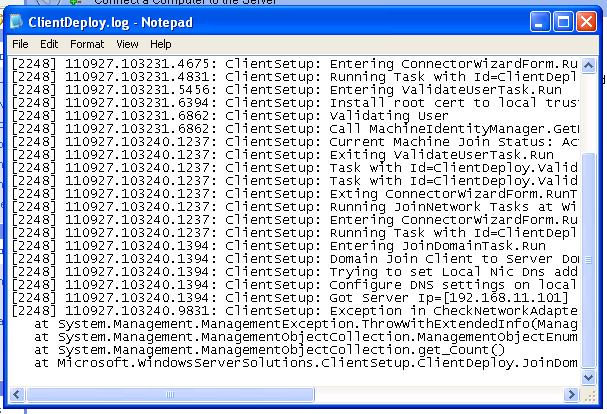
When we get to the stage where you are prompted to enter your network username and password, we have a third log file. ClientDeploy.log, 

This log file picks up from CSetup.log
4

You can follow the progress of the next stage of deployment through this log file. You can see things like the tasks to locate the SBS Server, configuration of the local NIC DNS settings, and you can also spot errors and problems.

For example…

6

The log shows it has found a duplicate machine name, so it pauses the Join Domain task, to give you a chance, in the GUI to confirm you want to continue

5

And now i have hit a problem.

7

8

What you can see from the log here is that there is an Access Denied condition when trying to join the domain.

Why would that be?

In this instance, as mentioned above, a machine already existed in the domain with this name. Therefore, to join this current machine with the same name, i would need certain Active Directory (AD) permissions, which a normal network user account doesn’t have.

So how come a normal user can add a computer to the domain usually?

Whilst i don’t have the full technical answer to that question, i imagine it is something to do with certain settings have been set so that ANY account has the right to join a computer to the domain, but only the Domain Admin has the permissions to reset a machine account password, remove a machine from the domain, or overwrite a machine account in AD.

So, the solution here to get a clean join, would be to ensure any duplicate machine names have been removed from the server, either by the dashboard or through AD directly. Or simply rename the computer.

That being said, you can work around this issue by installing the connector using the Domain Admin credentials, and that will work in this situation, but doing so has it’s own caveats described here.

You might say, well i haven’t had a complete install on this PC yet so how can it possibly have a duplicate name.

To that i would say – maybe the first time you tried it, it failed on a different error? You fixed that and now attempt it again, but didn’t know to remove the account from the dashboard?

On this client, i removed the computer from the Dashboard, and re ran the connect software, using the same, NON ADMIN credentials.

In this screen shot i highlighted in Blue, where we started in the last screen shot ‘Calling Join Domain’ and ended in Red on the ‘JoinNetwork Tasks Task Status’ in Red.

9

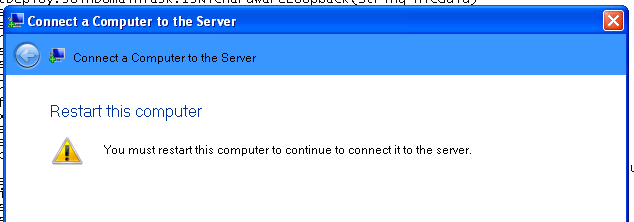
The GUI of the wizard now shows us we need to reboot.
image

After the reboot, it is a little trickier to keep track of the logs because ‘Explorer.exe’ is not loaded up yet and we have no way to browse the logs folder.
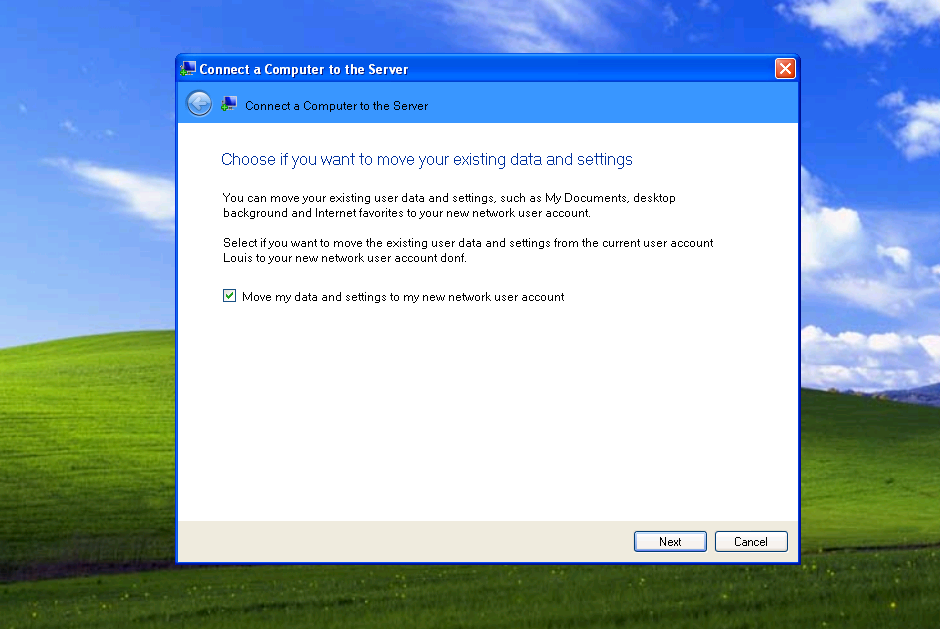
11

So, if you want to, hit CTRL-ALT-DEL and go into task manager.
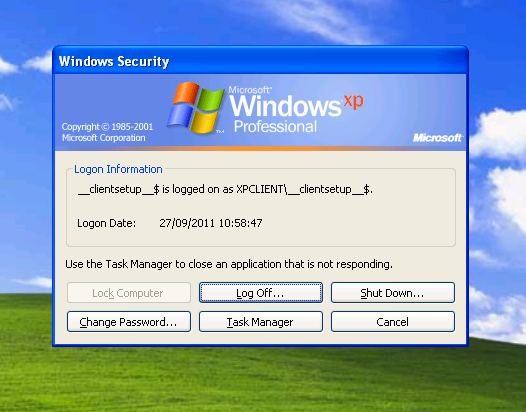
12

From task manager, click File, New Task, and then you can type in the folder path to the logs folder. (you may need to put it into quotes)

C:\Documents and Settings\All Users\Application Data\Microsoft\Windows Server\Logs

13

At this point we still have just our 3 log files.

Computerconnector.log

CSetup.log

ClientDeploy.log

Looking at ClientDeploy.log again, we can see in Red where we left off, and then where the process continued, and finally in Green the reboot.

15

Let’s move on through the GUI and see what happens to the logs. I am going to leave all of the options on their defaults.

We can see the profile is migrated.

16

In the GUI i am setting to wake the computer for backup and I am setting that i want to participate in the Customer Experience program.

When clicking next in the GUI on the Customer Experience program page, the GUI will display ‘Connecting this Computer to the network’ with a nice progress indicator.

17

At this point our ClientDeploy.log file is finished up, and we can now see a new Log File appears, ClientCoreX86.msi.log

After a few minutes, you will see a whole host of new log files appears.

18

With any luck in the GUI you will then see this..
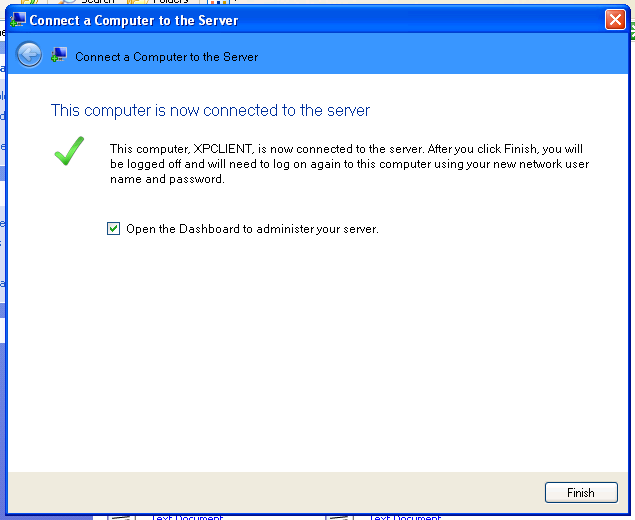
19

I’m guessing you may not have done, which is why you are reading this… So let’s go and have a quick look through the ClientCoreX86.msi.log,

We now have 19 Log files by the way… and i am slowly starting to regret getting into this. Anyway..

20

We know that ClientDeploy.log finished, and ClientCoreX86.msi.log took over. That then spawned all of these other logs, but looking at the size of ClientDeploy.log i would say that also had some more info appended.

Switching to details view, we can see in what order these logs were written to.

21

In the first stages of ClientCoreX86.msi.log we can see that UR1 for SBS Essentials is referenced, and installed.

22

Moving on you can follow a huge amount of detail in this log – far too much for me to interpret or comment on, but this will be the place to look if you get errors in your install at this point.

You may notice a reference to the other Colorado products..

23a

(Cropped here to enlarge)

24

So NAS = Windows Storage Server 2008 R2… Nice.

You can follow the log file all the way though the installation of the Launchpad program and the setting up of things like allowing remote desktop to the machine. The other logs show the progress of individual tasks like adding of scheduled tasks or installing a backup driver. (not applicable on Windows XP)

When you have finished the installation, you will total 25 log files. The key ones for the installation have already been mentioned.
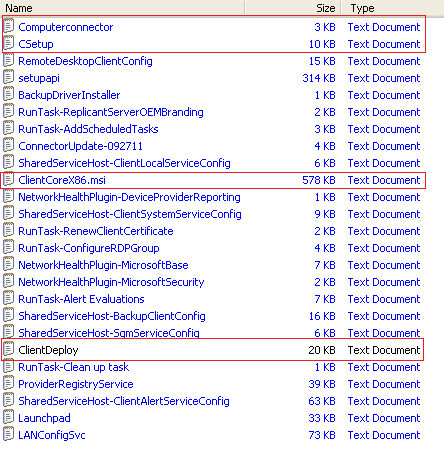
26

I hope that may of been some use to anyone struggling to find a reason why their connector may not install. If it doesn’t answer the question it may at least shed some light on where you can look for the answer. Of course failing that I have Susan Bradleys home address if you need it :p

Have a look at the links below if you need more specific help.

Client Connector Installation failures :  links to forums and known solutions

Please feel free to send me any solutions i don’t have, i want to have as many as possible!

These links, have been highlighted as answering the issues in the OP, i am not making any guarantee they will solve your issue, this is just somewhere to link them all together.

Microsoft’s Official Troubleshooting Resource For SBSE Connector

Microsoft Online Help

Pending File Rename

Susan Bradleys blog post

Trust Relationship (Time Zone Error / Certificate Policy)

TechNet forum post (Time Zone)

WeGotServed forum post

Microsoft Support KB Article 278381

TechNet forum post (Certificate Policy)

Username and Password Error

TechNet forum post (Username and Password)

Installation Cancelled

TechNet forum post (Installation Cancelled)

WeGotServed forum post

TitleRequired.com Quick Fix: Installation Cancelled

Cannot Find ‘Temp Client’

WeGotServed forum post

Task Scheduler

Susan Bradleys blog post

Wiki Links

Official SBS Wiki for Client Deployment

SBS MVPs wiki for Client Deployment

General Tips

Check the system time of both the server and the client. Check the Time Zone matches as well.

You shouldn’t need to use a static IP on the client machine, but it might help during troubleshooting.

Check for the overall health of your client PC. You don’t need a client to be fully patched, nor does it need the latest browser (examples above are all from IE6) but you do need a ‘healthy’ client. If you are having problems, take a backup, use tools like CCleaner, MalwareBytes, Look for issues on the client that stop it running normally rather than an issue with the Connector itself. A good example of that is from Eriq Neale, who had an issue with a machine installing the connector, which he traced back to a screwed up Task Manager.

Tips for a Migration

I have also seen some success on migrated computers, which are already in the domain but won’t install the connector, by creating a new local user, making that account a local admin, and then running the connect installer as that person.

Performing a System State Backup on SBS 2011 (Standard & Essentials)

sbsstdsbsess

Hands up if you use Image Based Backup?

Good, all of you.

Or is that bad?

There was a lively discussion recently on the topic of Image Based backups in an Active Directory environment.

It seems a lot of people have potentially overlooked the issue of having to restore a Domain Controller, or part of Active Directory.

If you are using solely image based backups and you loose a domain controller, what can you do?

Sure you can restore that server, using an image.

Thinking back to the days before image based backup, using NTBackup or similar provided us with a System State backup, which for those who don’t know, was basically a backup of the registry and any other critical system files and in the case of a domain controller, it also provided us with a backup of Active Directory. (Susan Bradley’s Blog Post on a System State Backup in the 2003 era)

This backup was special, separated from a normal all files backup.

With that backup you could perform either a non authoritative restore, or an authoritative restore, depending on your needs. I wont go into to much here but basically a non authoritative restore would allow the local server’s AD to be overwritten by any other DC, an authoritative restore told the local DC to overwrite all the other DC’s, But the key was, you need a System State backup in order to kick off either type of restore.

You can find more info here:

http://technet.microsoft.com/en-us/library/cc779573%28WS.10%29.aspx

http://support.microsoft.com/kb/241594

http://blogs.technet.com/b/qzaidi/archive/2010/10/07/quickly-explained-active-directory-authoritative-restore.aspx

So, armed with that, you might have a shiver running down your spine, where you have been sitting comfortably knowing your well thought out and carefully monitored image based backup is fool proof – I’m afraid not.

(Having said all of that, there is actually a way around not having a system state backup, but telling you how would encourage bad practice so i’m not going to,  and it only works for one of the scenarios Smile with tongue out )

If you are using the built-in SBS backup, then a system state is included as part of that backup.

http://blogs.technet.com/b/sbs/archive/2011/02/15/introducing-the-small-business-server-2011-backup-wizard.aspx

http://blogs.technet.com/b/sbs/archive/2011/03/31/how-to-perform-an-authoritative-system-state-restore-in-sbs-2008-2011-standard.aspx

Now it has to be said that there will only be a handful of occasions where this would be useful, but wow, if you are in one of those situations you will be glad you have one.

What is it going to protect you against? A corrupted Active Directory (yes it does happen) An accidentally deleted user or other object. Locking yourself out of the domain admin account?

(for SBS Essentials we can easily enable something called the Active Directory Recycle Bin more on that later)

Without the system state backup included in our daily backup – what do we do?

Well lucky for us on SBS the Windows Server Backup feature is already enabled. So it is very easy to setup and perform a System State backup. Open up a command prompt as an administrator..

1

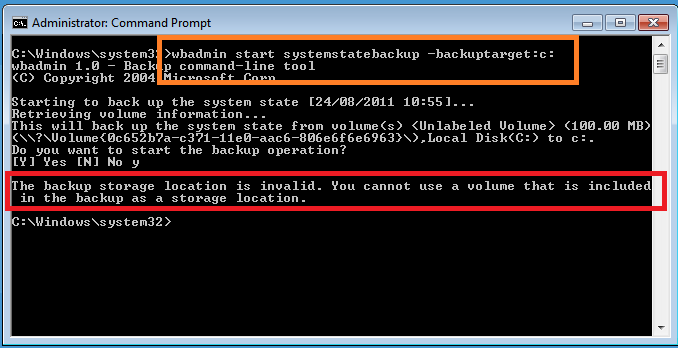
To run a system state backup we can use the wbadmin command tool. You choose to run your system state backup to a volume, not a folder, however you cannot use a location that is included in the backup as the destination, so for example the below command will fail.

wbadmin start systemstatebackup –backuptarget:c:

4

Lets look at the parameters available for the backupsystemstate command.

From TechNet:

100

So, we know that a network location is out, that leaves either a separate Data volume, or an external drive.

I suppose could use the same disks here that we use for our daily backups however I think a better solution is to backup to our Data partition and then that will be included within our normal daily backup (image based or otherwise) Of course, once we have backed up the System State, there is nothing to say we can’t copy it to a network share or anywhere else.

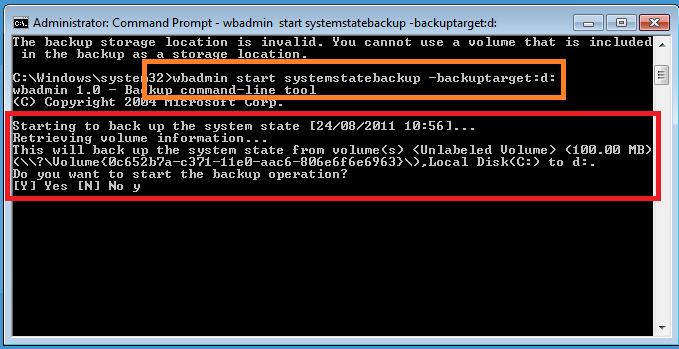
So, let’s try this command instead.

wbadmin start systemstatebackup –backuptarget:d:

You will need to confirm that yes you really do want to start a backup.

6

The backup will then start, and create shadow copies for the volumes the system detects as part of the ‘system state’

It will show you how many files are being detected, and continue on with the backup.

10

Now it might take quite some time for the backup to run as being an SBS server there is a lot of data to be backed up.

11

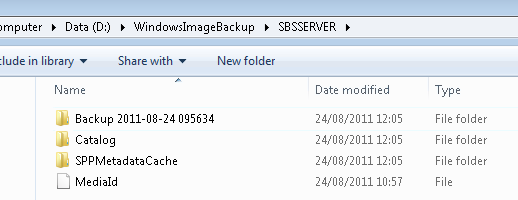
Once the backup is completed, we can see we now have a new folder on our D drive.

If we try to access this we are blocked, so in order to show you what is inside ill click Continue here.

12

We see a folder named after the server, again we need to gain access.

13

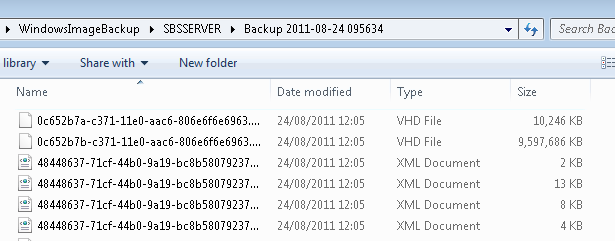
Now inside here we have several folders, the backup itself is contained within the Backup folder, and it is named with a date and time that the backup was launched. Inside this folder will be some XML files and a VHD per volume backed up.

1

2

Below shows the size of the backup folder of a fairly standard SBS Essentials System State.

15

Moving on to schedule the backup we can just build a simple scheduled task to run the wbadmin command, but you will want to add on the –quiet switch so it runs silently. I will leave it up to you to decide if you want to copy that off to a different location.

Here is a sample script you can run to do perform a System State backup, then copy to a network share.

wbadmin start systemstatebackup –BackupTarget:d: -quiet

ping 127.0.0.1

robocopy d:\WindowsImageBackup \\networkcomputer\SBSSystemState /E /COPY:DATSO /Z

I added the ping in there to give it a few seconds after the backup had completed before it starts to copy, and not being a script wizard, that’s the best i can do. You can just dump that into notepad and save it as a BAT file and use your task scheduler to run that file.

I know what you are thinking, how do i restore this?

First off, you need to boot the server into a special mode called Directory Services Restore Mode. You do this by pressing F8 at startup (just after post has completed but before the windows logo appears) Then you need to logon.

You cant logon using your domain admin password, as the domain is not running. So instead you need to use a special account.

Enter this:

Username: .\administrator 

(yes that is .\ this tells the logon process to logon locally as opposed to onto the domain)

Password: domain admin password

(your domain admin password)

Once logged in, you can browse the system as though you were booted up in normal mode. This is good if you need to copy the backup back from a network share or similar (you don’t need to as the restore supports a backup stored on a network share)

So from our elevated command prompt we can run..

wbadmin get versions

restore

This will list all the available versions of the backups you have to restore.

Pay attention to the version identifier as we will need this to initiate a restore.

To start the restore enter.

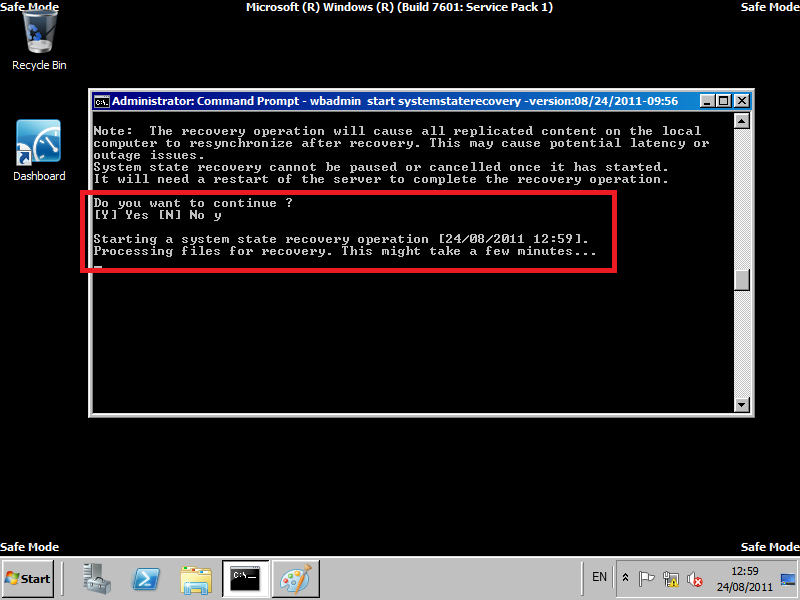
wbadmin start systemstaterecovery –version:08/24/2011-09:56

restore2

You will need to say Yes i want to start the recovery, and then also say yes to confirm you understand about potential impact on replication (only applicable in multi DC environments)

restore4a

The backup will then whizz off and restore.

Once the restore is complete, you need to reboot.. then when you log in you should see…

restore5

For more examples and a list of syntax, check this out.

AD Recycle Bin (AD RB)

Being up front and honest, never used it.

it is a new feature with Windows Server 2008 R2, and, well it looks pretty cool. This will help protect against items that were accidentally deleted, and should help stop you having to do a full restore of AD.

Check out this blog post for an introduction:

http://blogs.technet.com/b/activedirectoryua/archive/2009/01/30/introducing-active-directory-recycle-bin.aspx

And for more info:

http://blogs.technet.com/b/askds/archive/2009/08/27/the-ad-recycle-bin-understanding-implementing-best-practices-and-troubleshooting.aspx

http://technet.microsoft.com/en-us/library/dd391916%28WS.10%29.aspx

http://technet.microsoft.com/en-us/library/dd392261%28WS.10%29.aspx

Now, you read all that right?

So you know then, that to enable AD RB your Forest Functional Level must be at Server 2008 R2 which is good news for SBS 2011 Essentials customers, as it is by default.

Potentially bad news for SBS 2011 Standard customers, as it isn’t.

Even worse for those of you on SBS 2008, as that is plain old Server 2008, not R2.

Check out this TechNet page for more info http://technet.microsoft.com/en-us/library/cc730985.aspx

Very quickly, if you have, or plan to have any DC’s that will not be running Windows Server 2008 R2, then the AD RB is not going to be an option for you in an SBS network.

Assuming all is well, and you have followed the guidance and planning advice in the links above, and also done all your own research and promise not to blame me if anything goes wrong..

Enabling the AD RB is straight forward. You need to use the AD PowerShell  Module, from Administrative tools, and also run this As Administrator.

This article does such a great job of explaining it,  you should just read that instead!

http://blogs.technet.com/b/askds/archive/2009/08/27/the-ad-recycle-bin-understanding-implementing-best-practices-and-troubleshooting.aspx


Quick Fix : Enable Telnet Client through command line

I am sitting at a fresh install of Windows 7, and i needed to use telnet. I know i can enable Telnet through ‘Turn Windows Features On or Off’ but i wanted to know if i could do it through the command line.

The answer is yes i can.

From an elevated command prompt just type:

dism /online /Enable-Feature /FeatureName:TelnetClient

It seems to complete a lot faster than the ‘Windows Features’ gui as well.

Thanks to the Bing search and this post here