Using Regex in PowerAutomate
March 5, 2026 Leave a comment
A few years ago I was using PowerAutomate to replace Outlook inbox rules, at the same time I was learning how to use API calls to send and receive information from web services.
I realised that by combining these two processes I could suddenly open a world of opportunity for handling tickets in our ZenDesk ticketing system, which was notoriously shit at handling tickets raised via email. Think duplicate tickets for each email received on a specific backup failure (which thanks to Acronis, was a lot).
As I got more into this, I also started to learn about Regular Expressions, or Regex, which would allow me to trawl various emails for specific bits of text which is easier than having to use multiple splits on text strings, which if you have tried you will know works flawlessly until the sender changes the format of the email slightly.
I found a service called Encodian in the PowerAutomate gallery which was ideal, but, sadly for me was way out of my budget given the volume of email I needed to parse.
Another project id wanted to look at was an HTTP Listener, one of those backburner things, ‘wouldnt it be cool if i could do..’. I found a tutorial on Microsoft Learn about setting up a basic HTTP Trigger function in Azure Functions and I was able to create a basic function that I could send a web request to, and get a response. The sky was indeed now my limit.
So, all of that is to say, I realised an Azure Function, can be a PowerShell script you trigger via a web request, not only that, you can send data to it and the function can interact with it. At the time Microsoft had a service called APIM, which was a really amazing tool (ive written about before, Azure APIM Override Header Value – JSON Content Type | Title (Required)) and it was also free. It no longer is, but it may be worth it if your budget allows.
So using a pretty standard PowerShell script to use Regex, we can extend PowerAutomate to use our own Regex Micro Service, for essentially £0.00, take that Encodian.
For this, you will need, an Azure subscription.
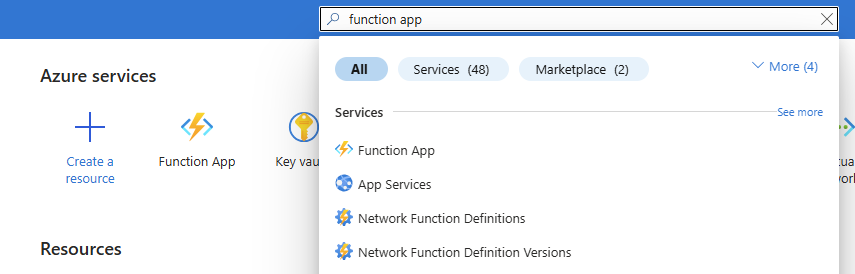
Within Azure, look for Function App.
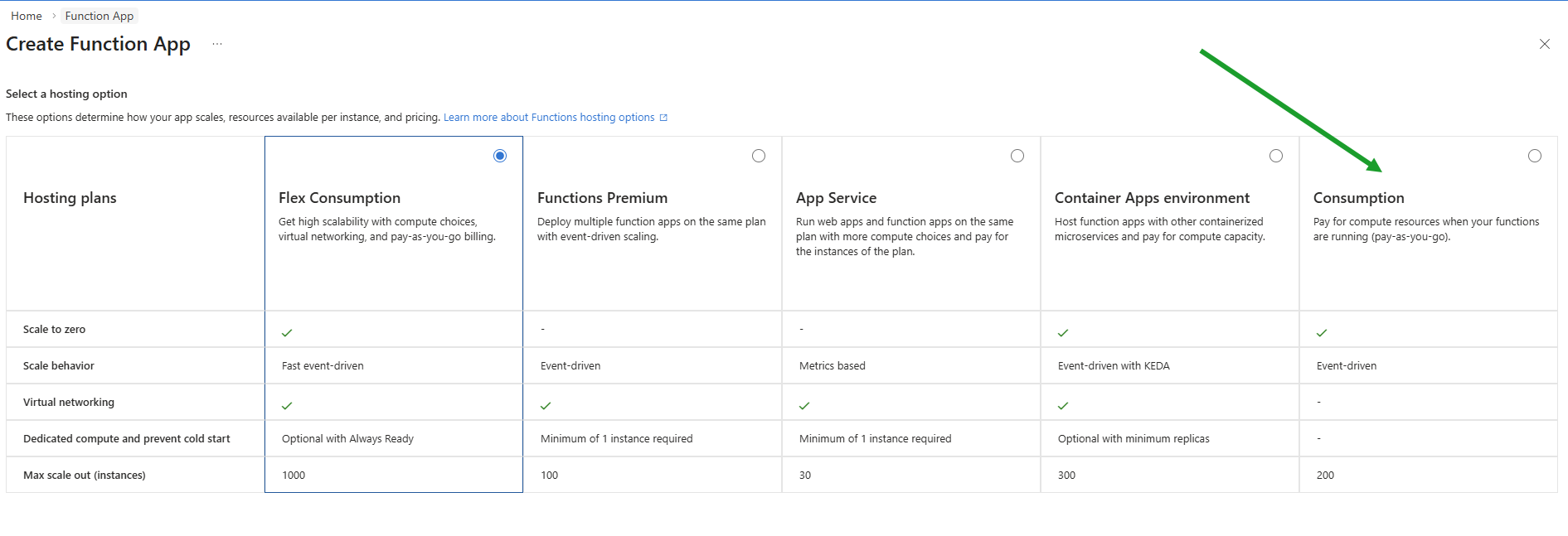
Create a new Function App, I chose the Consumption plan rather than Flex Consumption.
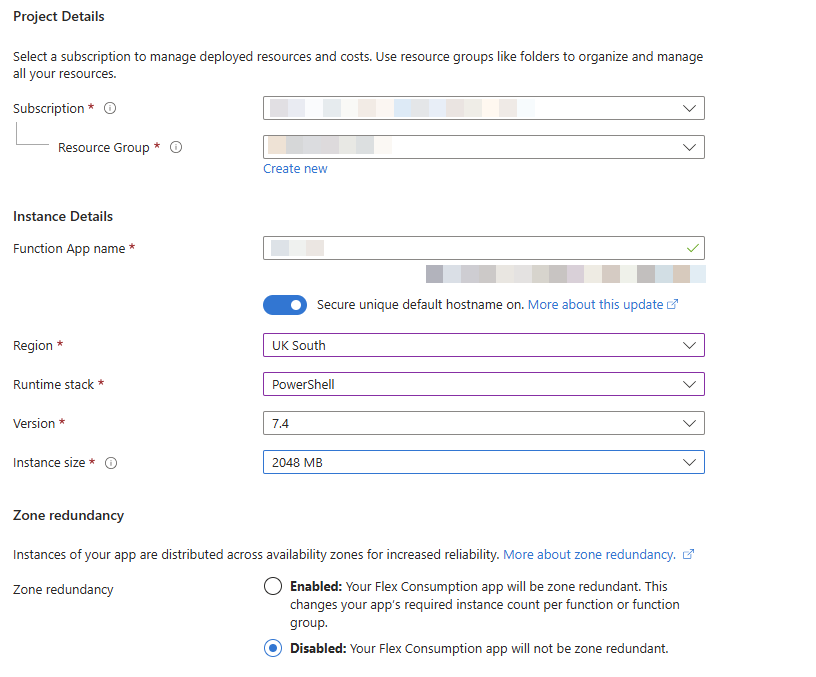
Next you are going to define your standard Azure information, Subscription, Resource Group, region etc. What you need to make sure is you choose, Windows, PowerShell, I left the instance size as 2048mb. What ill also point out at this time, is I no longer work where I first developed this, and I’m only writing it up as someone on Reddit asked about it, so I’m doing this from scratch and the interface/options in Azure are different from when I first did it.
You can leave the remaining options as Default, or customise them as you like, you may want to add Tags for billing purposes, I recommend you leave Application Insights enabled.
Once you have your Function App deployed, you can create a Function.
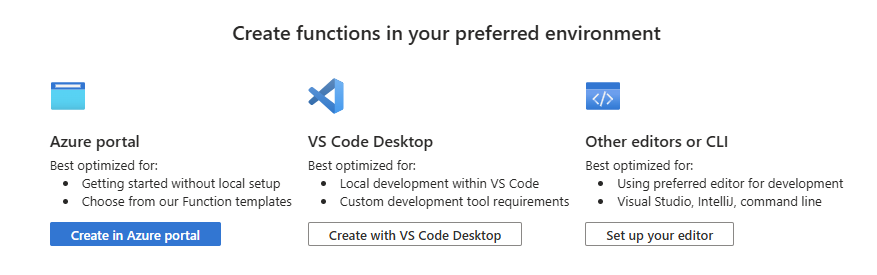
For ease of use, I’m going to create in the Portal, but integrating with VS Code is actually very cool, and you can spin up the HTTP Trigger function on your own device and test it locally before pushing it up to Azure. Note, if you do decide to deploy from VS Code, the function becomes read only in the portal.
Click create in Azure portal, then choose HTTP Trigger.
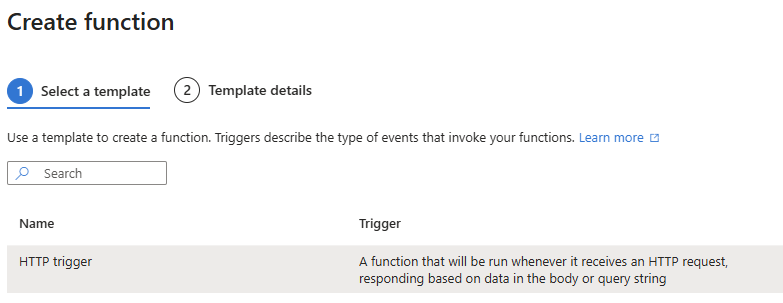
Give it a name, and leave the auth level as function.
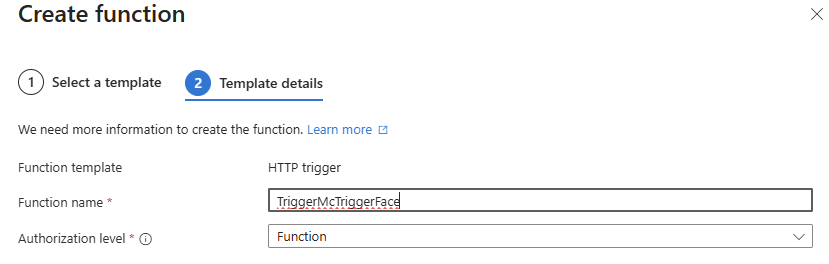
Because we are not using APIM in this example we send the auth code as part of the HTTP request, not ideal, with APIM you can create Bearer tokens etc, and mask the actual function URL as well as all sorts of other cool stuff.
Clicking on create will take you to the code editor of run.ps1. run.ps1 is the file that surprisingly enough is run when the function triggers.
To test it out, you can grab the function url from the top of the screen, stick it in a web browser and you will see the result.

There are three function URLs you can chose from, I don’t pretend to know the difference, although I’m sure there is one. Pick one, stick it in a browser and go, and you will see your function has triggered.

Now, you can replace all the code in run.ps1 with the code from here, public/AzureRegex.ps1 at master · titlerequired/public · GitHub
using namespace System.Net# Input bindings are passed in via param block.param($Request, $TriggerMetadata)# Write to the Azure Functions log stream.Write-Host "PowerShell HTTP trigger function processed a request."# Interact with query parameters or the body of the request.$regex = $Request.Query.Regex$rBody = $request.Body.jsonWrite-Host "Request Received"Write-Host "Regex Query: $regex"Write-Host "RBody JSON : $rbody"if($regex){ [regex]$regexExpr = $regex $checkEx = $regexExpr.matches($rBody) $date = [datetime]::now if ($checkEx) { $jsonBody = [pscustomobject]@{ Date = $date.toString() Count = ($checkEX.groups | measure-object).count expression = $regex matches = @( foreach ($match in $checkEx.groups) { @{ group = $match.name Index = $match.Index Length = $match.length Match = $match.value } } ) } } else{ $jsonBody = [pscustomobject]@{ Date = $date.toString() Count = ($checkEX.groups | measure-object).count expression = $regex string = $sBody } } $body = $jsonBody | convertTo-Json -Depth 8}# Associate values to output bindings by calling 'Push-OutputBinding'.Push-OutputBinding -Name Response -Value ([HttpResponseContext]@{ StatusCode = [HttpStatusCode]::OK Body = $body})
Make sure you save the file.
The way this is written, is that you pass in your regex query in the request string using a parameter called regex, and you post the content you want to search in the request body.
Quick plug for regexr.com which is an amazing resource if you’re new to Regex.
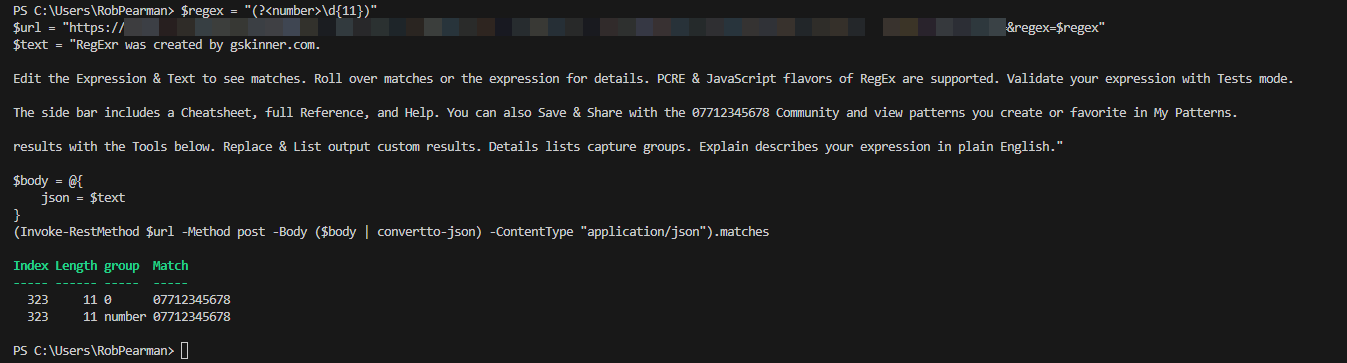
In the example below we are looking for a telephone number of 11 digits.
$regex = "(?<number>\d{11})"$url = "https://<add your function url>®ex=$regex"$text = "RegExr was created by gskinner.com.Edit the Expression & Text to see matches. Roll over matches or the expression for details. PCRE & JavaScript flavors of RegEx are supported. Validate your expression with Tests mode.The side bar includes a Cheatsheet, full Reference, and Help. You can also Save & Share with the 07712345678 Community and view patterns you create or favorite in My Patterns. results with the Tools below. Replace & List output custom results. Details lists capture groups. Explain describes your expression in plain English."$body = @{ json = $text}(Invoke-RestMethod $url -Method post -Body ($body | convertto-json) -ContentType "application/json").matches
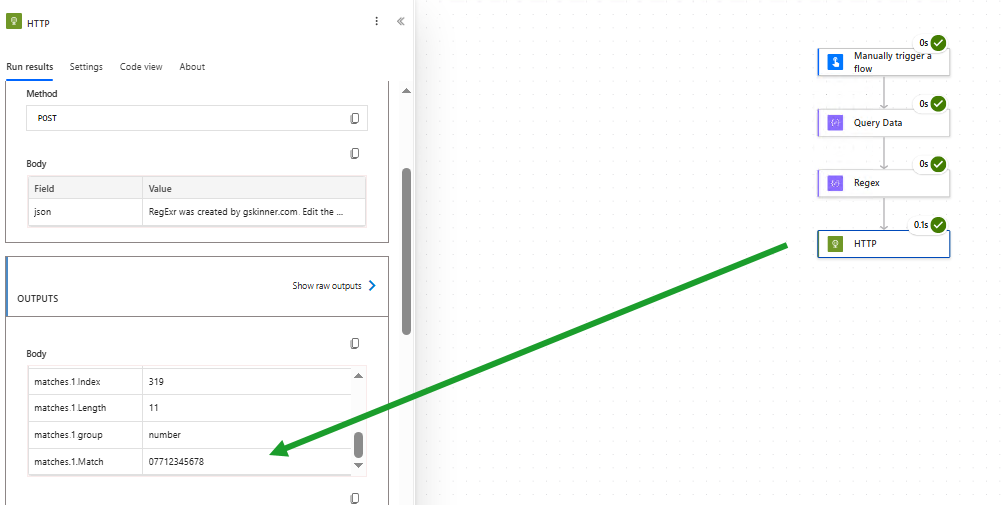
After sending the POST to our function, we get the response back.
Converting this into PowerAutomate, is reasonably straight forward.
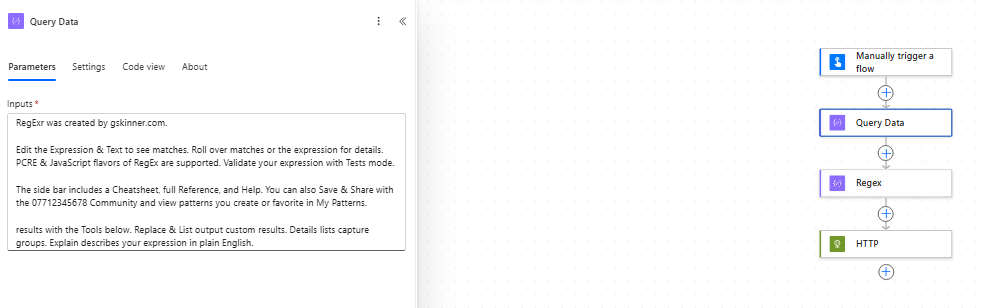
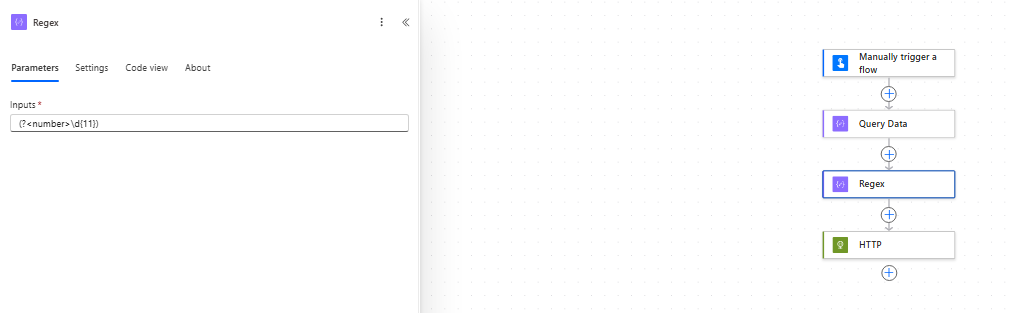
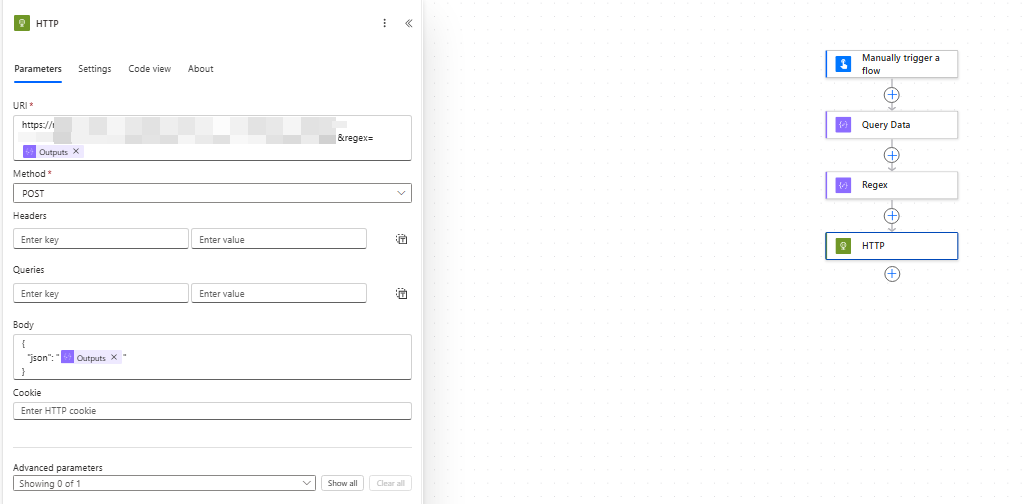
You can see in the output of the HTTP request, the returned data.
If you then use a Parse JSON data operation, and apply the schema you can start to use the results as dynamic content.
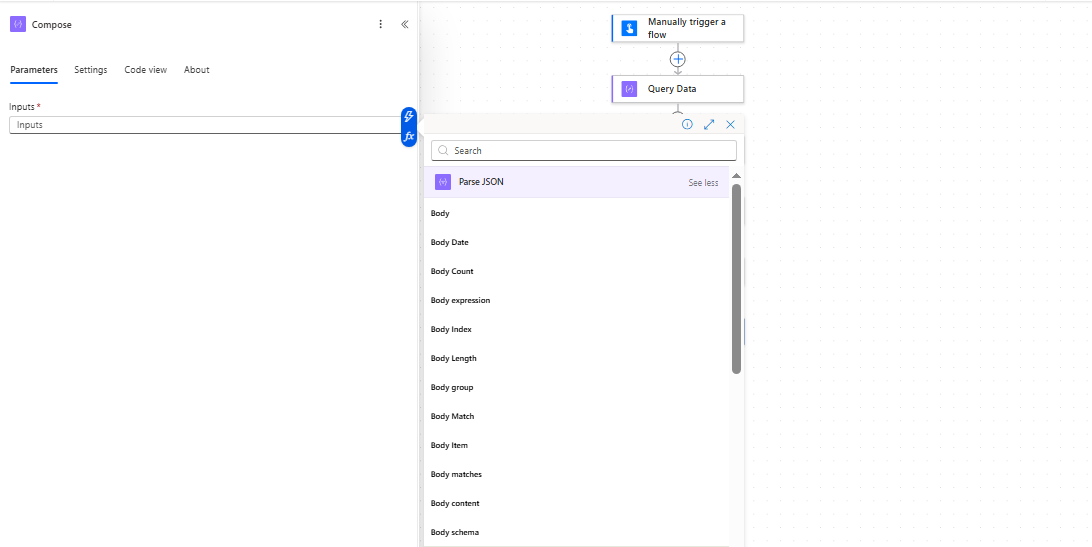
Hopefully this is useful as a starting point, its not a perfect solution but I think it highlights how you can start to add your own custom functionality with a little creative thinking.
 About Robert Pearman


 Title (Required)