Setting up Remote Web Access on SBS 2011 Essentials Part 1

EDIT- A lot of the issues in the wizard are resolved by installing Update Rollup 1 for SBS Essentials

I have seen a number of questions on the SBS Essentials forum relating to setting up domains and SSL certificates on SBS 2011 Essentials.

I hadn’t run through this procedure fully as i did not have any domains hosted on one of the supported registrars, so i decided to bite the bullet and buy one.

SBS2011-Essentials.com is now mine, and i registered it with GoDaddy – directly on there website, not using the SBS Essentials ‘Setup Domain Wizard’ i chose to do that because i am thinking most people will already have a domain name they want to use.

1

Now my domain is all up and running i can use the Setup Domain Wizard on the SBS Essentials server to configure my server to use this domain for remote access.

I have two choices here, i can either run this from my workstation, or i can logon to the server console directly to do it.

I am going to run mine from the server console, just because i think most people will be doing that.

Firstly before you start, disable IESC (please make sure to enable it again when you are finished)

SBS MVP Wayne Small wrote a neat blog post on how to do that and you can find that here

Secondly, if you are using GoDaddy.com, make sure to add *.godaddy.com to your trusted sites in Internet Explorer (i didnt do this to start with and had a lot of trouble with the website) I also changed my Trusted Sites security level to Medium-Low for this task.

2221

To start the wizard, go to Dashboard and click Server Settings, then go to Remote Web Access, then click Set Up

2

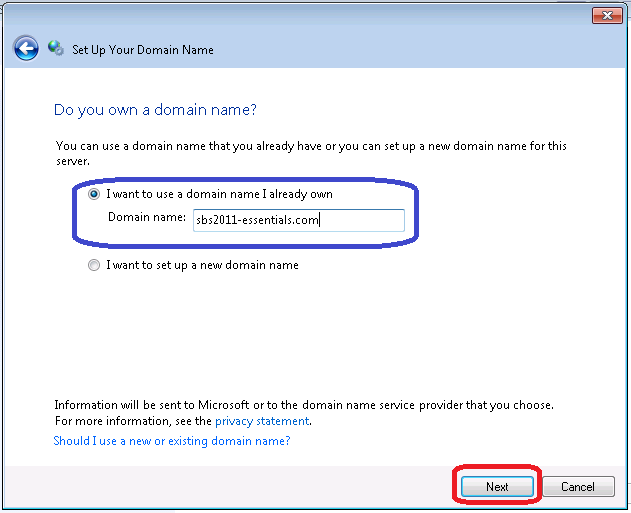
You will be asked if you already have a domain name, or if you want to setup a new one. I have one i want to use so that is what i choose.
4

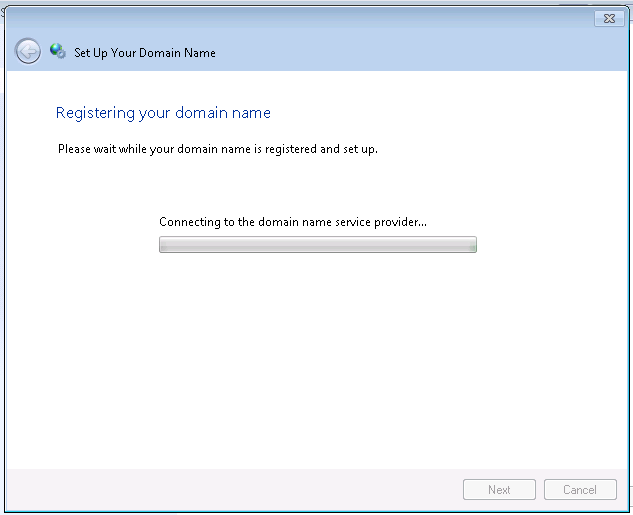
The wizard will lookup your domain name to see if it’s hosted with one of the two current supported registrars – GoDaddy or Enom. If it is detected you will be prompted to go to their site to purchase an SSL certificate, if not you’re asked if you want to transfer it, or setup manually.

5

NB, this wizard can skew off into about a million different possible directions, its like trying to map the universe using a pen and paper trying to blog this thing Smile with tongue out

So anyway,  let’s assume it was detected at GoDaddy and you go to their site. If you havent followed my advice above you will have to do so now, adding the site to trusted sites etc to get the GoDaddy website to function correctly.

7

You will also have to close the windows and open it up again ‘As Administrator’ I don’t know why this could not have been coded up to do that for you, but there you go.

So copy the URL from the IE address bar, and then launch IE as administrator.

Click on Start, then right click IE and click Run as Adminisatrator

When the IE window opens, paste the address into the address bar.

You will now be prompted for your credentials.

8

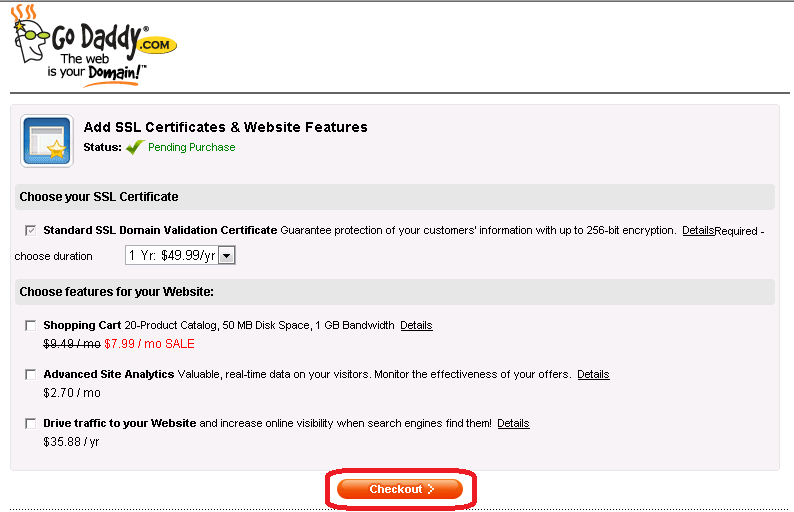
When you login you are presented with a few options. Choose whichever services you want, and go to the checkout.
9

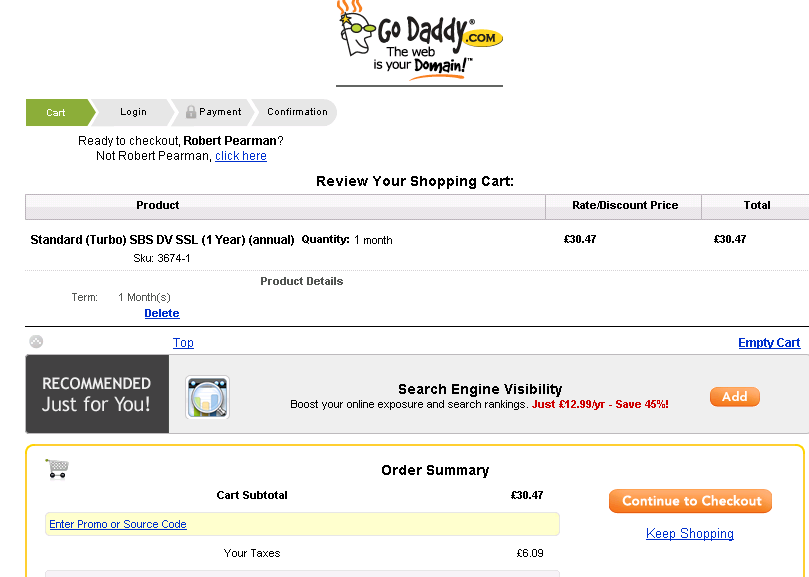
Again, fun and games with the website here for me, it wouldn’t let me ‘checkout’ unless i selected an additional service, or chose to have the SSL for more than one year. You can choose whatever you like here to get to the checkout/basket then simply remove the items you don’t want.
13


Continue on to the checkout and pay for your items.

14

Now you can close out, and go back to your wizard.

You will be prompted for the credentials of your GoDaddy account.
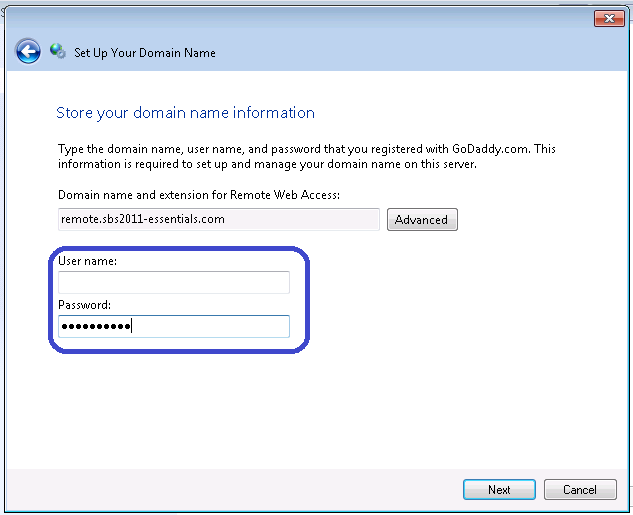
17

Click on Next to continue..

18

19

I was expecting this to be the end of the process, unfortunately not.

At this point – i broke things.

Being the impatient person i am, i wanted to hurry things along, so i logged into the GoDaddy site and managed to ‘use’ my SSL credit. This is normal procedure for SSL purchases with GoDaddy, however you must not do this with SBS Essentials. I am informed by Sean Daniel of Microsoft who helped me with this process, and also his contacts at GoDaddy that basically i broke things, which is why my SSL purchase failed.

(ok the purchase didnt fail, the CSR and Signing Process failed,

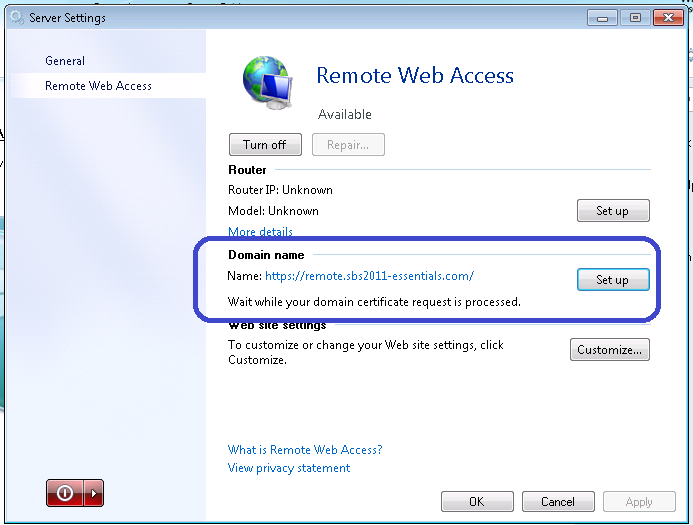
Having said that, SBS Essentials did not tell me any of that Smile with tongue out it sat there quite happily waiting for a certificate to be issued by GoDaddy, which was never ever going to happen.

I gave it aproximatley 48 hours as well.

If you are interested you can find the logs for the wizards and other aspects of SBS Essentials here:

c:\ProgramData\Microsoft\Windows Server\Logs\ and the log file for this process is…  SharedServiceHost-DomainManagerServiceConfig.log )
20

I am told however, that if i had not done this, it would have worked.

If you do find yourself in that situation the only resolution is to get support to refund your SSL purchase or, go through the SSL Install manually. I chose a refund and this i have to say was very easy and their support staff were both charming and efficient.

So anyway, being the kind of guy i am , i thought OK, well lets have another go.

This also proved to be a bad idea. It seems that either my server, or my domain name are now stuck in some sort of crazy loop, where i am unable to purchase an SSL using the Wizard.

Not to worry, i am an uber rich MVP who has money to burn, and time to test the latest and greatest Microsoft has to offer, ill buy another domain name and another SSL.

This time i turned to eNom.

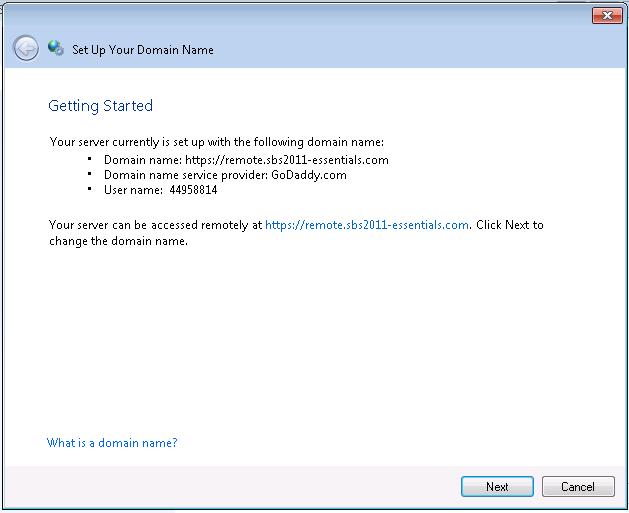
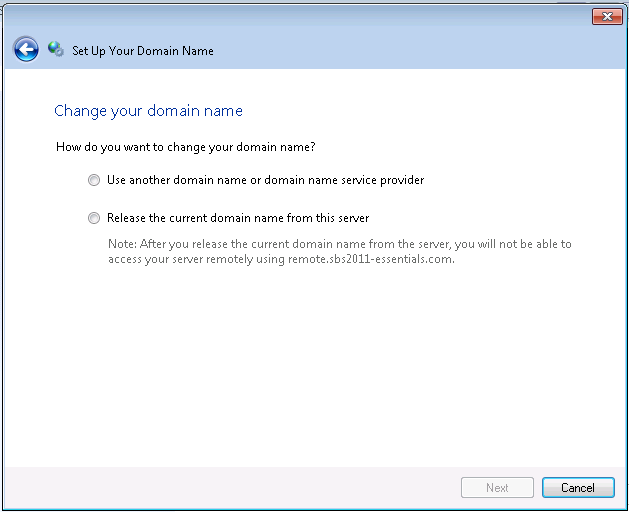
it is relatively easy to remove any domain name from SBS Essentials, you just click Setup, from Server Settings/Remote Access, and follow the wizard to remove the domain name.
30

31

32

33

I will continue this story in Part 2

SBS 2011 Standard Additional Accepted Email Domains (Multiple Accepted Domains)

My customer is expanding his business, and is going to add a specialist arm of his company in a particular field.

As such he has setup a new website for that particular department and wants some of his staff to have a new email address based on whether they work for that part of the company.

This is really very easy to setup using Email Address Policies, and i will show you how to do that in this blog post.

I did try to get the process a little more automated, and integration into the add user wizard would have been great, but so far i haven’t got that working, but i am hoping with a little prodding of the SBS Dev team, we may be able to find a way.

To follow me through this process, you will need:

A Server running SBS 2011 Standard.

Two domains configured to send email to the SBS Server.

Some user accounts to test with..

First of all what we will do is add our new domain name as an accepted domain in Exchange.

The process for this is very similar, if not identical to that of Exchange 2007.

From Start, go to All Programs, Expand Microsoft Exchange server 2010 and open up the Exchange Management Console (EMC).

1

When the exchange console opens, expand Microsoft Exchange On-Premises, expand Organization Configuration and select Hub Transport.

2
Switch to the ‘Accepted Domains’ tab.

3

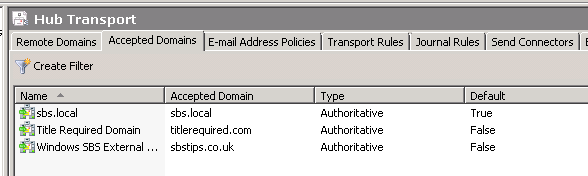
This shows you the current accepted domains.

36

On the right hand side, select ‘New Accepted Domains’

4

Enter a name for your new domain, and enter the domain name itself. We will leave the server as the authoratative server for this domain, click New,

5

After a few seconds, the action will complete, and you will be shown the PowerShell command that would have performed this action from the exchange shell. Click Finish.

6

You can now see your additional domain added as an accepted domain.

7

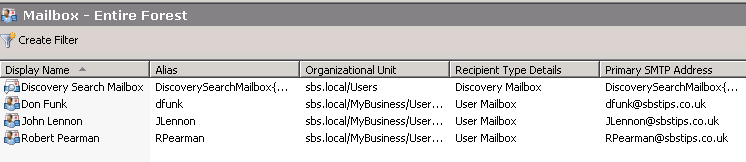
If we now switch to recipient configuration, and the mailbox section, we can see our current mailbox users.

8

If we go to the properties of one of these accounts, we can see the current email addresses associated with that account.

9

We can see that no changes have been made to this account so far.

That’s good because it means existing users are not affected by what we have done.

We will have a look at existing users in a moment, but first let’s add a new user to the system.

Since i am listening to The Beatles at the moment, i am going to call this guy John Lennon. My Favourite Beatle happens to be George, but that isn’t relevant. Why then am i not calling him George Harrison, well i don’t know.

I am not covering the add user wizard here as other posts exist out there on how to do this. Plus it is in the books relating to SBS 2011.

So John, is a good guy and he’s working for my company’s new department.

But wait, as we can see here, he still has an SBSTIPS.co.uk address, not TITLEREQUIRED.com – that is good, that is what is expected.

10

Now, we need to edit his account.

Let’s open up ADUC (Active Directory Users & Computers) From Start, go to Administrative Tools, and you will see ADUC at the top.

Expand Yourdomain.local and keep expanding down until you find MyBusiness\Users\SBSUsers

11

Find John’s account, and go to the properties.

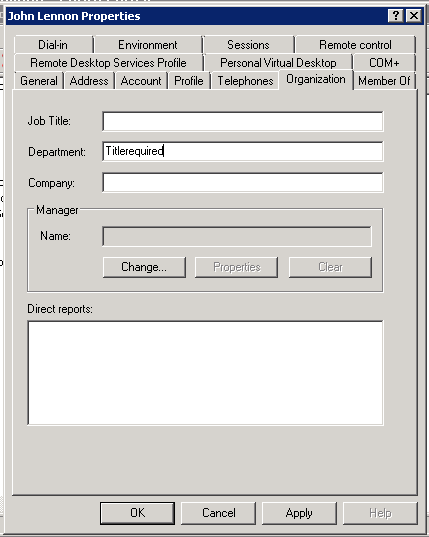
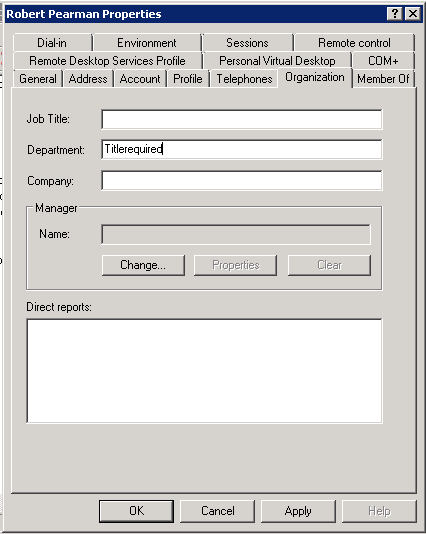
Switch to the ‘Organization’ tab, and enter ‘Titlerequired’ into the department field.

13

Click OK to save this change, and close ADUC.

Switch back to the EMC

Go back to the Organization Configuration, Hub Transport area, and go to the ‘Email Address Policies’ tab.

14

You can see we have 2 current policies. The Windows SBS Email Address Policy is set to make whatever domain name you entered in the Internet Address wizard the default for all users.
So we want to add a new Email Address Policy. On the right click, New Email Address Policy.

We need to enter a name, and also select the container where this policy should be applied, and also the type.

You can leave these as default values, but please do enter a name. Click Next.

15

Put a check in the box for ‘Recipient is in a Department’ under Step 1.

16

Under Step 2, select the hyperlinked word ‘specified’ and enter our department name value of Titlerequired.

17

You can then click Preview, and the policy will show you which users or recipient types it will affect. Hopefully we will only see Mr. Lennon’s name.

18

We do! That is great because it means whatever we are doing here will only affect that one account.

When you are happy click next.

On the email addresses page, click Add.

19

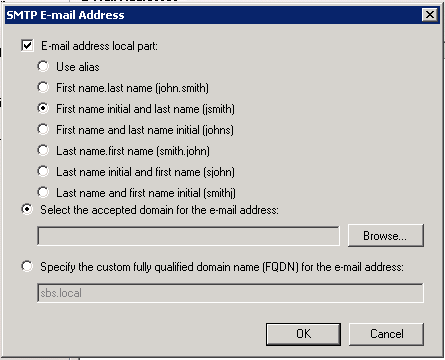
Here we choose how the new email address should look, i like to use first initial and surname, so i will select that.

The default is to add a new email address to the ‘default’ domain, since this is yourdomain.local the new address for John would be jlennon@sbs.local – we want to add this to our new accepted domain, so we must choose to specify the accepted domain.

Click the radio button for that option, and click Browse.

You will then see all the domains we have setup on our system.

20

Double Click the domain you want to use, and it will be added to your policy.

21

Click Ok.

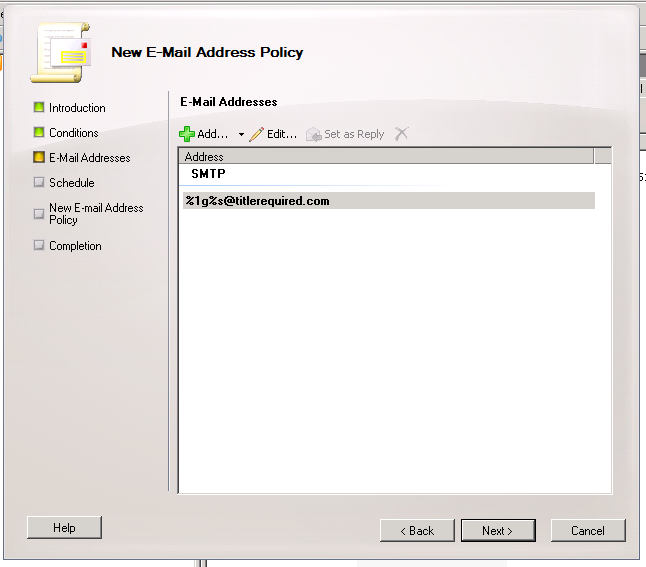
You will now see your email address shown, using the variables that are used for whatever name format of address you chose. More on that here.

22

The table below is taken from the TechNet website and shows variables you can use.

23

Click Next.

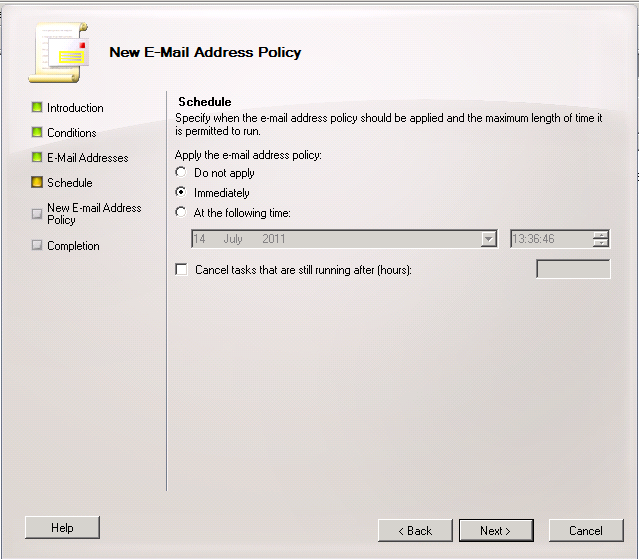
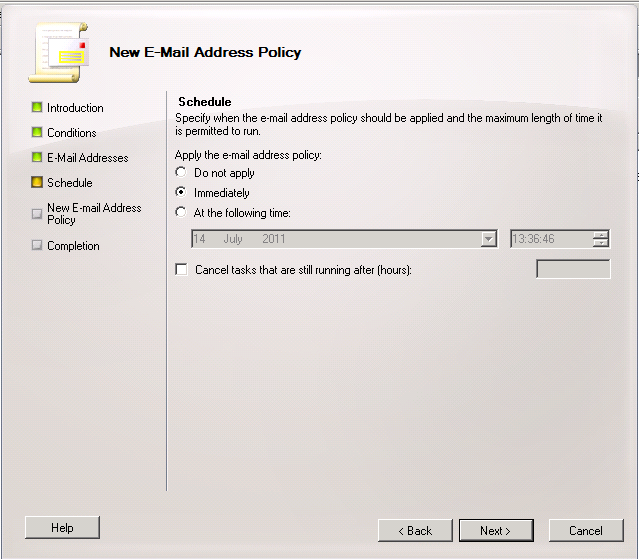
You have the option to apply the new policy immediately, or at a scheduled time, or not to apply it all. We want to do it immediately, so click next.

24

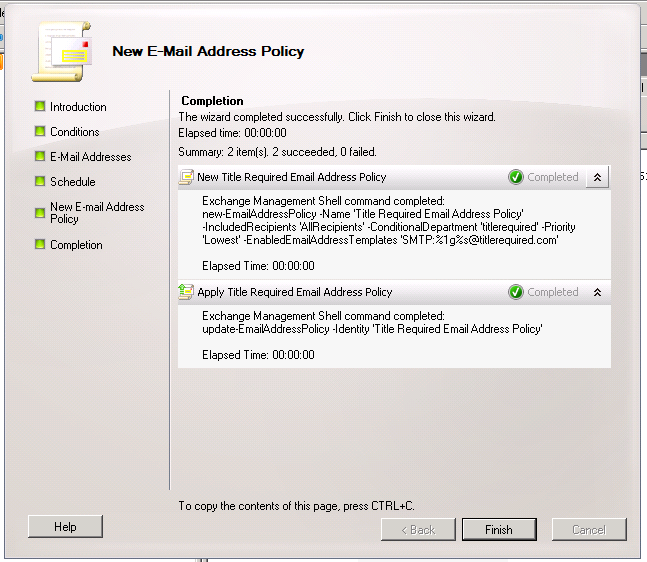
You will see a summary page with some PowerShell commands listed. Click New to build and apply the policy.

25

The policy is built and applied successfully.

26

Lets switch back to our Recipient area, and check the email addresses our users now have.

We can see that our user still has his old address.

27

Switching back to the Policies area, we can see our new policy has a priority of 2, and the Windows SBS policy is set at 1.

28

We need to change it to priority 1. Select your new policy and on the right hand side, click Change Priority, and enter the number 1, Click OK to save.

29

It now jumps to the top of the list.

30

Now we need to reapply the policy. Right click the policy and click Apply. We get those same options as before, click on Next, and Apply.

31

24

Again you are shown some PowerShell, and you can click Finish to close the Apple Policy page.

Switching back to Recipient Configuration, you can now see that John has a new email address. (you may need to refresh the view)

32

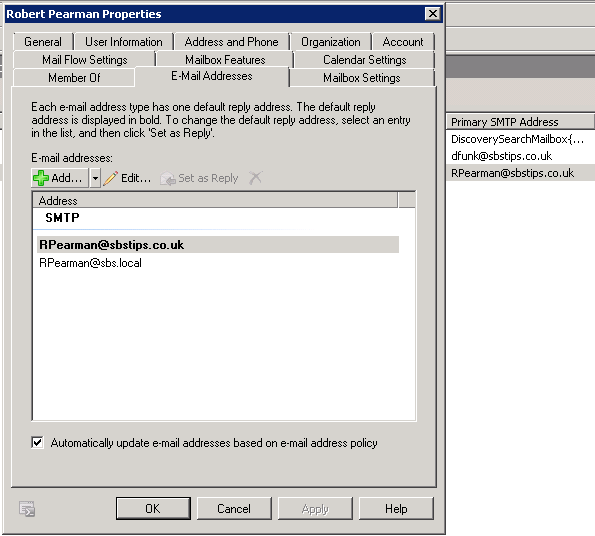
IF we go into his account properties you can see he now has an email address for both SBSTIPS.co.uk and TITLEREQUIRED.com but that TITLEREQUIRED.com is his default address.

33

If we want to move an existing user to a new department, just edit their AD account to change their Department, and then reapply the policy.

34

You can see that the email address is added as an additional address.

35

And that is how to add an additional domain name and have it apply to only certain users.

If you want to have an additional domain apply to all users, but not as the default, then simply don’t narrow your Email Address Policy by using a department as in Step 1 and 2 above, and leave the policy at priority 2.

You can always use the Preview button to help confirm who will be affected by such a change.

If you want to change the default domain for all users, you should run the Internet Address Wizard and add your new domain here, then add your old domain as an accepted domain, and build a policy as described here to add that old domain as an additional address.

HP ProBook 4525s SSD Vs HDD

I already posted this video via twitter but i wanted to follow up with a brief over view of what we were doing and demonstrate we dont just sit about the office timing computers to boot up. Well, most days we don’t, the rest of the time we are playing Halo.

Last week the MD of one of our biggest customers said ‘Im going on holiday, and when i come back i want a new laptop’ Of course we said, well thats fine but um, you might wanna buy one?

He then dissapeard off to some exclusive destination for Uber Rich Managing Directors, and left us to ponder what laptop to purchase for him.

We had a budget of £550.00 (+VAT) and looked through our suppliers list of laptops for that price. We decided that the list was totally uninspiring, and in actual fact the difference in quality between the lower range, £300 laptops to the £600 laptops was negligible.

Because of that, i thought, well, why don’t we get a more conservative laptop, and beef it up with an SSD HD?

My boss was aghast, “do you know how much they cost?” I replied that i did, but with a cheaper laptop, the overall cost would be the same and the performance would be increased.

He took some convincing, and with the help of Philip Elder and Tim Barrett, i was armed with enough ‘expert opinion’ to sway him to pay up.

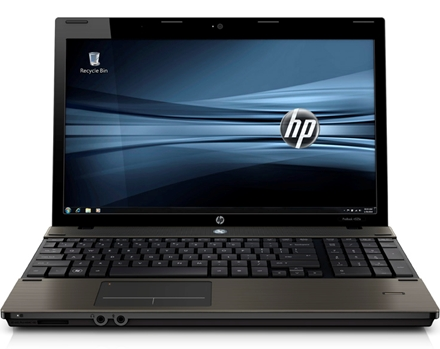
So we settled on the HP ProBook 4525s.(Model XX800EA)

HP ProBook 4525s XX800 The specs of the laptop are as follows:

AMD Turion II 2.5ghz Dual Core (2mb Cache)
3GB Ram (DDR3 1333) (Max 8GB)
320GB 7200rpm SATA300 HD
15.6" LCD (16:9 WXGA 1366×768 LED)
Mobility Radeon HD 4250
Win 7 Pro x64
Plus all the usual USB & Network Interfaces, Card Reader and Webcam

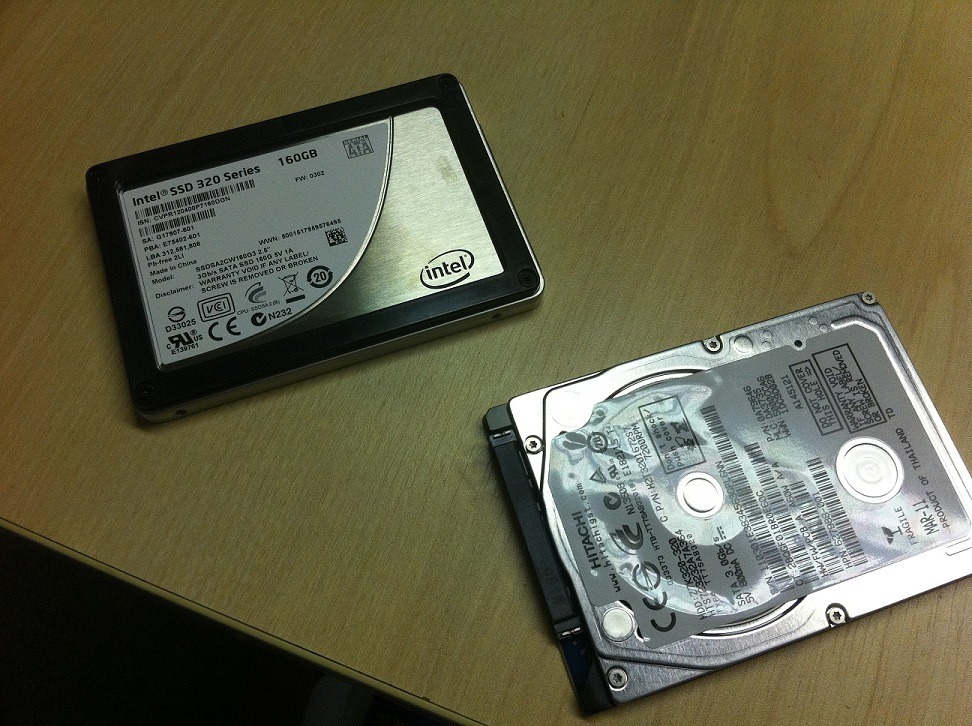
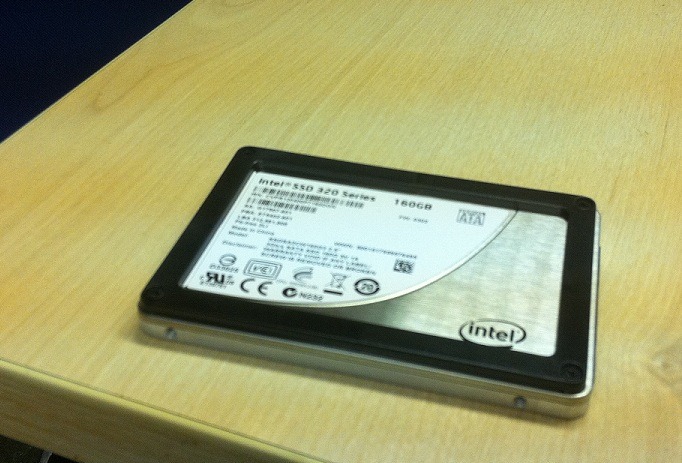
We decided to install an Intel SSD following previous research and glowing recommendations, we settled on a 160GB 320 Series Intel SSD. We picked one of these up for under £200.00

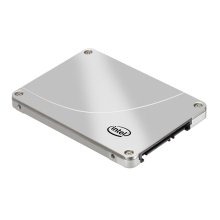
The intel 320 Series SSD

Installing the drive was a little trickier than we had assumed it would be, unlike laptops we are accustomed to, these ProBooks have a totally solid base – with no vents or access to components. We had to strip the laptop down (after carefully reviewing the manual) by first removing some screws from the battery bay, then removing the keyboard bezel, then the keyboard, then the palm rest.

Installing the drive itself was easy and don’t be fooled by the black ‘bumper’ on the Intel drive it fits perfectly with that still attached. In fact if you take that off as we did, the drive will fall apart LOL.

We also used Acronis to image the HP shipped drive to the SSD drives (which was incredibly quick) before we installed the drive.

Intel SSD 320 Series 160gbIntel SSD & Standard HDD

We powered up the SSD laptop and followed the usual setup requirements, we roughly timed it at 9 minutes. We lost interest in timing the non SSD laptop.

The real test came when both laptops had been ‘configured’ to a point where we had a user account with a password, and we were no longer prompted to do any setup when powering on.

The video below shows the results of a cold boot, with more or less simultaneous power on.

HP Probook 4525s SSD vs 4525s SATA HDD


You can see that the SSD (On the Left) boots much quicker than the standard HDD, not only that, but once we type the password (we gave the HDD time to catch up) you will notice that the HP Security software logo in the top left on the screen is the last app to load at logon, this appears almost instantly on the SSD but takes some time to appear on the HDD.

Of course adding the SSD makes the laptop a little more expensive but we think it is a massive improvement, even considering we traded off 1GB of ram to go to a lower model laptop than those retailing at the £550 mark. 

A good test would be to fire it up against a £550.00 laptop, which if we had one we would do. However i imagine the SSD would still beat it without breaking sweat.

The real test of course will be when we present this laptop to the client, and gauge their reaction.

Microsoft MVP 2011 : Small Business Server

I am more than proud to say i have been re-awarded as a Microsoft MVP for Small Business Server.

(i had a whole speech worked out for not getting renewed so this totally messes that up, maybe next year you will get to read it ;o) )

Special thanks to all the great people i have met over the last year especially, Tim Barrett, Susan Bradley, Dave Shackleford, Mr Eriq ‘Q’ Neale, Magical Marina Roos,  Wayne Small and Dean Calvert, could name more but sure you are already bored.

mvp_wallpaper_800x600

Quick Fix : Office 2011 Outlook for Mac – Wrong name shown in Sent Items..

I had a customer email me to show me a very weird issue.

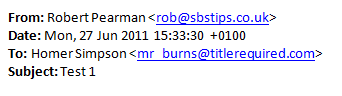
When a user of a mac replied to one of there messages, the email came through showing the display name as a previous user of that mac.

ie. Homer Simpson

(as you can see in the example to the right, even emails received by the user showed the wrong name)

Of course Mr Burns wanted this corrected.

The issue did not occur in Outlook for PC or using OWA / iPhone ActiveSync.

It was definatley an issue caused by the Mac.

I checked everywhere i could to find a setting – but couldnt find one within Outlook.

The only thing i could find referencing Homer Simpson was the reigstration info of Office.

So we followed this article – http://support.microsoft.com/kb/2394111

Unfortunatley this did not help, and actually left Excel a little unstable but that was easily fixed with a few restarts.

We then resolved to research the issue for a few days and come back to it.

A second conversation started up when i questioned if the same thing happend on a secondary account that Mr Burns had setup in Outlook.

It did.

Again i hit google, this time i turned up this page..

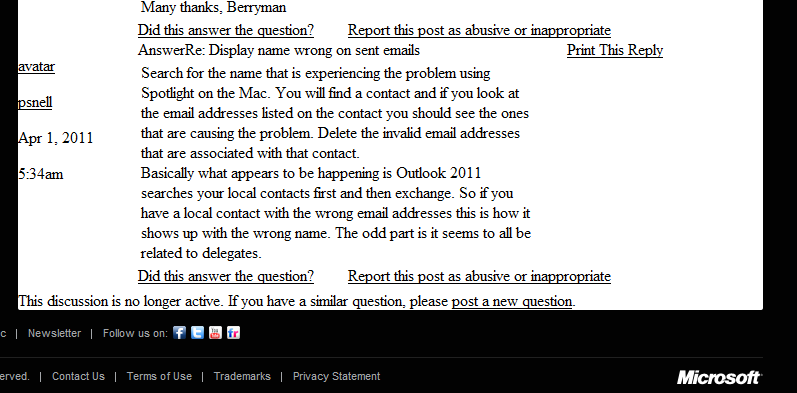
http://www.officeformac.com/ms/ProductForums/Outlook/3510/4

The very bottom comment solves the problem.

So thank you very much PSnell – i once again have a happy mac user. (And we all want to keep Mr Burns happy right?)

EDIT – 14/07/2011

It seems that after posting this, erm, post, that the office mac site has gone down. I don’t know if that is permanent or just a glitch, but having just posted a link to the solution was obvioulsy not my smartest move. Thanks to Adrian for pointing this out to me, i found the post in google’s cache, so i did a quick screen shot of the solution entry.

SBS 2011 Standard – iPhone & iPad Exchange Email

EDIT – 28/10/2011 If you just want to know the settings required to connect your iPhone to your SBS Server, look at this post.

I use an iPhone, and i have blogged before on how to use the iPhone configuration utility in order to make deployment of the phones easier for clients.

I didn’t cover the iPhone’s ability to use ‘Autodiscover’ in that post, it didn’t occur to me at the time.

It didn’t occur to me until the other day, and then i set about confirming how it works, and in what scenarios you can use it to auto-configure a clients phone.

To follow me through this post you will need:

A Small Business Server 2011 Standard (you should have run the ‘Connect to internet’ ‘Set up your address’ ‘add a trusted certificate’ wizard)

An iPhone or iPad

Internet connectivity!

Note: When i say External IP of either SBS Server or Exchange Server, i mean the address you would type if you were going to Remote Web App / Remote Web Workplace, eg. remote.domain.com = 123.123.123.123 – this applies even if you are using a third party to provide anti spam or filtering services to your email.

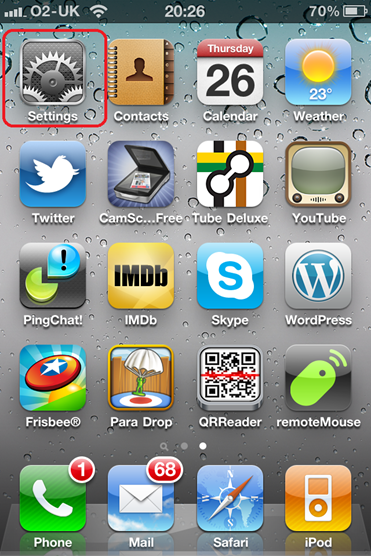
So, from the ‘home’ screen find ‘settings’

IMG_0798

Find ‘mail contacts and calendars’..

IMG_0799

Choosing Add Account.. we can then choose a Microsoft Exchange Account.

IMG_0800

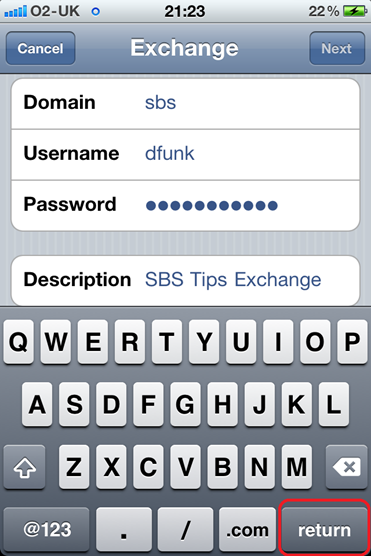
You are then faced with 5 configurable settings.

IMG_0801

  1. Email Address (your email address)
  2. Domain (your internal domain name, i.e.. sbs.local)
  3. Username (the username you use on your office computer)
  4. Password (the password for your office computer)
  5. Description (a description of this account – i.e. Company Email)

If you fill out these details with the settings relevant to you, you can then click Next. (if you click return it will automatically attempt the next stage)

IMG_0842

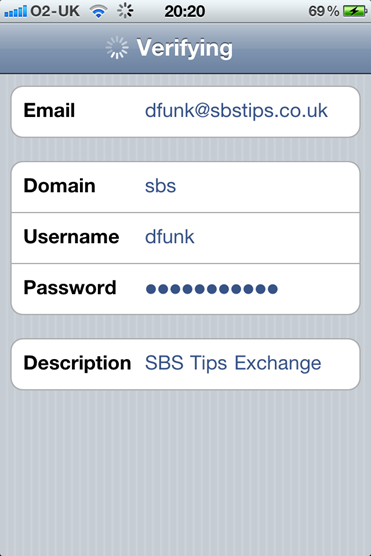
You will see at the top of the screen ‘verifying..’

IMG_0833

This is the part that has interested me, and i went to some lengths to find out what the iPhone is actually doing here.

However if i had used my brain at all i could have guessed it actually just follows the same behaviour you can see if you run the ‘Autodiscover’ tests here (at testexchangeconnectivity.com)

The iPhone will use DNS to query for your domains ‘default’ record – this is usually represented as an @ in your dns zone file.. but not something you are likely see if you are using a third party to host your DNS. Your default record like any other record translates ‘domain.com’ to an IP Address.

So for example, if you type in http://domain.com in to your browser, you MAY end up at your website, but you may end up elsewhere. It depends on the configuration of that record.

Suffice to say, it most likely does NOT point to your Exchange server. That is a problem.

If this query does return an IP address, then the iPhone will attempt the next stage of verification.

If you do not have an @ default record, for your domain, which is a valid configuration, then of course that query will fail and failover to query for ‘autodiscover.domain.com’.

At next stage of verification the iPhone will attempt an HTTPS connection to either – https://domain.com/autodiscover/autodiscover.xml or https://autodiscover.domain.com/autodiscover/autodiscover.xml

This XML file is located on your exchange server, you can see it within Windows Explorer.

1

You can open the file in notepad if you are interested to see the content

Please note THIS SHOULD NOT BE EDITED

2

You may be presented with a certificate warning if you are using a self signed – or single name certificate that is not for ‘autodiscover.domain.com’

IMG_0835

It will attempt to login to the server with the username and password provided. If successful – your iPhone will be auto configured for your Exchange servers address.

IMG_0836

You can then continue to finish the setup of your account.

IMG_0837

IMG_0841

If an HTTPS connection fails, then the process is repeated on HTTP.

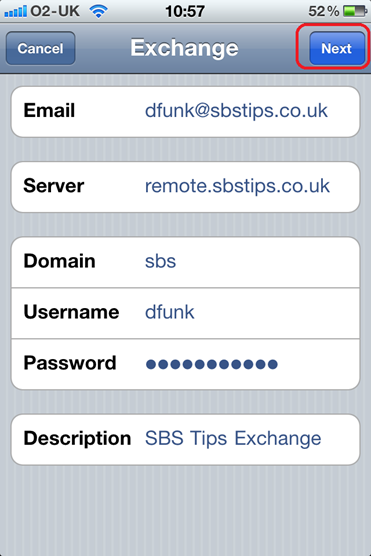
If any of the above steps fail, or cannot complete – then you will be presented with a new box on your screen, and that will be for ‘Server Address’

IMG_0834

Of course that’s fine to just enter at that stage – but it may be useful for some to know how to get this bit to work.

So to recap – to get the autodiscover feature to work:

  • You must either point your domains @ record to the your Exchange Servers public IP address.

Or

  • Delete the @ record from DNS and then setup a new A Host record, for ‘Autodiscover.domain.com’ and point that to your Exchange Servers public IP address.

I am making no recommendation on which option to choose, however i personally chose to delete my ‘default’ record and nothing bad has happened.

What other things will prevent a smooth auto configure? A self issued, or incorrectly named certificate.

Now most people will know with an iPhone you can simply ignore invalid certificates, BUT this is an extra prompt, and in the spirit of removing those obstacles to your users you should consider getting a UCC certificate for your SBS Server.

SBS Server will run perfectly well with a single name certificate – in fact it is designed with this in mind.

However the price difference between a single name certificate and a UCC certificate has come down considerably so now there is a good case for using a UCC instead. If the iPhone could use the DNS SRV record method for attempting autodiscovery – like Outlook clients can, then we could stick with a single name certificate.

Quick Fix : SBS 2011 Standard OWA – 500 Internal Server Error?

I came in this morning to write some documentation for a client after a migration to SBS 2011 Standard. Focussing on the differences in the new RWA and how to use it effectively.

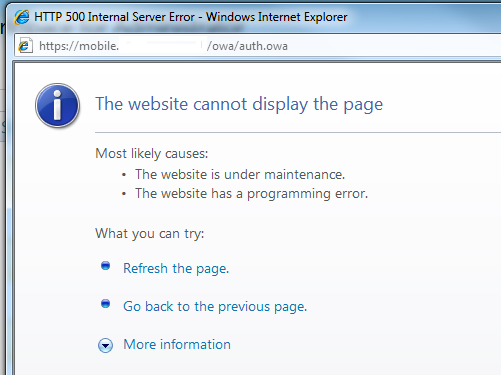
When i logged into the RWA and clicked on check email i was presented with this:

17

Oh, i thought, maybe i logged in with an admin account that doesn’t have a mailbox. Not a problem, so i logged back into the RWA with an account that definatley does have one.

Nope, same problem.

I logged onto the server and checked that all of the URLs for OWA were correct in the EMC, i turned to IIS – i tried to browse the OWA site directly through IIS and received the same problem.

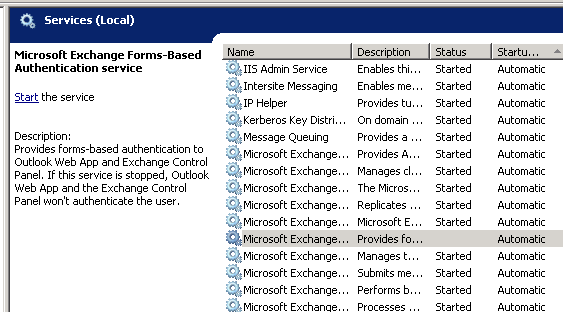
Loading up the services.msc console i sorted all services by their startup type and noticed that one service for exchange was not running.

18

Starting this service and reattempting the login to OWA resolved the problem.