iPhone Configuration for the SBS Administrator Part 1

EDIT – 28/10/2011 If you just want to know the settings required to connect your iPhone to your SBS Server, look at this post.

If like me, you support a variety of different customers and devices you’re now likely to have one or two, or maybe an army, of people using an iPhone or iPad on the road to pickup their MS Exchange email.

If you are just looking for some assistance setting up an iPhone or iPad with SBS 2011 – Check this Post

I’ve preferred a device that directly syncs to Exchange over a Blackberry since i started working with Blackberry’s 3 or 4 years ago.

As more and more of our customers came to us with iPhones and we talked more and more of them through adding an exchange account i started to think about how this might be achieved a little less painfully.

Sure, we can do this for our users but we like to  work remotely, and you don’t really want to have to have physical contact with a device in order to configure it. I found a solution, and what follows is my interpretation on how to implement it*.

Before you begin:

In order to follow this procedure through, you will need to download the iPhone configuration utility here, you will almost certainly want access to an iPhone (Mine is an iPhone 4) you will need access to an SBS server (2003 or newer) with Exchange ActiveSync published to the internet. You will also need a web server to host a file on, preferably in a folder you can password secure.

All set? great.

So lets go ahead an install the iPhone configuration utility, i am using version 3.2.

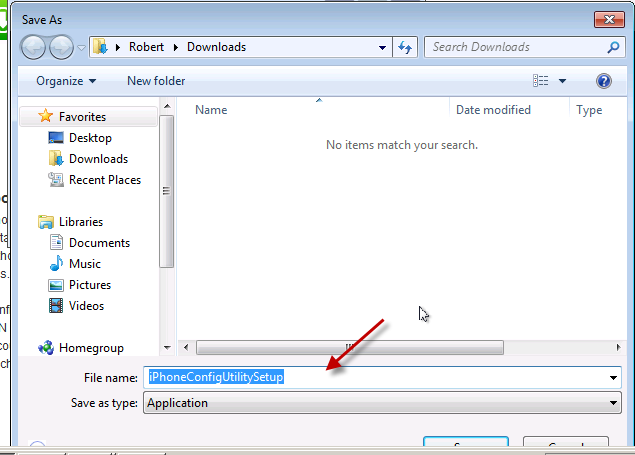
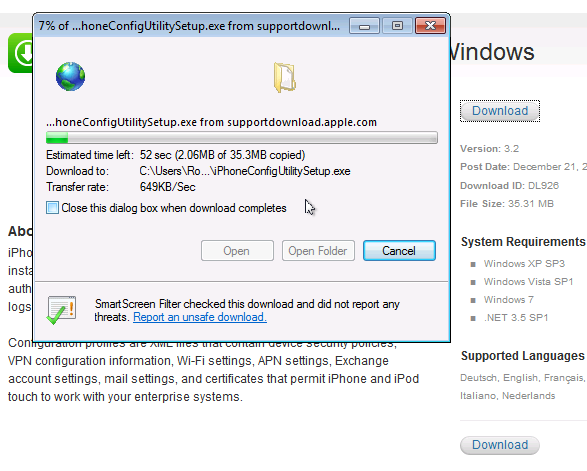
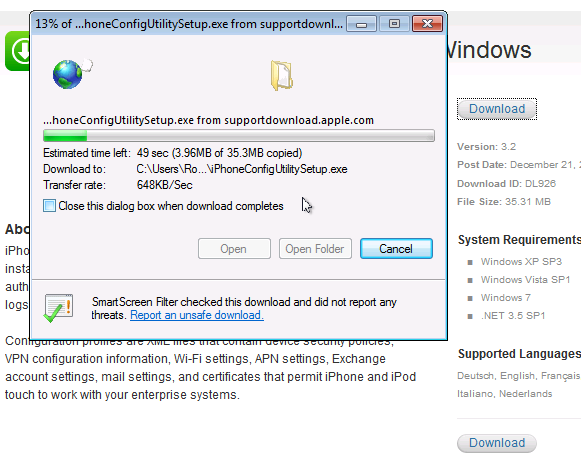
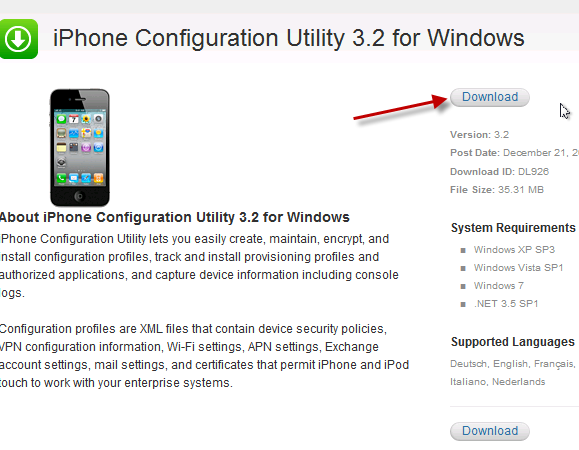
From the link provided above, click download, choose a location to save your file and away you go.
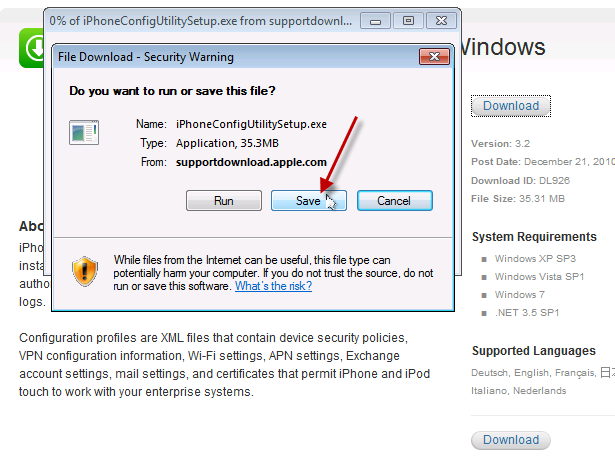
Navigate to your saved file, and run it.
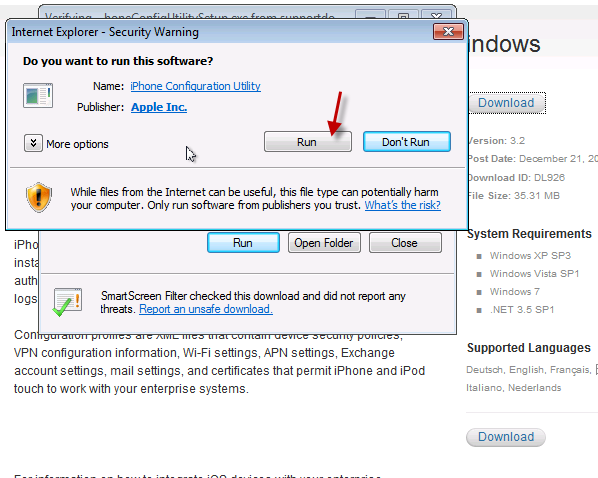
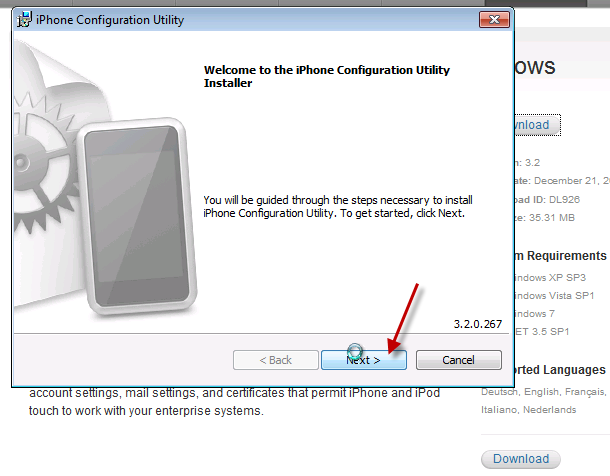
On the welcome to iPhone configuration utility installer page, click Next.
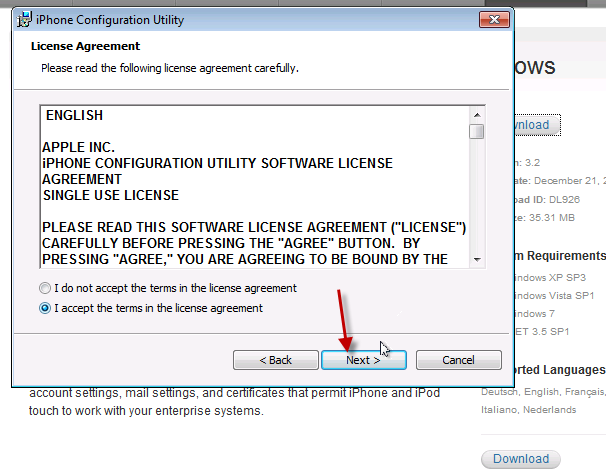
Review the license agreement, and if you agree click to accept the terms, and click Next.

Review the path the program will install to, and click Next.
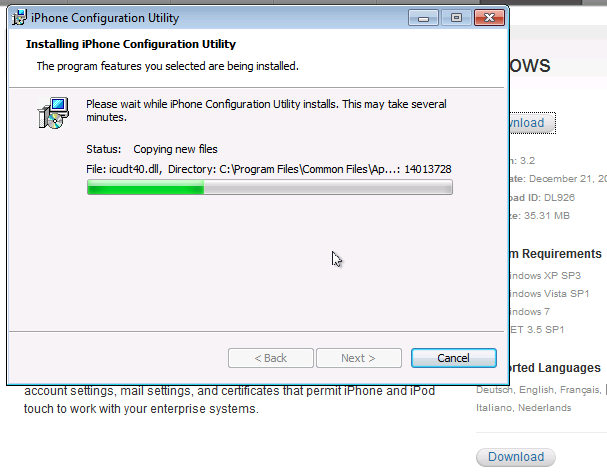
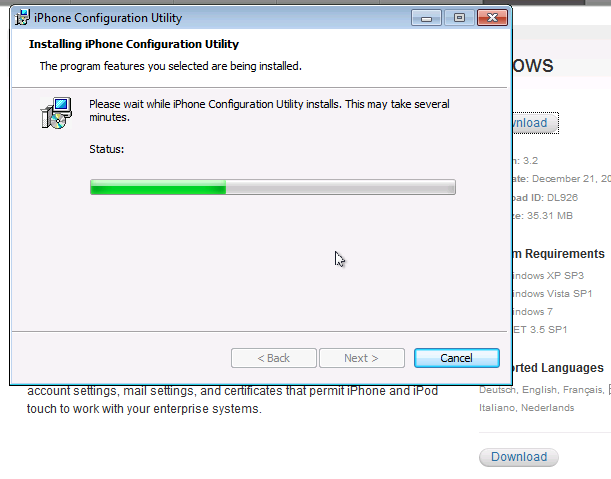
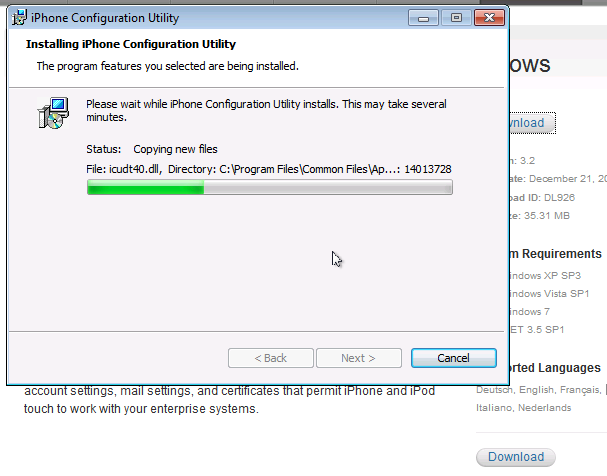
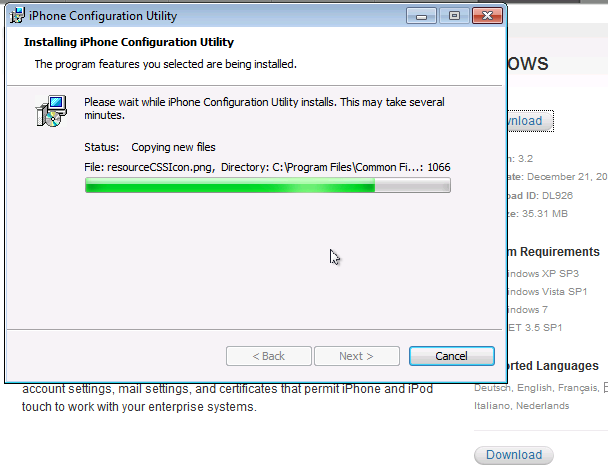
It will take a few minutes for the program to install…

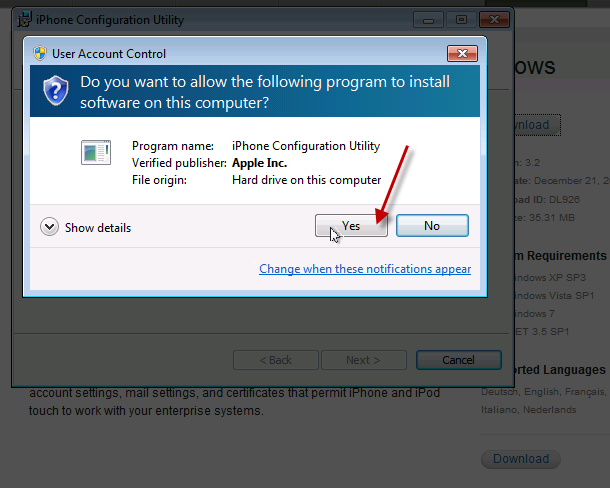
I am installing on Windows 7, so i have several UAC prompts to acknowledge.
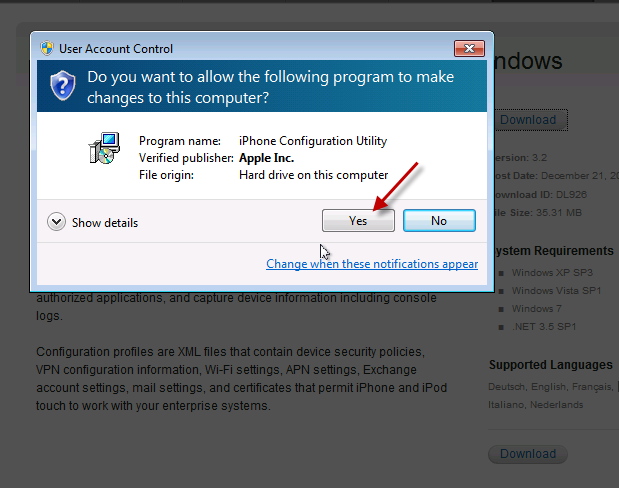
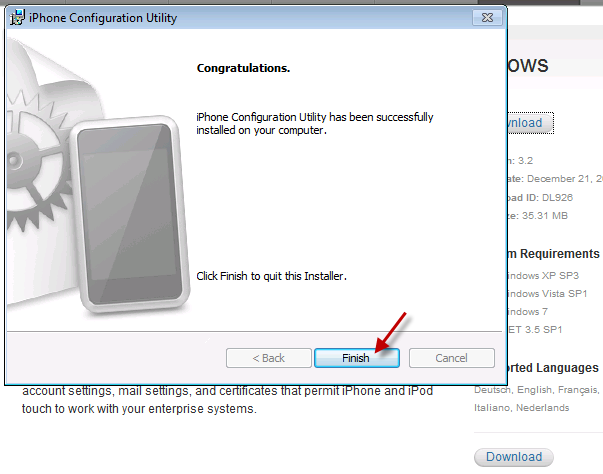
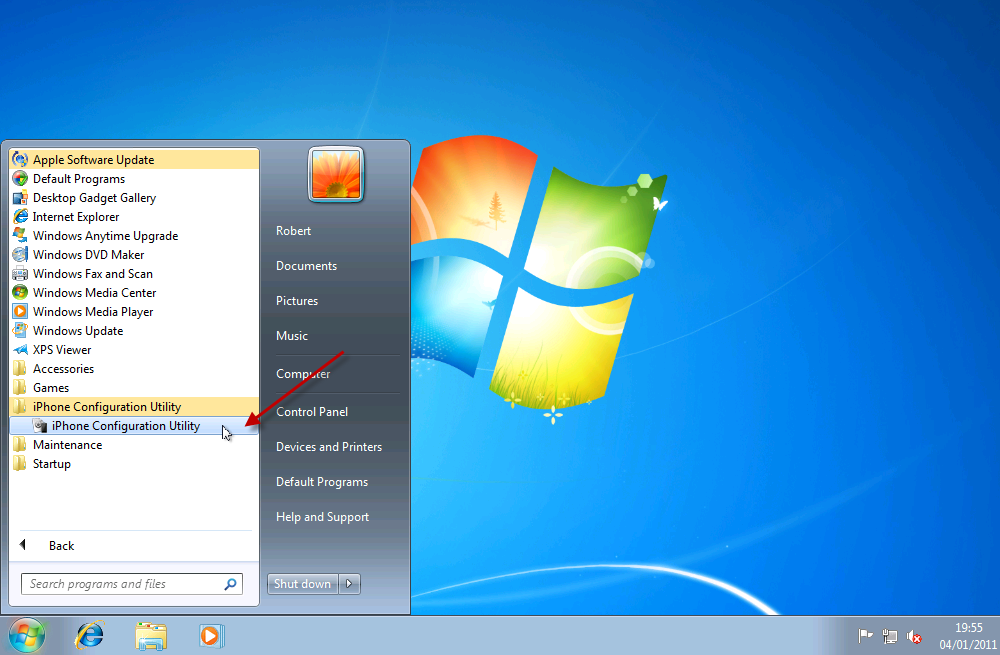
Once installed, let’s run our Utility.
As the program opens up, you will see several areas on the left hand side.

Devices

Applications

Provisioning Profiles

Configuration Profiles

We are only interested in Configuration Profiles in this article.

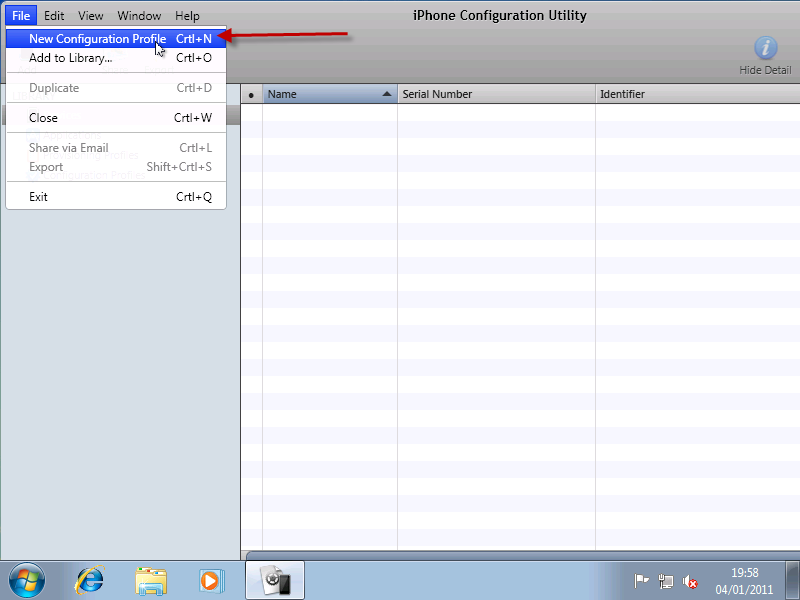
Click File, and select ‘New Configuration Profile’

A new area will open up on the right hand side.
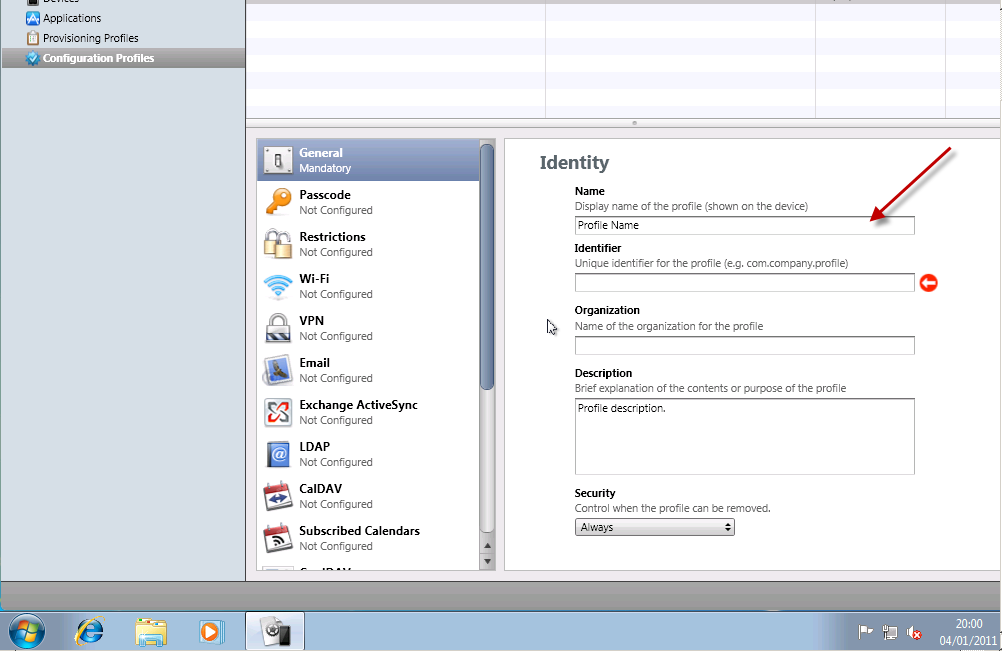
You will need to enter a name for your profile, a unique identifier for this profile, the organization name and a description about what the profile is for.

Name: Quite simply a name you can use to identify this profile.

Unique Identifier – This relates to comparing an already installed profile. So if you have two that match one may update the other. This is a little beyond the scope of what we are trying to achieve here, so i am entering something descriptive, in line with the format suggested.

Organization – Just the name of the company this profile is for.

Description – It’s a description!

Security – Here we can control when the profile can be removed, i like to be a little cautious when working with mobile devices so i leave this so the profile can be always removed.
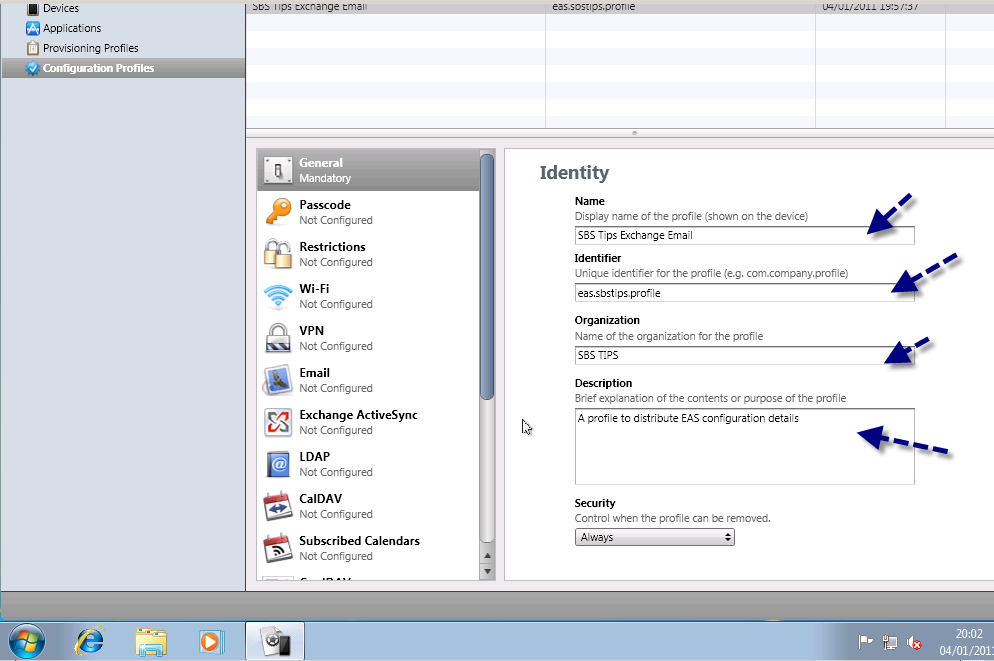
Now with the general settings finished, lets move on to the Exchange settings. In the left hand pane notice the Exchange Active Sync logo, click on this.
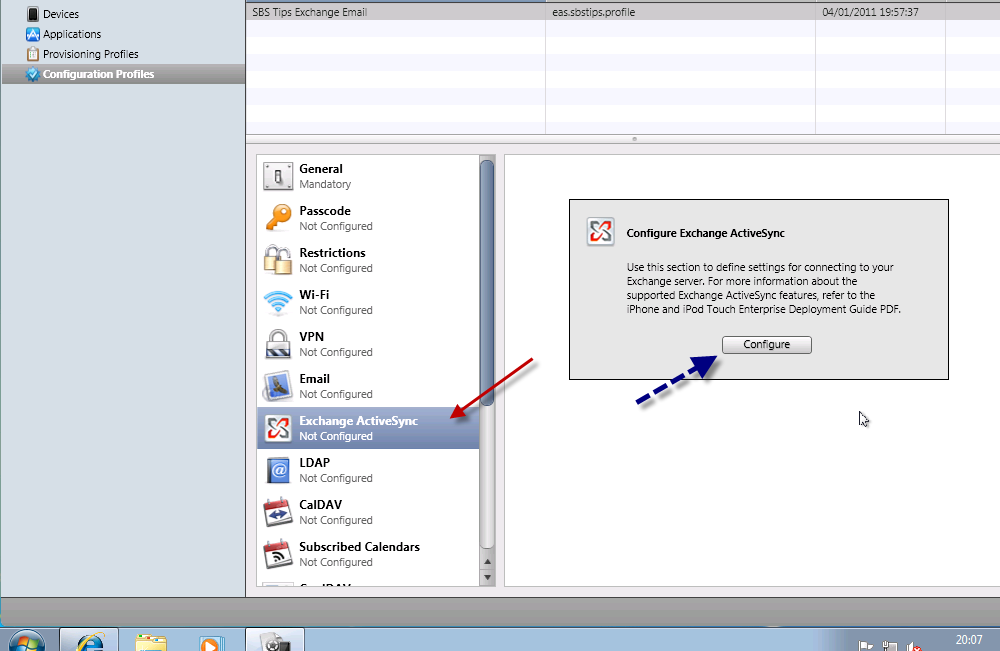
You will see a message about using this section to define settings to connect to Exchange, and also a referral to the a useful PDF guide on using Apple devices with Exchange, this can be found here.

Let’s click on Configure.

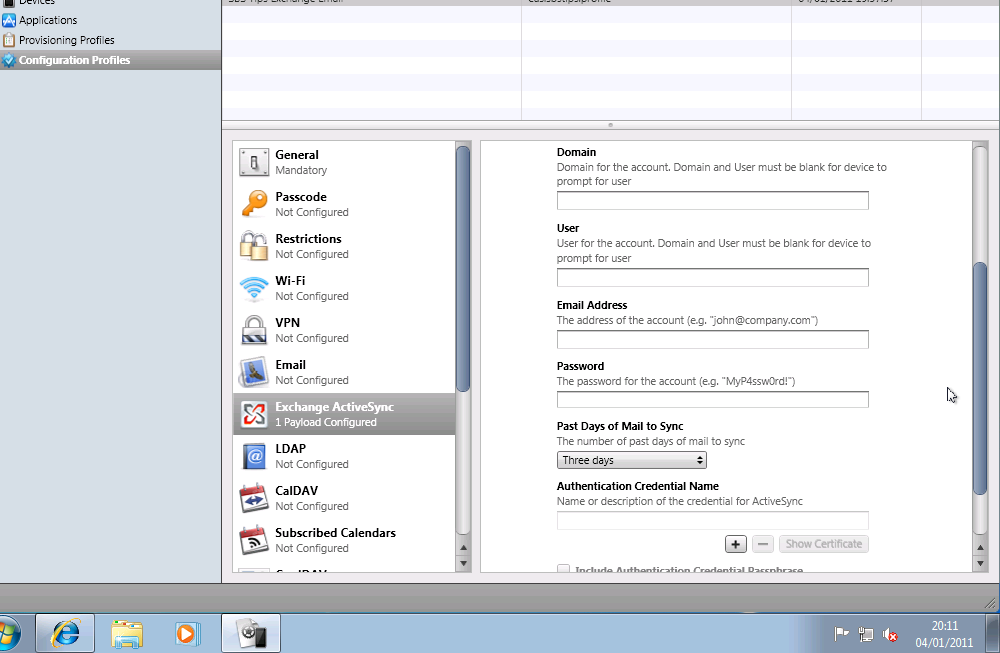
We will need to fill out the information here in order to configure our profile to sync with our server.
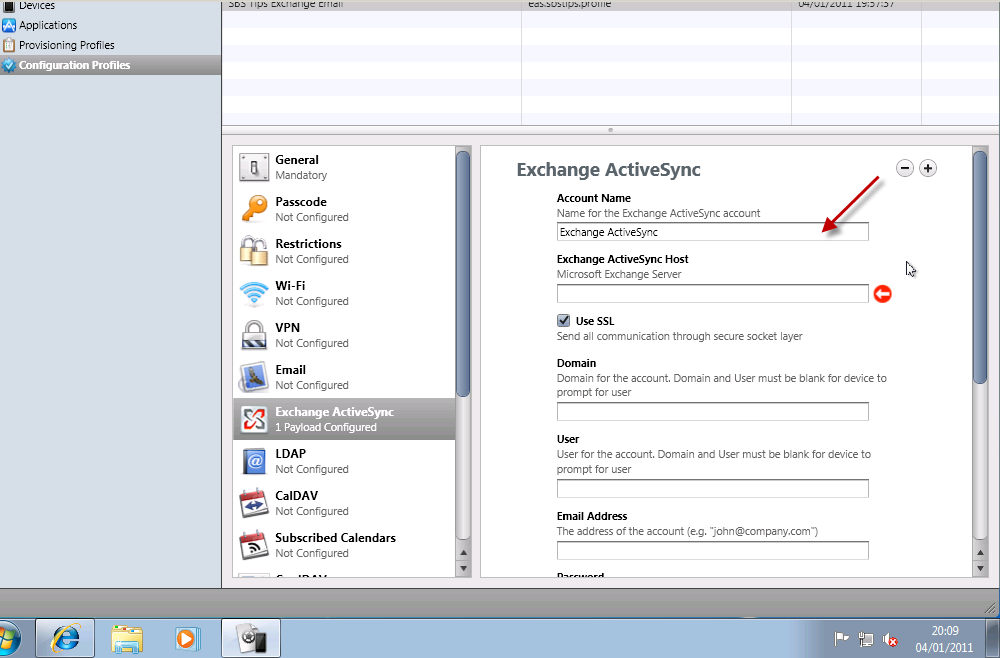
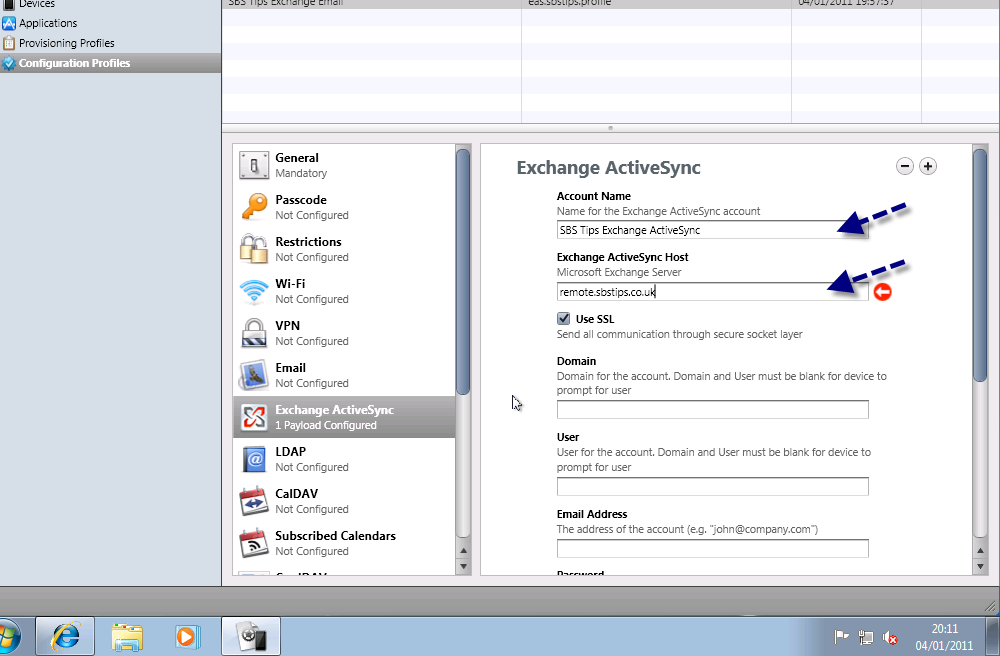
Account Name – The name of the account as seen on the device

Exchange ActiveSync Host – the FQDN of your exchange server (remote.mydomain.com)

Use SSL – by default EAS will function using SSL so i will leave this checked.

Domain / User / Email Address / Password – These sections will be left blank.

Past days of Mail to Sync – How many days of email to sync by default?

Authentication Credential Name – left blank.

That is our profile configured. Now we need to export it.
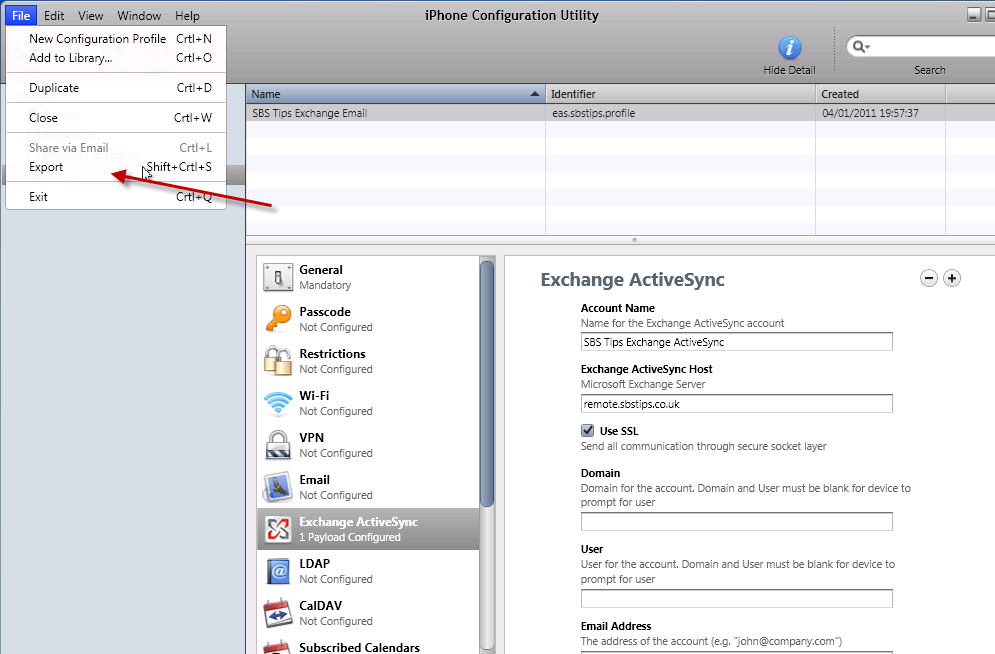
Click on File, and on Export.
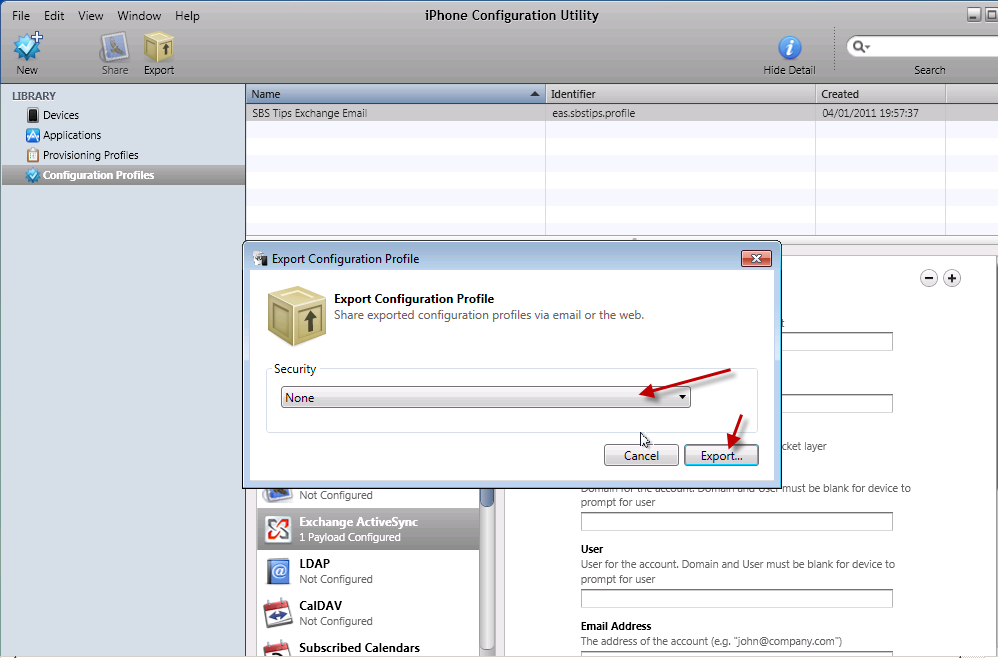
In the Export Configuration Profile wizard that opens, you have the chance to sign your profile, sign and encrypt a profile for each device, or to choose None.
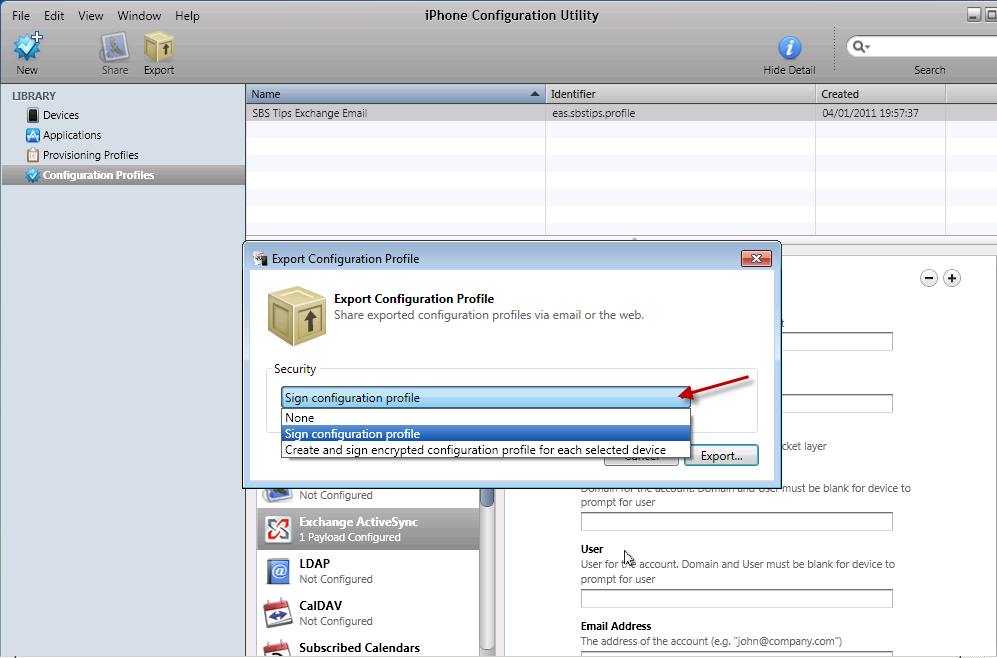
Since i am not an expert in Apple’s configuration utility, and i don’t have a huge budget to work with, i haven’t really explored the options and differences between them here. Suffice to say, Signing the file, and Encrypting the file seem to work well on a per device basis, aside from that the only downside to not signing them is you see that the profile is unsigned on the iPhone. Granted it doesn’t look as pretty but I’m pretty sure no one will notice.

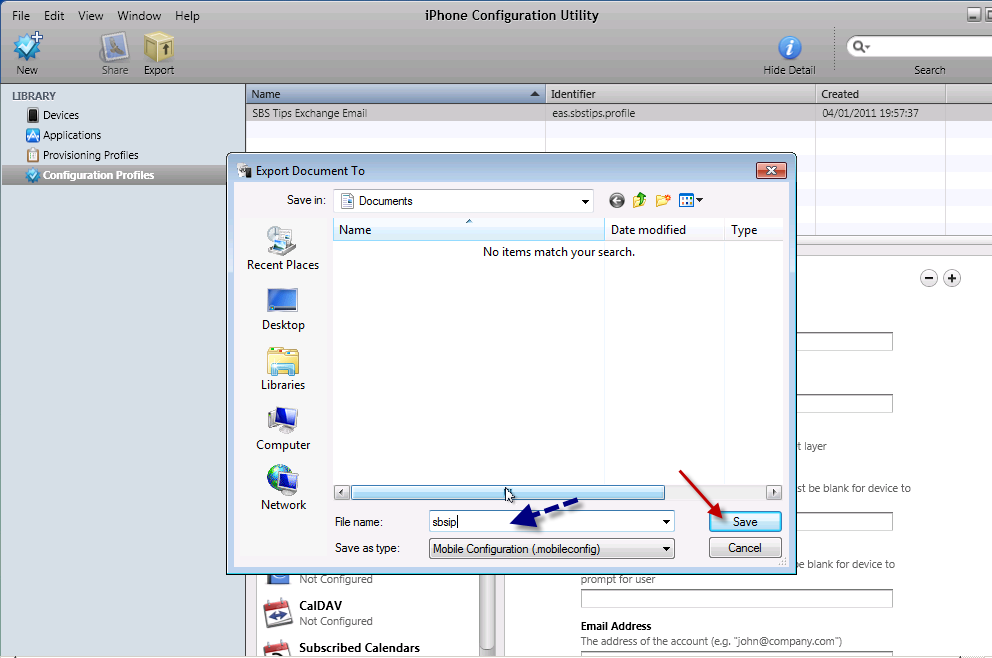
OK, so lets go for the None option for security in the export profile wizard. You will need to enter a name for your file, and then your profile is exported.
I am calling mine – sbsip – short for sbstips iPhone. You will do well to choose a short name as well, as you will see in a moment. Note the file extension  .mobileconfig
We now need to move this to our web server. FTP seems to be the wise choice here, but a word of caution.

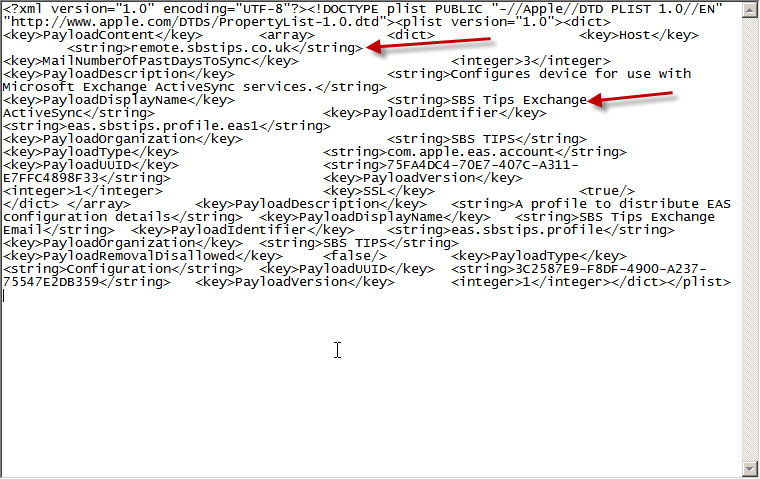
Since this file may contain what some deem to be sensitive information in plain text, i would advise you to consider the security implications of uploading this file before you do so. Just because this will make your life a little easier doesn’t mean your client agrees. If you have followed the article to this point, the sensitive information i am referring to is the address of the EAS server.

If you open up your .mobileconfig file, you can see it is simple XML and the info is easily readable.
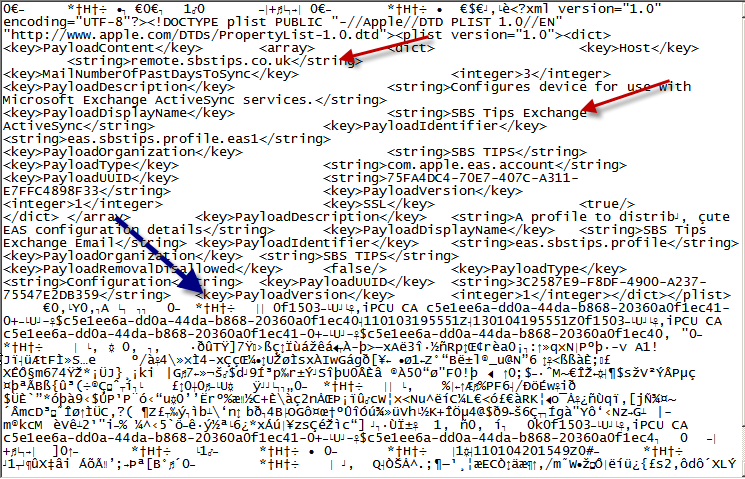
Below is a ‘Signed’ version, so you can see the extra detail here is the addition of a signature, but the information itself is not hidden.
So with that warning heeded, a password protected web folder is my recommendation. Users can follow a link on their device, you can provide them a username and password for this folder, and that grants them access to this file. There are of course other methods of doing this, only uploading the file when it is needed for example could be one, but seems like a lot of effort to me..

Continued in Part 2….

Installing Windows Small Business Server 2011 Standard Part 1

Windows Small Business Server 2011 Standard has just been released to manufacturing, and is available through Technet and MSDN Subscriptions if your lucky enough to have one; I am, so what follows is my documented installation procedure for SBS 2011.

A couple of things to note before we start, the download from MSDN is over 6gb (just for disc 1) you’re going to need a DUAL LAYER DVD/RW to write this ISO to a DVD – or like me – use Hyper-V to install.

Once you have the Disc or ISO ready, I guess we need to check the Hardware Requirements?

You might want to review the latest info here on the release notes : Technet/SBS

At the time of writing the following is correct:

Processor: Quad core 2 GHz 64-bit (x64) or faster / 1 socket   (4 sockets maximum)

Physical memory (RAM): 8 GB Minimum / 10 GB recommended (32 GB maximum)

Storage capacity: 120 GB

DVD ROM drive
 
Network adapter: One 10/100 Ethernet adapter

Monitor and video adapter: Super VGA (SVGA) monitor and video adapter with 1024 x 768 or higher resolution

Network devices: A router or firewall device that supports IPv4 NAT

Internet connection: Windows SBS 2011 Standard requires that you connect the server to the Internet.

Optional network devices:
1.Device required by your Internet service provider (ISP) to connect to the Internet

2.One or more switches to connect computers and other devices to the local network

Fax modem : Fax services require a fax modem

All set?

Do you have a RAID Controller in your system – Get the drivers now! Download them to a USB pen drive or Floppy disk and have them ready.

What i am not going to cover is how you set your system to boot from the dvd in the bios, or other methods of install like creating a bootable USB pen (very cool deployment method) and then also setting the bios to boot from USB. You can find more info on USB booting on the page i use every time i need to do it, here… Method 6 being my preferred option. Of course in Hyper-V we can just use the ISO which is much more convenient.

Edit – A Fellow MVP and Friend of Mine – Tim Barrett has jumped on the bandwagon and posted a great article about how to make a usb boot disc for SBS 2011 check it out here at NoGeekLeftBehind.com

So whatever your chosen media and boot options, let’s put the ‘disc’ and fire up our server.

You will need to press the ANY key to boot from your DVD, if you cant find it, just press ENTER

You’ll see a screen flash through where windows loads files from the media, and then a screen that looks like the Windows 7 start up splash screen (don’t worry you haven’t downloaded the wrong ISO (well you MAY have done, but you’ll see this on both SBS 2011, and Windows 7)

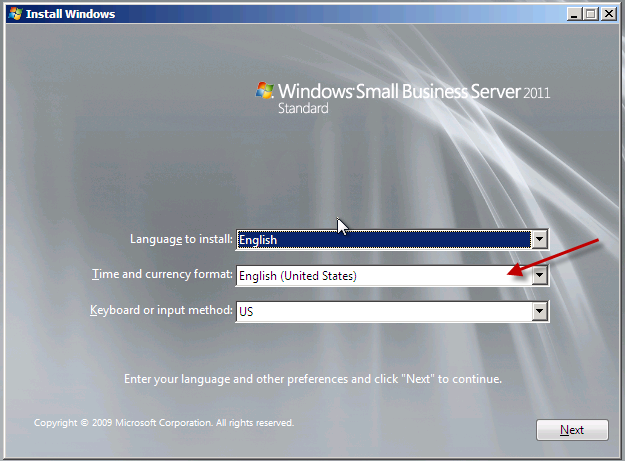
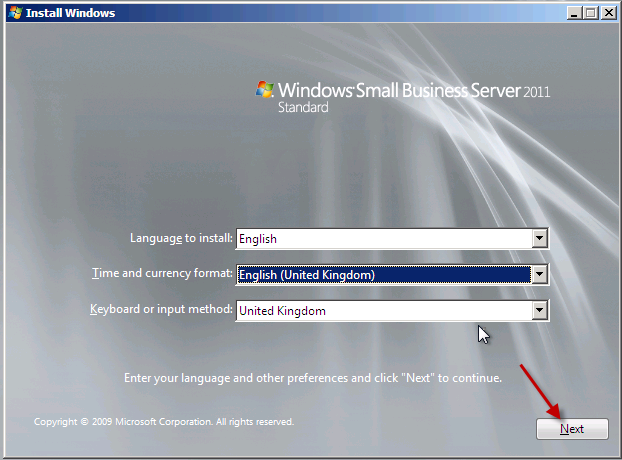
Our first look up at the setup screen will remind a lot of us of the Vista/2008 era setup screens, we will need to choose the installation language, and confirm your selection.

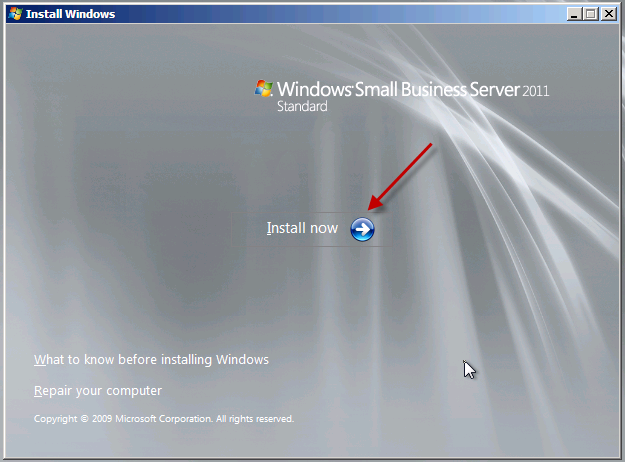
We only have one option now which is to install. You may want to review the ‘what to know before installing windows’ section, now is your chance.

Setup will now begin…

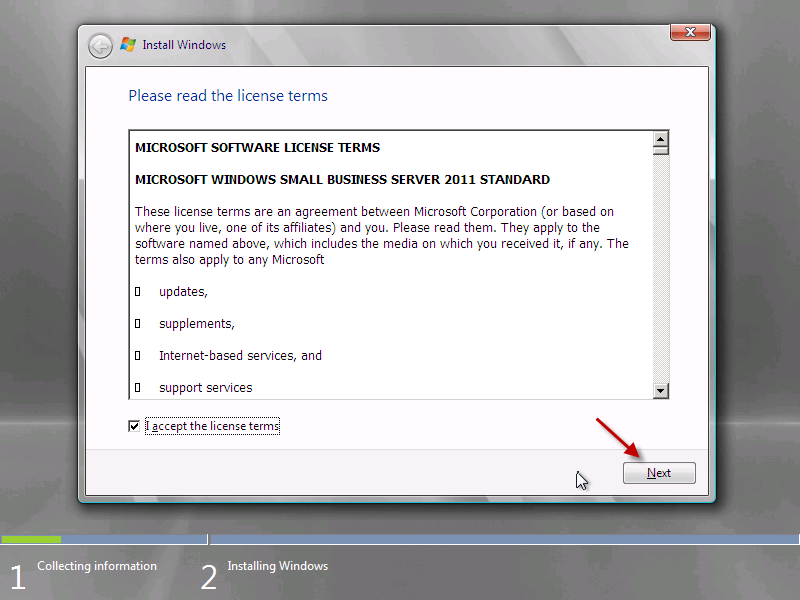
You will need to review and agree to the license agreement. Note – I’m not telling you to agree to it, you need to READ IT and accept the terms for yourself!

Agreed? Great, lets move on.

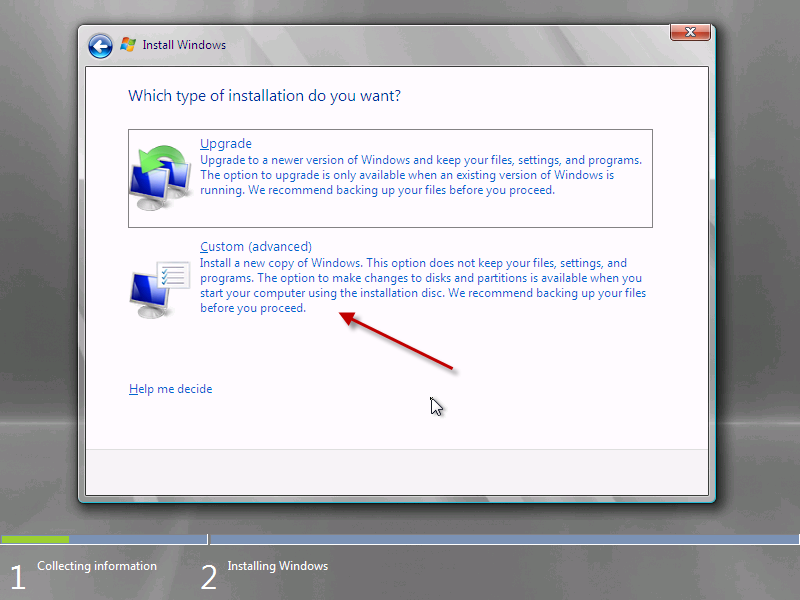
You will need to select whether you want an Upgrade or Custom Install. I haven’t actually tested to see what happens if you click Upgrade – suffice to say an upgrade is not a supported migration path from any version of Windows. I am doing a new clean install, so i am selecting Custom.

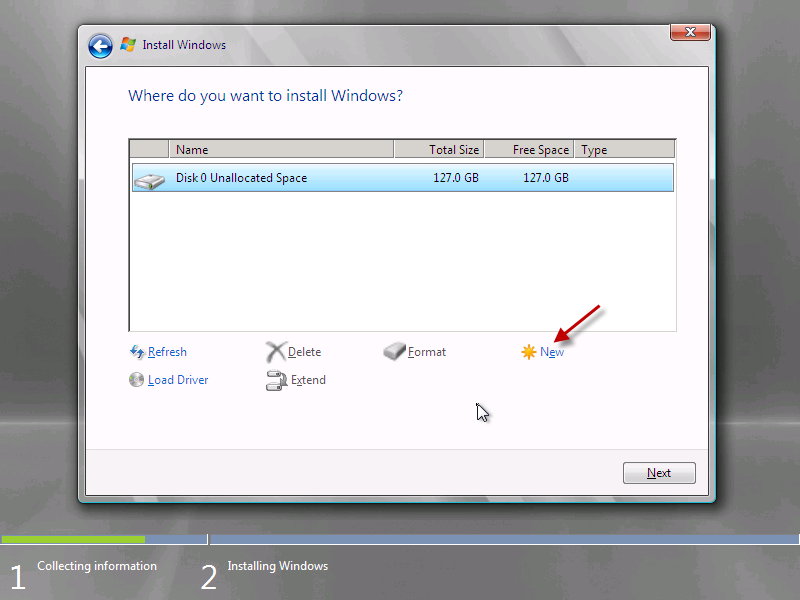
With any luck setup will auto detect your hard drive. Those using a raid controller may need to install controller drivers at this point. 

You can see the load driver option highlighted here, you will just need to browse for the files on your USB drive or floppy disk and install them, once done your disk(s) will appear.

Since i have only one hard drive and i don’t want to do any partitioning, i am going to format this disk and use the full capacity.

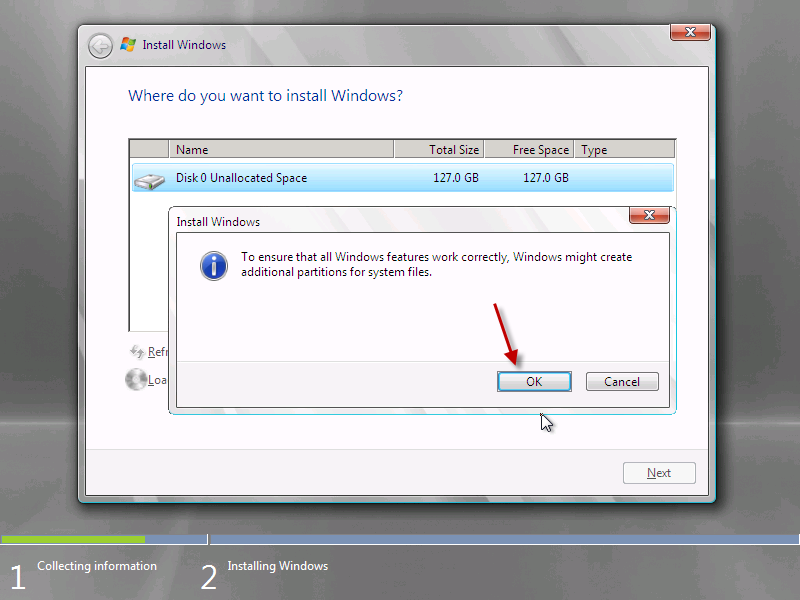
Setup will flag up a warning about partitioning the drive, so that all windows features work correctly. This will also partition a small area of disk (about 100mb) that is reserved for use with BitLocker, it also hosts the Boot loader and Windows PE files. 

Ok, now that are disk is formatted, we need to move on.

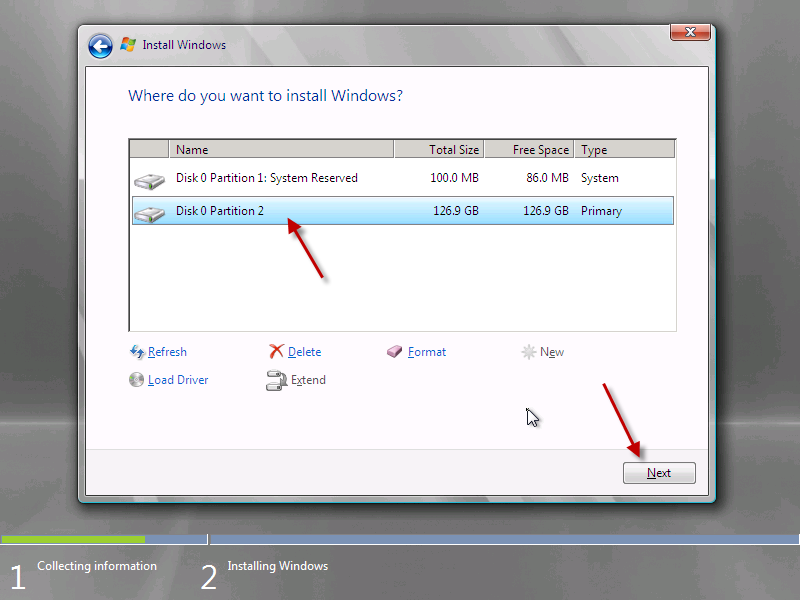
Select the partition you wish you wish to install onto, in my case Disk 0 Partition 2, and click on to Next.

Continued in Part 2

Installing Windows Small Business Server 2011 Standard Part 2

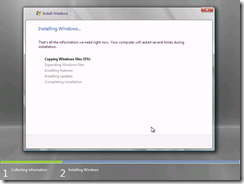
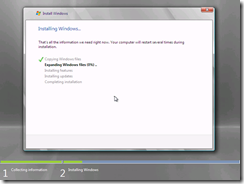
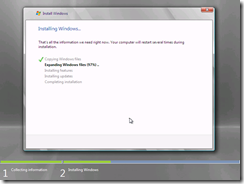
Windows will now copy files from the media to the server, and start to expand the installation files. This process may take a while so sit back and grab yourself a coffee.

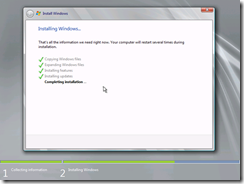
Once the files are expanded, the second phase will complete quite quickly, installing features and updates almost in the blink of an eye!

Your server will reboot and setup will continue after this..

You will see the ‘Setup is preparing your computer for first use’ screen for a few minutes..

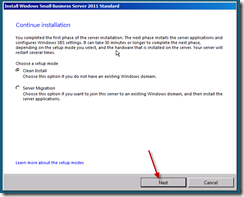
You will now be presented with the a screen titled ‘Install Windows Small Business Server 2011 Standard’ with the option of whether to perform a clean installation or a server migration. We are performing a clean installation, so leave that selected and click Next to start the configuration process.

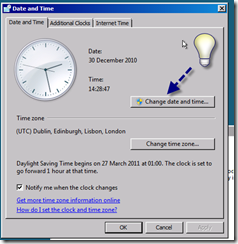
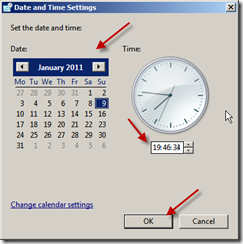
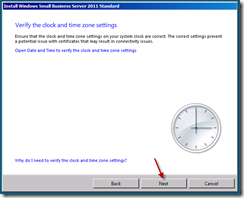
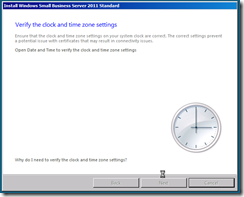
The first step of the process is to set the date and time, and verify the time zone settings of the server.

Please make sure to click the Blue text and verify these details.

Once you’re happy with your clock settings, click Next to continue.

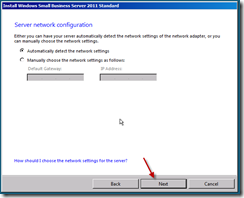
The next page is ‘Server Network Configuration’ the server will attempt to automatically detect your local network and give itself an IP address on that network. You can choose to enter your own configuration information instead if you wish.

I have left mine on the default of ‘automatically detect’ and clicked next. When you’re happy with your configuration, click next.

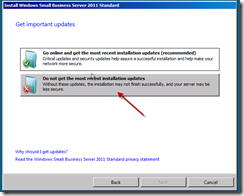
You now have the chance to download updates during the installation process. I have always said no to this. I think Microsoft’s thinking here is good, in that this process should download updates for the installation routine only, fixing any known issues with installations at this point would be a good thing.

However, for a consistent installation process, and to speed the installation up, i choose not to install updates. This is also a view shared by a lot of the other SBS MVP’s so i am not alone. Our advice here may change if a major issue is discovered but for now, click to not get updates.

Click Next to continue.

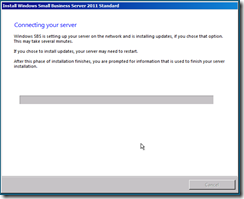
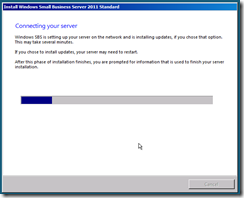
Setup is now trying to connect to your network, and if you did choose to, will download updates. (Remember if can only download updates if there is valid network configuration information and an internet connection, it isn’t magic)

This process is going to take varying amounts of time, based on the spec, and the choices your entered. Might be time for another coffee?

When you return you will be presented with some familiar screens for those that have worked with SBS before.

Continued in Part 3

on a job well done.

Installing Windows Small Business Server 2011 Standard Part 3

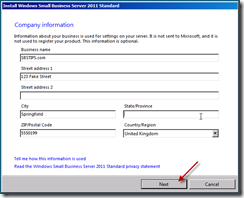
You should now have the Company Information screen, where you can enter business address and contact details.

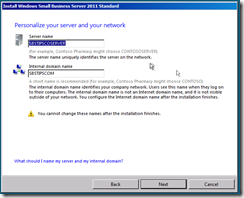
The personalise your server and network screen, where you choose your Server name and internal Domain name.

This may be the single most important screen you have to configure in the whole installation. This stuff cannot be changed – ever! so take your time and get it right, no second chances or forgiveness for typo’s!

A tip i picked up in the SBS 2008 era, (in this book) was to use a generic name for both the server and the domain. You should have read that book already so i am not going to repeat it, but suffice to say it makes things a lot easier if you ever want to merge with another network.

Server Name : SBSSERVER

Internal Domain Name: SBS

When you’re happy with your choices, hit next.

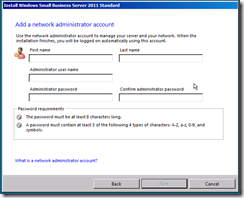
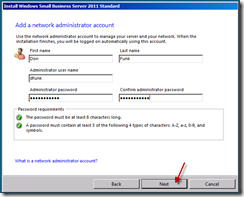
We now have the ‘Add a network administrator’ page.

As was the case with SBS 2008, the Administrator account is unavailable for use here, so you must choose a new name and password.

Please enter somethng unique, and not to obvious to guess – Admin – for example is a bit of a waste of time. Another tip for you that we employed was to use the initials of our consultancy and that of the clients company, anyway you choose whatever you want, i am choosing Don Funk (thanks to Justin and Wayne for that one )

You’ll also need to enter a strong password. 

Remember this is your Domain Administrator password, it should not be Password1 and it should not be written down and stuck to your monitor!

When you have entered all of this information, Click Next.

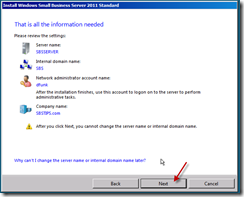
You will now see a summary page, this is your chance to confirm and or change anything you are not 100% happy with.

Click Next when you’re ready.

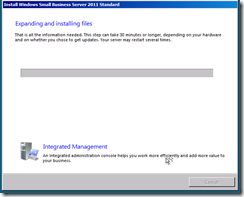
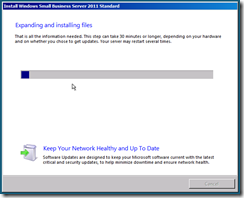
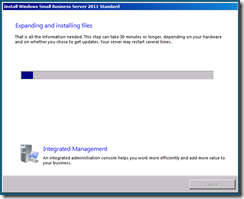
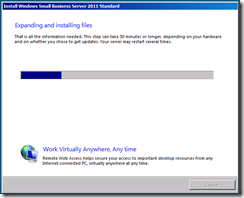
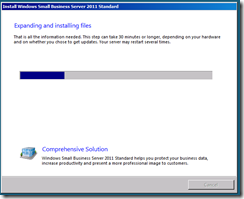
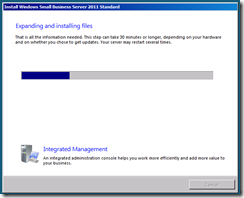
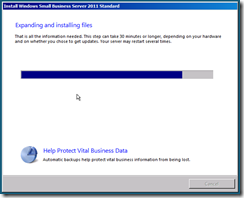
The server will now shutdown and restart, when it boots back up you will have a period of time to wait whilst the server expands and installs the SBS installation. You can choose to sit and wait and read the inspirational messages about how much more efficient your company will be once the install has finished and how the integrated management console will add value to your business, or you can take a break for about 30 minutes and finish that coffee.

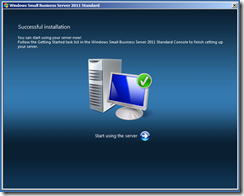
Your server will reboot a few times during this period, and with any luck after about 30 minutes you will be presented with a Successful Installation message.

Once your server has finished the installation, you will have several configuration tasks to complete, including configuring the backup, and updating windows adding your users and joining your computers to the domain.

For now, why not congratulate yourself on a job well done.

OK so… That works.

Having spent several hours working on my IPCOP install article, it was proving to be a bit of a pain to upload it.

I broke it down into 3 smaller articles, that are now of course, published in reverse order as you scroll this page.

Here are the links to the individual entries..

Part 1

Part 2

Part 3

Hope it may be useful to you!

Installing IPCOP as a Hyper-V Guest – Part 3

You will now have the chance to configure your keyboard mapping, time zone, passwords, and additional interfaces.

Select your keyboard layout using the TAB key, and again, TAB down to OK.

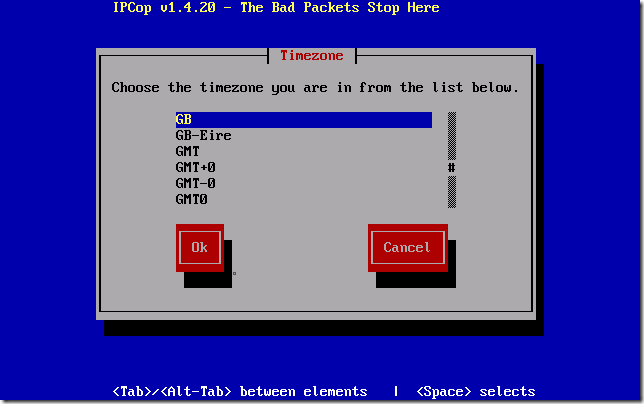
Repeat for your Time Zone

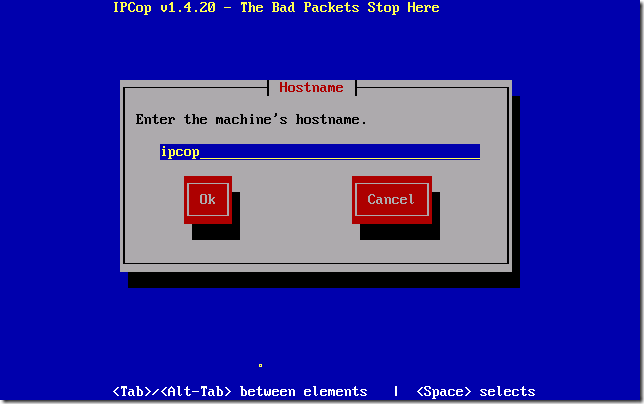
Next enter the hostname you would like, and TAB down to OK.

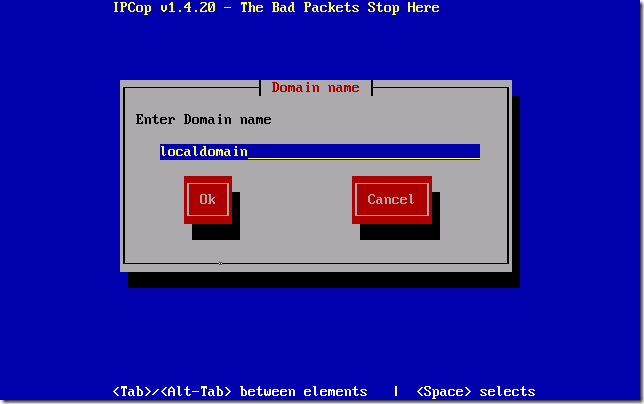
Choose an internal domain name, and TAB down to OK. I am leaving mine on the defaults. IPCOP.localdomain

Now you can configure your ISDN interfaces… what? you don’t have a brook trout ISDN card? Oh, well if your like me, and you DON’T need to use ISDN, i would choose to disable it.

TAB across to DISABLE ISDN and hit SPACE to accept.

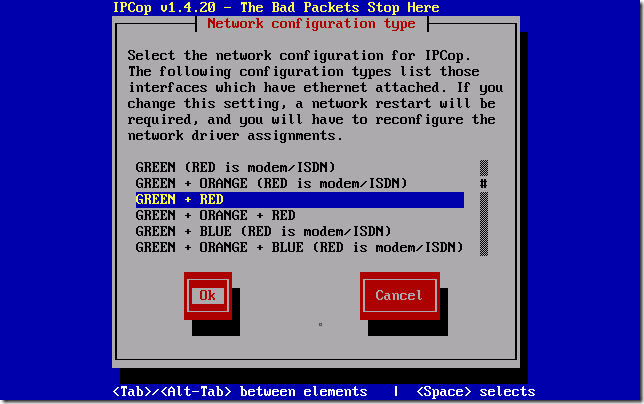
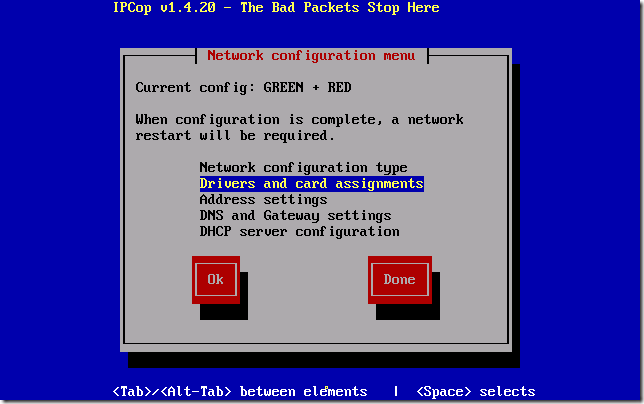
Next we need to choose our NETWORK CONFIGURATION TYPE.

If you have followed the above advice you will need to choose GREEN + RED then TAB down to OK.

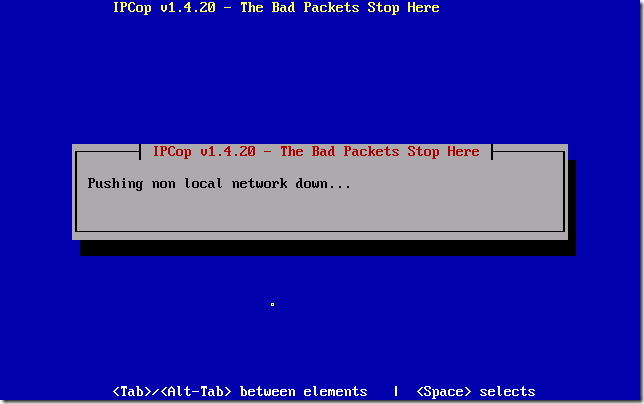
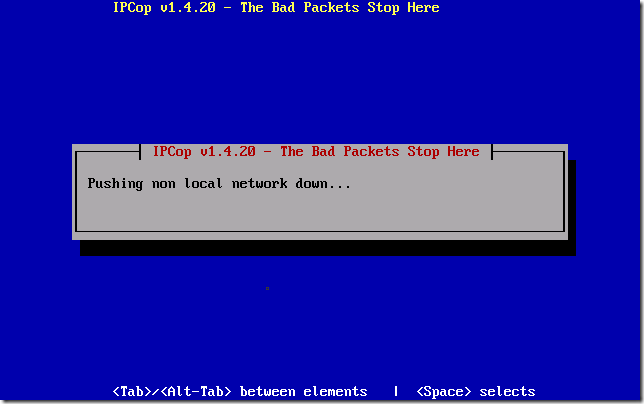
You will see a screen showing ‘pushing non local network down’

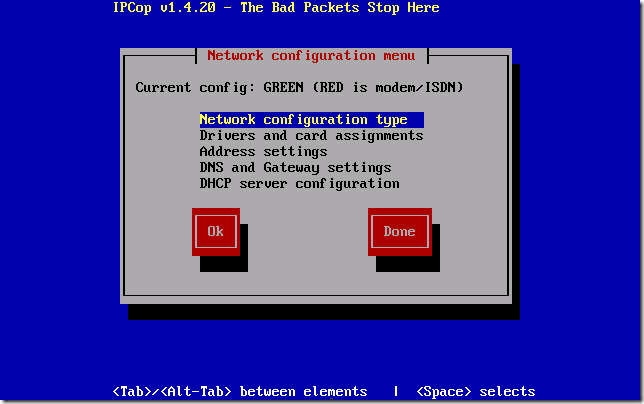
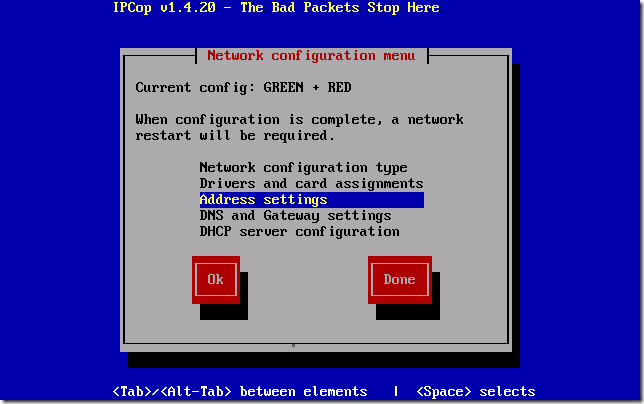
You’re then returned to the Network Configuration Menu.

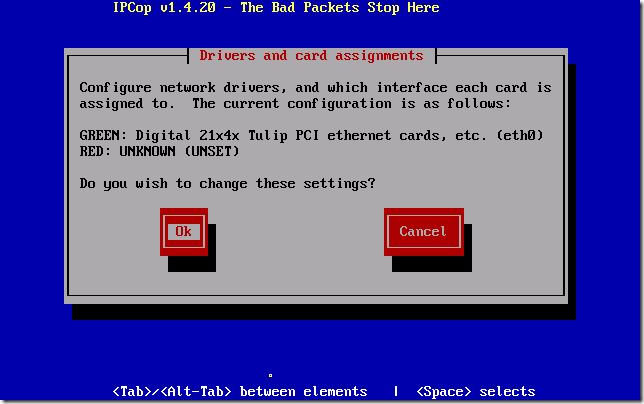
Select Drivers and Card Assignments.

You will see your TULIP card is assigned to the GREEN NIC, but RED shows as UNKNOWN (UNSET)

We do wish to change these settings, so select OK.

Again you will see a screen showing ‘pushing non local network down’

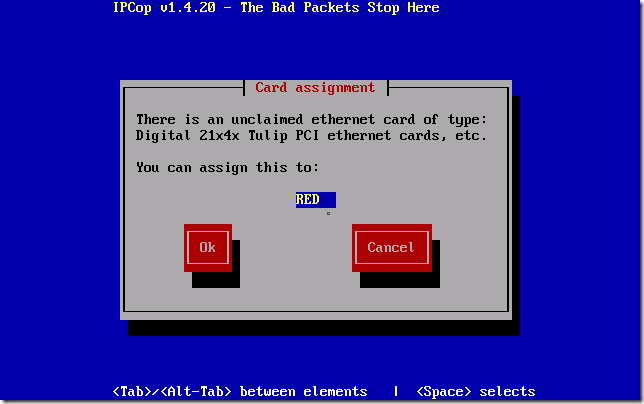
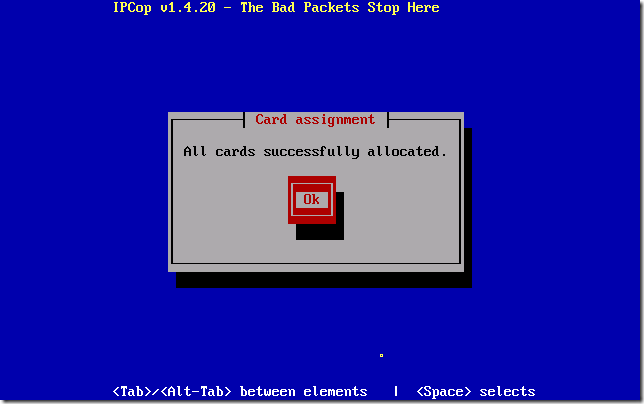
You will now see a message about an unclaimed NIC, you can assign this NIC to RED, select OK.

All cards are now successfully allocated.

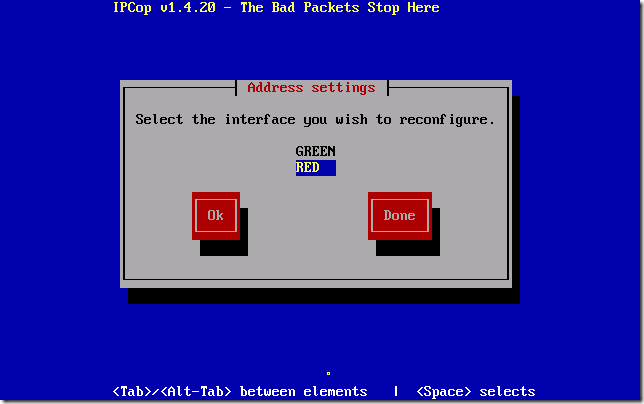
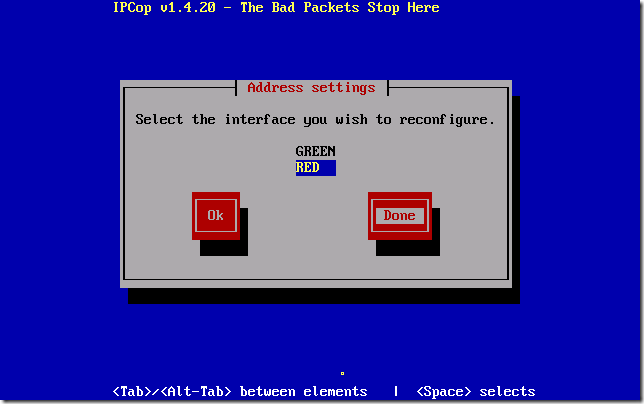
You can now set your address settings for your NICs.

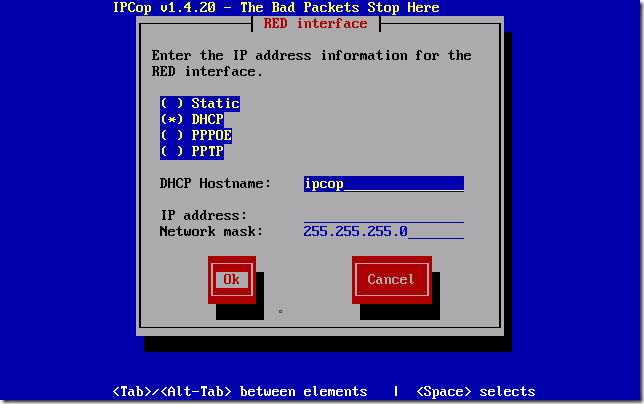
We have already configured the GREEN NIC, so select RED and select OK.

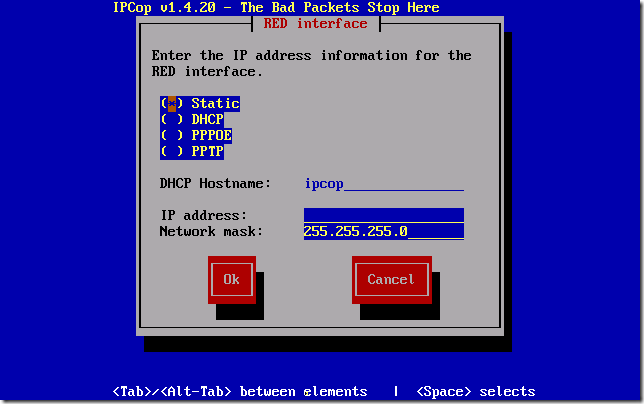
This section will vary dependant on your own lab setup. I have my RED NIC set to use DHCP, and i have a DHCP server on the LAB network handing out an IP to it. Make sure you have a valid address to hand if you want to statically assign this.

I’m setting mine to DHCP.

When you’re ready, select DONE.

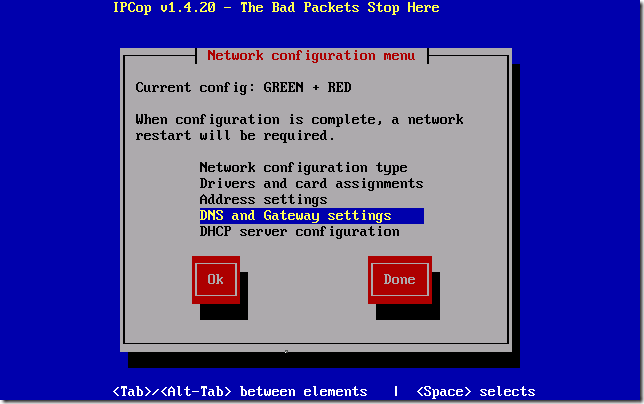
If you have selected to use a STATIC configuration on the RED NIC, you will then need to go ahead and enter DNS and GATEWAY information on the next menu.

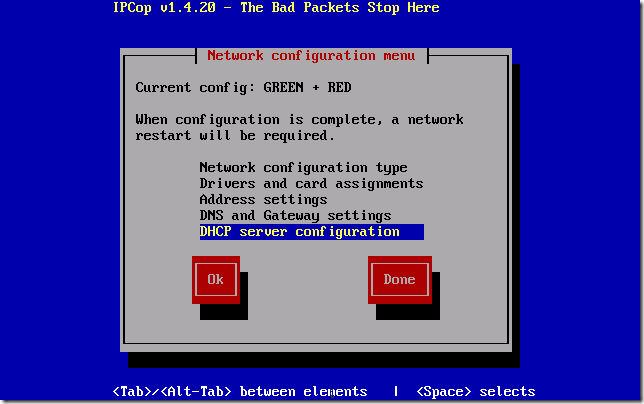
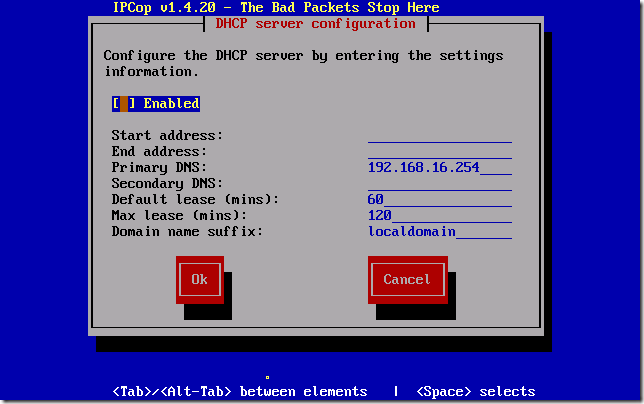
You can also configure IPCOP to be a DHCP server,but we do not need to do that for this setup. You will be prompted to do this after selecting DONE on the network configuration menu.

When you’re happy with you configuration, select DONE.

On the DHCP Server Configuration menu, leave the defaults and select OK.

Make sure you don’t hit CANCEL at this point like i just did, if you do, i can’t say what your results will be like, so probably best to start over!

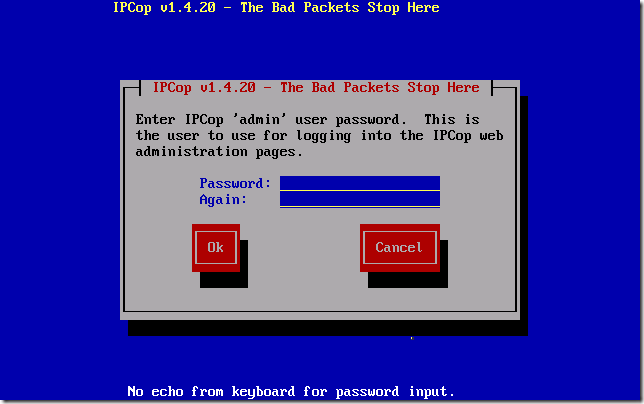
If your smart, and you don’t hit cancel, you can now enter your ‘root’ password. This is just used for console access.

As this is a lab system i am going to enter ‘password’ you won’t actually see the characters as you type them, TAB down to confirm, and TAB down to select OK.

Next is the ‘admin’ password – this is used when accessing the web console.

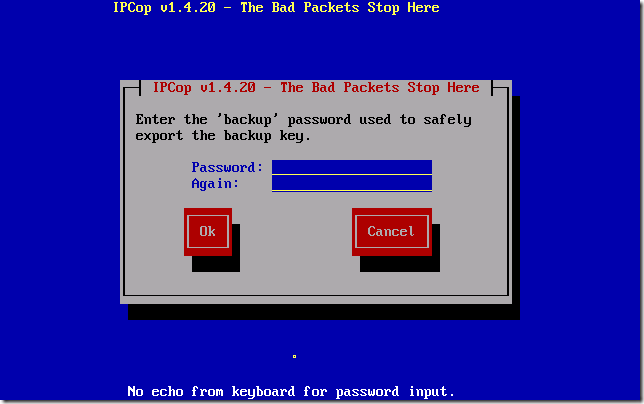
Now enter a password to be used when doing an export of your backup key.

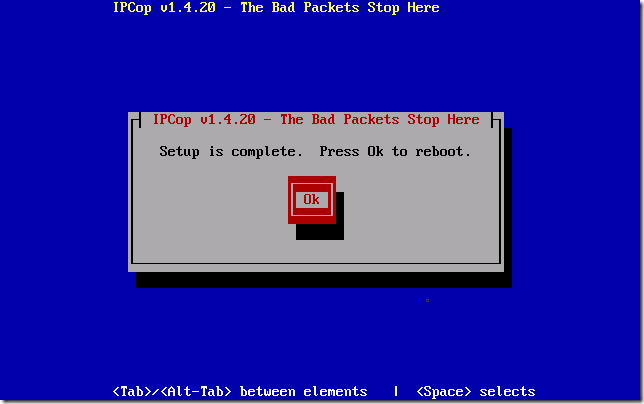
Setup is now complete.

Your IPCOP VM will now reboot, and you will be able to access the web console of your system from a locally connected VM.

Your system will boot and you will see an ‘ipcop login:’ prompt when it has booted up.

The console is not something i have used to configure IPCOP so i will refer you to their documentation for configuration tips.

Update – 10/02/2016 Please see below comments re updated port numbers for IPCOP Login

If you logon to a locally connected VM you can access the console at: http://192.168.16.254:81

You will get redirected to an HTTPS site – so don’t be alarmed if you get a certificate warning.

If you want to get really clever with it, you can then start to use the firewall on the IPCOP to publish services on the ‘internal’ / ‘GREEN’ network, which you can then access from your physical network.

And there you have it, an operational NAT device to separate your Hyper-V guest machines.

Installing IPCOP as a Hyper-V Guest – Part 2

I think i hit the limit for blog entry size – so have had to break this up into several entries.

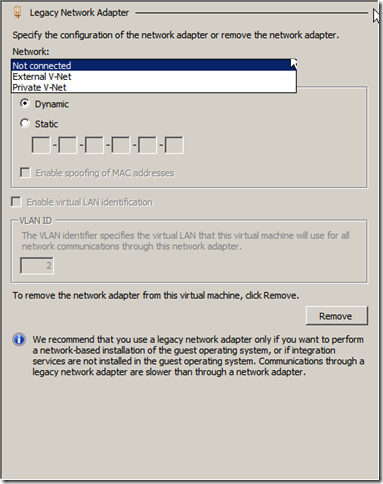
Before we power it up, we need to add some network interfaces. As mentioned above IPCOP does not support the use of the Hyper-V synthetic NIC, so we need to add a ‘legacy’ network adapter. Well, two to be precise. As this is going to be our NAT device we need both an internal and an external interface.

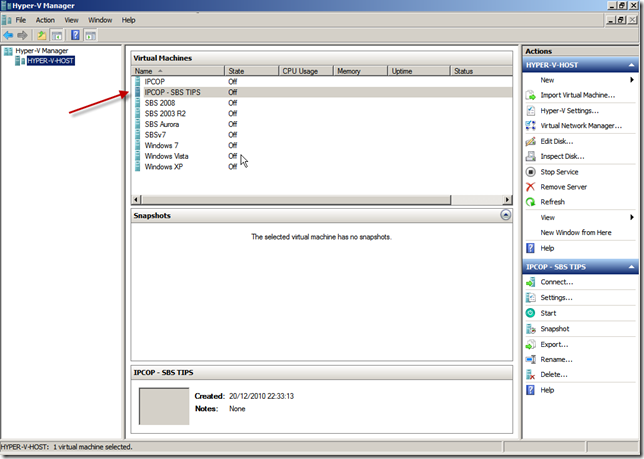
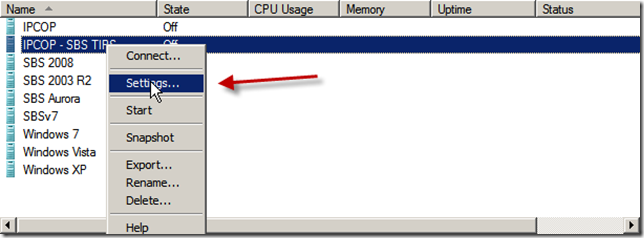
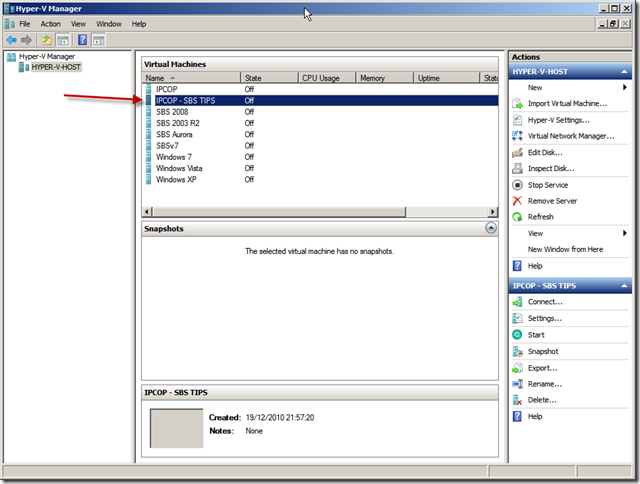
So, lets go into the settings of our VM, Find your IPCOP machine in your VM list and right click and click settings.

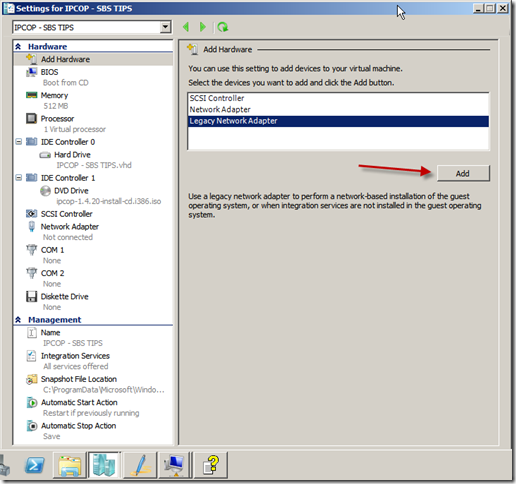
This opens the Add Hardware section of the VM settings, select Legacy Network Adapter, and click Add.

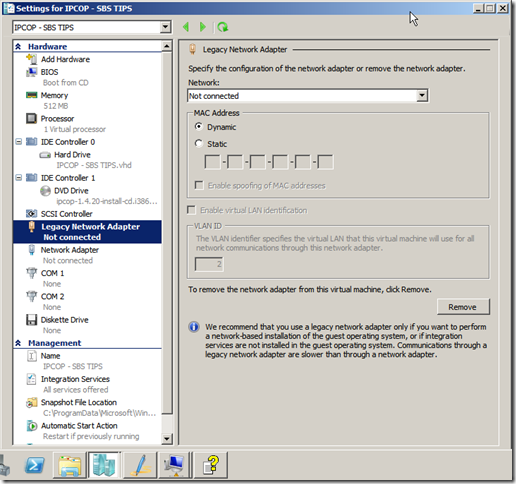
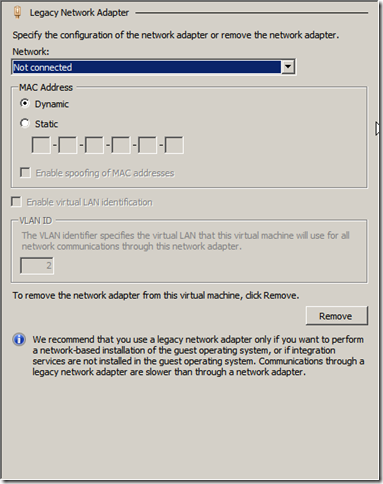
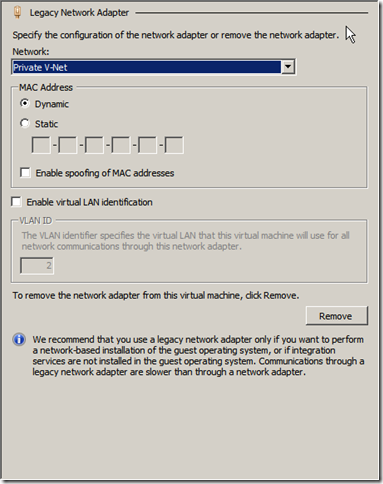
You are now on the Legacy Network Adapter settings page, where you can choose which network this NIC will be connected to, the MAC address settings and the VLAN settings.

I am possibly showing my inexperience with Hyper-V now, but i have chosen to add this NIC to the ‘Private’ VM network i have created (a network just for the vm’s) and i also have mine set to use a dynamic MAC address.

When you’re ready hit ok, and the NIC will be added. Repeat the process so we have one NIC connected to the Private network for VM’s and one connected to the External network.

In my setup, the first NIC i add or rather the first NIC installed into the Hyper-V guest,  is the interface IPCOP treats as it’s GREEN interface. More on that in a bit.

Now that we have our NIC’s added we can boot up our VM. Close down the settings window and go back to the Hyper-V management console. Double click your IPCOP VM to open a connection to it, and hit the power button to power it up.

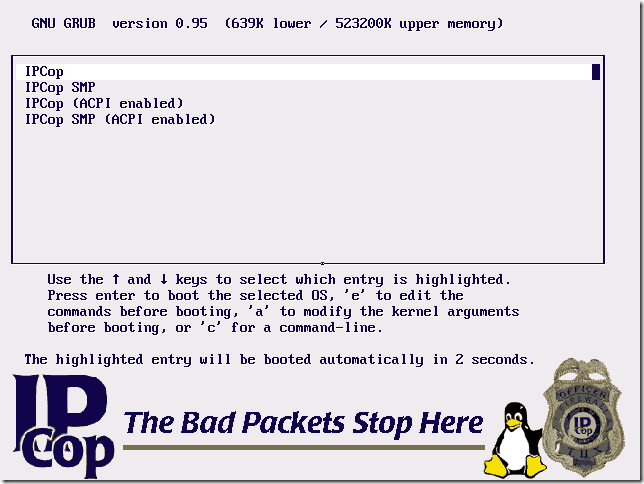
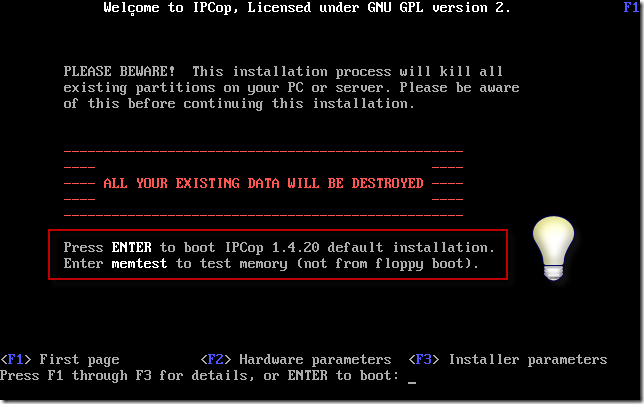
Your VM will start to power up, you will need to press enter when prompted to enter the IPCOP setup.

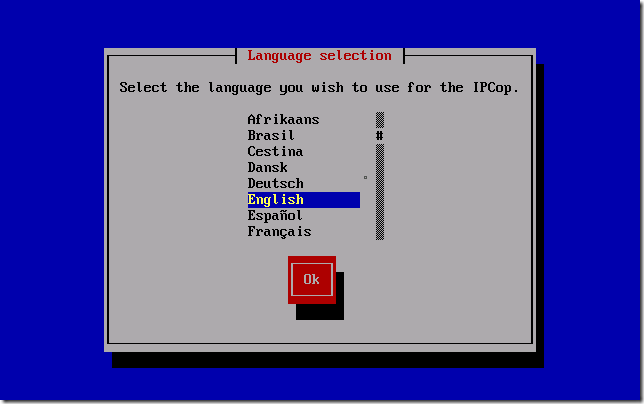
Choose your installation language.

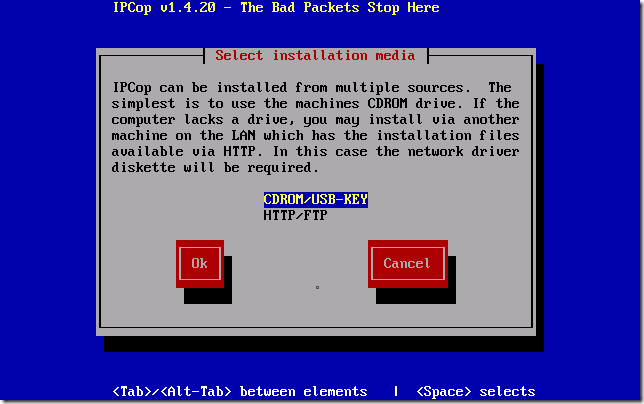
Select OK to continue the installation.

Since we are using an ISO file as our installation media, it is ok to accept the defaults on CDROM/USB Key

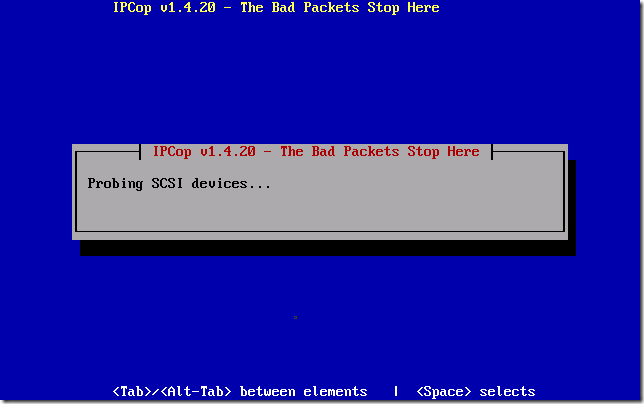
The setup will now probe your hardware.

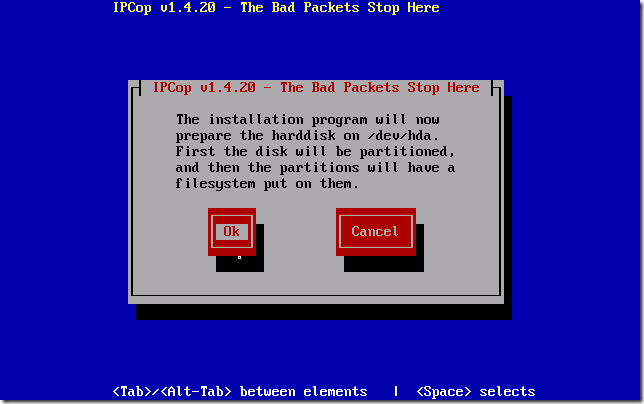
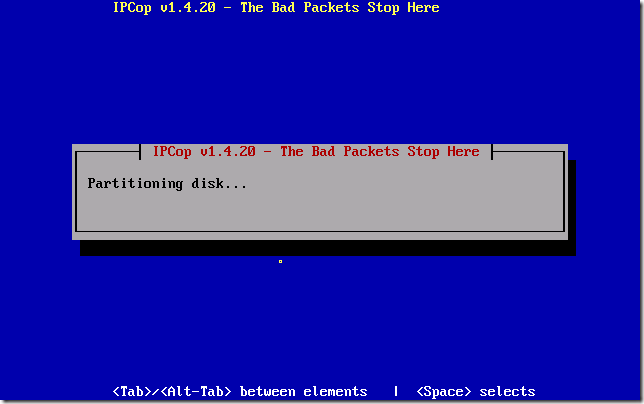
Select OK for the installation to being formatting and partitioning your virtual hard disk.

This process may take some time, so why not get your self a well earned coffee, or beer?

I mean – this takes a really long time – my system is a Quad Core Xeon, and this VM has 1gb of ram and it takes roughly 25 minutes.

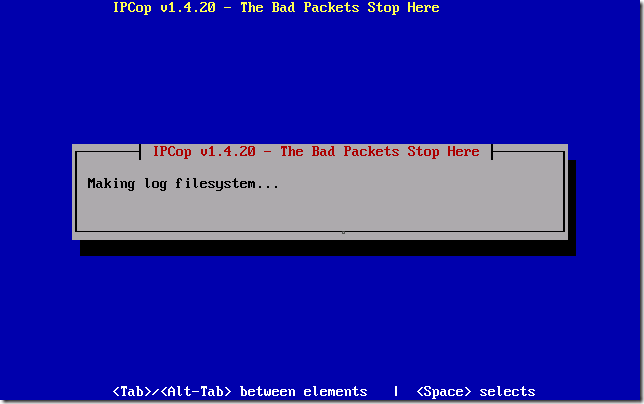
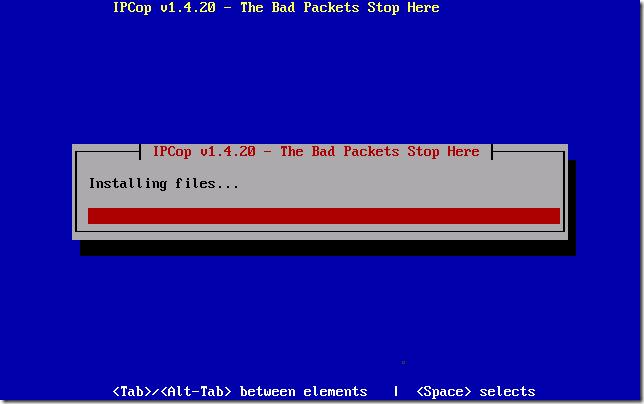
If you hung around by your screen long enough you will have seen a few screens flash up, one saying installing files, another making swap space…

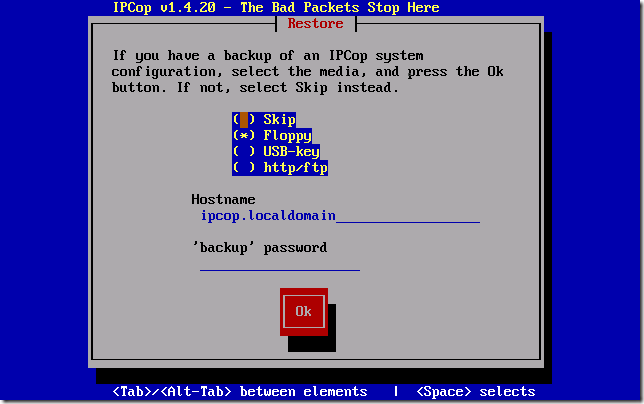
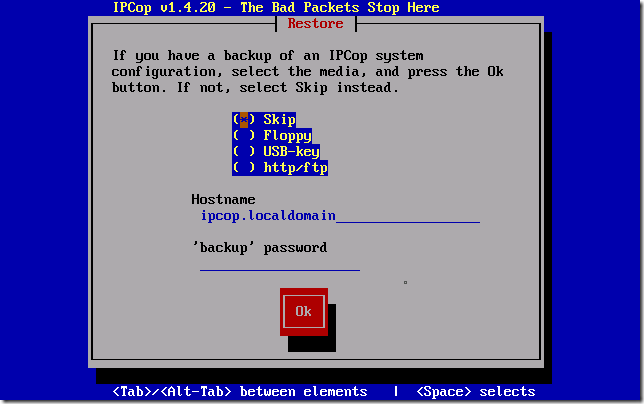
If not, you will have come back to see a screen saying, if you have a backup configuration of IPCOP you can now restore it. I’m assuming you don’t, so we will choose to skip this by selecting ‘Skip’ Press TAB to switch between options, and then press SPACE to select.

TAB down to OK to continue.

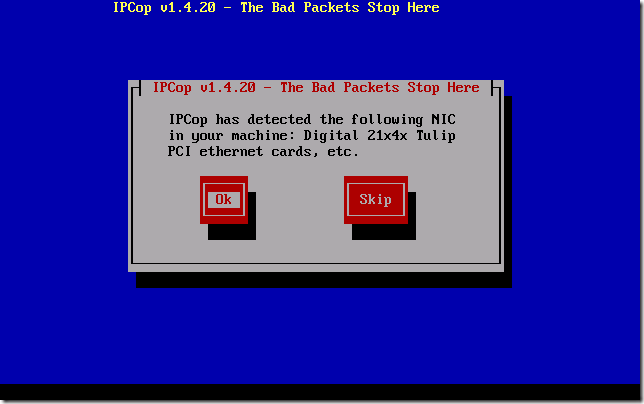
The next screen will attempt to PROBE for you NIC. I think that is the first time i have used the word PROBE in an article, and i don’t often use it in every day conversation either. Is it odd I’m enjoying the use of the word probe? I do though…. PROBE.
Sorry, side tracked there slightly.

So we are Probing for our GREEN interface. This is the interface that is considered ‘safe’ and will represent our internal network.

Press space to start Probing.

You will see a list of NICs whizz past, and hopefully it should settle on something. I am not going to say what it will settle on, as i am not sure if it is dependant on what type of Physical NIC you have in your system, mine has chosen – Digital 21x4x Tulip PCI Ethernet card.

Select OK.

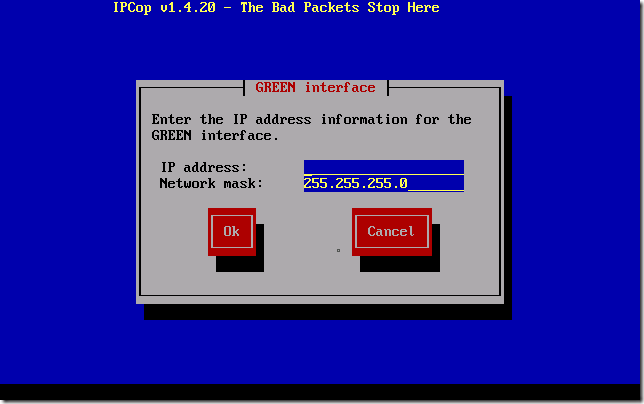
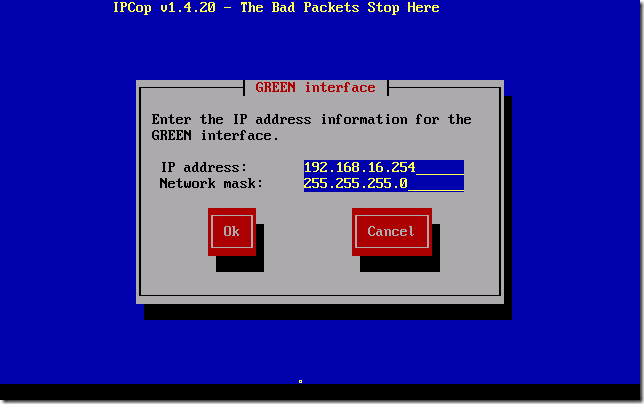
We need to enter our Internal IP address now for the IPCOP system. I am a bit of a traditionalist so i keep my SBS boxes on the 192.168.16.x/24 range. So I’ll put the IPCOP on 192.168.16.254

Type in your address, including the ‘.’ and when you’re ready TAB down to OK.

You will then see a quick screen flash up saying installing GRUB, and then it will confirm a successful installation..

You’re only choice here is to read the notes, and hit OK.

Part 3