Small Business Server Demo–Handout Slides..

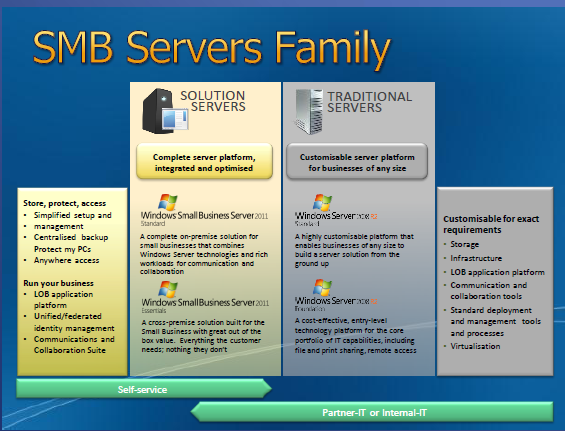
The East Anglia SBSC group was visited by Steve Wheeler of Microsoft last night to provide a non technical overview of SBS 2011 Standard, SBS 2011 Essentials, and a brief look at Storage Server 2008 R2 Essentials (Code Name Breckenridge) and also Multipoint Server.

You can get yourself a copy of the slide deck here…

sbs-slide

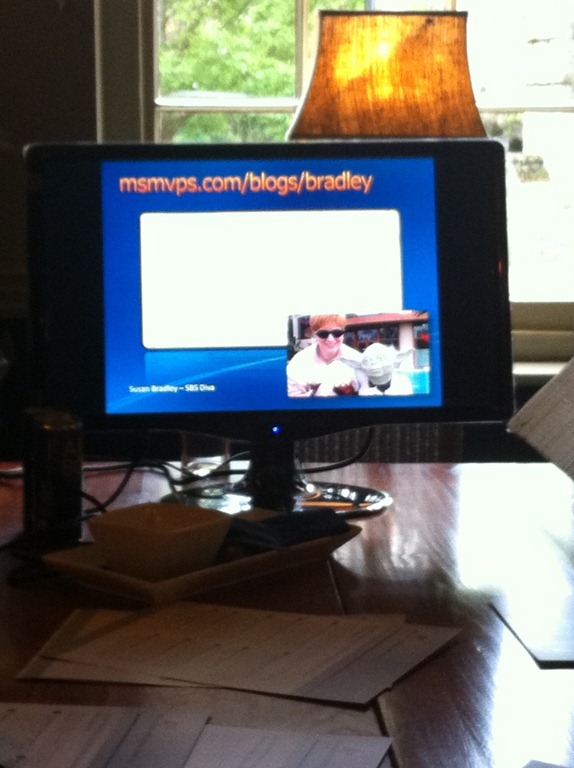
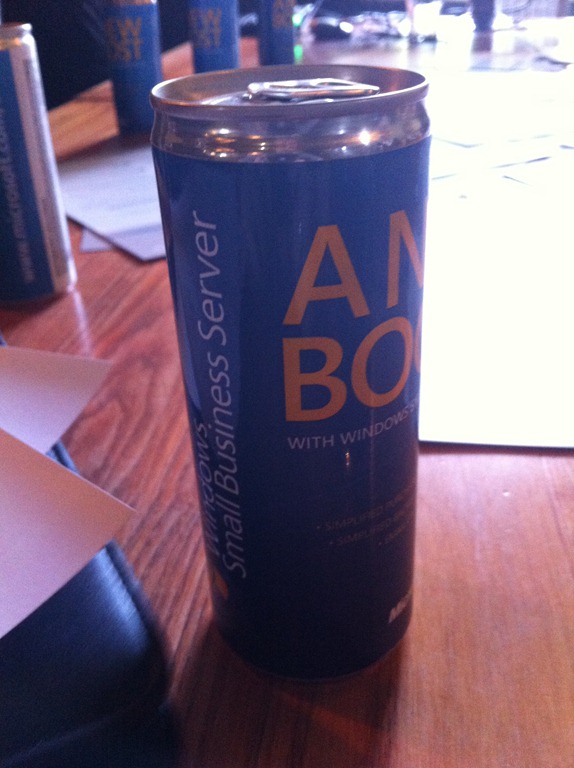
We were also treated to a ‘Small Business Server’ branded energy drink.. and proof if we needed it, that Susan Bradley is the centre of the SBS Universe..

IMG_0795IMG_0796

Quick Fix : Uninstall Symantec Endpoint Protection (SEPM) 11 Without Uninstall Password

So i have a clients laptop (XP SP3) which is bluescreening on startup with a NAVEX15.sys error.

(This from Nirsoft – Blue Screen View)

The system would boot into safe mode with networking, but not full windows.

I tried all sorts to clear this, System Restore, msconfig – disabling all non MS services and everything not in c:\windows from the startup tab.
I also uninstalled the NAVEX and any Symantec devices from Device Manager, (look for show hidden devices)

This didnt help.

I then searched the registry for navex15.sys and deleted the related keys from the registry.

This allowed me to boot up.

I then uninstalled symantec.. but wait it asked me for a password, and i dont remember that (like i ever knew it!)

Enter this great little tip from of all places, the symantec forums..

http://http://www.symantec.com/connect/forums/uninstall-sep-11-without-password

Specifically this entry from reza akhlaghy:

“..Hi Richard,

There’s an easy way, when password prompt opens, run task manager and END
task called MSIEXEC that runs under your user account (not system). The password
go away and uninstall continues !!

So far this trick works both for SEP and older versions…”

Bingo. Symantec now uninstalled.

I am using NiNite.com to update all web related apps on this system, and then, unfortunatley, i have to reinstall Symantec. :(

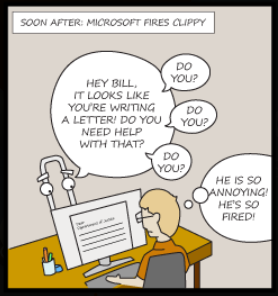
It looks like you’re writing a letter….

So Microsoft have released ‘Ribon Hero 2 – Clippys Second Chance’  a second edition to the training tool first released to help users with the differences in the ‘office ribbon’

It is a bit of fun, for those of us that actually remember clippy – and it seems to be quite a useful tool for educating users on the things they can find in the Ribbon..

Download Ribbon Hero 2 – http://www.ribbonhero.com/

Quick Fix: Query Access Contol List entries?

Querying an ACL.

Something a lot of us will have had to do on a number of occasions, when it is for one folder it is a fairly straight foward task. But imagine a scenario where you have to check multiple folders, and possible compare the results, it can be time consuming not to mention BORING!

So this was a task i had to perform this morning. A client running DFS where due to saturated WAN links their dfs had huge backlogs. Having resolved these issues using a variety of tools and tecniques (beyond the scope of this) i wanted to run a few quick checks to make sure permissions were applied accuratley accross sites.

Enter – Accesschk

A very handy Sysinternals tool that you can run to query an ACL from a folder, file or whatever you like.

Download the file and extract it to your desktop.

Open up a command prompt from the accesschk folder (right click and hold shift to get ‘open command prompt here’)

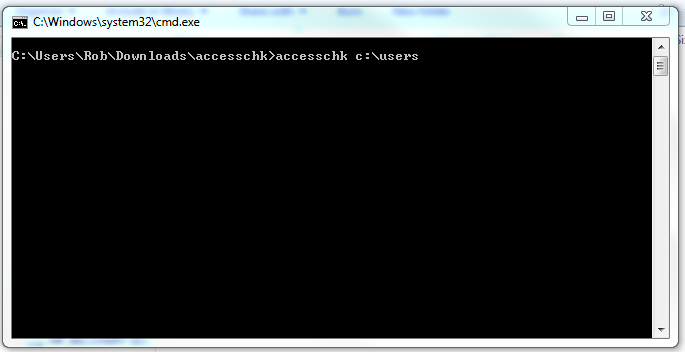
Type in your command, so i want to test this on c:\users so the syntax is…

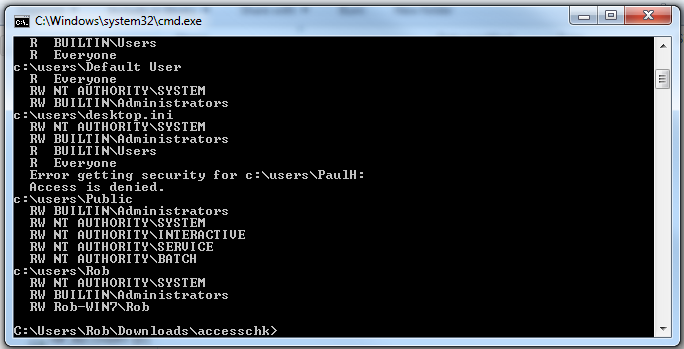
accesschk c:\users <enter>

And you receive your output.

Not so easy to work with this output, so you might want to output to a txt file.

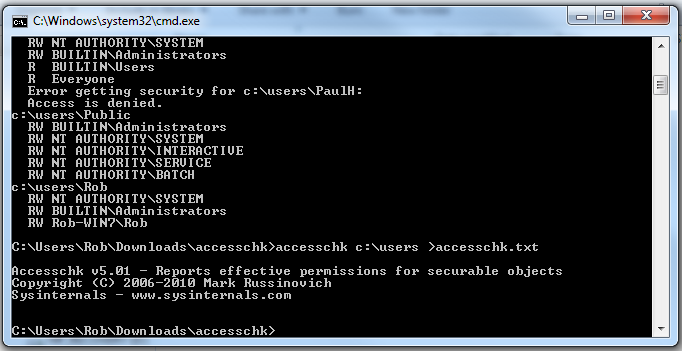
Simply add the usual ‘batch file output’ syntax ‘ > ‘ so our command becomes..

accesschk c:\users >accesschk.txt

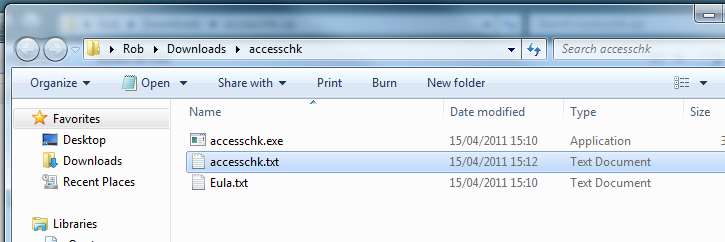
No output displayed now, so we need to open out txt file to view the results.

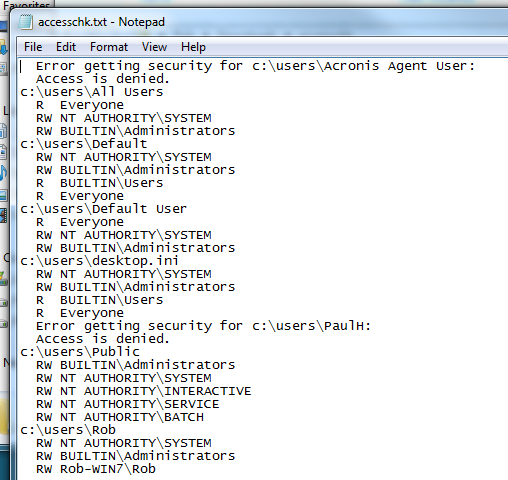
As you can see the output here is much easier to view, and control.

You will need permission to actually view the ACL or your output may not be as expected.

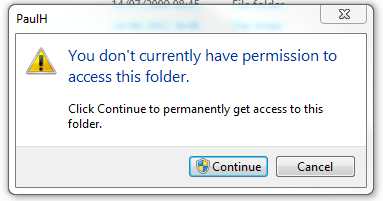
As you can see from the output in the txt file my query couldnt get the ACL info from two of the folders. If i try to access these folders through explorer, you can see why..

This tool really saved me a lot of time, hopefully you will find it useful!

Quick Fix: Get Computer Name from a Slave Drive…

Arrgh!

So a client called with a PC that crashed and wouldn’t boot up.

Luckily i was actually in the area so i called in to the customer, unluckily i was travelling light and didnt have my USB/SATA kit with me.

PC was a reasonably new Dell Optiplex 380, Running Windows 7 Pro. Covered under warranty and after a few minutes on the Dell Online Chat, i had arranged an engineer to be onsite next day with a new drive.

I decided to take the drive with me to see if i could salvage anything, and possibly image the drive for future recovery use.

So i brought the disk back to the office and set it up on a bench, ran a chkdsk and after that it seemed to function ok. (i could have done this onsite with an OS disc,  but if it failed once i would rather have a new drive thank you)

So Dell have now replaced the drive and installed the OS, buuut wait, they dont join it to the domain or install any apps.

I need to know the name of this pc to rejoin it to the domain, i could make up a new name, but we have a convention… seems as though the system name sticker is missing as well.

So here’s what you can do.

Load up Regedt32 on the lab system, with the drive attached as a slave.

Navigate to HKLM and click file, load hive.

Now browse to the \windows\system32\config folder on the slave drive and find the SYSTEM file.

Enter a name – i used OLD

Now browse to HKLM>Old>CurrentControlSet1>Control>Computername>Computername

You should see a key named ‘ComputerName’ with the system name as the value.

Easy!

Small Business Server 2003 R2 Standard, Migration to Small Business Server 2011 Essentials (Continued)

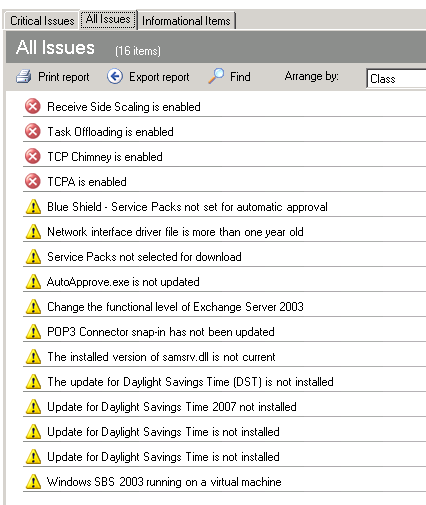
Having installed Windows 2003 Service Pack 2 to our source server, we will need to now rerun the SBS BPA to find any new issues that the SP introduces. You may recall there are some new features such as RSS that are enabled by the installation of this SP.

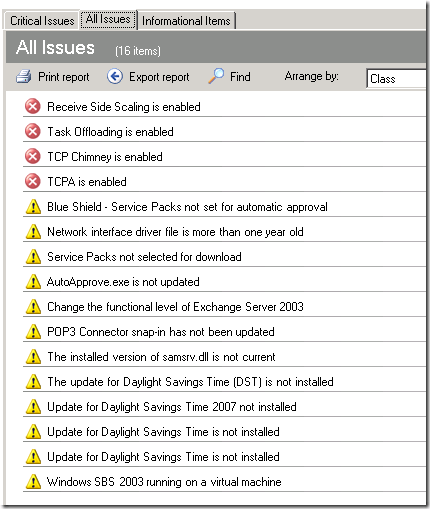
The results of the SBS BPA show the following issues:
25

Looks like that list is a little shorter now! So let’s address the issues in red to start with.

Receive Side Scaling (RSS) is enabled and should be disabled on Windows SBS 2003. This issue is highlighted as fixable in the BPA results using this KB article, however if you follow the link you will need to redirect to this newer KB to get the right patch.

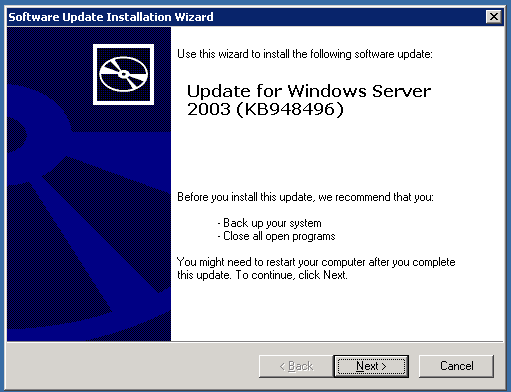
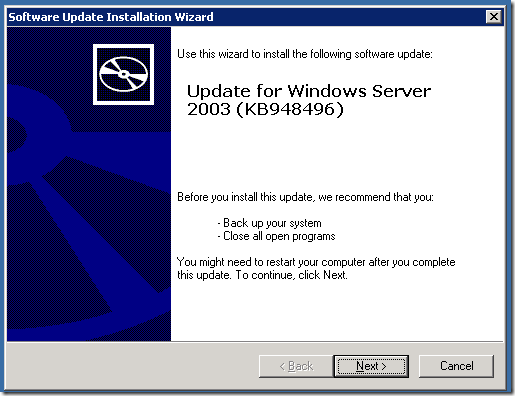
Download and run the x86 version of the hot fix..
26

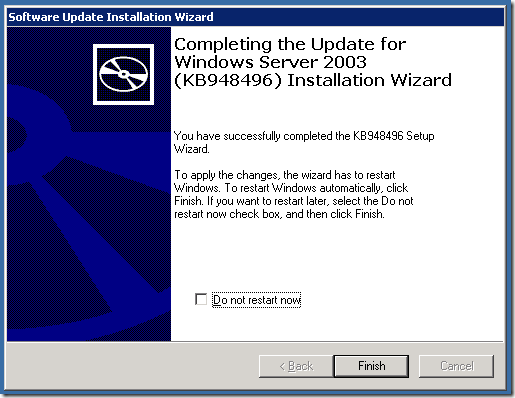
Again accept the license agreement and click next to start the install, it is a very small update and should apply in a matter of seconds.
27

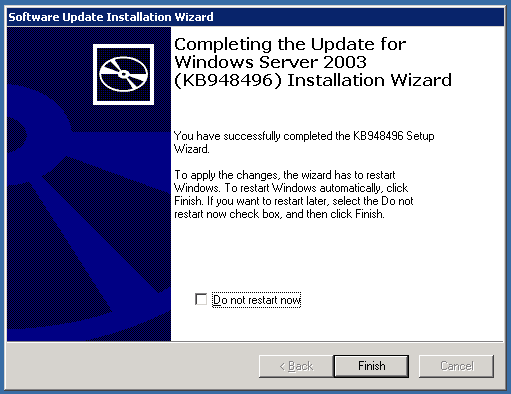
This update should also resolve the ‘TCPA Enabled’ BPA critical issue, but a reboot is required prior to the changes becoming active.

To minimise our reboots let’s look at the other two critical items and see if we can apply any of the fixes.

Task offloading is enabled & TCP Chimney is enabled, are both fixed without the need to install any other patches. So let’s apply those fixes before our reboot. (Task Offload fix is documented here)

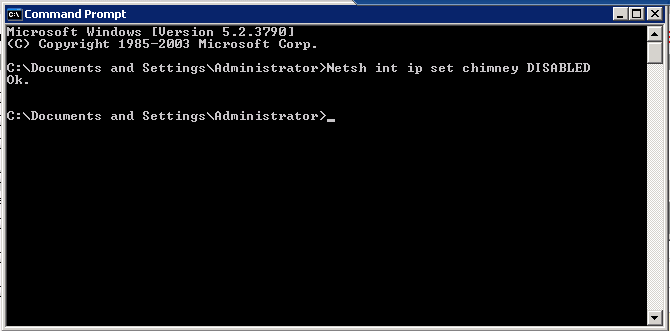
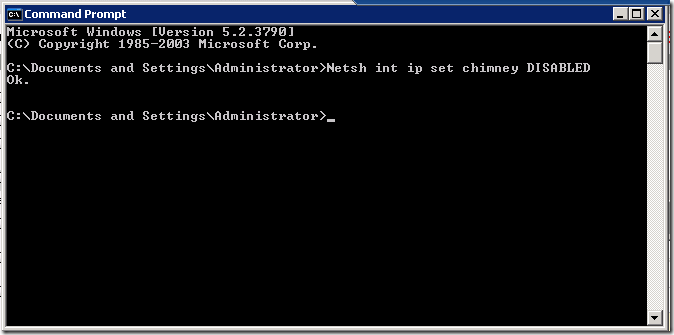
To disable TCP Chimney, open up a command prompt and type..

Netsh int ip set chimney DISABLED 
29

Press enter, and the command simple returns ‘OK’, moving on to disabling ‘Task Offload’

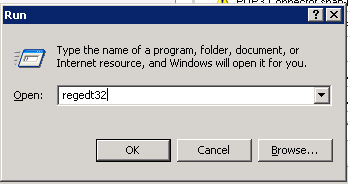
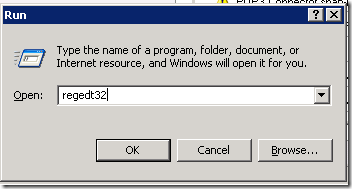
You’ll want to open up the registry editor, Start > Run > regedt32
28

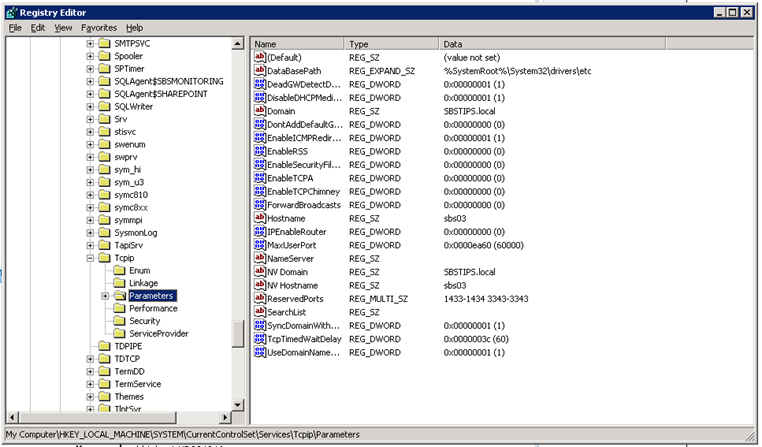
Now navigate to HKEY_LOCAL_MACHINE\SYSTEM\CurrentControlSet\Services\Tcpip\Parameters
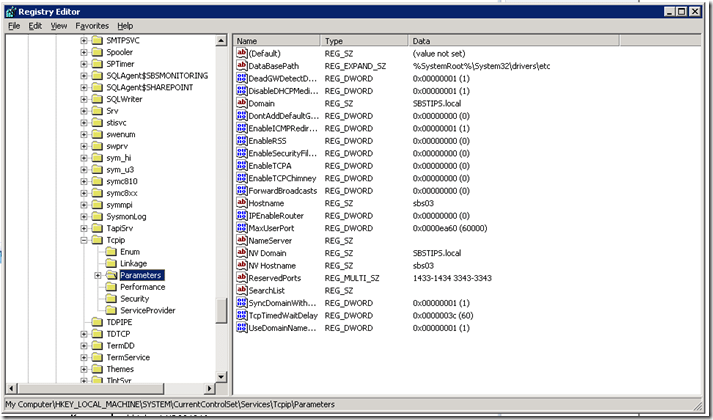
30

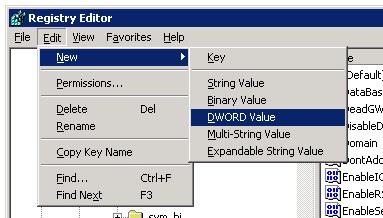
On the Edit menu, click New, then DWORD Value
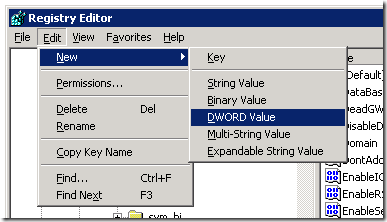
31

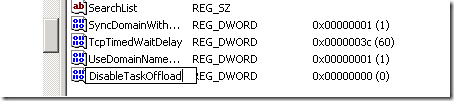
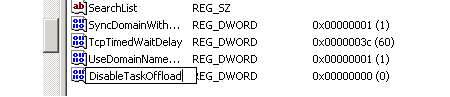
Name the value ‘DisableTaskOffload’

32

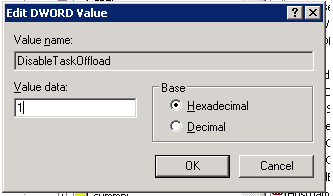
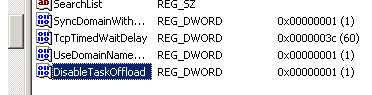
Press enter to accept the name change, then enter again to edit the value. Enter a 1 in place of the 0 (0 = disable 1 = enabled) )that is to say, 0 disables, disabletaskoffload and 1 enables, disabletaskoffload)
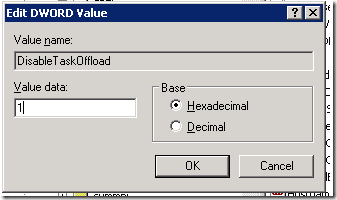
33

Click on OK to accept your changes, and then you are good to go ahead and reboot.
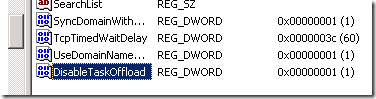
34

That takes care of the 4 critical issues highlighted by the BPA, and now we can focus on the remaining warnings shown.
Quick Fix: Windows 7 unable to join domain…

I was looking at a clients laptop today, brand new Toshiba running Win 7 Pro.

I attempted to join it to the domain using the traditional, system properties / computer name tab method, but i was given a message that unfortunatley i didnt note down, but basically read…

Unable to join the domain, unable to start the service, service may be disabled..

Imediatley i thought of the netlogon service, and i went to the services.msc console and tried to start the netlogon service. It failed, with the message..

Could not start service, service may be disabled…

So, i thought, this is quite bad because the DNS Suffix of the machine has changed, and i dont want to reboot because i could be stuck half way through the join leaving the machine unstable, or worse it wont boot up or let me logon, and working on this remotley would make that a real pain!

So of course i tried again a few times, i then checked UAC settings which were not at the default, but i put them back to default anyway. No change.

I then decided to try and force it back into a workgroup to get out of any potential split issues, and that did succeed,

Welcome to the TEST workgroup!

I then tried to rejoin the domain, this time Success!

Wish i could put my finger on what went wrong, but laptop is now in the domain!