Small Business Server 2003 R2 Standard, Migration to Small Business Server 2011 Essentials (Continued)

Last time we had just finished updating WSUS and now we will move on to some more patches to our SBS 2003 source server.

OWA Update for Exchange Server is not Installed

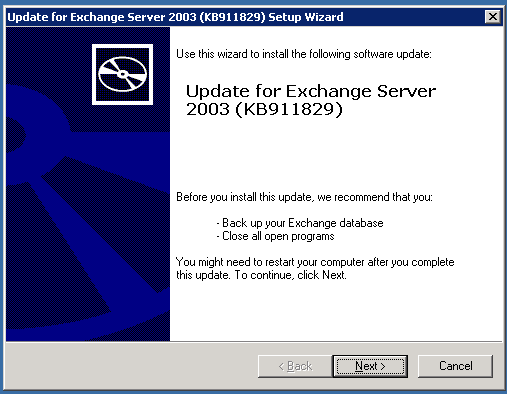
This patch improves OWA for Windows Vista clients, again not something that will probably influence our migration much but for the sake of getting the server up to date, i am going to apply it.
15

You’ll want to click on next, accept the license agreement, and the update will start to install.

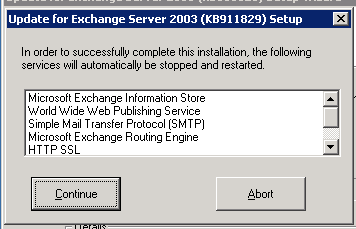
You will get a popup that some services will need to be restarted, again if you are running this through RWW you will be cut off for a short time!
16

Click on continue, and sit back and wait.
17

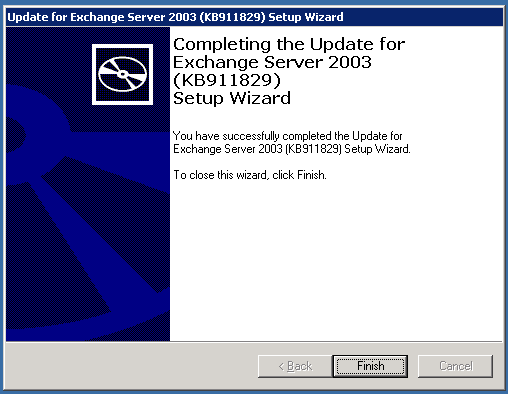
With any luck after about 5 minutes you can login and you will see a successful installation message.

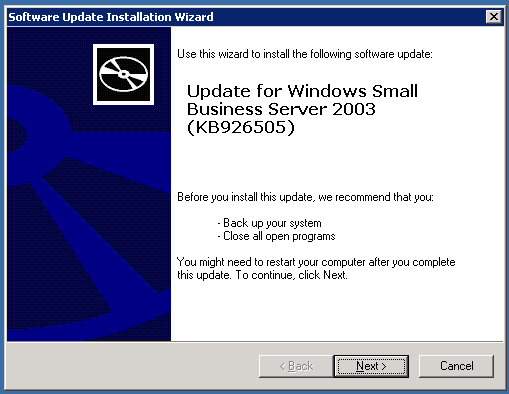
This patch improves compatibility for Outlook 2007 and Windows Vista. This update will also apply for Windows 7 Clients,
18

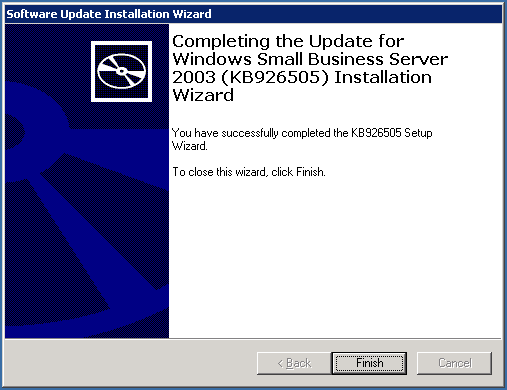
Again, click next, accept the license agreement and the install will start, no services to restart this time so no need to log back in. It is a small update and runs quite quickly.
19

Another successful install!

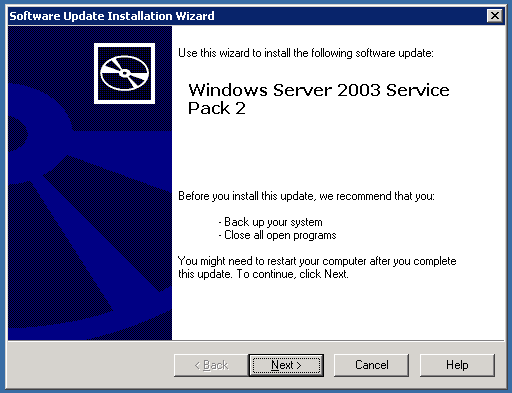
Moving on, we can go ahead and install Windows 2003 Service Pack 2. You may recall that this update introduces new features etc, it also introduces new errors that the SBS BPA will detect. So after a successful SP2 install, we will run a new BPA Scan.

You can download the SP here  it is a 372mb download, so sit back as it may take a while….
21

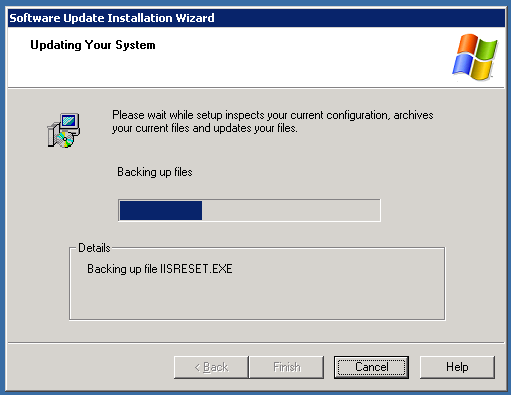
Clicking next and accepting the license agreement will start the process off, you will see that a lot of key files are backed up prior to the SP starting to install…
22

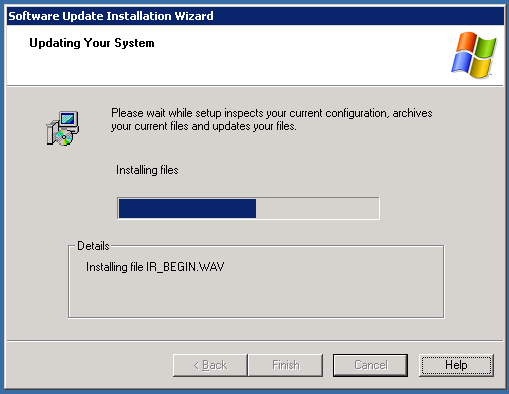
Eventually you will see it start to install…
23

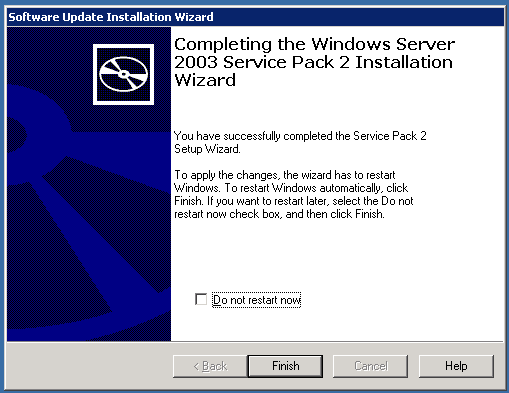
And finally with any luck you will see this..
23

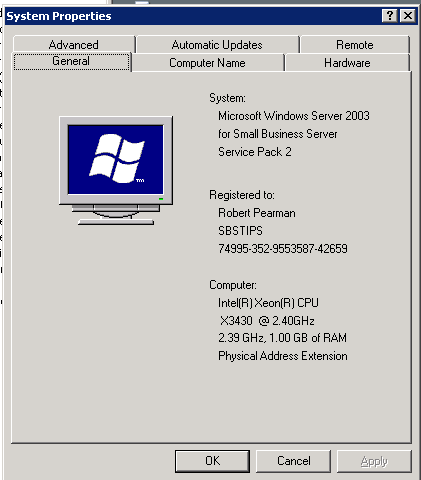
You will need to reboot now to complete the installation, and then you can verify the install by accessing your system properties.
24

Next we will be performing another SBS BPA scan, finishing off the remaining issues and finalising our preparations to begin the migration.

Small Business Server 2003 R2 Standard, Migration to Small Business Server 2011 Essentials (Continued)

So in the last chapter we had run the SBS BPA and gotten a list of all the fixes it recommended we apply, and also the major updates missing.

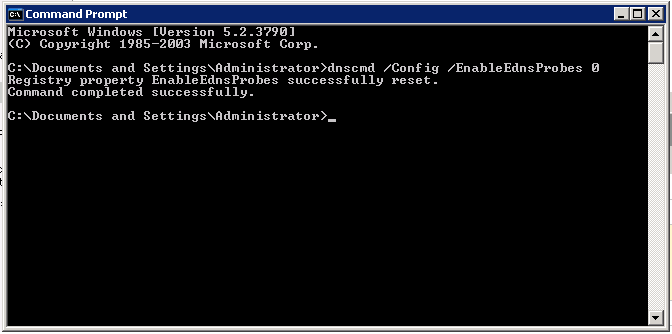
Starting randomly on the list i am going to fix the EDNS issue first. There probably numerous blog posts and resources on this, not to mention the fix itself is detailed for you in the BPA result.

From a Command Prompt, simply enter : dnscmd /Config /EnableEdnsProbes 0 (thats a zero) then you can restart the DNS Server service to resolve that issue.

2

Next, SBSMonitoring Service is not set to its default value. If we look further down you can see that i haven’t actually run the monitoring wizard on this server yet, ill run that now which should take care of both of those issues.

You can find the wizard in the server management console, Click on Start, then Server Management, find Monitoring and Reporting in the console, and then to left of the screen is the option to Setup Monitoring and Reporting.

The wizard is straight forward enough and does not need detailed explanation here, when completed you can open up the Services console, Start, Run, Services.msc and then scroll down to find the SQLAgent$SBSMonitoring service, you can see that it is now running and set to automatic start-up.

3

Windows Server Update Services 2.0 is running, WSUS 3 is available.

A bit more involved this one, follow the link to the TechNet article detailing how to install WSUS 3.

Reading the prerequisites on upgrading WSUS i can see that it advises not to do this, if the update services show a Blue Shield, this condition can be caused by a few things, one of the most common being if you have customised the WSUS Settings. A KB exists for repairing these settings, so you might need to review that first if you have a blue shield condition – looking at my BPA i do have this, but because my WSUS has not been configured at all.

So i am going to just download the latest version, WSUS 3.0 SP2 (here) and upgrade. Taking care to note any special instructions here

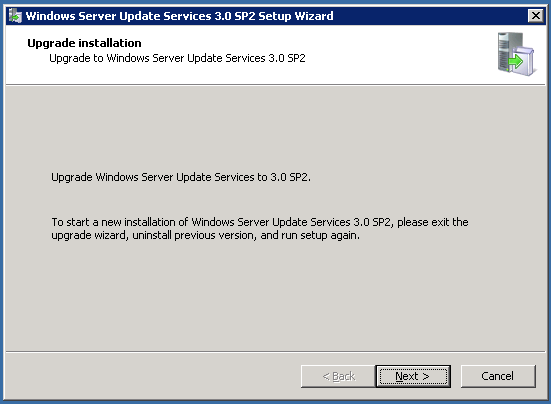
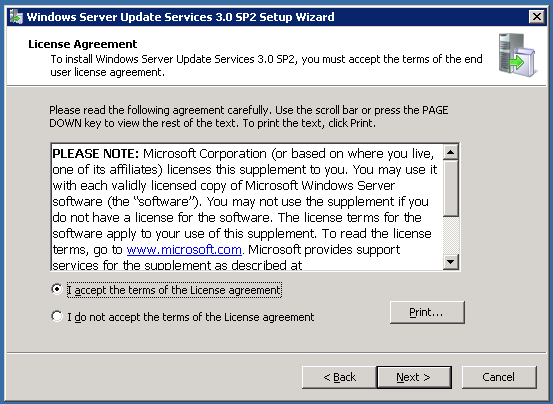
Running the file i am prompted to confirm i want to upgrade rather than perform a clean install (requires uninstall of version 2) clicking next, i need to accept the license agreement. 

7

8

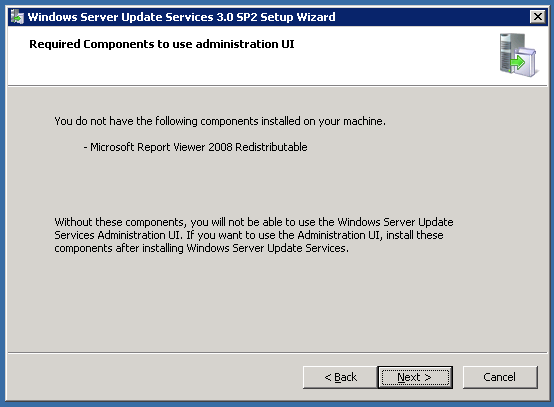
I am warned i don’t have the 2008 version of the Report Viewer, in this case it isn’t a big deal as i don’t plan to to view many reports on the server once it is migrated. Interesting point you could wonder why i am bothering to do the WSUS upgrade if i am migrating? Well the simple answer is i want my server to be as up to date and ‘supportable’ prior to the migration beginning, and that means i need to do the WSUS upgrade!

9

Next your server will attempt to connect to your local WSUS database, it should detect it and let you move on tot he next step, which is to let you know that the MS SQL Desktop Engine is no longer supported on WSUS 3, and that you will be migrated to the WID (Windows Internal Database)

11

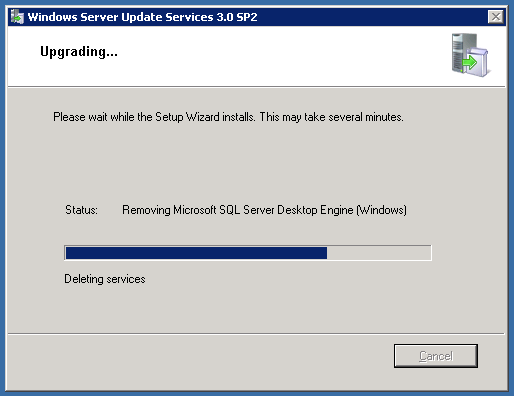
Clicking next will begin the upgrade process.

12

If like me you’re running this over an RWW session you may be cut off several times during the process as services are restarted.

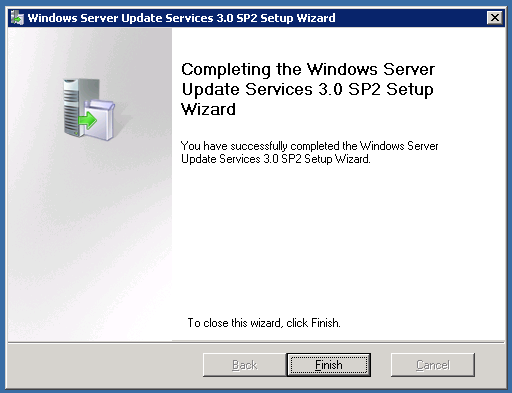
Sit tight, give it some time and hopefully you will log back into see this!

13

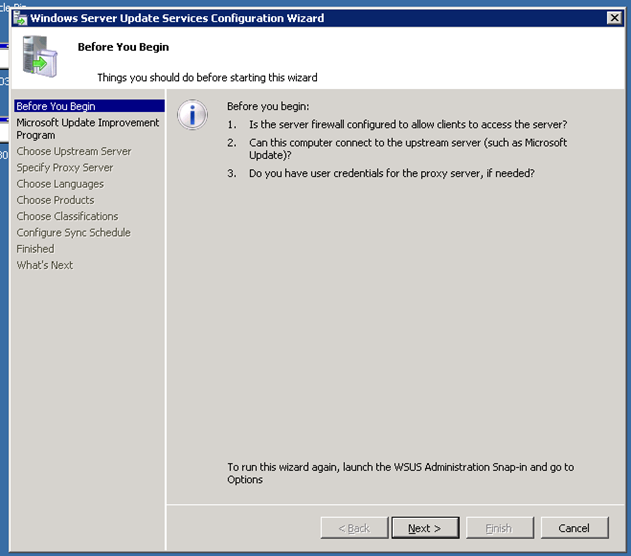
Now, when you click finish you will be presented with the WSUS Server Configuration wizard, in SBS Land we usually love our Wizards, in this case we do not! Click Cancel.

14 

Next we will look at installing the patches for Vista, and Office 2007 compatibility, working towards installing SP2 for Windows 2003.

Quick Fix: Outlook 2010 Forward as Attachment?

On some occasions i need to submit emails to Trend Micro’s support team for analysis. They usually require the email to be sent as an attachment. Easy enough to do in previous versions of Outlook, but in Outlook 2010, i couldn’t find the button!

I did some quick google searches, the only one that hit for OL2010 was actually blocked by my Anti Virus program as a malcious website, i did check it out through Google’s cache but the instructions listed did not work.

It is actually quite an easy solution, it just seems to have been hidden from the main interface.

You have two choices, you can add it as a ‘Quick Step’ or if you prefer like me, add it to the Ribbon.

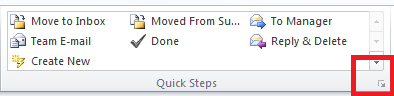
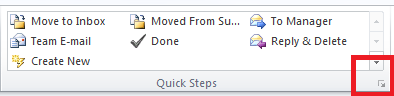
To add this as a Quick Step, click the arrow in the bottom right hand corner of the quick steps area of the Ribbon

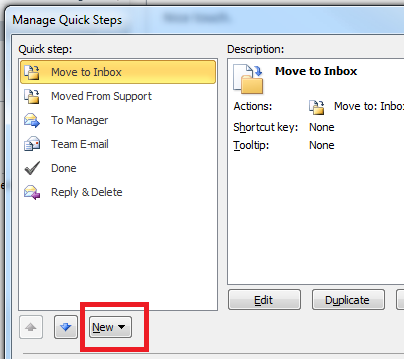
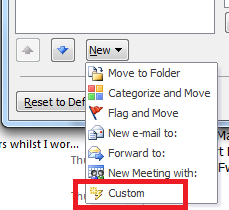
On the next screen that opens we need to click on New

Now choose Custom

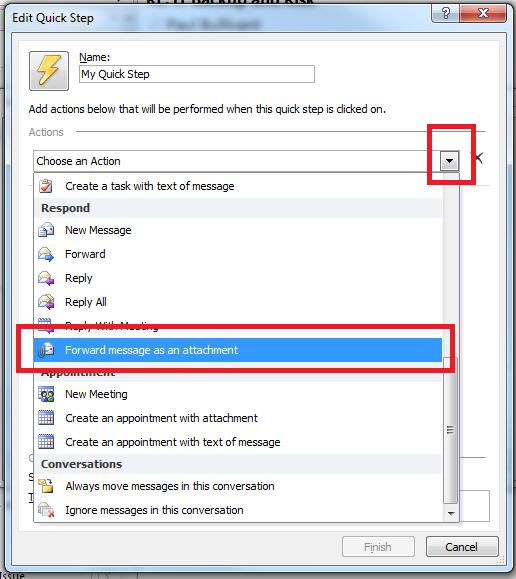
Click on the dropdown arrow and scroll down and find ‘Forward message  as an Attachment’

You can also name your new Quick Step, and add some tooltip text!

When you’re done, click Finish

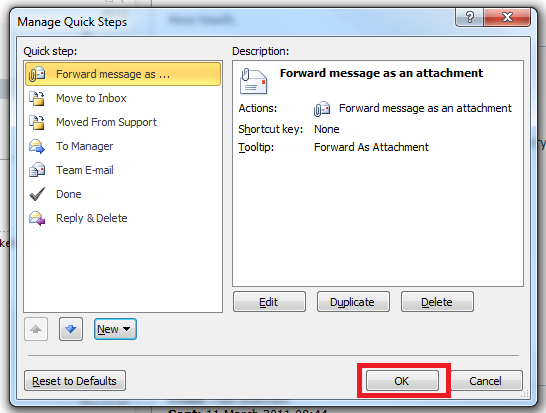
You now see your new Quick Step listed, and you can click OK

Thats it! Now you can see your new Quick Step shown on the Ribbon!

If you prefer to have this as a full Ribbon item, it is a little more involved, but still easy!

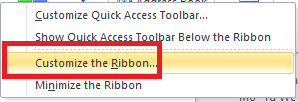
Right click the Ribbon and click on ‘Customize the Ribbon’

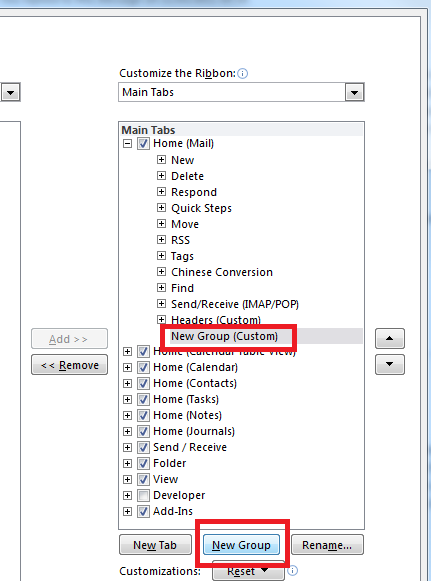
You will need to add a ‘New Group’

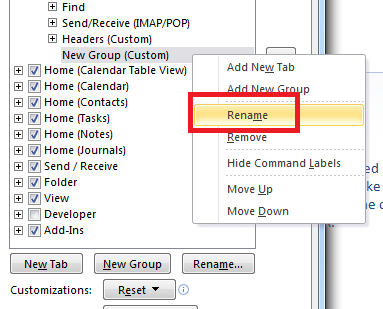
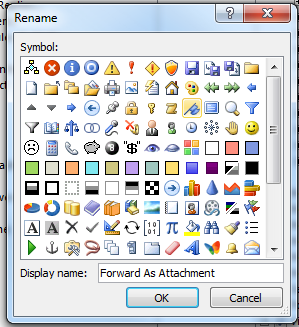
Right click this new group, and click Rename, i am calling mine – Forward as Attachment – then click on OK

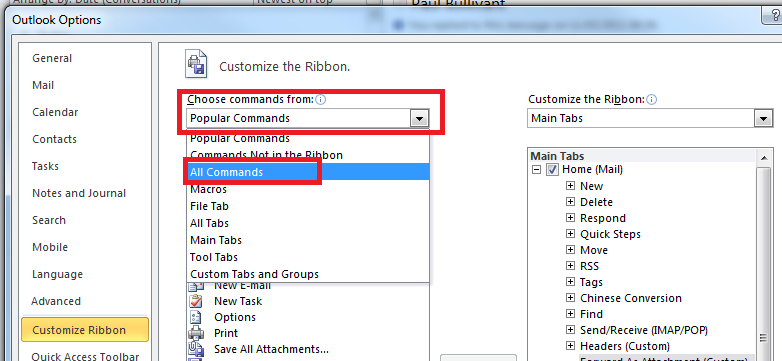
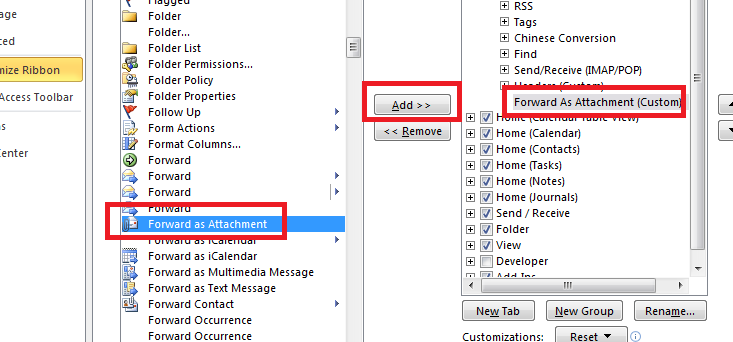
On the right hand side, use the drop down arrow to choose the commands you want to select. Choose – All Commands and scroll to ‘Forward as an Attachment’

Use the Add button, to move the command from the list, into your new group.

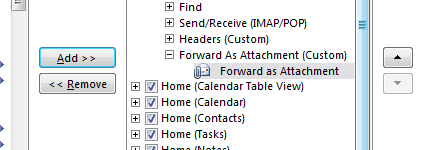
You will then see the command appear under your new group

Now you can click on OK and you will see your new Ribbon command!

As you can see i have also done this for ‘Message Options’ which gives me quick access to the Email Headers, which are very useful for troubleshooting!

Small Business Server 2003 R2 Standard, Migration to Small Business Server 2011 Essentials

I have never done a live migration, SHOCK HORROR!

I have always taken the easier road (some would argue) of doing a clean install, and rejoining the client machines afterwards. It was a conversation with Jeff Middleton of SBSMigration.com that really got me thinking of migration as a viable option for installing a new server into a network. Let me just clarify that for a moment, of course migration has always been viable, but for me, on the small(ish) networks i have supported, a migration always posed far more headaches than a clean install did. At least, that is my point of view.

So, i decided i would do a migration to SBS Essentials, as i plan to to install a few of these boxes as they become available and also document the procedure and the things i do wrong ;o)

So, step one, my current server, SBS 2003 Standard R2, Single NIC configuration, nothing special about it, and more or less out of the box install – so ill need to bring it up to current patch levels and make any configuration changes recommended from the 7/8 years SBS 2003 has been around (is it really that long?) experience tells us are wise!

So i am downloading the SBS BPA from here choosing the 2003 version of course. You may need to adjust your IE security settings, or better yet download to a client PC and copy across.

So, go ahead and install this, then load it up.

I always attempt to download any updates available, as new rules are released and quite often can pick up something previously missed.

Once this has completed, click on Select options for a new scan, a bit of a left over i think from other BPA’s as there is only one option, which is the name of the report. I am calling mine, SBS Essentials Migration Scan.

You should now sit back for a few minutes whilst your server is scanned, and you see your report.

1

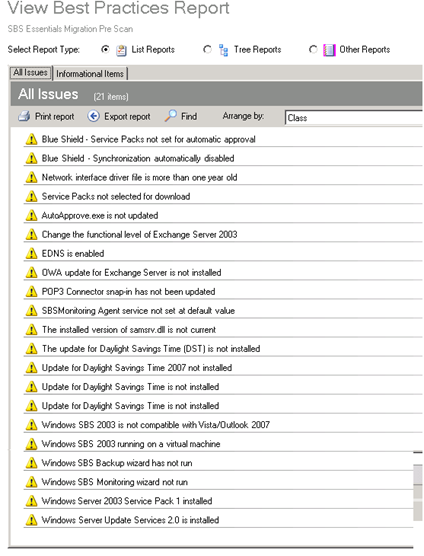
So as you can see on my report i have 21 items that are recommended (warnings) to be resolved, and luckily no critical ones.

I am going to go through each one in turn and it’s resolution and then move onto the next stage of my migration.

But for now it is late, and i seem to have been struck by the Flu that has taken out most of the HSBS MVP’s that made the trip to Summit last week, so i am off to bed.

Quick Fix: Access Denied to Romaing Profile – Windows 7

Just adding a new PC to an existing domain, the administrator logs on fine, but the user of the pc – keeps getting a temporary profile.

Why?

Checking the event logs you can see an access denied error when attempting to access the profile. Weird, because if you browse the existing roaming profile you can access it fine from the temporary one.

Reason?

In this instance the user needed permission in the \\server\profiles folder to create a new folder.

Windows 7, will add a %username%.V2 folder when logging on for the first time and if it cannot create that folder you will see the access denied error.

Hope it saves you some time..

Quick Fix: Enable Hyper-V on HP ML 310 G5..

OK so i wanted to virtualise two systems in our office on an HP ML310 G5.

I installed Windows 2008 Enterprise R2, enabled the hyper-v role, did a P2V transfer of the first system (XP SP3) got everything ready, when i tried to start the machine i was hit with a message about the Hypervisor not running.

I did a quick google search and found a post that told me to go into the BIOS and make sure the Intel Virtulisation technolgoy was enabled, i rebooted and entered the BIOS,

Advanced Settings > Processor Options > Intel V…

Changed to enabled, and rebooted.

No Change.

At this point i was working remotley through ILO, when i discovered you needed a cold boot of the system (full power off, power removed!)

So i had to wait until this morning to do that.

I removed the power, booted up, but no, HyperV not running.

Getting more than a little frustrated i removed and reinstalled the Hyper-V role, adding extra reboots in just make sure… No change.

Again i hit google, i came across this post..

http://www.poxycat.com/2008/06/enabling-ms-hyperv-on-hp-dl380-g5.html

Which explains to enable another option in the BIOS, No-Excecute Memory Protection.

I rebooted and enabled this, logged back into my System and BINGO!

We have a working Hyper-V system.

I find it a little odd that my ML 310 – needed this doing, when my ML110 G6 worked out of the box, but there you go!

Hopefully this will save you some time.

Quick Fix – Dissapearing Icons – Windows 7

Customer had reported to me that their Icons had dissapeard for the second week in a row on a Monday morning…

Weird I thought.

Maintenance Microsoft thinks..

It seems if you have more than 4 ‘broken’ shortcuts on your desktop Microsoft will clean them up for you.

Microsoft defines broken as a shortcut to unavailable resource.

I can see the value of that – in theorey, but imagine this – a customer with a laptop who links directly to shared folders on their corporate LAN, all those links are broken come monday morning.

Not the best idea i have seen implemented in Windows 7.

Anyway, great article here for hints and tips on making the best of Windows 7 maintenance.

Control Windows 7 Scheduled Maintenance Behavior Through Group Policy

Update: If you do not have the Scheduled Maintenance policy in your GPMC, you may need to copy sdiagschd.admx and sdiagschd.adml from a client computer to the domain policy store, or Servers PolicyDefinitions folder.