How to Install SBS 2011 CALS

sbsstdsbsess

You Don’t!

Since SBS 2008 CALS are now based on Microsoft’s honour system, and they are no longer ‘installed’ and ‘activated’ when you buy them.

You just purchase the number of CALS you need, and keep them safe.

Small Business Server 2011 Standard, still ships with 5 CALs.

Even better, with SBS 2011 Essentials, there are no CALS to purchase. SBS Essentials, is a one off purchase. If you buy it today and have 4 users, you pay the same price as someone who has 10 users, or someone who has 25 users.

So, for Essentials think ‘all 25 CALS included’

(although on a technical licensing point of law, political correctness’ and outright Microsoft craziness – there is no such thing as a SBS Essentials CAL)

The Essentials OS is licensed for up to 25 users, but those ‘licenses’ are included in the fee you pay to purchase the software.

I know, i can see some of you at the back sneaking up your hands to ask..

“…i only have X amount of users, can i get a discount…”

No. Don’t be so cheap Smile with tongue out

Because of the unique way Essentials is ‘licensed’ those invisible CALs only allow you to access the Essentials box itself, so unlike it’s big brother, SBS Standard, if you purchase a standalone member server (not a PAO Server) you must also buy full Windows Server CALs. SBS Standard has a more traditional CAL model, so SBS Standard CALs grant access to ANY member server, regardless of whether it is a PAO or not.

SBS 2011 CAL


An SBS 2011 CAL

SBS 2011 Premium Add-on (PAO)

sbspao

With the Premium Add-on (PAO, or Kung PAO as Susan Bradley calls it) Licensing is the same, whether you are adding the PAO to Essentials or Standard (The PAO is available to both SBS Standard & Essentials)

When you purchase the PAO, it includes 5 PAO CALS which allows those 5 Clients to access the SQL Services of the PAO Server. (The SQL services are sometimes called the Premium Services)

If you don’t install the SQL component, then you don’t need to purchase any additional PAO CALS.

The CALS for SBS 2011 Standard or Essentials, allow you to access the Windows Server technologies of the PAO server, as long as you are not accessing the ‘Premium’ services, so you could install it as File and Print, Domain Controller, RDS Server etc., and you would not need any additional PAO CALS, or Standard CALS."

Just to add another level of complexity, if you did install the PAO server as an RDS Server, you would need to purchase RDS CALS.

Clear?

Well i hope you were taking notes because we now have a short test!

Licensing Examples

Scenario 1.

I have Windows SBS 2011 Essentials, 10 Users all requiring access to SQL Services.

What components/licensing do i need?

Scenario 2.

I have Windows SBS 2011 Essentials, 10 Users, 1 NON PAO Member Server.

What components/licensing do i need?

Scenario 3.

Windows SBS 2011 Standard, 10 Users (Total), 5 Users Require access to SQL

What components/licensing do i need?

Scenario 4.

I have Windows SBS 2011 Standard, 10 Users, 1 NON PAO Member Server,

What components/licensing do i need?

Answers

Scenario 1.

In this scenario you would have 1x Windows SBS 2011 Essentials Server, 1x PAO Server, and need to purchase 5 PAO CALs.

Scenario 2.

In this scenario you would have 1x Windows SBS 2011 Essentials Server, 1 Windows Server OS License (required for member server) and 10 Windows Server CALs

Scenario 3.

In this scenario you would have 1x Windows SBS 2011 Standard, 1x PAO Server and you would not need any additional PAO CALs

Scenario 4.

In this scenario you would have 1x Windows SBS 2011 Standard, 1x Windows Server OS License (required for member server) You would need to purchase an additional 5 SBS CALs

Thanks to Michael Leworthy of Microsoft for clarification on licensing points.

SBS 2011 Standard Additional Accepted Email Domains (Multiple Accepted Domains)

My customer is expanding his business, and is going to add a specialist arm of his company in a particular field.

As such he has setup a new website for that particular department and wants some of his staff to have a new email address based on whether they work for that part of the company.

This is really very easy to setup using Email Address Policies, and i will show you how to do that in this blog post.

I did try to get the process a little more automated, and integration into the add user wizard would have been great, but so far i haven’t got that working, but i am hoping with a little prodding of the SBS Dev team, we may be able to find a way.

To follow me through this process, you will need:

A Server running SBS 2011 Standard.

Two domains configured to send email to the SBS Server.

Some user accounts to test with..

First of all what we will do is add our new domain name as an accepted domain in Exchange.

The process for this is very similar, if not identical to that of Exchange 2007.

From Start, go to All Programs, Expand Microsoft Exchange server 2010 and open up the Exchange Management Console (EMC).

1

When the exchange console opens, expand Microsoft Exchange On-Premises, expand Organization Configuration and select Hub Transport.

2

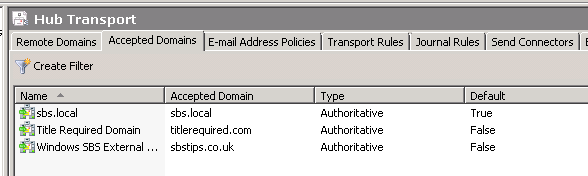
Switch to the ‘Accepted Domains’ tab.

3

This shows you the current accepted domains.

36

On the right hand side, select ‘New Accepted Domains’

4

Enter a name for your new domain, and enter the domain name itself. We will leave the server as the authoratative server for this domain, click New,

5

After a few seconds, the action will complete, and you will be shown the PowerShell command that would have performed this action from the exchange shell. Click Finish.

6

You can now see your additional domain added as an accepted domain.

7

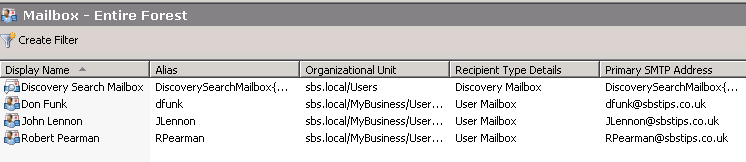
If we now switch to recipient configuration, and the mailbox section, we can see our current mailbox users.

8

If we go to the properties of one of these accounts, we can see the current email addresses associated with that account.

9

We can see that no changes have been made to this account so far.

That’s good because it means existing users are not affected by what we have done.

We will have a look at existing users in a moment, but first let’s add a new user to the system.

Since i am listening to The Beatles at the moment, i am going to call this guy John Lennon. My Favourite Beatle happens to be George, but that isn’t relevant. Why then am i not calling him George Harrison, well i don’t know.

I am not covering the add user wizard here as other posts exist out there on how to do this. Plus it is in the books relating to SBS 2011.

So John, is a good guy and he’s working for my company’s new department.

But wait, as we can see here, he still has an SBSTIPS.co.uk address, not TITLEREQUIRED.com – that is good, that is what is expected.

10

Now, we need to edit his account.

Let’s open up ADUC (Active Directory Users & Computers) From Start, go to Administrative Tools, and you will see ADUC at the top.

Expand Yourdomain.local and keep expanding down until you find MyBusiness\Users\SBSUsers

11

Find John’s account, and go to the properties.

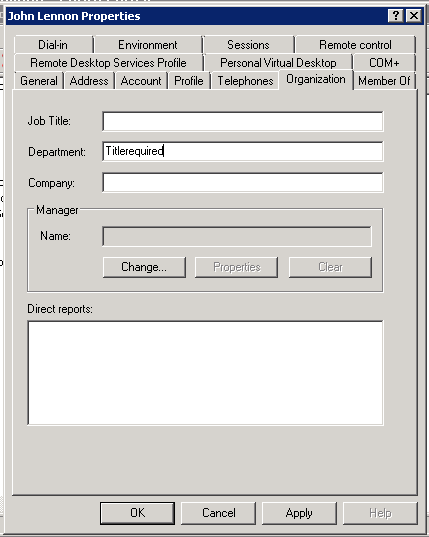
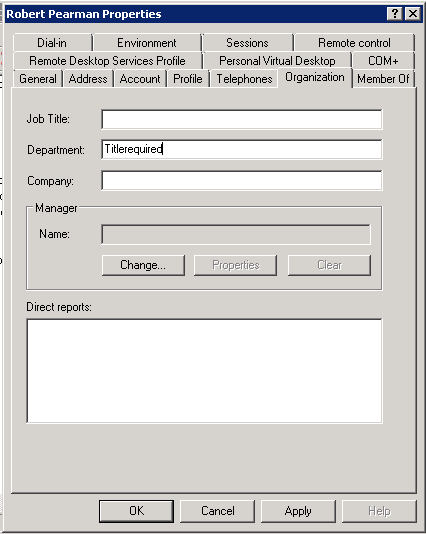
Switch to the ‘Organization’ tab, and enter ‘Titlerequired’ into the department field.

13

Click OK to save this change, and close ADUC.

Switch back to the EMC

Go back to the Organization Configuration, Hub Transport area, and go to the ‘Email Address Policies’ tab.

14

You can see we have 2 current policies. The Windows SBS Email Address Policy is set to make whatever domain name you entered in the Internet Address wizard the default for all users.

So we want to add a new Email Address Policy. On the right click, New Email Address Policy.

We need to enter a name, and also select the container where this policy should be applied, and also the type.

You can leave these as default values, but please do enter a name. Click Next.

15

Put a check in the box for ‘Recipient is in a Department’ under Step 1.

16

Under Step 2, select the hyperlinked word ‘specified’ and enter our department name value of Titlerequired.

17

You can then click Preview, and the policy will show you which users or recipient types it will affect. Hopefully we will only see Mr. Lennon’s name.

18

We do! That is great because it means whatever we are doing here will only affect that one account.

When you are happy click next.

On the email addresses page, click Add.

19

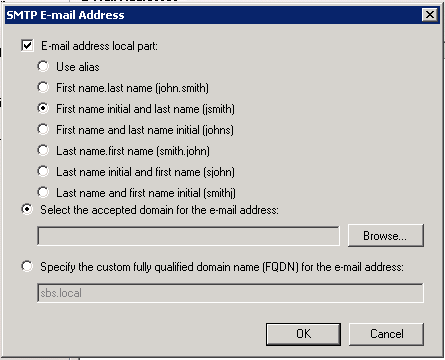
Here we choose how the new email address should look, i like to use first initial and surname, so i will select that.

The default is to add a new email address to the ‘default’ domain, since this is yourdomain.local the new address for John would be jlennon@sbs.local – we want to add this to our new accepted domain, so we must choose to specify the accepted domain.

Click the radio button for that option, and click Browse.

You will then see all the domains we have setup on our system.

20

Double Click the domain you want to use, and it will be added to your policy.

21

Click Ok.

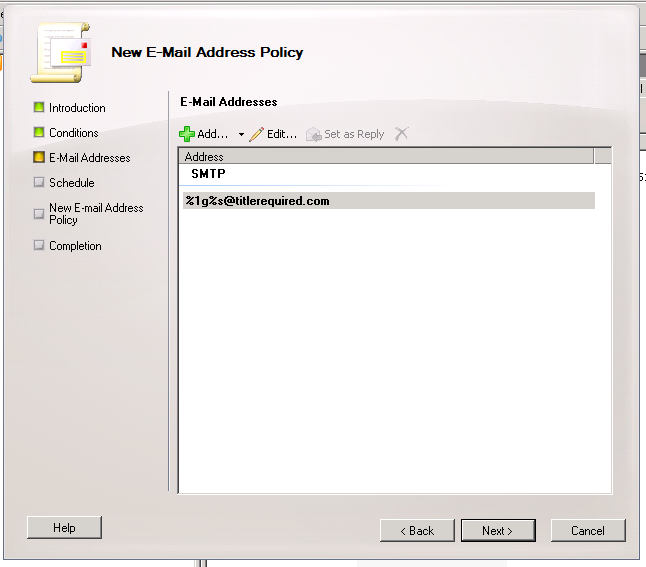
You will now see your email address shown, using the variables that are used for whatever name format of address you chose. More on that here.

22

The table below is taken from the TechNet website and shows variables you can use.

23

Click Next.

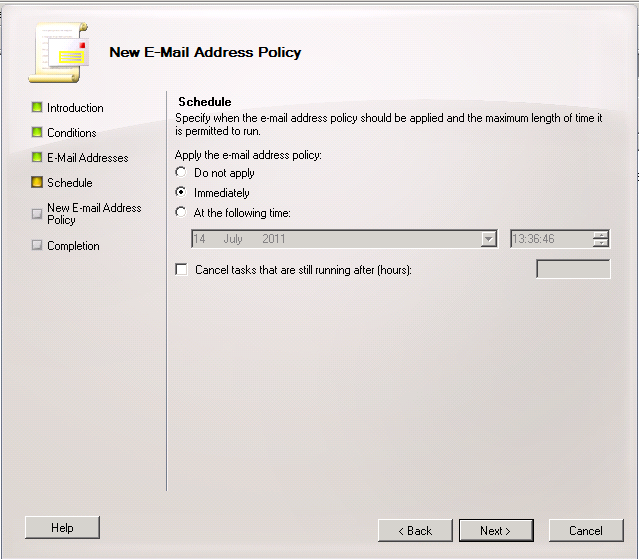
You have the option to apply the new policy immediately, or at a scheduled time, or not to apply it all. We want to do it immediately, so click next.

24

You will see a summary page with some PowerShell commands listed. Click New to build and apply the policy.

25

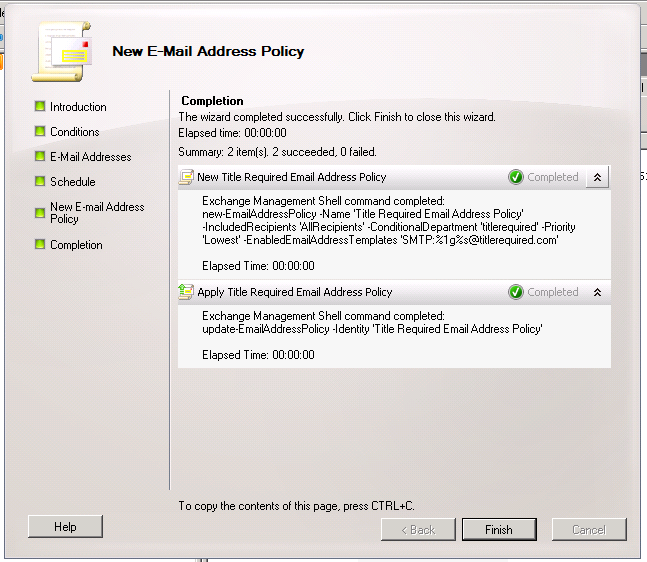
The policy is built and applied successfully.

26

Lets switch back to our Recipient area, and check the email addresses our users now have.

We can see that our user still has his old address.

27

Switching back to the Policies area, we can see our new policy has a priority of 2, and the Windows SBS policy is set at 1.

28

We need to change it to priority 1. Select your new policy and on the right hand side, click Change Priority, and enter the number 1, Click OK to save.

29

It now jumps to the top of the list.

30

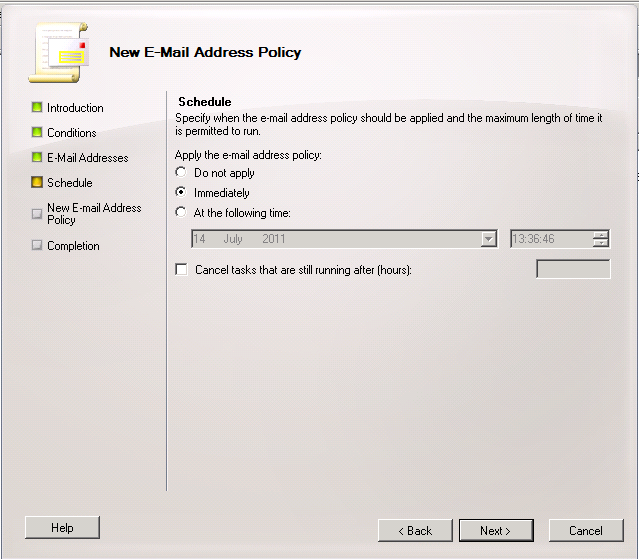
Now we need to reapply the policy. Right click the policy and click Apply. We get those same options as before, click on Next, and Apply.

31

24

Again you are shown some PowerShell, and you can click Finish to close the Apple Policy page.

Switching back to Recipient Configuration, you can now see that John has a new email address. (you may need to refresh the view)

32

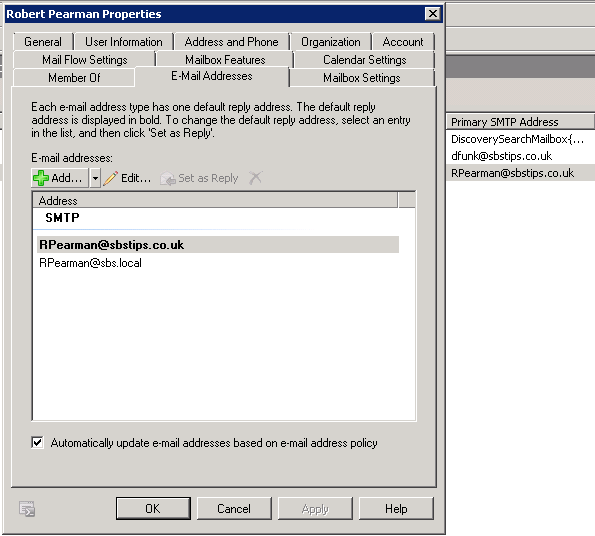
IF we go into his account properties you can see he now has an email address for both SBSTIPS.co.uk and TITLEREQUIRED.com but that TITLEREQUIRED.com is his default address.

33

If we want to move an existing user to a new department, just edit their AD account to change their Department, and then reapply the policy.

34

You can see that the email address is added as an additional address.

35

And that is how to add an additional domain name and have it apply to only certain users.

If you want to have an additional domain apply to all users, but not as the default, then simply don’t narrow your Email Address Policy by using a department as in Step 1 and 2 above, and leave the policy at priority 2.

You can always use the Preview button to help confirm who will be affected by such a change.

If you want to change the default domain for all users, you should run the Internet Address Wizard and add your new domain here, then add your old domain as an accepted domain, and build a policy as described here to add that old domain as an additional address.

Microsoft MVP 2011 : Small Business Server

I am more than proud to say i have been re-awarded as a Microsoft MVP for Small Business Server.

(i had a whole speech worked out for not getting renewed so this totally messes that up, maybe next year you will get to read it ;o) )

Special thanks to all the great people i have met over the last year especially, Tim Barrett, Susan Bradley, Dave Shackleford, Mr Eriq ‘Q’ Neale, Magical Marina Roos,  Wayne Small and Dean Calvert, could name more but sure you are already bored.

mvp_wallpaper_800x600

SBS 2011 Standard – iPhone & iPad Exchange Email

EDIT – 28/10/2011 If you just want to know the settings required to connect your iPhone to your SBS Server, look at this post.

I use an iPhone, and i have blogged before on how to use the iPhone configuration utility in order to make deployment of the phones easier for clients.

I didn’t cover the iPhone’s ability to use ‘Autodiscover’ in that post, it didn’t occur to me at the time.

It didn’t occur to me until the other day, and then i set about confirming how it works, and in what scenarios you can use it to auto-configure a clients phone.

To follow me through this post you will need:

A Small Business Server 2011 Standard (you should have run the ‘Connect to internet’ ‘Set up your address’ ‘add a trusted certificate’ wizard)

An iPhone or iPad

Internet connectivity!

Note: When i say External IP of either SBS Server or Exchange Server, i mean the address you would type if you were going to Remote Web App / Remote Web Workplace, eg. remote.domain.com = 123.123.123.123 – this applies even if you are using a third party to provide anti spam or filtering services to your email.

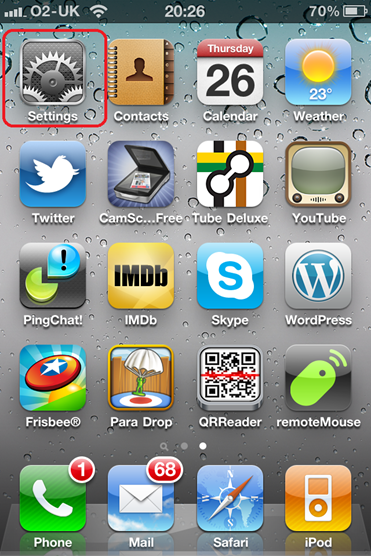
So, from the ‘home’ screen find ‘settings’

IMG_0798

Find ‘mail contacts and calendars’..

IMG_0799

Choosing Add Account.. we can then choose a Microsoft Exchange Account.

IMG_0800

You are then faced with 5 configurable settings.
IMG_0801

  1. Email Address (your email address)
  2. Domain (your internal domain name, i.e.. sbs.local)
  3. Username (the username you use on your office computer)
  4. Password (the password for your office computer)
  5. Description (a description of this account – i.e. Company Email)

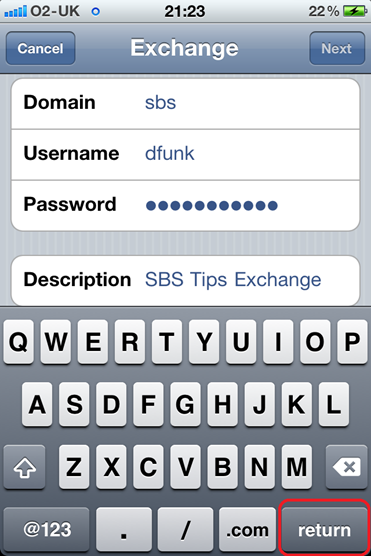
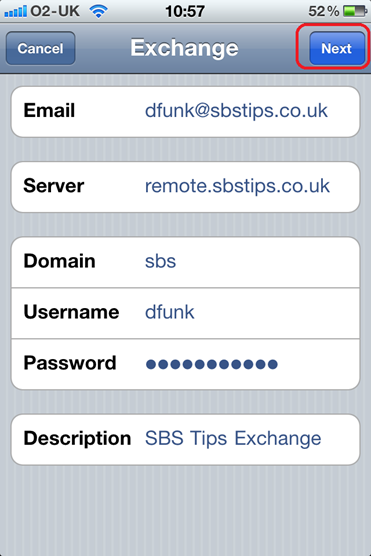
If you fill out these details with the settings relevant to you, you can then click Next. (if you click return it will automatically attempt the next stage)

IMG_0842

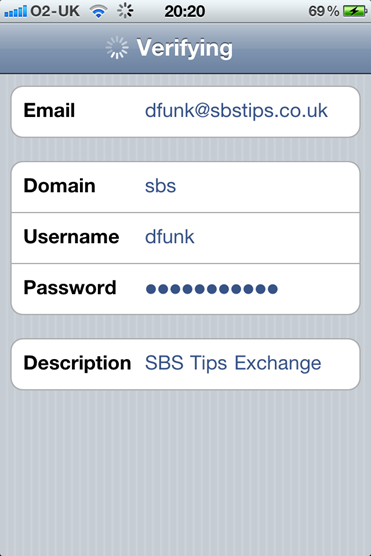
You will see at the top of the screen ‘verifying..’

IMG_0833

This is the part that has interested me, and i went to some lengths to find out what the iPhone is actually doing here.

However if i had used my brain at all i could have guessed it actually just follows the same behaviour you can see if you run the ‘Autodiscover’ tests here (at testexchangeconnectivity.com)

The iPhone will use DNS to query for your domains ‘default’ record – this is usually represented as an @ in your dns zone file.. but not something you are likely see if you are using a third party to host your DNS. Your default record like any other record translates ‘domain.com’ to an IP Address.

So for example, if you type in http://domain.com in to your browser, you MAY end up at your website, but you may end up elsewhere. It depends on the configuration of that record.

Suffice to say, it most likely does NOT point to your Exchange server. That is a problem.

If this query does return an IP address, then the iPhone will attempt the next stage of verification.

If you do not have an @ default record, for your domain, which is a valid configuration, then of course that query will fail and failover to query for ‘autodiscover.domain.com’.

At next stage of verification the iPhone will attempt an HTTPS connection to either – https://domain.com/autodiscover/autodiscover.xml or https://autodiscover.domain.com/autodiscover/autodiscover.xml

This XML file is located on your exchange server, you can see it within Windows Explorer.

1

You can open the file in notepad if you are interested to see the content

Please note THIS SHOULD NOT BE EDITED

2

You may be presented with a certificate warning if you are using a self signed – or single name certificate that is not for ‘autodiscover.domain.com’

IMG_0835

It will attempt to login to the server with the username and password provided. If successful – your iPhone will be auto configured for your Exchange servers address.

IMG_0836

You can then continue to finish the setup of your account.

IMG_0837

IMG_0841

If an HTTPS connection fails, then the process is repeated on HTTP.

If any of the above steps fail, or cannot complete – then you will be presented with a new box on your screen, and that will be for ‘Server Address’

IMG_0834

Of course that’s fine to just enter at that stage – but it may be useful for some to know how to get this bit to work.

So to recap – to get the autodiscover feature to work:

  • You must either point your domains @ record to the your Exchange Servers public IP address.

Or

  • Delete the @ record from DNS and then setup a new A Host record, for ‘Autodiscover.domain.com’ and point that to your Exchange Servers public IP address.

I am making no recommendation on which option to choose, however i personally chose to delete my ‘default’ record and nothing bad has happened.

What other things will prevent a smooth auto configure? A self issued, or incorrectly named certificate.

Now most people will know with an iPhone you can simply ignore invalid certificates, BUT this is an extra prompt, and in the spirit of removing those obstacles to your users you should consider getting a UCC certificate for your SBS Server.

SBS Server will run perfectly well with a single name certificate – in fact it is designed with this in mind.

However the price difference between a single name certificate and a UCC certificate has come down considerably so now there is a good case for using a UCC instead. If the iPhone could use the DNS SRV record method for attempting autodiscovery – like Outlook clients can, then we could stick with a single name certificate.

Quick Fix : SBS 2011 Standard OWA – 500 Internal Server Error?

I came in this morning to write some documentation for a client after a migration to SBS 2011 Standard. Focussing on the differences in the new RWA and how to use it effectively.

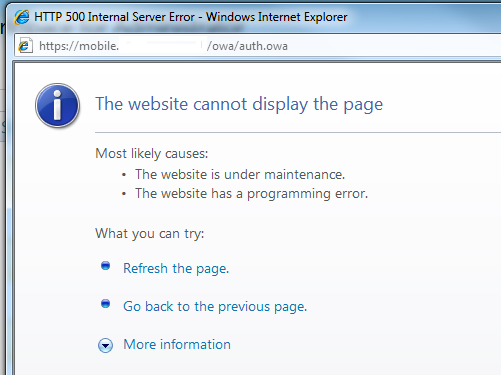
When i logged into the RWA and clicked on check email i was presented with this:

17

Oh, i thought, maybe i logged in with an admin account that doesn’t have a mailbox. Not a problem, so i logged back into the RWA with an account that definatley does have one.

Nope, same problem.

I logged onto the server and checked that all of the URLs for OWA were correct in the EMC, i turned to IIS – i tried to browse the OWA site directly through IIS and received the same problem.

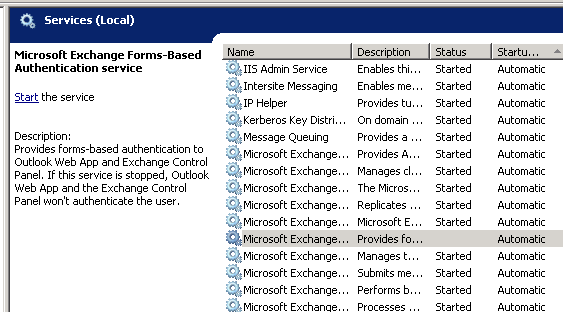
Loading up the services.msc console i sorted all services by their startup type and noticed that one service for exchange was not running.

18

Starting this service and reattempting the login to OWA resolved the problem.

Installing SBS Standard?

Are you installing SBS Standard and wondering why you have the option of an upgrade or a custom install?

SBS SBS Essentials Custom install or upgrade
The WinPE environment for SBS Setup is based on the underlying Win2008R2 code (or for SBS 2008, just Server 2008), the full server products do have the functionality to upgrade enabled*, but for SBS this is DISABLED. So your only option is a custom install. Slightly confusing if you havent seen it before, but now you know.

*More info on upgrade paths for full server products can be found here:

Windows 2008

Windows 2008 R2

Small Business Server Demo–Handout Slides..

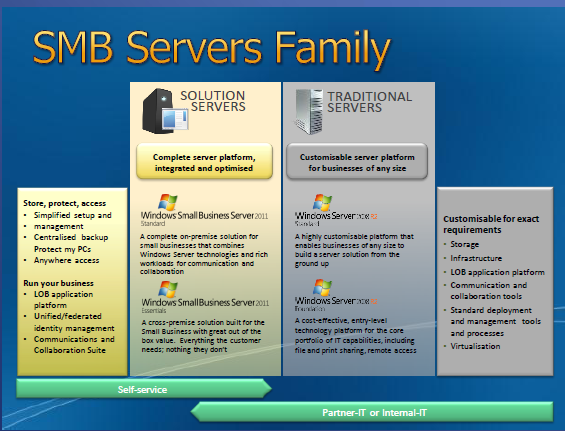
The East Anglia SBSC group was visited by Steve Wheeler of Microsoft last night to provide a non technical overview of SBS 2011 Standard, SBS 2011 Essentials, and a brief look at Storage Server 2008 R2 Essentials (Code Name Breckenridge) and also Multipoint Server.

You can get yourself a copy of the slide deck here…

sbs-slide

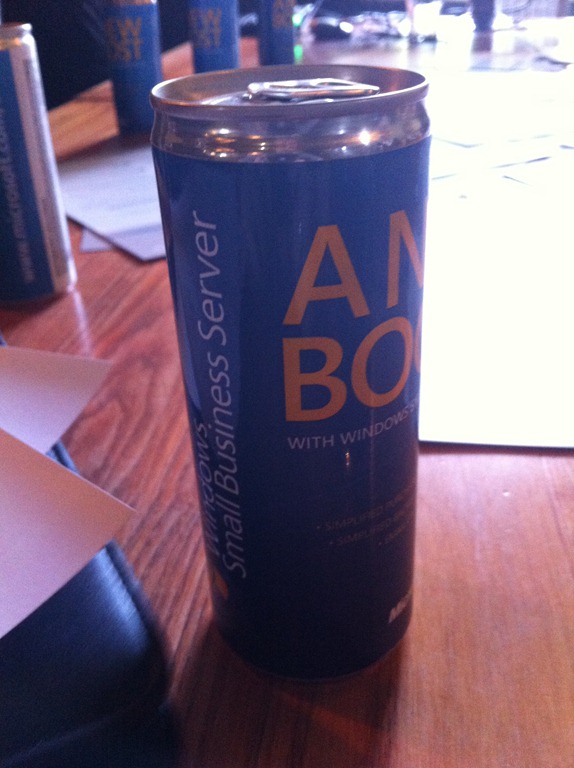
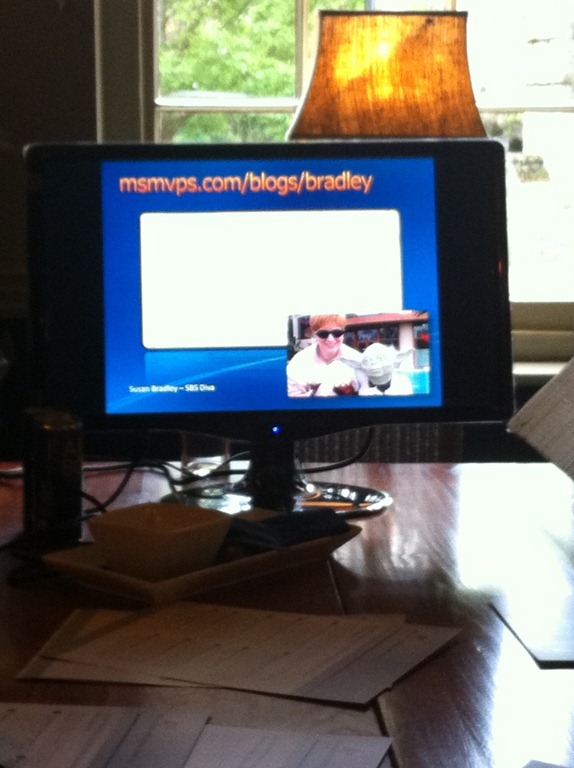
We were also treated to a ‘Small Business Server’ branded energy drink.. and proof if we needed it, that Susan Bradley is the centre of the SBS Universe..

IMG_0795IMG_0796