Installing the Windows 8 Consumer Preview
April 23, 2012 Leave a comment
 I wanted to dip my toe into the murky water that is Windows 8, but i kind of like my laptop the way it is.
Windows Power Essentials Tips & Tricks
April 23, 2012 Leave a comment
I wanted to dip my toe into the murky water that is Windows 8, but i kind of like my laptop the way it is.
April 13, 2012 Leave a comment
 Those of you following me on Twitter will no doubt have seen or ignored more than a few tweets from me recently about how much i like PowerShell.
Not least because it makes you look clever if you have a script open on one of your monitors.
I have said it before, Command line stuff just impresses people, its a scientific fact. Read more of this post
April 1, 2012 Leave a comment
 This video will go through the process of performing a bare metal restore of a client PC from a Colorado family Server.
 The Colorado family consists of:
Hopefully you will find it useful.
March 31, 2012 Leave a comment
 This short video will demonstrate how to restore files and folders using the Client Backup component of Windows Storage Server 2008 R2 Essentials.
 Being as that OS is part of the Colorado family, the process is exactly the same across Windows Home Server 2011, and Small Business Server 2011 Essentials.
Enjoy!
March 30, 2012 Leave a comment
 I have had Camtasia sitting on my desk for about 18 months, and never used it.
Speaking to a friend the other day inspired me to break it open and try it out.
 The result is a somewhat amateur attempt at a ‘How To’ video, looking at how to manually backup your client PC’s.
I’ve used Windows Storage Server 2008 R2 Essentials, however the process is identical when using SBS Essentials.
Enjoy!
March 22, 2012 4 Comments
 Another question from the forum prompted this post. The question related to disabling offline files for Desktop computers that never left the office after deploying the Win 7 Pro Pack. Read more of this post
March 20, 2012 Leave a comment
 A question in the forum came up about how to change the password policy, it seemed that the Dashboard option was greyed out.
As i mentioned in my post about Office 365, in order to allow Password Sync between Essentials and Of365, passwords for users needed to be updated to meet the requirements of the Office 365 service.
This has the unhappy side effect of also blocking you from lowering the requirements if you wish to do so in your environment when you are not using Office 365.
So what do we need to do? Well the answer is simple, remove the Office 365 module.
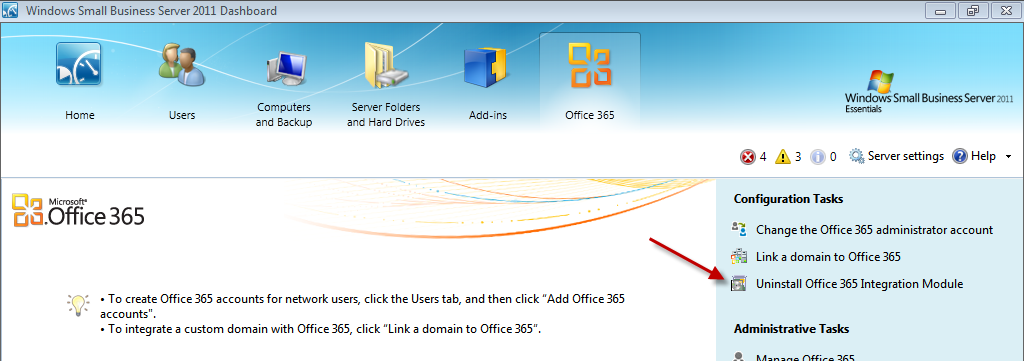
Firstly open the Dashboard and go to the Office 365 addin tab. You should see an option on the right hand side to Uninstall.
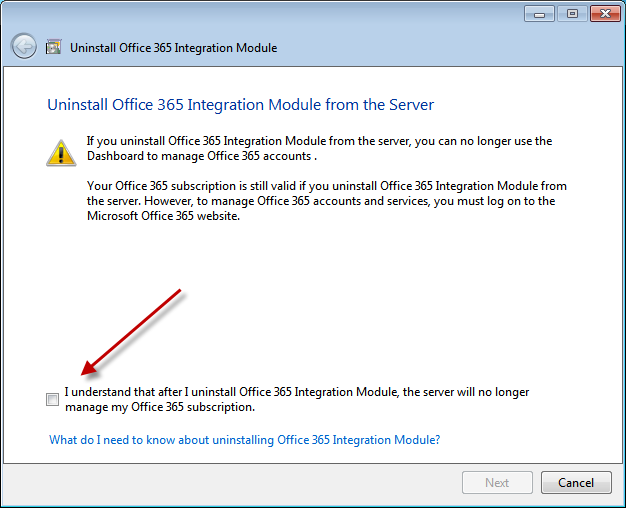
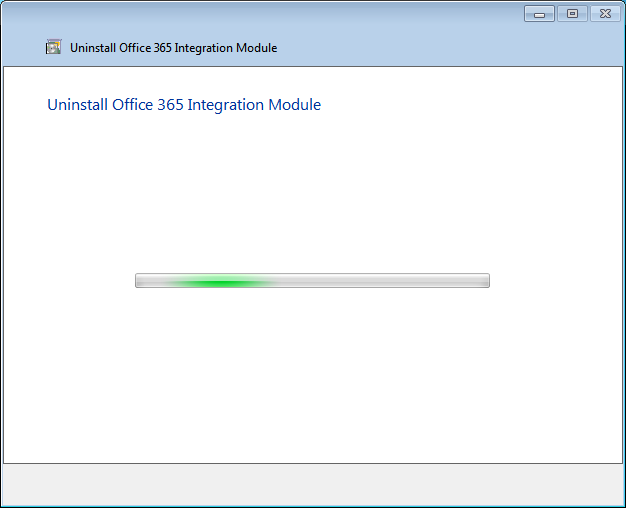
Follow this little wizard through and complete the process.

Next, move to an elevated command prompt, and enter the following. WUSA /UNINSTALL /KB:2569105
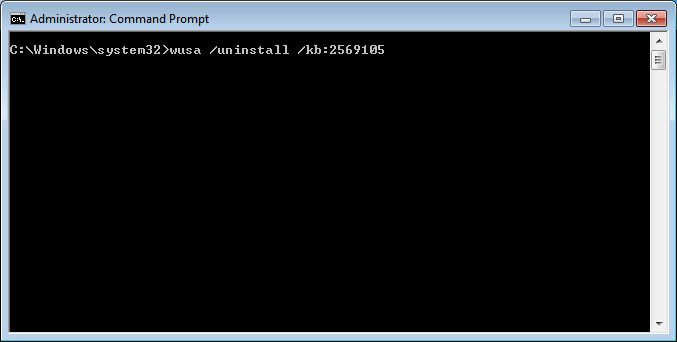
You will be asked if you really want to uninstall, and in this case you do.
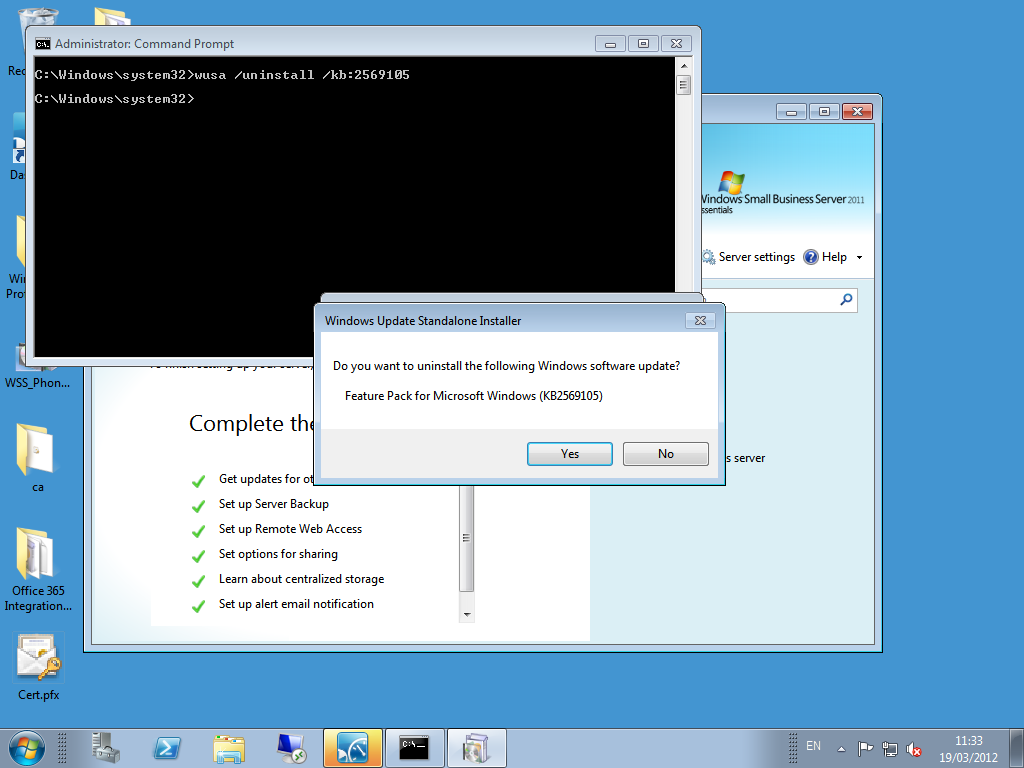
You should then be prompted to reboot your server.
After a reboot you can then open the Dashboard, go to the Users tab, and click Set the Password Policy, and you should find your slide bar is now working.
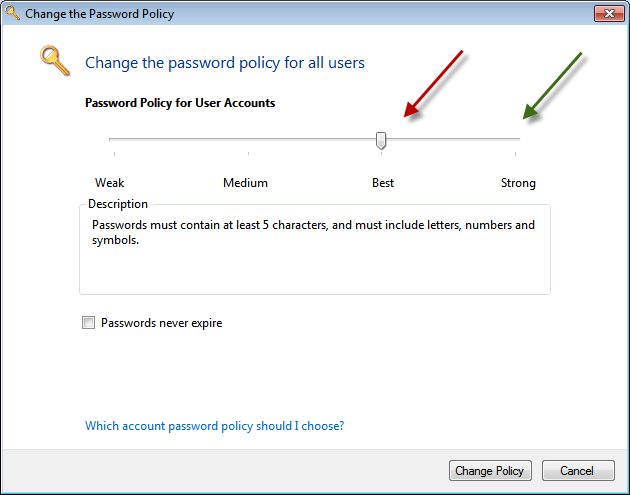
The question in the forum related to changing the expiry age from 180 days (the Default) to a different value.
This cannot be done through the Dashboard, even with the Of365 module uninstalled.
You can do this using PowerShell (other ways as well, but i like PowerShell) You can launch the ‘Import System Modules’ shortcut from the QuickLaunch PowerShell icon.

Then run this command to set the expiry to 30 days.
Set-ADDefaultDomainPasswordPolicy –identity sbs.local –MaxPasswordAge “30.00:00:00”

Then run this command to confirm your setting.
Get-ADDefaultDomainPasswordPolicy
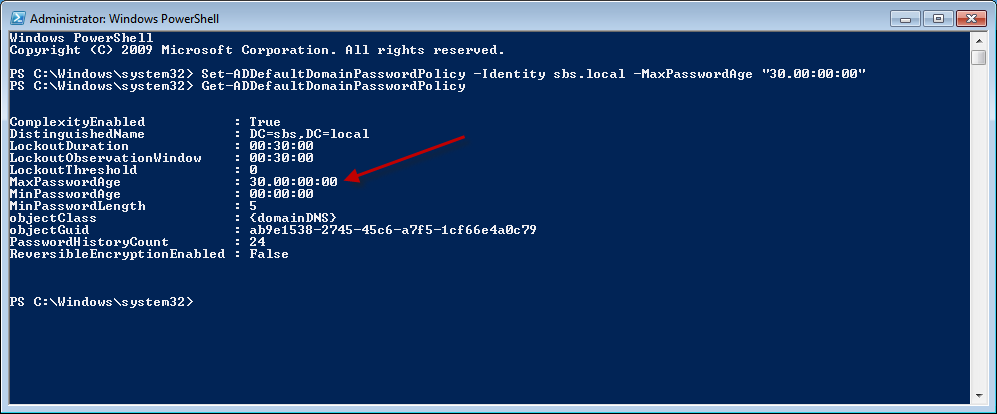
If you then go and use the Dashboard to set a different selection for the Password Policy, then it will change the Max Password Age back to it’s default value of 180 days.


 Title (Required)