Installing a Second Server : SBS 2011 Essentials & Premium Add on Server

SBS Essentials LogoIt seems like a lot of businesses are bringing a second server online lately, perhaps discovering the benefits a Terminal Server (or Remote Desktop Services Server or even Multipoint) can bring, or maybe it is a Server that will run SQL for an LOB application. Personally i prefer to keep the SBS free of Apps if possible, especially accounts programs.

The SBS PAO (Premium Add on) Is a great way to get that second server and SQL license, but it may not be the most cost effective route to get what you want, so make sure you do your research before purchasing.

That’s my little marketing pledge done, now on to the technical stuff.

If you are familiar with installing SBS and general networking, likely you know already how to add a second server to an SBS Standard network, but what about essentials?

    • Do you try to install the connector?
    • Do you use the traditional ‘Computer Name’ tab in System Properties?
    • Does it show up in the Dashboard?
    • Does it get backed up?

Connector or Not Connector that is the question!

Firstly you need to ask what OS is your server. Is it Server 2008, 2008 R2 or maybe an older 2003?

The connector software will install on Server 2008 R2 Standard, IF you are running SP1, and also if your Server is NOT a Domain Controller.

If you are not running SP1 you will see this message if you attempt to install the Connector software.

SBS Essentials Connect Error

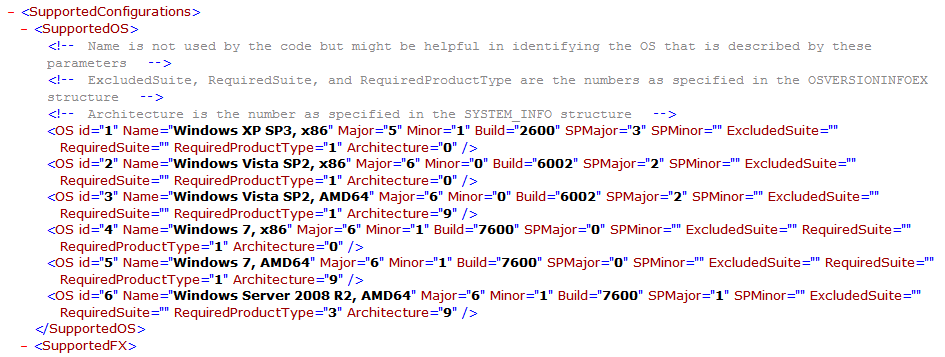
If you want to know which OS’s and Versions are supported, check out the ‘supportedOS’  XML file on your essentials box.

You will find that file in this directory

C:\Program Files\Windows Server\Bin\WebApps\Client\Package\

supported OS XML pathsupportedOS XML File

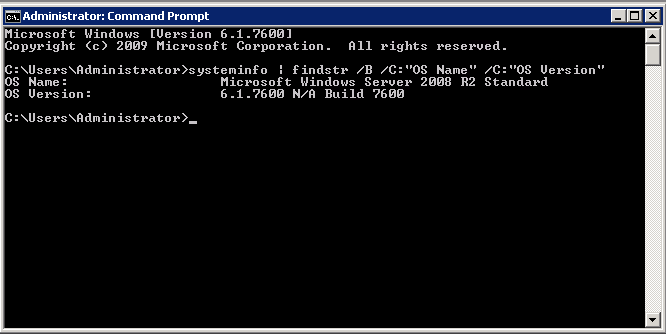
If you want to know what version of Windows you are running, you can type this command into an Elevated command prompt:

systeminfo | findstr /B /C:”OS Name” /C:”OS Version”

Check OS VersionCheck OS Version

Assuming you meet the requirements you will be presented with a warning about Supported Client OS’s and you can click on ‘Continue Anyway’ to continue the installation.

SBS Essentials Connect Warning

You may want to note that it is not possible to install the connect when logged on using Remote Desktop. Also the same problems affecting install on Client OS’s can strike on a Server install. Plenty of resources out there for those, but my post is where i will point you.

Now for my disclaimer.

Adding the connector is not supported. You get a big warning to the same effect. If you do decide to install the connector it is at your own risk, i am not going to be held responsible for anything, whether it works or doesn’t work, whether it works some of the time and whether it makes you look silly. By reading this disclaimer in your head or out loud you have waived any legal responsibility on my part in perpetuity throughout the universe.

    .

Is it in the Dashboard?

Yes. If you install the connector then it will indeed show up in the dashboard.

SBS Essentials Dashboard

Does it get backed up?

The short answer? Yes it does.

It does appear that the SBS Essentials ‘Client Backup’ will backup the server OS.

However, i have to stress this is not supported, and because of that there is no guarantee from anyone, Not me, Not Microsoft that you could successfully restore your server from that backup.

The SBSE client backup does not contain ‘agents’ for the Server OS or any applications you may be running on it, like SQL, so a backup with the SBSE client backup cannot be trusted, or guaranteed.

If you are going to have the Server show up in the dashboard, i recommend you disable the SBSE backup, and instead rely on your own backup strategy for the Server, but i am not discussing that in this post.

You can disable the backup from the dashboard, by clicking ‘Customise Client Backup for the computer’ and clicking disable backup.

You may also want to disable the launch pad.

RDP Server running LaunchpadThe launch pad runs, or at least seems to run, perfectly well on the server. I set my test server up as a RDS (TS / Terminal Server) and logged into with two separate accounts, and the Launchpad ran fine for both. The only thing i didn’t like was that a helpful or considerate user may want to poke around the backup settings, and that could be bad, so to remove temptation, my advice would be disable it.

    Likely as not you wont need the Launchpad on that server anyway.
    You can disable the Launchpad through the registry, or via MSCONFIG.

Multipoint Server

All of the above is subject to one exception. Windows Multipoint Server 2011. (WMS)

This Server OS, is supported for use with Essentials, can handle the Connector install, and perhaps most importantly, is also supported to be used with the SBSE Client backup.

If you haven’t heard of, seen, or used WMS, then get yourself along to the SMB MVP Community Road Show and see it in action.

Useful links for Multipoint

sbs-mvp

Quick Fix : SBS 2011 Standard (Exchange 2010) 554 5.1.0 Sender Denied

sbsstdHad a puzzler last week. Client called up to say one of his contacts couldn’t email him. It was being rejected.

Message Rejections will be a common problem for many people, and the best thing to do is get a copy of the rejection message or what i call NDR (Non Delivery Receipt (or Report) )

Luckily in this case, there was actually an NDR generated, because some times email can just seem to vanish into the ether, and you’re left with little to go on…

Also luckily for me the third party was happy to send on the NDR via my client’s secretary.

The smart ones reading will now have figured out that the rejections were only to my caller – the third party was able to email the secretary successfully.

Here is the NDR

NDR Message

You can see that the Error Code is #5.1.0 smtp; 554 5.1.0 Sender denied

Sender denied i thought… sounds like something was configured in Exchange… which it turns out it was, but not what i thought.

Also, the NDR in question was generated by their Exchange server, not by their Offsite AntiSpam service, which helped me quickly identify that the issue was at their Exchange, not at the Anti Spam service.

Sender Filtering, is one of the Anti Spam tools enabled and running by default on SBS 2011 Standard.

Usually the NDR above would be associated with an address that is blocked by the Sender Filter running on the Hub Transport Role.

However in this case there were no addresses blocked by the Sender Filter at the server level.

(if you want to look at the Anti Spam tools, i have covered their location at the end of the post)

In this case the address was defined by the users own Junk Mail settings.

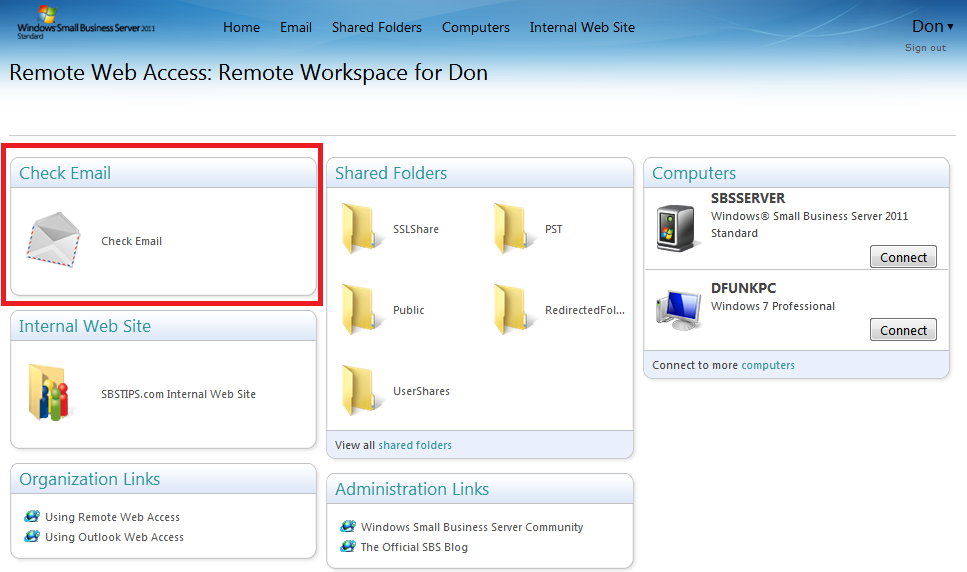
I logged into the SBS RWA (Remote Web App) and logged into Outlook Web App (OWA)

SBS RWA

Clicking on to Options, then More Options, there is a ‘Block or Allow’ option in the menu on the left hand side.

Outlook Web App

Outlook Web App Options

OWA Options

If you click here you can see a list of Allowed Senders, and a list of Blocked Senders.  Scroll Down to see Blocked Senders.

OWA Block or Allow

OWA Blocked Senders

Sure enough the email address being rejected was set to be blocked. Removing the address from this list will allow emails to be received from that address. Make sure to save the changes and that should solve the problem.

Remove Blocked Sender

It wont solve the mystery of how the address ended up as a blocked sender, but that mystery will live on, like the other great mysteries we face, such as using a PC during a power cut, Photocopying a floppy disk to use as a backup, and using the optical drive as a beverage cup holder.

Exchange Anti Spam Tools

You can find the Anti Spam tools on SBS by opening up Exchange Management Console, Navigating to..

Organization Configuration, Hub Transport, Anti Spam Tab

2

And Under …

Server Configuration, Hub Transport, You will find another Anti Spam Tab..

3

Exchange 2010 Anti Spam Related Links

MS TechNet – Enable Anti-Spam on a Hub Transport Server

MS TechNet Managing Anti-Spam Features

Troubleshooting Client Connector Install : SBS2011 Essentials

sbse-conThere are countless reports of problems installing the Client Connector on SBS Essentials and WHS. I’ll not mention WSSE as i don’t think anyone has even bought one yet Smile with tongue out

(that’s not true i do know people who have already deployed it)

Far more common at least, is for it to be an issue with SBSe or WHS2011.

I wanted to put together a resource for people who are struggling to get this installed, not built by me, but a collation of forum posts, solutions and tips that should either fix the issues, or point you in the right direction.

So first off, you might want to have a quick read through of this, which is my own post on how the process should work. It also gives some guidance on what to do if the profile move doesn’t work.

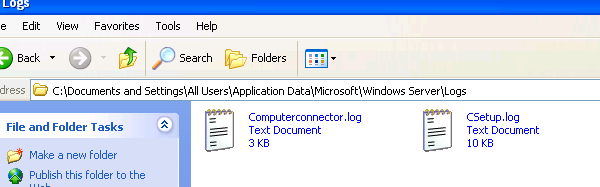
You may also be interested to know where the log files are for the Connector Install..

Windows XP

Log File Location, C:\Documents and Settings\All Users\Application Data\Microsoft\Windows Server\Logs

This is a hidden folder.

Windows Vista / 7

Log file location, C:\ProgramData\Microsoft\Windows Server\Logs

This is a hidden folder

Did you know about the SBS 2011 Log Collector Tool?  You can read about that here

Troubleshooting the Installation

I thought it might be good to run through an install and try to monitor the logs and find out which log is most useful at which time.

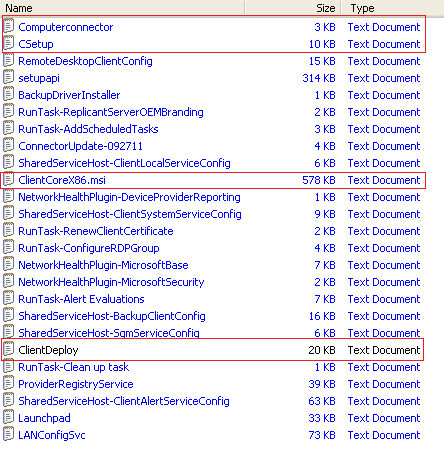
The first log file, is Computerconnector.log, this shows a very high level progress indicator of the first steps of the install.

1

If you are a bit sad like me, and you do monitor the logs folder during a connector install, you will see the second log file to be generated is CSetup.log, which gives us a more detailed view of the early setup stages, for example when .NET 4 is installed.

csetup.log

You can also see that the CSetup.log file is 10kb, as opposed to Computerconnector.log 3kb.

3

When we get to the stage where you are prompted to enter your network username and password, we have a third log file. ClientDeploy.log, 

This log file picks up from CSetup.log

4

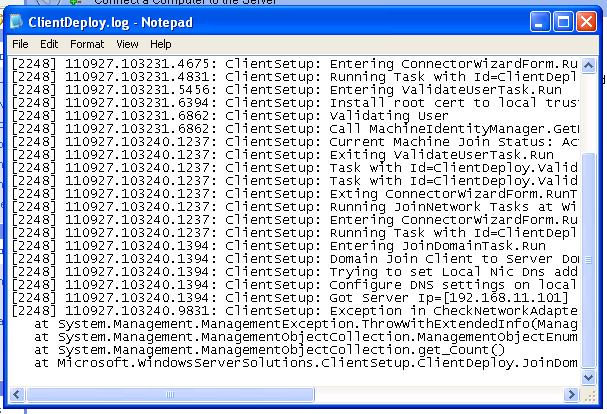
You can follow the progress of the next stage of deployment through this log file. You can see things like the tasks to locate the SBS Server, configuration of the local NIC DNS settings, and you can also spot errors and problems.

For example…

6

The log shows it has found a duplicate machine name, so it pauses the Join Domain task, to give you a chance, in the GUI to confirm you want to continue

5

And now i have hit a problem.

7

8

What you can see from the log here is that there is an Access Denied condition when trying to join the domain.

Why would that be?

In this instance, as mentioned above, a machine already existed in the domain with this name. Therefore, to join this current machine with the same name, i would need certain Active Directory (AD) permissions, which a normal network user account doesn’t have.

So how come a normal user can add a computer to the domain usually?

Whilst i don’t have the full technical answer to that question, i imagine it is something to do with certain settings have been set so that ANY account has the right to join a computer to the domain, but only the Domain Admin has the permissions to reset a machine account password, remove a machine from the domain, or overwrite a machine account in AD.

So, the solution here to get a clean join, would be to ensure any duplicate machine names have been removed from the server, either by the dashboard or through AD directly. Or simply rename the computer.

That being said, you can work around this issue by installing the connector using the Domain Admin credentials, and that will work in this situation, but doing so has it’s own caveats described here.

You might say, well i haven’t had a complete install on this PC yet so how can it possibly have a duplicate name.

To that i would say – maybe the first time you tried it, it failed on a different error? You fixed that and now attempt it again, but didn’t know to remove the account from the dashboard?

On this client, i removed the computer from the Dashboard, and re ran the connect software, using the same, NON ADMIN credentials.

In this screen shot i highlighted in Blue, where we started in the last screen shot ‘Calling Join Domain’ and ended in Red on the ‘JoinNetwork Tasks Task Status’ in Red.

9

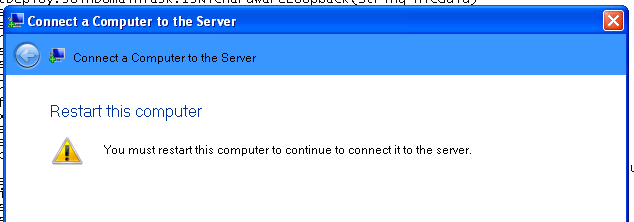
The GUI of the wizard now shows us we need to reboot.

image

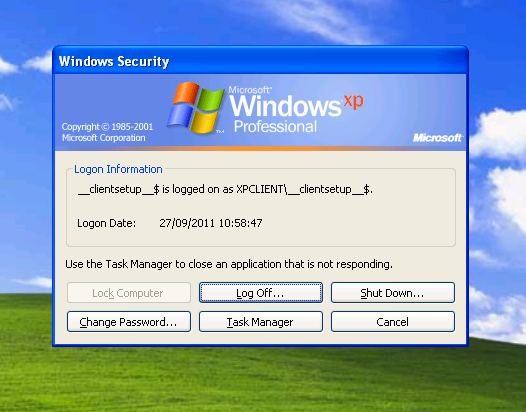
After the reboot, it is a little trickier to keep track of the logs because ‘Explorer.exe’ is not loaded up yet and we have no way to browse the logs folder.

11

So, if you want to, hit CTRL-ALT-DEL and go into task manager.

12

From task manager, click File, New Task, and then you can type in the folder path to the logs folder. (you may need to put it into quotes)

C:\Documents and Settings\All Users\Application Data\Microsoft\Windows Server\Logs

13

At this point we still have just our 3 log files.

Computerconnector.log

CSetup.log

ClientDeploy.log

Looking at ClientDeploy.log again, we can see in Red where we left off, and then where the process continued, and finally in Green the reboot.

15

Let’s move on through the GUI and see what happens to the logs. I am going to leave all of the options on their defaults.

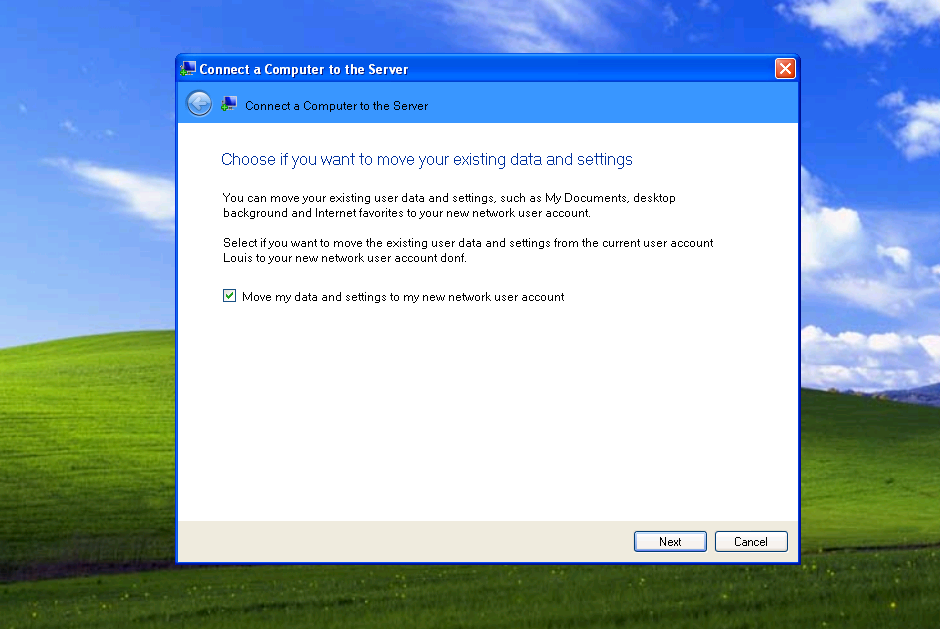
We can see the profile is migrated.

16

In the GUI i am setting to wake the computer for backup and I am setting that i want to participate in the Customer Experience program.

When clicking next in the GUI on the Customer Experience program page, the GUI will display ‘Connecting this Computer to the network’ with a nice progress indicator.

17

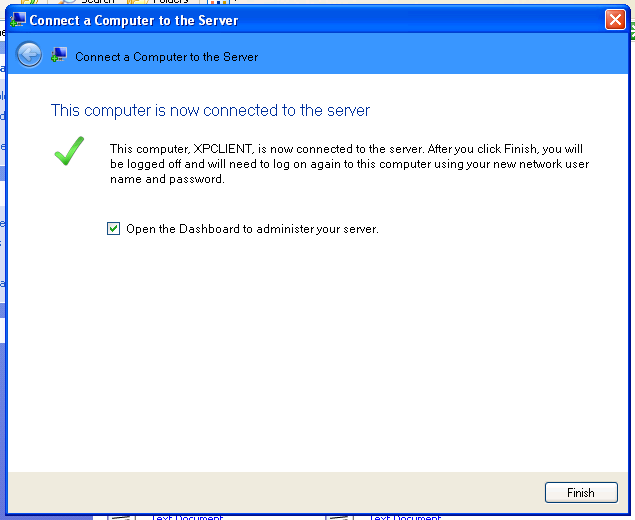
At this point our ClientDeploy.log file is finished up, and we can now see a new Log File appears, ClientCoreX86.msi.log

After a few minutes, you will see a whole host of new log files appears.

18

With any luck in the GUI you will then see this..

19

I’m guessing you may not have done, which is why you are reading this… So let’s go and have a quick look through the ClientCoreX86.msi.log,

We now have 19 Log files by the way… and i am slowly starting to regret getting into this. Anyway..

20

We know that ClientDeploy.log finished, and ClientCoreX86.msi.log took over. That then spawned all of these other logs, but looking at the size of ClientDeploy.log i would say that also had some more info appended.

Switching to details view, we can see in what order these logs were written to.

21

In the first stages of ClientCoreX86.msi.log we can see that UR1 for SBS Essentials is referenced, and installed.

22

Moving on you can follow a huge amount of detail in this log – far too much for me to interpret or comment on, but this will be the place to look if you get errors in your install at this point.

You may notice a reference to the other Colorado products..

23a

(Cropped here to enlarge)

24

So NAS = Windows Storage Server 2008 R2… Nice.

You can follow the log file all the way though the installation of the Launchpad program and the setting up of things like allowing remote desktop to the machine. The other logs show the progress of individual tasks like adding of scheduled tasks or installing a backup driver. (not applicable on Windows XP)

When you have finished the installation, you will total 25 log files. The key ones for the installation have already been mentioned.

26

I hope that may of been some use to anyone struggling to find a reason why their connector may not install. If it doesn’t answer the question it may at least shed some light on where you can look for the answer. Of course failing that I have Susan Bradleys home address if you need it :p

Have a look at the links below if you need more specific help.

Client Connector Installation failures :  links to forums and known solutions

Please feel free to send me any solutions i don’t have, i want to have as many as possible!

These links, have been highlighted as answering the issues in the OP, i am not making any guarantee they will solve your issue, this is just somewhere to link them all together.

Microsoft’s Official Troubleshooting Resource For SBSE Connector

Microsoft Online Help

Pending File Rename

Susan Bradleys blog post

Trust Relationship (Time Zone Error / Certificate Policy)

TechNet forum post (Time Zone)

WeGotServed forum post

Microsoft Support KB Article 278381

TechNet forum post (Certificate Policy)

Username and Password Error

TechNet forum post (Username and Password)

Installation Cancelled

TechNet forum post (Installation Cancelled)

WeGotServed forum post

TitleRequired.com Quick Fix: Installation Cancelled

Cannot Find ‘Temp Client’

WeGotServed forum post

Task Scheduler

Susan Bradleys blog post

Wiki Links

Official SBS Wiki for Client Deployment

SBS MVPs wiki for Client Deployment

General Tips

Check the system time of both the server and the client. Check the Time Zone matches as well.

You shouldn’t need to use a static IP on the client machine, but it might help during troubleshooting.

Check for the overall health of your client PC. You don’t need a client to be fully patched, nor does it need the latest browser (examples above are all from IE6) but you do need a ‘healthy’ client. If you are having problems, take a backup, use tools like CCleaner, MalwareBytes, Look for issues on the client that stop it running normally rather than an issue with the Connector itself. A good example of that is from Eriq Neale, who had an issue with a machine installing the connector, which he traced back to a screwed up Task Manager.

Tips for a Migration

I have also seen some success on migrated computers, which are already in the domain but won’t install the connector, by creating a new local user, making that account a local admin, and then running the connect installer as that person.

Performing a System State Backup on SBS 2011 (Standard & Essentials)

sbsstdsbsess

Hands up if you use Image Based Backup?

Good, all of you.

Or is that bad?

There was a lively discussion recently on the topic of Image Based backups in an Active Directory environment.

It seems a lot of people have potentially overlooked the issue of having to restore a Domain Controller, or part of Active Directory.

If you are using solely image based backups and you loose a domain controller, what can you do?

Sure you can restore that server, using an image.

Thinking back to the days before image based backup, using NTBackup or similar provided us with a System State backup, which for those who don’t know, was basically a backup of the registry and any other critical system files and in the case of a domain controller, it also provided us with a backup of Active Directory. (Susan Bradley’s Blog Post on a System State Backup in the 2003 era)

This backup was special, separated from a normal all files backup.

With that backup you could perform either a non authoritative restore, or an authoritative restore, depending on your needs. I wont go into to much here but basically a non authoritative restore would allow the local server’s AD to be overwritten by any other DC, an authoritative restore told the local DC to overwrite all the other DC’s, But the key was, you need a System State backup in order to kick off either type of restore.

You can find more info here:

http://technet.microsoft.com/en-us/library/cc779573%28WS.10%29.aspx

http://support.microsoft.com/kb/241594

http://blogs.technet.com/b/qzaidi/archive/2010/10/07/quickly-explained-active-directory-authoritative-restore.aspx

So, armed with that, you might have a shiver running down your spine, where you have been sitting comfortably knowing your well thought out and carefully monitored image based backup is fool proof – I’m afraid not.

(Having said all of that, there is actually a way around not having a system state backup, but telling you how would encourage bad practice so i’m not going to,  and it only works for one of the scenarios Smile with tongue out )

If you are using the built-in SBS backup, then a system state is included as part of that backup.

http://blogs.technet.com/b/sbs/archive/2011/02/15/introducing-the-small-business-server-2011-backup-wizard.aspx

http://blogs.technet.com/b/sbs/archive/2011/03/31/how-to-perform-an-authoritative-system-state-restore-in-sbs-2008-2011-standard.aspx

Now it has to be said that there will only be a handful of occasions where this would be useful, but wow, if you are in one of those situations you will be glad you have one.

What is it going to protect you against? A corrupted Active Directory (yes it does happen) An accidentally deleted user or other object. Locking yourself out of the domain admin account?

(for SBS Essentials we can easily enable something called the Active Directory Recycle Bin more on that later)

Without the system state backup included in our daily backup – what do we do?

Well lucky for us on SBS the Windows Server Backup feature is already enabled. So it is very easy to setup and perform a System State backup. Open up a command prompt as an administrator..

1

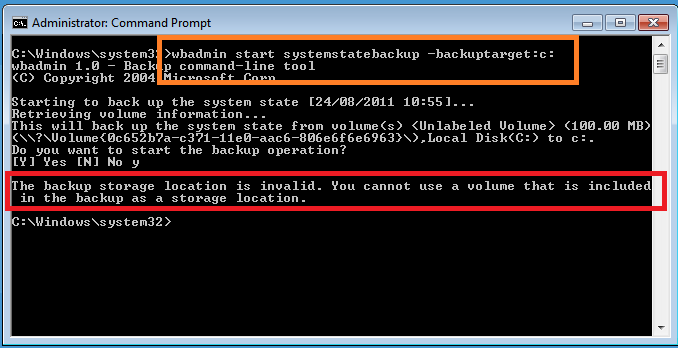
To run a system state backup we can use the wbadmin command tool. You choose to run your system state backup to a volume, not a folder, however you cannot use a location that is included in the backup as the destination, so for example the below command will fail.

wbadmin start systemstatebackup –backuptarget:c:

4

Lets look at the parameters available for the backupsystemstate command.

From TechNet:

100

So, we know that a network location is out, that leaves either a separate Data volume, or an external drive.

I suppose could use the same disks here that we use for our daily backups however I think a better solution is to backup to our Data partition and then that will be included within our normal daily backup (image based or otherwise) Of course, once we have backed up the System State, there is nothing to say we can’t copy it to a network share or anywhere else.

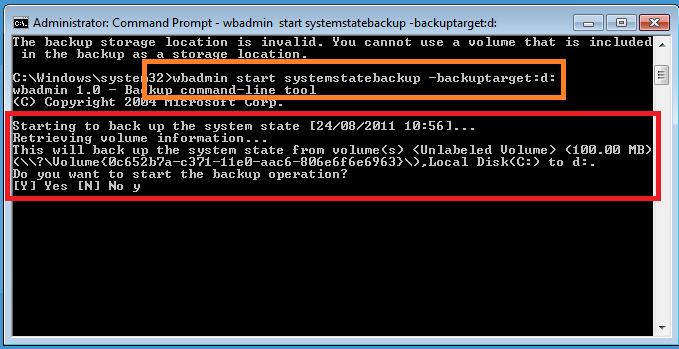
So, let’s try this command instead.

wbadmin start systemstatebackup –backuptarget:d:

You will need to confirm that yes you really do want to start a backup.

6

The backup will then start, and create shadow copies for the volumes the system detects as part of the ‘system state’

It will show you how many files are being detected, and continue on with the backup.

10

Now it might take quite some time for the backup to run as being an SBS server there is a lot of data to be backed up.

11

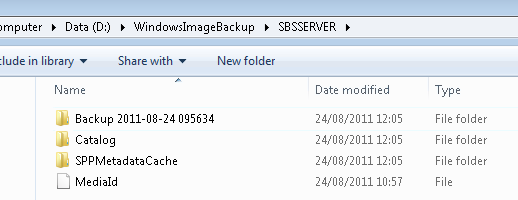
Once the backup is completed, we can see we now have a new folder on our D drive.

If we try to access this we are blocked, so in order to show you what is inside ill click Continue here.

12

We see a folder named after the server, again we need to gain access.

13

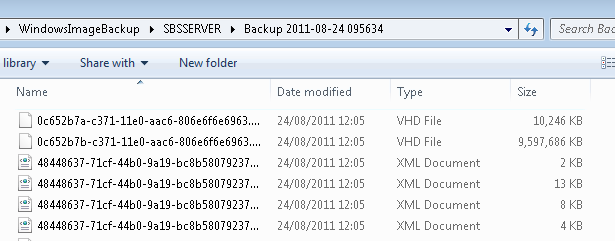
Now inside here we have several folders, the backup itself is contained within the Backup folder, and it is named with a date and time that the backup was launched. Inside this folder will be some XML files and a VHD per volume backed up.

1

2

Below shows the size of the backup folder of a fairly standard SBS Essentials System State.

15

Moving on to schedule the backup we can just build a simple scheduled task to run the wbadmin command, but you will want to add on the –quiet switch so it runs silently. I will leave it up to you to decide if you want to copy that off to a different location.

Here is a sample script you can run to do perform a System State backup, then copy to a network share.

wbadmin start systemstatebackup –BackupTarget:d: -quiet

ping 127.0.0.1

robocopy d:\WindowsImageBackup \\networkcomputer\SBSSystemState /E /COPY:DATSO /Z

I added the ping in there to give it a few seconds after the backup had completed before it starts to copy, and not being a script wizard, that’s the best i can do. You can just dump that into notepad and save it as a BAT file and use your task scheduler to run that file.

I know what you are thinking, how do i restore this?

First off, you need to boot the server into a special mode called Directory Services Restore Mode. You do this by pressing F8 at startup (just after post has completed but before the windows logo appears) Then you need to logon.

You cant logon using your domain admin password, as the domain is not running. So instead you need to use a special account.

Enter this:

Username: .\administrator 

(yes that is .\ this tells the logon process to logon locally as opposed to onto the domain)

Password: domain admin password

(your domain admin password)

Once logged in, you can browse the system as though you were booted up in normal mode. This is good if you need to copy the backup back from a network share or similar (you don’t need to as the restore supports a backup stored on a network share)

So from our elevated command prompt we can run..

wbadmin get versions

restore

This will list all the available versions of the backups you have to restore.

Pay attention to the version identifier as we will need this to initiate a restore.

To start the restore enter.

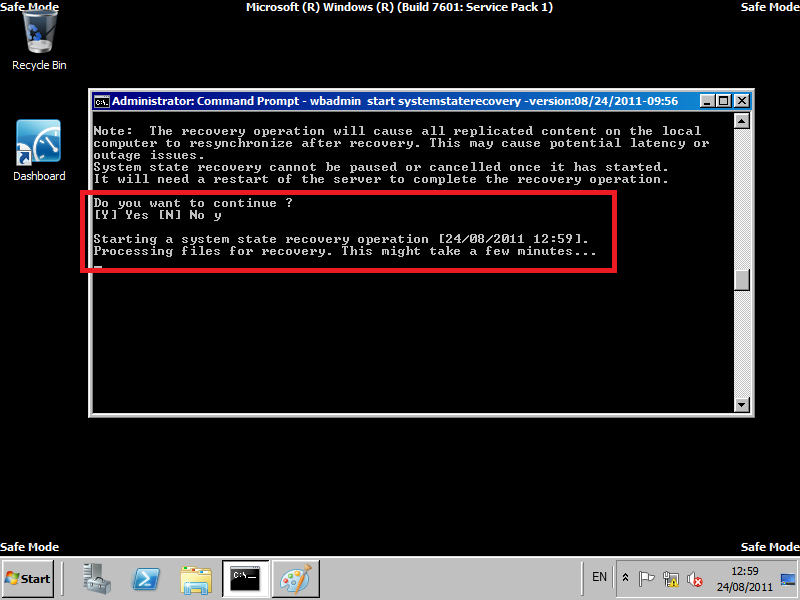
wbadmin start systemstaterecovery –version:08/24/2011-09:56

restore2

You will need to say Yes i want to start the recovery, and then also say yes to confirm you understand about potential impact on replication (only applicable in multi DC environments)

restore4a

The backup will then whizz off and restore.

Once the restore is complete, you need to reboot.. then when you log in you should see…

restore5

For more examples and a list of syntax, check this out.

AD Recycle Bin (AD RB)

Being up front and honest, never used it.

it is a new feature with Windows Server 2008 R2, and, well it looks pretty cool. This will help protect against items that were accidentally deleted, and should help stop you having to do a full restore of AD.

Check out this blog post for an introduction:

http://blogs.technet.com/b/activedirectoryua/archive/2009/01/30/introducing-active-directory-recycle-bin.aspx

And for more info:

http://blogs.technet.com/b/askds/archive/2009/08/27/the-ad-recycle-bin-understanding-implementing-best-practices-and-troubleshooting.aspx

http://technet.microsoft.com/en-us/library/dd391916%28WS.10%29.aspx

http://technet.microsoft.com/en-us/library/dd392261%28WS.10%29.aspx

Now, you read all that right?

So you know then, that to enable AD RB your Forest Functional Level must be at Server 2008 R2 which is good news for SBS 2011 Essentials customers, as it is by default.

Potentially bad news for SBS 2011 Standard customers, as it isn’t.

Even worse for those of you on SBS 2008, as that is plain old Server 2008, not R2.

Check out this TechNet page for more info http://technet.microsoft.com/en-us/library/cc730985.aspx

Very quickly, if you have, or plan to have any DC’s that will not be running Windows Server 2008 R2, then the AD RB is not going to be an option for you in an SBS network.

Assuming all is well, and you have followed the guidance and planning advice in the links above, and also done all your own research and promise not to blame me if anything goes wrong..

Enabling the AD RB is straight forward. You need to use the AD PowerShell  Module, from Administrative tools, and also run this As Administrator.

This article does such a great job of explaining it,  you should just read that instead!

http://blogs.technet.com/b/askds/archive/2009/08/27/the-ad-recycle-bin-understanding-implementing-best-practices-and-troubleshooting.aspx


Quick Fix : Enable Telnet Client through command line

I am sitting at a fresh install of Windows 7, and i needed to use telnet. I know i can enable Telnet through ‘Turn Windows Features On or Off’ but i wanted to know if i could do it through the command line.

The answer is yes i can.

From an elevated command prompt just type:

dism /online /Enable-Feature /FeatureName:TelnetClient

It seems to complete a lot faster than the ‘Windows Features’ gui as well.

Thanks to the Bing search and this post here

WMI Filters, Windows 7 Professional Pack & SBS 2011 Essentials

sbsessIn my last post i talked about the Windows 7 Pro Pack, how to install it and how to use the wizard to configure it.

I also touched on the way the W7PP is targeted just to computers running Windows 7.

I wanted to cover here a bit more detail on the WMI Filter itself, (which is very simple) and also how to extend the functionality of the W7PP to other client operating systems.

I did make a hilarious reference to Jeff Goldblum’s Jurassic Park character, saying just because we can, does it mean we should?

Well, i think in this case it does. We can extend Folder Redirection and management of Windows Update, Windows Firewall and Windows Defender to XP and Vista and we should. Folder redirection.. not so much.

Now, those of you who are seasoned SBS Admins, will either A  already know this or B know this already.

With SBS it is best, not to stray to far from the wizard.

The wizard likes things done his own way, and tends to get grumpy when it doesn’t.

Here we have an example of a grumpy wizard.

grumpy wizard

We all know what damage a grumpy wizard can do. Lay waste to middle earth… but i digress.

So rather than do what a lot of people will do, which is de-select the WMI filter, we can just create new GPO’s that only apply to XP or Vista. This gives us more flexibility, it also doesn’t break the W7PP.

First, let’s take a look at the W7PP WMI Filter.

If you open up the Group Policy Management Console (From Administrative Tools) You will see a section for WMI Filters.

20

Expanding WMI Filters, you will see the filters you have defined. We only have one so far.

60

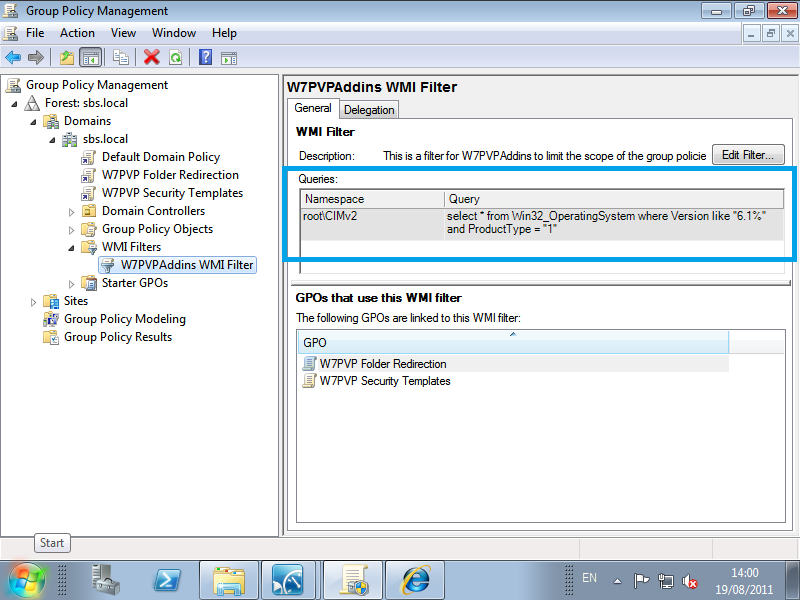
Above highlighted in blue is the WMI Query used to target machines running Windows 7.

You can see that the filter is made up of a namespace, and query.

The name space is based on CIMv2, which appears to be a standard, but i can’t tell you what the root part is for.

We know that root is the beginning, but apart from that I’m lost! If anyone can explain it to me feel free.

So let’s just say we are looking at the root of the CIMv2 (by the way CIM is Common Information Model) There are a lot of namespaces you can choose to Query and with that you can find out and filter based on a lot of different things.

For example there is a root\CIMv2\power namespace and a root\CIMv2\Hardware namespace.

More resources on WMI can be found here:

http://msdn.microsoft.com/en-us/library/aa394582%28v=VS.85%29.aspx

The query is used to pinpoint certain attributes a computer may or may not have.

So, to query for a computer running Windows 7, the query is:

select * from Win32_OperatingSystem where Version like “6.1%” and ProductType =”1”

The first portion is straight forward enough, targeting the potential OS Attributes of the PC.

select * from Win32_OperatingSystem

(this also applies to x64bit machines as well)

Next we choose to filter based on OS version and Product type.

where Version like “6.1%” and ProductType =”1”

OS Version is simply the version of Windows that is running, and product type denotes whether it is a Client OS (Windows XP Vista or 7) or a Server, and if it is a server, is it a Domain Controller or member server.

From TechNet..

wmi2

wmi

I’ll be honest and say i am no expert in WMI but, i wanted to cover a little overview on what it does and how it works. There is a really great post here which will explain things better than i can.

http://blogs.technet.com/b/askds/archive/2008/09/11/fun-with-wmi-filters-in-group-policy.aspx

WMI Filters for XP and Vista

So we now know a little about WMI and how it works, now we can go ahead and build some WMI Filters to target Windows XP and Windows Vista.

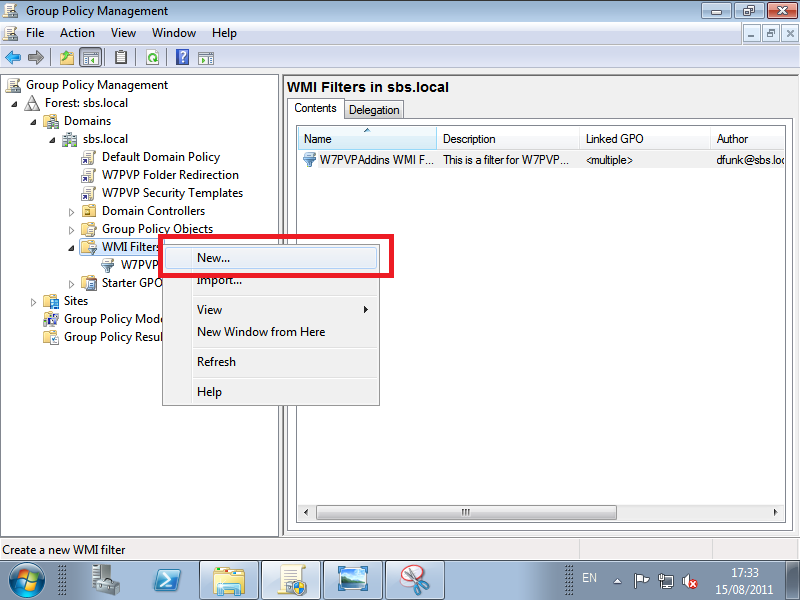
From the WMI Filters tree item, right click and click New.

51a

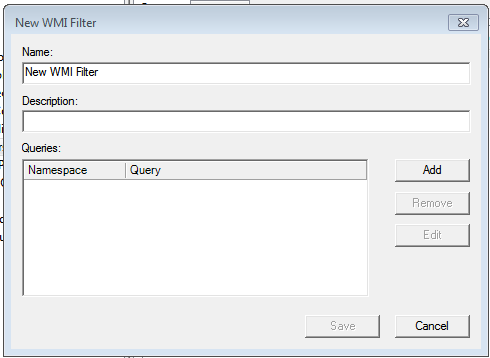
A window opens and you can name your new WMI Filter, and enter a description.

52

53

Now we can click on Add, to type in our Query.

select * from Win32_OperatingSystem where Version like “5.1" and ProductType = ”1”

xp2

Click on OK to close the WMI Query box, then choose Save to save your new filter.

We can repeat the process to create a filter for Windows Vista. This time the Version number is 6.0

54

Click Save and you will be returned back to the GPMC, WMI Filters section. You will see your two new WMI Filters shown in the details pane.

55

Creating GPO’s for Windows XP and Vista

Now to put these into action. We need to create new GPO’s (Group Policy Objects) to control settings on our computers. There a number of ways to do this, but, we will just go for the most straight forward.

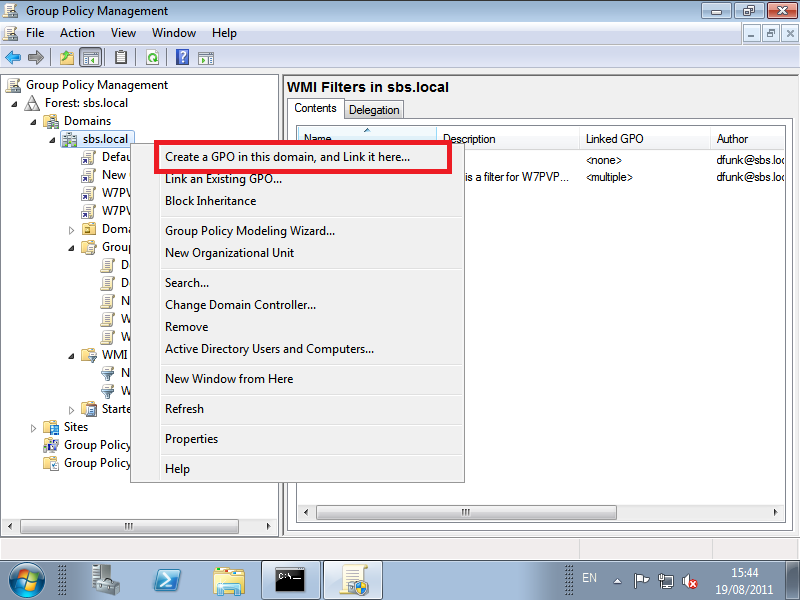
Right Click your domain name, and click ‘Create and Link a GPO in this Domain and link it here…’

1

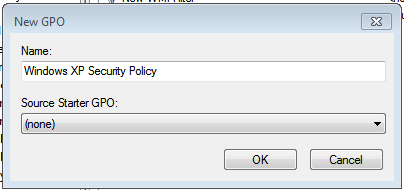
Enter a name for your GPO, you can ignore ‘starter GPO’ click OK.

2

You will see your new GPO appear.

3

If you click your new GPO, you will see it show up in the details pane. At the bottom on you can choose to link this to your WMI Filter using the drop down menu.

4

A message will pop up saying, are you sure? yes we are sure, we wouldn’t be doing it otherwise would we?

5

Now we can edit our GPO.

Right click the GPO and choose Edit. The Group Policy Management Editor opens.

Expand the tree through, Computer Configuration > Policies > Administrative Templates > Windows Components

6

Under Windows Components, scroll down to Windows Update. In the details pane, you will see all the policy settings available. Double click on the first setting.

7

The policy setting window opens, where you can configure each setting. Click ‘Next Setting’

8

You can use the ‘next setting’ button to scroll through the settings without closing the window and reopening it.

Scroll through until you get to ‘Enabling Windows Update Power Management..’ You’ll notice the highlighted text, Supported on: Windows Vista, this means this policy is only available on Windows Vista or newer computers, and older OS’s will ignore the setting.

9

Keep scrolling through and you will get to ‘Configure Automatic Updates’

Click ‘Enabled’ then under the options, use the drop down menu and select option 4. Auto Download and Schedule the install.

10

Click on OK to close the Settings window.

What we have just set will tell any Windows XP Clients to download updates anytime they are available but schedule the install for 3am every day of the week. You will need to manage the power options of your XP Computers to make sure they are on at that time. You can do this locally on the PC or you can use Group Policy Preferences, which i may cover in a future post.  Or you can look at this.

Now, We want to look at settings for Windows Defender (remember Windows Defender is not install on Windows XP by default, these changes will not apply unless defender is installed)

In the tree pane, scroll up to find Windows Defender.

11

Double click on ‘Check for New Signatures before Scheduled Scans..’ And set this to Enabled.

12

Use the next setting button to go through to ‘Configure Microsoft SpyNet Reporting’ Click to enable the policy setting and use the drop down to set at Advanced. A description is available of the levels in the help section to the right.

13

So we have told Windows Defender to look for new definitions before a scan, and also to join Spynet with Advanced membership.

You can now close the settings window, and we will move on to Windows Firewall.

You will find the Windows Firewall settings under,

Computer Configuration > Administrative Templates > Network > Network Connections.

14

Select the Domain Profile folder, and in the details pane, double click the first option.

Scroll through to ‘Protect All network Connections’ and set to enabled.

15

We will now move to, Allow Inbound file and printer sharing exception’ Set this to enabled, then under options enter ‘localsubnet’

16

The localsubnet string tells windows firewall that anything matching the same subnet that client pc is on is allowed to pass through the firewall.

Move onto ‘Allow ICMP exceptions’ set to enabled and ‘Allow inbound echo request’ This will allow us to ping our computers.

17

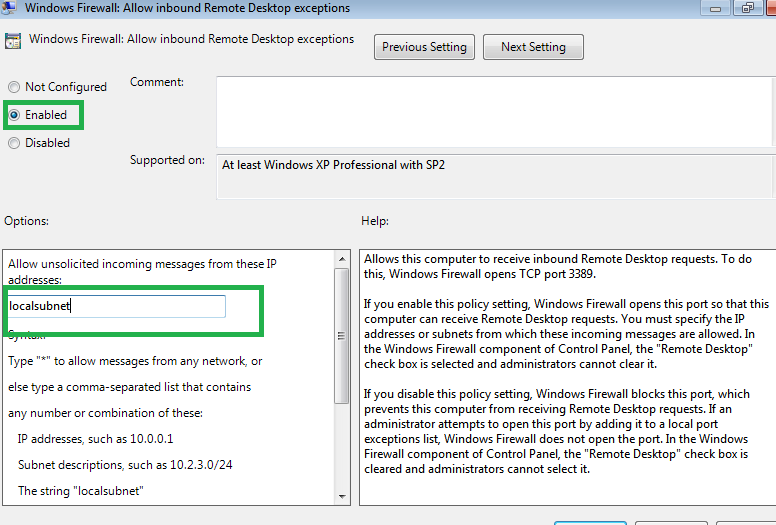
Next we will allow the Remote Administration exception and the Remote Desktop Exception.

18

19

The Windows firewall settings we have set here will apply only when the computer is on the domain network. If you have mobile computers and you want to enable the firewall when they are out of the office, simply go to the Standard Profile folder, set the policy to Protect All Connections, and then define the exceptions you wish.

For Windows Vista computers we can set exactly the same settings as above except for the Windows Firewall which is configured differently.

You will find the Windows Firewall with Advanced Security under Computer Configuration > Windows Settings > Security Settings > Windows Firewall with Advanced Security

30

Right click Windows Firewall with Advanced Security and go to properties.

31

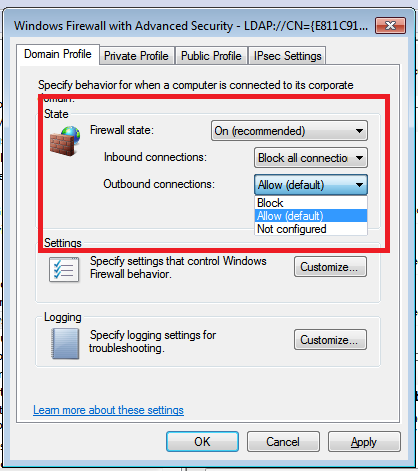
What will open up is the settings page where you define the firewall state for Domain, Public and Private networks.

32

On the domain tab, set the Firewall state to On. Set Inbound Connections Block (Default) this will block anything that is not defined in our exceptions, we will set those in a moment. Set outbound connections to Allow (Default)

33

You will probably want to set the options for Public and Private networks as well. These will apply when the Vista machine is not on the Domain network, so usually should be more restrictive.

You can learn more about these settings by clicking the ‘Learn more about these settings option’

Now we will create our exceptions. In the tree view move down to ‘Inbound Rules’

In the details pane right click and click New Rule. A wizard starts to build your new rule.

21

We want to use a predefined type of rule (exception). Select that and then from the drop down box choose File and Printer sharing. Click next.

22

You will be shown all the exceptions this predefined rule will add. Click next.

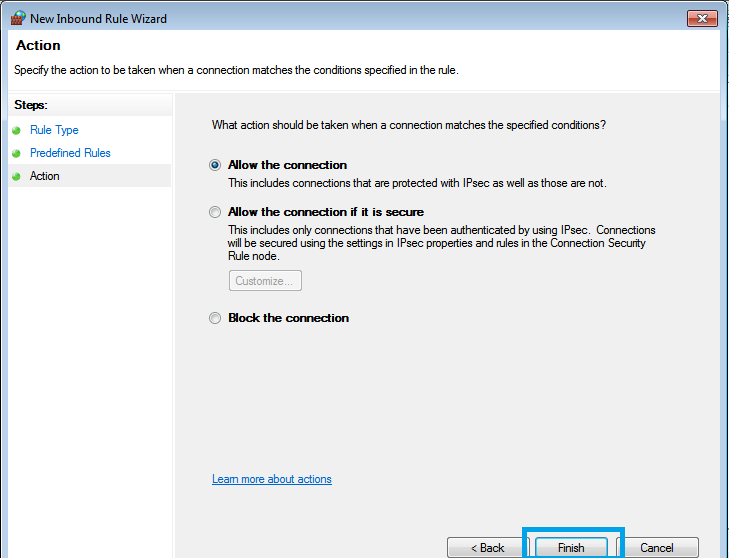
23

You will be asked what action to take when a connection matches this rule. We want to allow. Click finish.

24

You are taken back to the details pane and shown the new rules you have added.

You can now repeat this process and on the predefined rules page, select, Remote Administration, and then again, Remote Desktop.

You will finish up with a set of Inbound Rules like this..

25

We also must edit another firewall policy setting which you will find under,

Computer Configuration > Administrative Templates > Network > Network Connections > Domain Profile

The setting is ‘’Do not allow Exceptions’ We must make sure this is set to ‘Not Configured’ otherwise the exceptions we defined above will not take effect.

winf

Having followed these steps you will have created 2 WMI filters, one to match Windows XP Clients, and one to match Windows Vista. You will also have added 2 new GPO’s to control Windows Update, Windows Defender and the Windows Firewall.

Windows 7 Professional Pack : SBS 2011 Essentials Add-in

sbsess

The Windows 7 Professional Pack Add-in (Forever after called W7PP or Pro Pack) is a Free Add-in for SBS Essentials that Microsoft have developed and will be releasing on the 12th of August.

Whilst most Add-ins will work across the Suite of Colorado Products (SBS Essentials, WHS 2011 and Windows Storage Server 2008 R2 Essentials, try saying that after a few drinks) this one is specifically for SBS Essentials.

The Add-In simplifies configuration of Folder Redirection, Windows Firewall Settings and also Windows Update & Defender settings for client computers running Windows 7 Professional.

It does this by creating Group Policy Objects (GPO) by means of a Wizard, and targets Windows 7 Pro by means of a WMI filter, more on WMI Filters here.

Now, for the more experienced Administrator, that obviously means it is trivial to retarget these GPO’s to apply to any Domain Joined Client, however do keep in mind the Target Audience or market for SBS Essentials is that of the DIY’er Admin, someone who doesn’t know one end of a GPO from an OPG.

And just because we can doesn’t mean we should right? We’ve all seen Jurassic Park.

Anyway, i am going to cover the installation of the W7PP and detail the changes it makes, and what you can expect to see on your client machine, and also a little bit of troubleshooting as well.

Installing

Step One.

So, having downloaded your W7PP and extracted it, you will be presented with the setup file. The file is called, Win7ProAddIn.wssx (you may need to unhide known extensions to see the .wssx)

1

Step Two.

Double click the file to start the installation, and the first screen is the License Agreement.

2

Step Three.

The next page is a simple choice, Install the Add-in or Cancel.

3

Step Four.

Installation Progress..

4

Step Five.

And complete..

5

So let’s switch to the Dashboard now and see what has happened.

Go to the Add-ins tab, and you’ll see the W7PP. You can’t really do much here apart from Admire a job well done to get this installed. You can of course undo your handy work by uninstalling (remove) the add-in.

6

Since this is all about getting it working i am not covering the uninstall.

If we move along the tabs to the left, and go to Server Folders and Hard Drives, we can see no changes on this tab, no folders have been added.

7

Keep moving left, and onto the Computers and Backup tab.

8

On the right hand side we have a new option, Implement The Windows 7 Professional Pack.

8a

Just installing this beast is not enough, we have to go all the way and IMPLEMENT!

So let’s click on the Implement W7PP link.

Implement

Step One.

On the first page, we can read a little overview of what the implementation wizard will be doing. Click Next.

9

Step Two.

Enable Folder Redirection Group Policy. On this page we have the choice to choose whether to use Folder Redirection or not, and the choice of which folders to redirect. For example, you may not want to redirect someone’s My Music folder, and have 40gb worth of Abba tracks clogging up your new server. On the other hand you might like Abba, in that case its probably Ok. You can click to ‘Select All’ or cherry pick which ones you want to have redirected. Click Next When you are ready.

Folder Redirection allows a client computer to store data files and folders on a network share. The process is invisible to users. It is a way to make sure that all users documents and files are stored on the server, whether they save them to their ‘desktop’ folder or their ‘documents’ or in the company data share. It can also make it easier for users who move between computers, but when you don’t want the PITA that is Roaming Profiles.

10

Step Three.

Enable Security Policy Settings. Here we can choose if we want to let the W7PP control our Windows Update, Firewall and Defender settings. The default is to have all 3 selected. Click Next when you are ready.

11

Step Four.

The wizard will now run through and setup your policies and also add the folder to host the redirected folders.

12

Step Five.

With any luck you will see a green tick. Green means good.

14

So, let’s go back to the Dashboard and back to the Server Folders and Hard Drives tab, we can see we now have a new Shared Folder created.

16

FolderRedirection, this shared is located in your D:\ drive, and as you will see in the troubleshooting later on, its quite picky about that D:\.

If we right click the folder, and go to ‘View the Folder Properties’ we can have a look at the default settings.

17

On the General Tab, we have the name and description fields, a size total for the folder and a link to open the folder itself.

18

On the Sharing tab we can see the level of access our Users have to this folder.

19

NB. Don’t me tempted to change this – all will become clear later on.

If we go to the Computers and Backup tab, we can now see that the status of the W7PP is now ‘implemented’

15

Now, let’s open up the Group Policy Management Console, and we can run through the settings created by the Pro Pack. (Click Start, Administrative Tools, then find Group Policy Management Console)

20

If you are not familiar with the GPMC or GPO’s in general, i would strongly advise you not to play around with it. Group Policy is extremely powerful and can be used to good effect to create safe, secure, computing environments.

It can also be used to lock yourself out of your own network if you click the wrong thing. Be Warned!

If you expand, Forest, Domains, and finally yourdomain.local you will see a Tree structure that Mirrors what you would see in Active Directory Users and Computers (ADUC) Only this time you can see the GPO’s applied in the tree.

21

All Domains have a Default Domain Policy, even if you are experienced with GPO’s my advice is not to change the Default Domain Policy at all if you can avoid it. So let’s ignore that.

You can see now we have 2 policies created by the Implementation Wizard.

W7PVP Folder Redirection

W7PVP Security Templates

No, i don’t know what the V in PVP stands for.

W7PVP Folder Redirection

Left click on on the Folder Redirection Policy, and the details pane on the left will change to show you more specific info on this policy.

Folder redirection is a really useful feature, and you can find out more from this TechNet page http://technet.microsoft.com/en-us/library/cc732275.aspx

21a

This is a warning, telling you if you make changes to the GPO – they will affect anything the GPO is currently linked to. So be careful.

You can click OK here.

23a

Under Links, you can see where the policy has been Linked, Under Security Filtering, you can see which Groups or Accounts the Policy will affect (apply to) and WMI Filtering shows if any WMI filters have been applied.

WMI Filters and GPO’s are really powerful.

For example, a normal GPO without a WMI Filter will apply to any object below where it has been linked.

That is generally a good thing, but, if we wanted to change a setting on only a particular . group of computers, lets say computers running Office 2010, or if computers have a hard drive of X GB’s then a WMI filter can do that for us.

When the policy is applied, WMI will query the computer for the settings defined in your Filter, and if it matches then the policy will be applied.

WMI in itself is a massive topic and way way way beyond what we are talking about here, and ill follow up with a separate post about the WMI Filter used with the W7PP.

So moving on, we will ignore the Details tab, as this just shows us some info you will not need to worry about, and also the Delegation tab is for advanced targeting and security settings, which you will not need to use.

The Settings tab is the main one, and this shows us which settings have been set, and what the values are.

24

As you can see, nothing has been defined under ‘Computer Configuration’.

GPO’s are split into two sections, Computer Configuration and User Configuration. Pretty self explanatory, but settings defined under Computer Configuration apply to a Computer. Settings for Users apply to Users, regardless of which computer in the domain the user logs into.

User configuration will usually override Computer Configuration, but again GPO’s are a massive subject so you can do more research on Group Policy here.

Under User Configuration, we can expand the settings by clicking ‘Show’

Drill down under Folder Redirection, and you can see each folder that can be configured.

Clicking on Show on any of these folders will display the settings that have been chosen.

25

Each Folders Settings are split in two, You have a Path setting, and then an Options setting.

The path will be set to go to the new Folder created earlier, which is \\servername\FolderRedirection

You will then see %USERNAME%\Folder

%username% is a path Variable, and this tells the Client machine to create a folder under the path, using the users username.

So for example, if i log on as Don Funk, with a user name, DonF then the path to my redirected App Data folder will be

\\servername\FolderRedirection\donf\appdata

  • The options are quite straight forward.
  • Grant the User Exclusive Access to the Folder – Means no one else can view this folder
  • Move the Contents of the Folder – Means if you have an existing local folder, then its contents will be moved over to the server.

Also, Apply redirection Policy to Win 2000…. Means do we want to use this policy along with Older OS’s. There are several considerations to make when you use this setting, which are beyond this post because this Add-in is only for Windows 7! but you can find a great resource here.

Under Policy Removal, there are also some straight forward settings, for what to do when the policy is removed.

Do we want to Leave the contents of the folder in place, or move it back to the local computer.

All of your Redirected Folders will have the same settings by default, which are,

  • Grant the User Exclusive Access
  • Move the Contents

Restore Contents on Policy Removal

W7PVP Security Templates

Moving straight on to the settings of this policy we can see we have settings defined under, Windows Settings, and Administrative Templates.

26

The Windows 7 Firewall settings are configured under ‘Windows Settings’ and ‘Administrative Templates’ and the Windows Update and Defender settings are just configured under Administrative Templates.

Windows Firewall with Advanced Security

This Windows 7 Firewall is very powerful indeed, and can be configured in a very in depth manner. The W7PP does not go to such lengths and just applies some basic firewalling to the client computers. That is to say, it blocks all incoming traffic, and allows all outgoing traffic. It applies these settings on Domain, Private, and Public networks.

Whilst i am security conscious I’m a little concerned that blocking incoming traffic whilst on the domain network might lead to having more issues that it solves, especially if Admins or Users in a small office are used to Sharing desktop printers or folders on each others machines. You could argue that the SBS Server is there to take over… but i am expecting people to trip up on this one.

28

Anyway going back to the GPMC we can review the settings that are applied.

  • Firewall State – On
  • Inbound Connections – Block
  • Outbound Connections – Allow Moving down to the Administrative Templates,

Moving down to the Administrative Templates:

  • Windows Firewall Protect All Network Connections – Enabled

29a

That is it for the Windows Firewall settings. As i said, very basic settings.

Windows Defender

Windows Defender is also controlled by the W7PP. There are 8 Available GPO settings for Windows Defender, but the only setting defined by the W7PP is

29b

  • Check For New Signatures before Scheduled Scan This is fairly straight forward and, of course will force Windows Defender to check for updates prior to running a scan.
    There are other settings available for use by GPO. I cannot find a definitive resource bearing the Microsoft logo though, so, you’re on your own for now!

Windows Update

Last but not least, Windows Update. Let’s run through which settings are being controlled:

30

  • Allow Automatic Updates Immediate Installation
  • Allow Non Administrators to receive notifications
  • Configure Automatic Updates
  • Enable Windows Update Power Management
  • Turn On Recommended Updates

Allow Automatic Updates immediate installation. This is a policy i always disable. It is enabled here by default, and this worries me slightly because an update that is downloaded that may not need to reboot will auto install. This could happen during the work day and i have seen it cause problems with clients. I have never used this setting since Windows XP days.

Allow Non Administrators to Receive Notifications. This will be the little prompt in the system tray that tells users Updates are ready. Personally i also do tend to turn this off, as prompts to users generally means questions, and we don’t like questions do we?

Configure Automatic Updates. This setting is configured with Option 4. Download and Schedule the Install, and the install time is scheduled for 3am. The first one i agree with Smile

Enable Windows Update Power Management. A brilliant feature brought in with Windows Vista, Gone are they days when you had to leave your computer running overnight so it would actually install the updates at 3am. Windows can now switch on the machine for you and install updates, and let power management put it back to sleep when it is finished.

Turn on Recommended updates. I don’t know what makes an update recommended as opposed to any other type. Suffice to say, by default, your going to get them.

You can find out more about controlling Windows Update behaviour through Group Policy here

So that pretty much covers the installation, implementation, and settings on the Pro Pack.

If we switch over to a Win7 Client PC now we can see some of the changes you will see on your machines.

Windows 7 Client Computer

Log on to your Windows 7 Machine, and launch an Elevated Command Prompt. (Right click CMD and click Run as Administrator)

30

If you are new to GPO’s then one command you really want to learn is GPRESULT. This will show us the status of Group Policy on our client computer.

So from our CMD prompt, run GPRESULT /R

31a

Scrolling through the output, you will see, it is again split into Computer Settings and User Settings – almost like they knew we would be looking.

31c

We can see some really useful information about the Client, the last time it applied Group Policy, and the Server (Domain Controller) it was applied from, the Site we are in and whether we are using a Roaming Profile. Some of this is only for larger networks however and not really important in an SBS Essentials network.

Moving down, we can see what policy is applied to our Computer, and which ones are filtered out.

The same is true for the currently logged on User.

31b

We can see in this output the only policies that are being applied currently are the Default Domain Policy to the computer, and nothing to the user account.

Lets also look at the path to our My Documents folder, if we click on Start, the right click Documents, and click Properties.

33

34

We can see the path points to the local computer, c:\users\don

Now lets imagine we magically apply the W7PP, and reboot our PC.

The new GPO’s should be applied at start-up and logon (start-up for computer and logon for user)

You may notice your first logon after implementing the pack is longer than usual, that is because the computer is copying up the contents of your redirected folders at logon.

User wont know that though, they will just see a really slow logon.

35

Now, running another GPRESULT /R

We can now see that our W7PVP Policies are applied.

36

37

If we go back to look at the path of our My Documents folder, we can see that it now points to our FolderRedirection share on the server.

38

If we navigate to the shared folder we can see all of our redirected folders.

39

We can also just review the status of the Firewall, right click the network icon in the system tray, then go to Network and Sharing Center, in the bottom left, click Windows Firewall.

40

You can see a cream coloured bar saying that, For your security, Some Settings are managed by your System Administrator.

Troubleshooting

During the writing of this post i did come across a few issues.

Firstly, if you do not have a D:\ on your server and you choose to Redirect Folders, the implementation wizard will fail. You do not have the choice to move it to another drive, the wizard will just fail.

13

What to do if you have built your server with one big C drive?

I would hope that, you have some free space. So my advice today would be to create a VHD in Disk Management and Mount that as Drive D. You can find out how to do that from here (the link is for Windows 7 but the steps are the same)

NB. Do not use DISKPART unless you know what you are doing.

You might think that is a stroke of genius. You’re right. Unfortunately it doesn’t work.

Seemingly if you find yourself here you have strayed too far from the defaults and we know what means in SBS land.. you’re riding a segway on a cliff top, and we all know how that story ended right?

110

What does work however is Shrinking the C partition down and creating a new D partition in the free space. You can do this from Disk Management.

Whatever happens, You need a D and the only way it seems, to get the wizard to play nice is to get a D:\, from wherever you can!

Troubleshooting clients will be a little easier. First the basics, make sure your Server and Clients are in the same Time Zone (i assume they are physically, but logically, the computers clocks may be different)

Check your GPRESULT command, see what is and what is not applied.

Look in the event logs on the client PC, you will find most errors with GPO are usually something simple like NTFS or Share Permissions.

15

That links us in nicely with a little oddness from the Dashboard. If you remember earlier, we looked at our new FolderRedirection folder (on the Server Shares and Hard Drives tab)

It shows all our users had no access!

19

So how then, does Folder Redirection occur?

If we go into the Computer Management MSC console, we can look at the Share Permissions of the FolderRedirection folder. We can see here in the properties and on the Share Permissions tab, that Everyone has Full Control to the Share.

33

If we look at the Security tab at the NTFS permissions, we can see that Domain Users, have Read, Read & Execute and List folder Contents. We can also See a special permission is applied. That permission is create folders.

34

So, because our user has the Create Folder permission, we are allowed to create folders for Folder Redirection at logon. Then, because we created the folder, we are the owner, and the owner is granted Full Control of that folder by default.

But why does it show ‘No Access’ in the Dashboard? Good Question.

The answer is, i don’t know. What i can tell you is that on the other default shares, the user access settings result in an entry in the Access Control List on that folders security tab,

We don’t want that on the FolderRedirection folder as that potentially will grant access to other users folders once they have been redirected.

I hope you have enjoyed this run through the W7PP, please form an orderly queue at the download center.

In this follow up post i talk about how to use GPO and WMI on Windows XP and Windows Vista to get similar functionality.

http://titlerequired.com/2011/08/19/wmi-filters-windows-7-professional-pack-sbs-essentials/