Installing SBS Standard?

Are you installing SBS Standard and wondering why you have the option of an upgrade or a custom install?

SBS SBS Essentials Custom install or upgrade
The WinPE environment for SBS Setup is based on the underlying Win2008R2 code (or for SBS 2008, just Server 2008), the full server products do have the functionality to upgrade enabled*, but for SBS this is DISABLED. So your only option is a custom install. Slightly confusing if you havent seen it before, but now you know.

*More info on upgrade paths for full server products can be found here:

Windows 2008

Windows 2008 R2

SBS 2011 Essentials vs. WHS 2011- What’s the Difference?

A question came up on my twitter feed search about the differences between SBS Essentials and Windows Home Server. I tweeted back a simple reply, but got to thinking that perhaps those differences are not being explained or that the info is just not out there or easy to find. So i drew up this quick overview table showing the key differences between the two systems, and go into a bit more detail below.

SBSessntapture_thumb[9]

Domain Controller

SBS Essentials, like all versions of SBS, HAS to be a domain controller. It HAS to hold all of the FSMO roles, and there can be only one SBS box per domain. The SBS domain cannot form trusts with other domains or forests.

WHS cannot be a domain controller.

Domain Join

SBS Essentials cannot join another domain as a member server, it can join an existing domain IF the FSMO roles are transferred and any other SBS Server is demoted down and removed.

WHS cannot join a domain as a member server,

Remote Web Access (RWW/RWA)

Both SBS Essentials and WHS have a remote web access portal page, Differences here are that WHS now includes the ability to access and stream your media through the RWA, Essentials does not have the ability to stream media.

Server Backup

This could be misleading to some, SBS Essentials will backup itself (a server) it will not backup member servers, save for a server running Windows Multipoint 2011.

WHS Cannot backup servers.

Client Backup

The feature first introduced with WHSv1, that many of us in the SBSC jumped on for business use – was client backup. This feature is now available to SBS Essentials to include up to the maximum of the 25 clients you are allowed on the network (storage permitting) WHSv2 is limited to 10 clients.

Health Reporting

SBS Essentials Health Reporting is much like that you will find in SBS Standard with reports and email alerts also in some cases recommended actions on how to fix problems. WHS Health reporting is limited to alerts only.

Home Group

SBS Essentials cannot be a member of a home group. WHS of course can be a member of a Home Group

Addins (Third Party Apps)

SBS Essentials and WHS can take advantage of custom addins, built by you, or by ISV’s. Notable addins include the cloudberry app, OWN’s integration for their email products, LightsOut and MyMovies for WHS. You will find that a lot if not all of the addins work across the platforms. More addins here.

Office 365 Integration

The big one! As you may be aware SBS Essentials is designed with a cloud email solution in mind, in fact most Small Business do already use Cloud Email in the form of POP3 or IMAP or plain old Webmail. The Office365 integration addin will be launched sometime this year and will allow you to sync your users to and from OF365, syncing passwords between systems Details on this are still being confirmed so this is subject to change.

No plans currently to have console integration with WHS – but this also may change.

Media Sharing

SBS Essentials will not have the ability to share media – this is related to the RWA access as above. I don’t believe there is any block on simply putting media files on a normal server share on the SBS.

WHS of course will host your media and stream it to you through the RWA.

Media Center

SBS Essentials does not have the ability to be integrated with a media center, and of course WHS Does have Media Center

So there you have it. As i said these details are subject to change, but these are the core differences, if you think SBS Essentials – Business use / WHS – Home use, you wont go far wrong.

You can find more information on SBS Essentials and WHS 2011 here:

SBS Essentials WHS 2011

get the bits…

SBS Essentials here and WHS 2011 here and here

QR Tags get colourful…

Small Business Server Demo–Handout Slides..

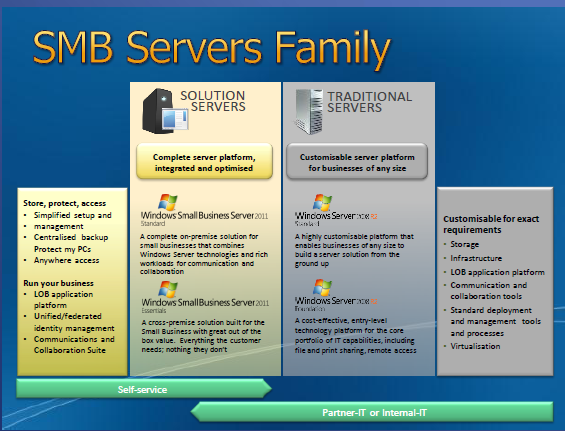
The East Anglia SBSC group was visited by Steve Wheeler of Microsoft last night to provide a non technical overview of SBS 2011 Standard, SBS 2011 Essentials, and a brief look at Storage Server 2008 R2 Essentials (Code Name Breckenridge) and also Multipoint Server.

You can get yourself a copy of the slide deck here…

sbs-slide

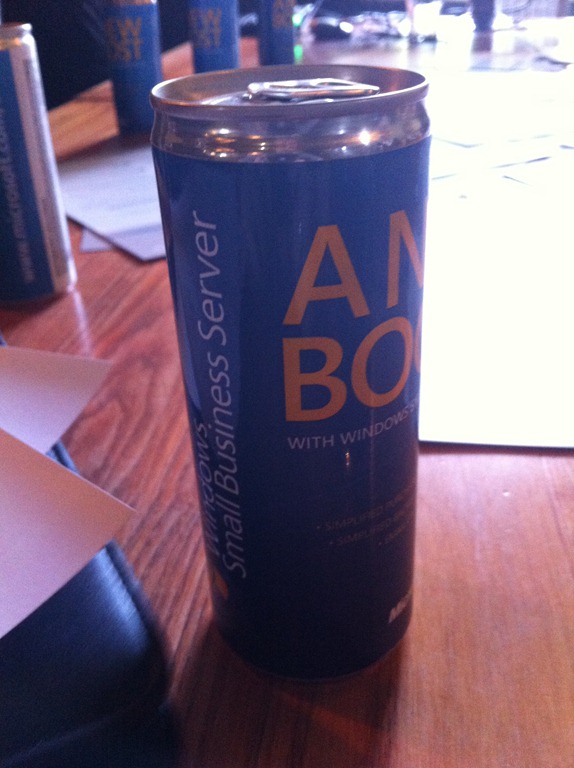
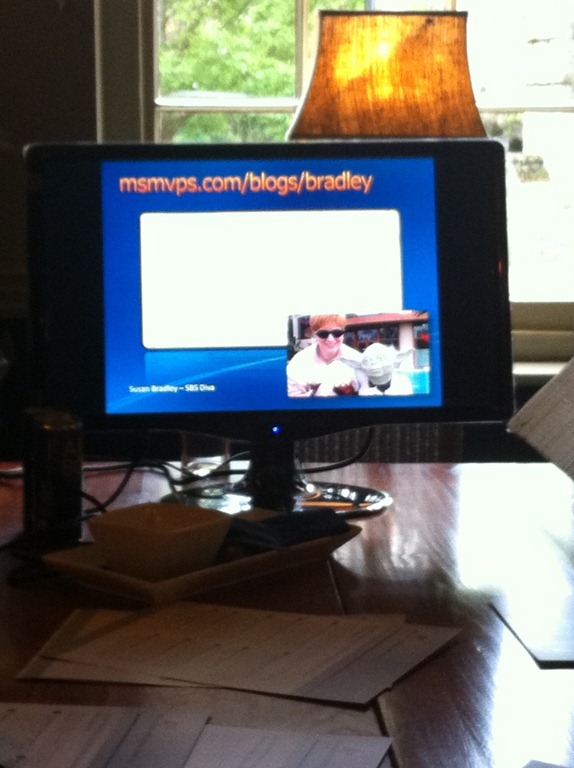
We were also treated to a ‘Small Business Server’ branded energy drink.. and proof if we needed it, that Susan Bradley is the centre of the SBS Universe..

IMG_0795IMG_0796

Quick Fix : Uninstall Symantec Endpoint Protection (SEPM) 11 Without Uninstall Password

So i have a clients laptop (XP SP3) which is bluescreening on startup with a NAVEX15.sys error.

(This from Nirsoft – Blue Screen View)

The system would boot into safe mode with networking, but not full windows.

I tried all sorts to clear this, System Restore, msconfig – disabling all non MS services and everything not in c:\windows from the startup tab.
I also uninstalled the NAVEX and any Symantec devices from Device Manager, (look for show hidden devices)

This didnt help.

I then searched the registry for navex15.sys and deleted the related keys from the registry.

This allowed me to boot up.

I then uninstalled symantec.. but wait it asked me for a password, and i dont remember that (like i ever knew it!)

Enter this great little tip from of all places, the symantec forums..

http://http://www.symantec.com/connect/forums/uninstall-sep-11-without-password

Specifically this entry from reza akhlaghy:

“..Hi Richard,

There’s an easy way, when password prompt opens, run task manager and END
task called MSIEXEC that runs under your user account (not system). The password
go away and uninstall continues !!

So far this trick works both for SEP and older versions…”

Bingo. Symantec now uninstalled.

I am using NiNite.com to update all web related apps on this system, and then, unfortunatley, i have to reinstall Symantec. :(

Quick Fix – Exchange Server Version?

Just noticed a new KB pop up on the RSS Feed – here

(How to determine the version number, the build number, and the service pack level of Exchange Server)

Bit of a mouthfull!

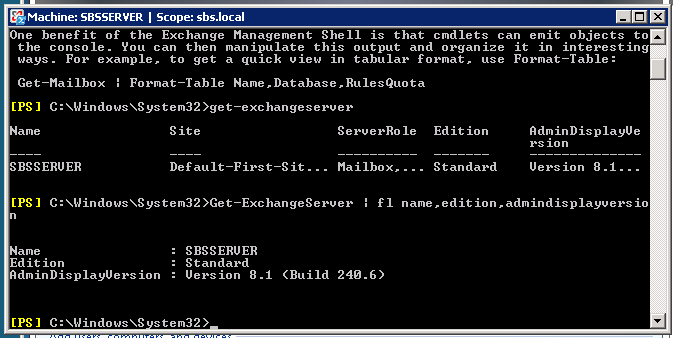
Anyway, the powershell command they suggest is pretty basic and does not give us a real friendly out put..

Get-ExchangeServer

1

I much prefer this command that i snagged from this guys blog

Get-ExchangeServer | fl name,edition,admindisplayversion

2

Much cleaner results – and you can actually see the important info!

Update 25/10/2011

Try this command instead:

get-exchangeserver | select-object Name, ExchangeVersion, Admindisplayversion, serverrole, edition | fl

You can then match the ‘Exchange Version’ using this wiki post and find out how up to date you are.


Quick Fix : Internet explorer cannot display the Webpage SBS 2011 RWA (RWW)

(I did screen shot this post but for some reason when i posted they got all jumbled, and the formatting was messed up! so enjoy the plain text, 56k dialup version)

I have my lab server situated at home, but from time to time a question crops up during the working day that requires me to login to my lab setup and look things up.

As part of my lab setup i have SBS 2011 Standard running, but curiously i have been unable to access this from my work PC using IE and RWA(RWW).

If i RDP to the host Hyper-V box, it works perfectly. If i attempt to go to the external IP of the router at home in IE, it works perfectly.

If i use Firefox to go to the RWA page, it works perfectly, i just get a blank response from IE.

The question is, what could be causing it? Skip to Solution?

First, i am trying the obvious things, Resetting IE to defaults, restoring advanced settings.

What i find interesting here, is that IE is seemingly not even attempting to connect to the page – if you hit F5 to refresh the page it is instantly coming back with the failure.

I am now going to switch to WireShark to see if i can see anything happening on that level. For those of you who don’t know – Wireshark is a protocol analyser, and allows you to see in real time the traffic going across ‘the wire’, of your LAN connections. You can download it for free from here: http://www.wireshark.org/

There are tutorials and help files, and if you haven’t used the program before it can be a bit overwhelming to see the packet captures whizzing past.. so i would recommend you run through those before you start using the program.

I know what i want to find out here, so, i can go straight to inputting a capture filter, to only show me traffic destined for my SBS 2011 server.

The filters can be quite tricky, but to only display traffic destined for one IP enter – ‘ip.addr == <ip address>’

You will then need to go into ‘Interfaces’, (click Capture, then Interfaces) to select which Interface you want to monitor (Click Start, next to the interface you want to monitor)

Once you have clicked start, you will see a blank screen, because there is no traffic flow to that destination IP. To test your filter, you may want to PING that IP address to verify the capture shows those packets.

Now, lets try to gain access to our RWA site.

I see nothing in my packet capture.. (only my ping responses)

It seems as though IE has cached some bad response, or unavailability of the service, and is refusing to attempt a connection.. Very Odd.

Just to confirm that or packet capture would actually pick up an RWA access attempt, switching back to Firefox i refresh my page..

Lots of info flows past – so we are definitely seeing a connection attempt from FF. Still – why nothing from IE?

So, i decided to reinstall IE on my computer.

Just a note for those of you running Win7 (i am running Win7 x64) IE8 ships installed on Win7, so you cannot download it!

To reinstall you must go to Control Panel, then Programs and Features. Choose to ‘Turn Windows Features On or Off’ then find IE8 in the list and uncheck it. Reboot, and then Check it to kick off the reinstall.

After a reinstall i was quietly confident this would solve the issue. Unfortunately not.#

At this point i was beginning to run out of ideas.

I decided to turn to some of my online friends for some pointers. Enter Tim Barrett.

Tim offered to connect up to my pc so we could both play around with settings to see if we could solve the issue.

We went through several things, including adding an entry to the hosts file, resetting IE (including using the clear personal settings option), we ran IE with and without Add-ons, and we ran it in both x64 and x86 (32bit) mode.

Nothing worked, and what was stumping us was the lack of activity in WireShark.

We then loaded up Windows XP Mode on my PC and confirmed that it was working correctly.

It was and i could access RWA perfectly well through XP Mode

Solution

Tim began searching online, and turned up a post from Experts Exchange that mentioned if you were using a Self Signed Certificate to make sure it was installed correctly and that eventually lead us to the solution.

I was indeed using a self signed certificate on my SBS box. But that shouldn’t stop me visiting the site, right?

Well as it turns out, it was.

I got the root CA certificate exported into .cer format and onto my machine, and installed it. As soon as i did this i was able to load RWA in IE. I removed the certificate again to test, and sure enough my access was once again failing.

So, to install the certificate..

Firstly you will need your SBS Server CA certificate.  This can be distributed in a number of different ways.

On my network i have a share where the certificate resides. This is accessible via RWA – so via Firefox i could download this to the pc. Other methods would be through email, or pen drive transfer.

Once you have the file on your computer, open an MMC.

Click Start, then type MMC in the search box.

Click on MMC, then accept the UAC prompt.

Click File, then Add/remove snapin.

Find Certificates in the list of snapins, and click Add.

In the next box select ‘Computer Account’ and click OK.

Click OK to accept the default ‘Local Computer’

Click Ok to close the ‘Add Snapin’ Dialogue.

Now, expand ‘Trusted Root Certificate Authorities’

Expand ‘Certificates’ and right click, then click All Tasks, and then Import..

Follow the import certificate wizard, find your .CER file and continue to import it. When you have finished you will see a successful import message.

Now test your RWA access and you should find you can now connect!