Quick Fix: Query Access Contol List entries?

Querying an ACL.

Something a lot of us will have had to do on a number of occasions, when it is for one folder it is a fairly straight foward task. But imagine a scenario where you have to check multiple folders, and possible compare the results, it can be time consuming not to mention BORING!

So this was a task i had to perform this morning. A client running DFS where due to saturated WAN links their dfs had huge backlogs. Having resolved these issues using a variety of tools and tecniques (beyond the scope of this) i wanted to run a few quick checks to make sure permissions were applied accuratley accross sites.

Enter – Accesschk

A very handy Sysinternals tool that you can run to query an ACL from a folder, file or whatever you like.

Download the file and extract it to your desktop.

Open up a command prompt from the accesschk folder (right click and hold shift to get ‘open command prompt here’)

Type in your command, so i want to test this on c:\users so the syntax is…

accesschk c:\users <enter>
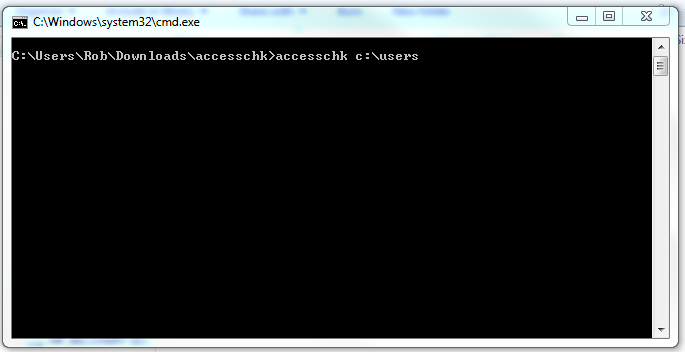
And you receive your output.
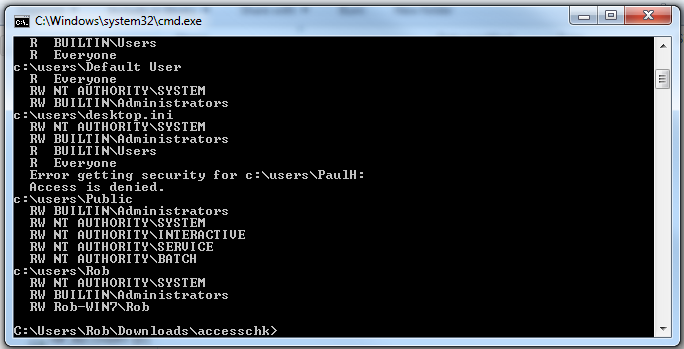
Not so easy to work with this output, so you might want to output to a txt file.

Simply add the usual ‘batch file output’ syntax ‘ > ‘ so our command becomes..

accesschk c:\users >accesschk.txt
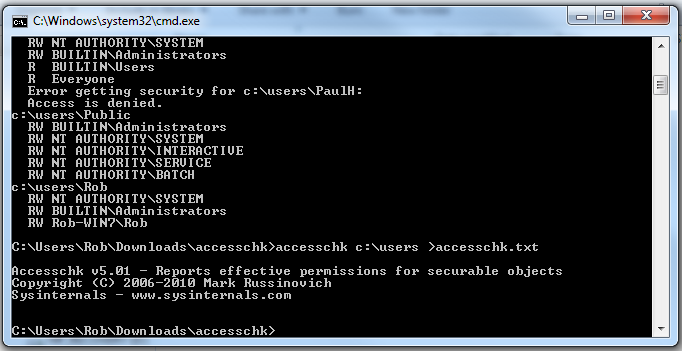
No output displayed now, so we need to open out txt file to view the results.
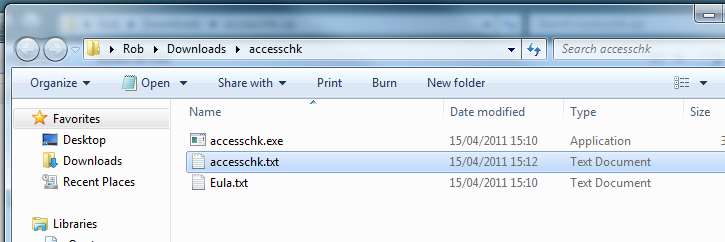
As you can see the output here is much easier to view, and control.
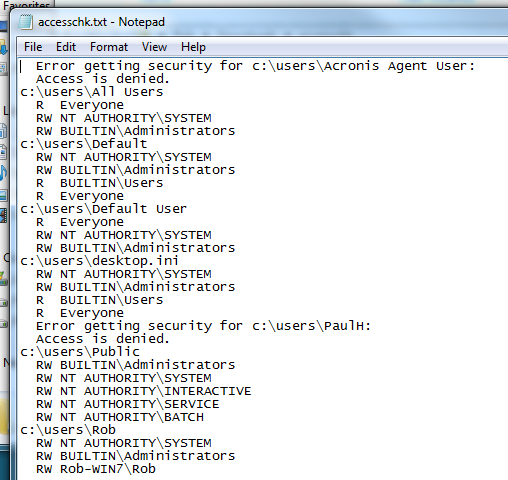
You will need permission to actually view the ACL or your output may not be as expected.

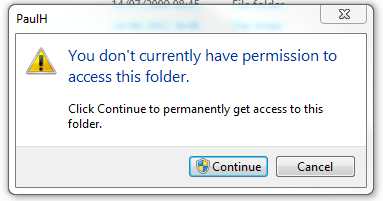
As you can see from the output in the txt file my query couldnt get the ACL info from two of the folders. If i try to access these folders through explorer, you can see why..
This tool really saved me a lot of time, hopefully you will find it useful!

Quick Fix: Get Computer Name from a Slave Drive…

Arrgh!

So a client called with a PC that crashed and wouldn’t boot up.

Luckily i was actually in the area so i called in to the customer, unluckily i was travelling light and didnt have my USB/SATA kit with me.

PC was a reasonably new Dell Optiplex 380, Running Windows 7 Pro. Covered under warranty and after a few minutes on the Dell Online Chat, i had arranged an engineer to be onsite next day with a new drive.

I decided to take the drive with me to see if i could salvage anything, and possibly image the drive for future recovery use.

So i brought the disk back to the office and set it up on a bench, ran a chkdsk and after that it seemed to function ok. (i could have done this onsite with an OS disc,  but if it failed once i would rather have a new drive thank you)

So Dell have now replaced the drive and installed the OS, buuut wait, they dont join it to the domain or install any apps.

I need to know the name of this pc to rejoin it to the domain, i could make up a new name, but we have a convention… seems as though the system name sticker is missing as well.

So here’s what you can do.

Load up Regedt32 on the lab system, with the drive attached as a slave.

Navigate to HKLM and click file, load hive.

Now browse to the \windows\system32\config folder on the slave drive and find the SYSTEM file.

Enter a name – i used OLD

Now browse to HKLM>Old>CurrentControlSet1>Control>Computername>Computername

You should see a key named ‘ComputerName’ with the system name as the value.

Easy!

Quick Fix: Windows 7 unable to join domain…

I was looking at a clients laptop today, brand new Toshiba running Win 7 Pro.

I attempted to join it to the domain using the traditional, system properties / computer name tab method, but i was given a message that unfortunatley i didnt note down, but basically read…

Unable to join the domain, unable to start the service, service may be disabled..

Imediatley i thought of the netlogon service, and i went to the services.msc console and tried to start the netlogon service. It failed, with the message..

Could not start service, service may be disabled…

So, i thought, this is quite bad because the DNS Suffix of the machine has changed, and i dont want to reboot because i could be stuck half way through the join leaving the machine unstable, or worse it wont boot up or let me logon, and working on this remotley would make that a real pain!

So of course i tried again a few times, i then checked UAC settings which were not at the default, but i put them back to default anyway. No change.

I then decided to try and force it back into a workgroup to get out of any potential split issues, and that did succeed,

Welcome to the TEST workgroup!

I then tried to rejoin the domain, this time Success!

Wish i could put my finger on what went wrong, but laptop is now in the domain!

Quick Fix: Outlook 2010 Forward as Attachment?

On some occasions i need to submit emails to Trend Micro’s support team for analysis. They usually require the email to be sent as an attachment. Easy enough to do in previous versions of Outlook, but in Outlook 2010, i couldn’t find the button!

I did some quick google searches, the only one that hit for OL2010 was actually blocked by my Anti Virus program as a malcious website, i did check it out through Google’s cache but the instructions listed did not work.

It is actually quite an easy solution, it just seems to have been hidden from the main interface.

You have two choices, you can add it as a ‘Quick Step’ or if you prefer like me, add it to the Ribbon.

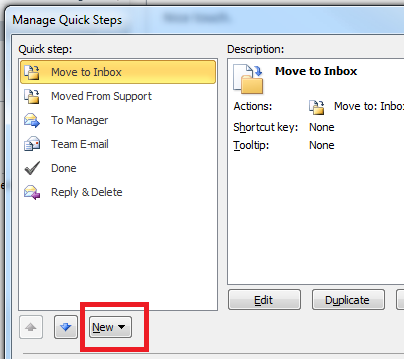
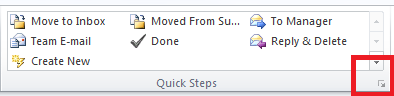
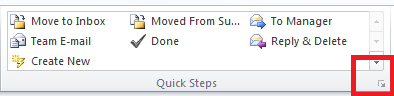
To add this as a Quick Step, click the arrow in the bottom right hand corner of the quick steps area of the Ribbon

On the next screen that opens we need to click on New

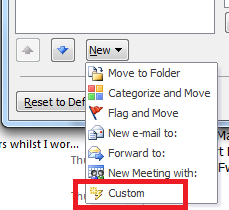
Now choose Custom

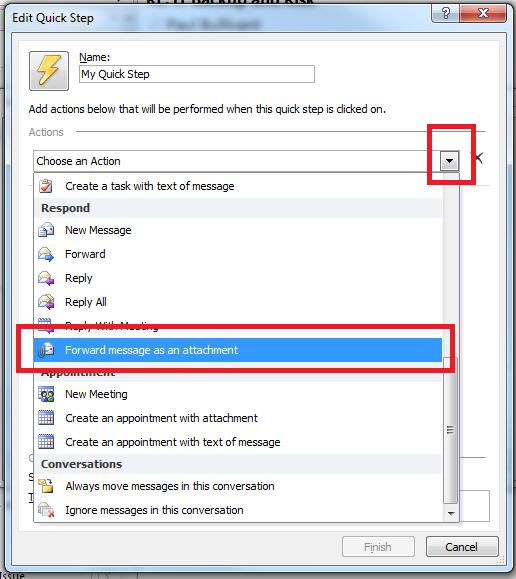
Click on the dropdown arrow and scroll down and find ‘Forward message  as an Attachment’

You can also name your new Quick Step, and add some tooltip text!

When you’re done, click Finish

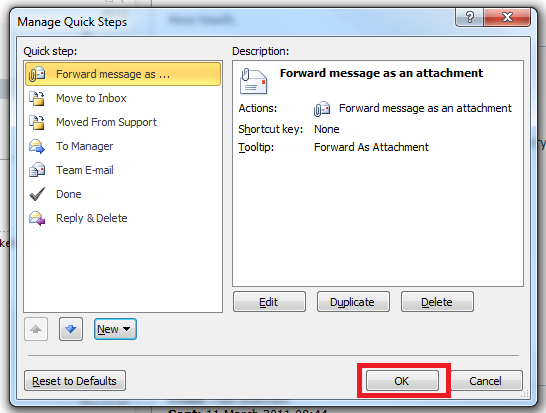
You now see your new Quick Step listed, and you can click OK

Thats it! Now you can see your new Quick Step shown on the Ribbon!

If you prefer to have this as a full Ribbon item, it is a little more involved, but still easy!

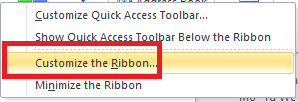
Right click the Ribbon and click on ‘Customize the Ribbon’

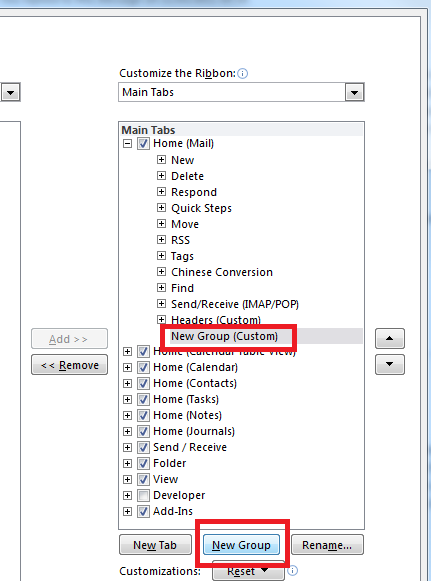
You will need to add a ‘New Group’

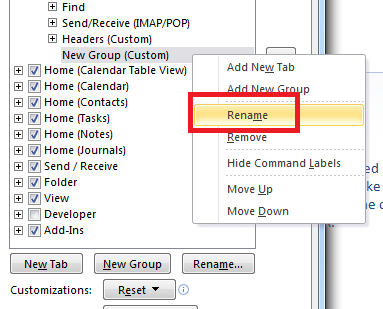
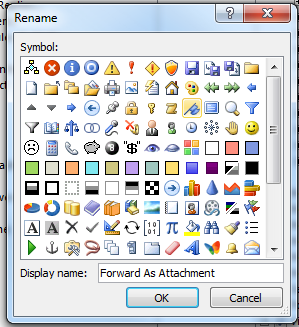
Right click this new group, and click Rename, i am calling mine – Forward as Attachment – then click on OK

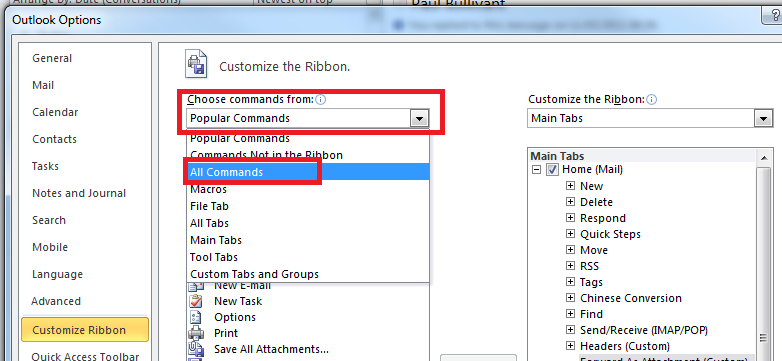
On the right hand side, use the drop down arrow to choose the commands you want to select. Choose – All Commands and scroll to ‘Forward as an Attachment’

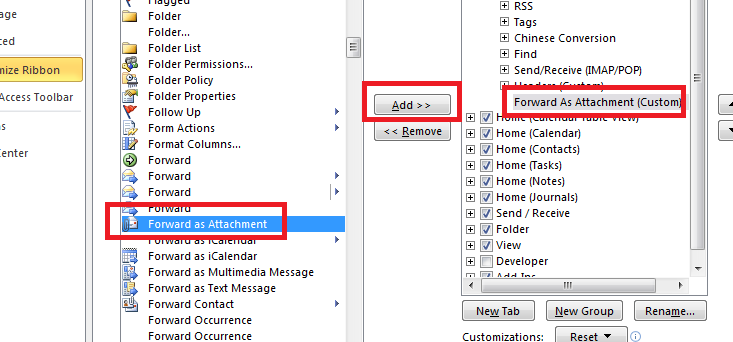
Use the Add button, to move the command from the list, into your new group.

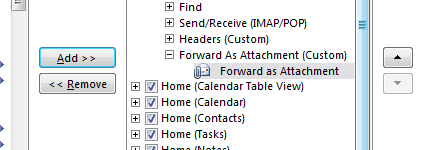
You will then see the command appear under your new group

Now you can click on OK and you will see your new Ribbon command!

As you can see i have also done this for ‘Message Options’ which gives me quick access to the Email Headers, which are very useful for troubleshooting!

Quick Fix: Access Denied to Romaing Profile – Windows 7

Just adding a new PC to an existing domain, the administrator logs on fine, but the user of the pc – keeps getting a temporary profile.

Why?

Checking the event logs you can see an access denied error when attempting to access the profile. Weird, because if you browse the existing roaming profile you can access it fine from the temporary one.

Reason?

In this instance the user needed permission in the \\server\profiles folder to create a new folder.

Windows 7, will add a %username%.V2 folder when logging on for the first time and if it cannot create that folder you will see the access denied error.

Hope it saves you some time..

Quick Fix: Enable Hyper-V on HP ML 310 G5..

OK so i wanted to virtualise two systems in our office on an HP ML310 G5.

I installed Windows 2008 Enterprise R2, enabled the hyper-v role, did a P2V transfer of the first system (XP SP3) got everything ready, when i tried to start the machine i was hit with a message about the Hypervisor not running.

I did a quick google search and found a post that told me to go into the BIOS and make sure the Intel Virtulisation technolgoy was enabled, i rebooted and entered the BIOS,

Advanced Settings > Processor Options > Intel V…

Changed to enabled, and rebooted.

No Change.

At this point i was working remotley through ILO, when i discovered you needed a cold boot of the system (full power off, power removed!)

So i had to wait until this morning to do that.

I removed the power, booted up, but no, HyperV not running.

Getting more than a little frustrated i removed and reinstalled the Hyper-V role, adding extra reboots in just make sure… No change.

Again i hit google, i came across this post..

http://www.poxycat.com/2008/06/enabling-ms-hyperv-on-hp-dl380-g5.html

Which explains to enable another option in the BIOS, No-Excecute Memory Protection.

I rebooted and enabled this, logged back into my System and BINGO!

We have a working Hyper-V system.

I find it a little odd that my ML 310 – needed this doing, when my ML110 G6 worked out of the box, but there you go!

Hopefully this will save you some time.

Quick Fix – Dissapearing Icons – Windows 7

Customer had reported to me that their Icons had dissapeard for the second week in a row on a Monday morning…

Weird I thought.

Maintenance Microsoft thinks..

It seems if you have more than 4 ‘broken’ shortcuts on your desktop Microsoft will clean them up for you.

Microsoft defines broken as a shortcut to unavailable resource.

I can see the value of that – in theorey, but imagine this – a customer with a laptop who links directly to shared folders on their corporate LAN, all those links are broken come monday morning.

Not the best idea i have seen implemented in Windows 7.

Anyway, great article here for hints and tips on making the best of Windows 7 maintenance.

Control Windows 7 Scheduled Maintenance Behavior Through Group Policy

Update: If you do not have the Scheduled Maintenance policy in your GPMC, you may need to copy sdiagschd.admx and sdiagschd.adml from a client computer to the domain policy store, or Servers PolicyDefinitions folder.