Quick Fix: SBS 2008 ‘Sites’ Self Signed Certificate Expired

SBS2008Please note this article is not for renewing expired certificates used with remote web access!

I had a call today from a partner IT firm who we work with sometimes that had an issue on an SBS 2008 Server. One of the default SSL Certificates had expired, and in turn knocked out Sage 200 that was installed and running on this server. Sage links into the Default website and some of its operations require an SSL certificate. I wont pretend to understand what or why or even how because what i know about Sage can be written on top of a pin head with a power drill.

However, i did manage to help said partner replace his SSL Certificate and make Sage a happy bunny again.

Firstly i found that on my own SBS 2008 server,

Read more of this post

Quick Fix: AFD.sys / AFD Service is missing Windows XP

I had a customer email me yesterday with the following symptoms…

Symptoms

This particular client is located in France, so a site visit is a little tricky. Luckily they had a second computer, and we could talk through Skype. I did some basic connectivity tests like ipconfig, the IP was reported as 0.0.0.0 with a subnet mask of 0.0.0.0. Read more of this post

Quick Fix : Did I Update or Did I Not Update, that is the question!

powershell2xa4I currently have a number of books on my desk that i use for reference, you may have heard of them, read them, bought them, stolen them, sorry, borrowed them etc, Anyway they wont be a new idea to you, i don’t mean books in general i mean these particular books. I am of course referring to the Administrators Pocket Consultant series from Microsoft Press.

All of them unnervingly seem to be written by the same person, Mr William R Stanek. Anyway there is a point to this.

I have been answering questions in the forum recently and i find myself asking the OP, hey do you have XYZ update installed?

They usually reply, how do i check?

Of course i refer them to their Administration journal, which clearly shows the date and time any update had passed testing and was approved for installation, the name of the tech who logged onto the server, the colour of his socks he had on whilst he installed it. Of course it could have been a her.

Knowing many of you don’t keep such a journal only saddens me, i like to know what colour socks i had on, on a given day and i frequently go back and check.

I turned of course to my PowerShell Administrators Companion, and found the following command.

Never again shall you be left red faced by the question, do you have XYZ update installed? Not only will you be able to answer with confidence, you will be able to give all sorts of other detail that will really impress me.

Loading up PowerShell, you can simply type…

Get-Hotfix

get-hotfix

This will list all of the Updates, Hotfixes and Service Packs that have been installed onto the system, it will also list the date, and who installed them.

But how does that help you find a specific update? Simply add the KB number you are looking for.

Get-Hotfix –id <KB Number>

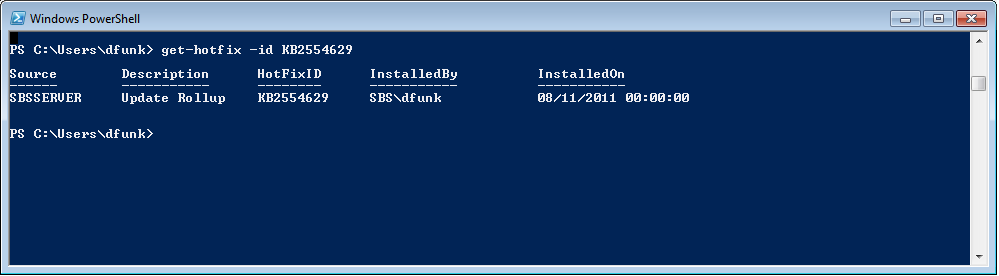
For example if i want to know if i have installed SBS Essentials Update Rollup 1, i can type..

Get-Hotfix –id KB2554629

get-hotfix-ur1

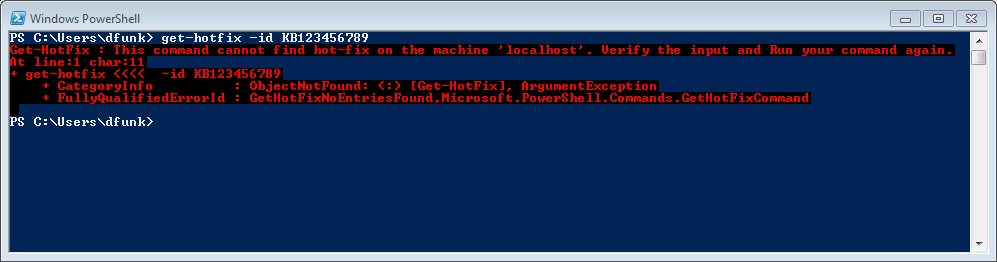
If the hotfix is not installed you will get an error.

get-hotfix-err

As easy as that.

By the way, I’m not selling these books nor do i earn commission out of their sale, but i have one of these books for pretty much every Microsoft Server/Client OS i support. They are cheap and are just full of brilliant tips such like the one i just ripped off and turned into a blog post.

Quick Fix: Outlook 2010 Sending from a second Exchange Mailbox

sbsstd

I have been battling this problem for some time now. It has been driving me to distraction it is fair to say.

Exchange

What i didn’t realise until now, is that i was actually battling two separate issues, once i realised that it made the solution clear.

The issue i was facing was that additional mailboxes were being automatically added to an Outlook profile. This was puzzling me because firstly, i didn’t know why it was happening, and secondly i OutlookLogowasn’t able to send from that second mailbox. I could manually type in the address in the From field, but i wanted to be able to choose it and have the signature change based on the account i was using.

So a lot, of research, lab work and questions later i think i found the answers, and the solution.

Issue 1. Exchange 2010 SP1 Full Mailbox Access

Are you running Exchange 2010 SP1 with clients running Outlook 2010 SP1?

If you are, and like me you have shared mailboxes, or generic mailboxes that other users access, you may be used to setting Full Mailbox access permission on those generic accounts.

Full Access

(You would then add them to Outlook through the properties of your Primary Mailbox, under More Settings, and Advanced)

With Exchange 2010 SP1 and Outlook 2010 SP1 having given full mailbox access to an account, you may have seen a that the account that you have full mailbox access to, has automatically added itself to your Outlook profile.

You may also notice, there is no way to remove it!

auto added

This behaviour is actually well documented, but one of the best explanations i found is here.

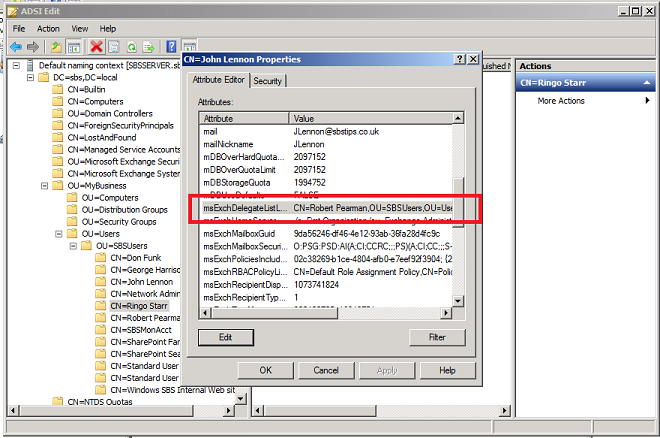
If you don’t want to bother reading that – and you should read it – basically using Exchange 2010 SP1 EMC, EMS to add Full Mailbox Access, now also sets an Attribute on the account – msExchDelegateListLink. This attribute says which other accounts have access to this mailbox.

Attribute

Outlook 2010 SP1 will look for that key now and anyone that matches, will be auto added. Quite straight forward when you know what is happening.

So that is the first part of the mystery solved.

The solution to stop this happening is easy, remove that attribute. You can either do it through ADSIEdit, or by Adding Full Mailbox Access with a script instead of using the EMC/EMS. again ill point you back to this blog for the solution.

Assuming you have now removed that attribute, you can go ahead and add the second mailbox the traditional way.


Issue 2. Outlook 2010 Send from Multiple Exchange Mailboxes

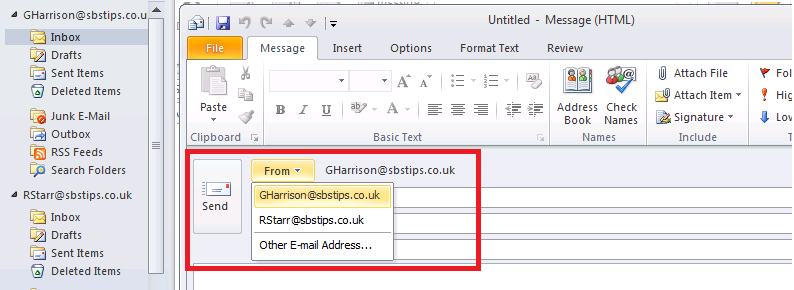
But wait – once you have done this, you still cannot select it as an account to send from?
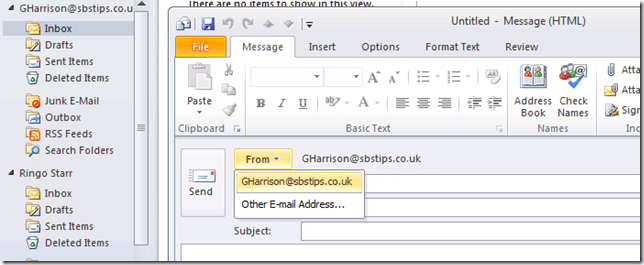
send

At this point i really started to get frustrated. I was wrongly blaming Exchange 2010 SP1 for this weird behaviour and missing the clue right under my nose.

It seems that the ability to send from a second Exchange mailbox, when it is added in what i will call, the traditional manner, has been changed in Outlook 2010.

I’m running Outlook 2010 and have several exchange mailboxes open, i just had never noticed this behaviour. I’m also running Exchange 2007, and having been dealing with the issue outlined above, i never thought to look at my own Outlook.

The solution here seems to be very simple indeed.

Once you have removed the attribute, you still retain full access. That means you can add the second mailbox, as a totally separate account, and you wont be prompted to login to that mailbox, because your current credentials have permission to open it.

So to recap, first you need to make sure you remove the msExchDelegateListLink attribute from the second mailbox. Then just add that second mailbox as a second account. You will need to close Outlook down in order to do that, when adding the mailbox choose to ‘Manually Configure Server Settings..’

manually add

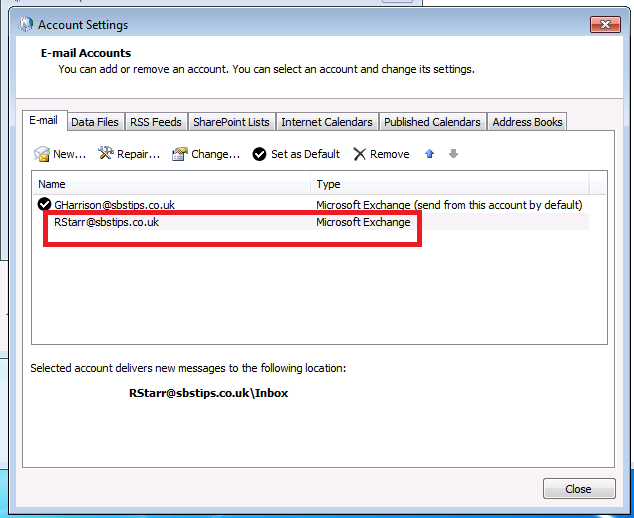
You will then see the mailbox as a second account.

second account

And you can choose to send from this account as well.
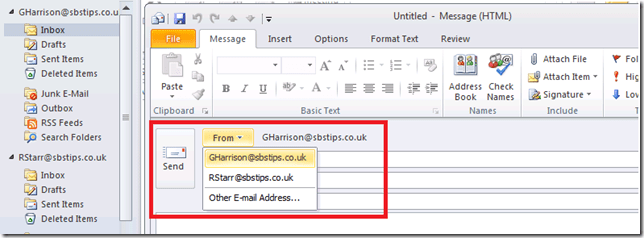
send from

I really hope this helps you, and saves you some time and energy!

Quick Fix : Find a Dell Service Tag, umm… Quickly!

Very very cool little trick this, which i picked up from Merv ‘Google Fu’ Porter (SBS MVP), no idea where he found this…  Google i suspect.

I’ve often needed to find a Dell service tag from a laptop, desktop or even a server, perhaps the best way used to be by asking a local user to look at the sticker.

Having battled with some of my users about just what a sticker actually looks like, it was time to find alternative options.

You may know you can go to the Dell Support website and run through a tool that will scan for your Service Tag, but that takes time (not really much time) but if you really, seriously, need that tag quick, and i mean yesterday, open up a command prompt and type this.

wmic csproduct get vendor,name,identifyingnumber

Service Tag

You’ll be shown your Service Tag and the Model of the Computer.

Thanks go to Merv.

Quick Fix : SBS 2011 Standard (Exchange 2010) 554 5.1.0 Sender Denied

sbsstdHad a puzzler last week. Client called up to say one of his contacts couldn’t email him. It was being rejected.

Message Rejections will be a common problem for many people, and the best thing to do is get a copy of the rejection message or what i call NDR (Non Delivery Receipt (or Report) )

Luckily in this case, there was actually an NDR generated, because some times email can just seem to vanish into the ether, and you’re left with little to go on…

Also luckily for me the third party was happy to send on the NDR via my client’s secretary.

The smart ones reading will now have figured out that the rejections were only to my caller – the third party was able to email the secretary successfully.

Here is the NDR

NDR Message

You can see that the Error Code is #5.1.0 smtp; 554 5.1.0 Sender denied

Sender denied i thought… sounds like something was configured in Exchange… which it turns out it was, but not what i thought.

Also, the NDR in question was generated by their Exchange server, not by their Offsite AntiSpam service, which helped me quickly identify that the issue was at their Exchange, not at the Anti Spam service.

Sender Filtering, is one of the Anti Spam tools enabled and running by default on SBS 2011 Standard.

Usually the NDR above would be associated with an address that is blocked by the Sender Filter running on the Hub Transport Role.

However in this case there were no addresses blocked by the Sender Filter at the server level.

(if you want to look at the Anti Spam tools, i have covered their location at the end of the post)

In this case the address was defined by the users own Junk Mail settings.

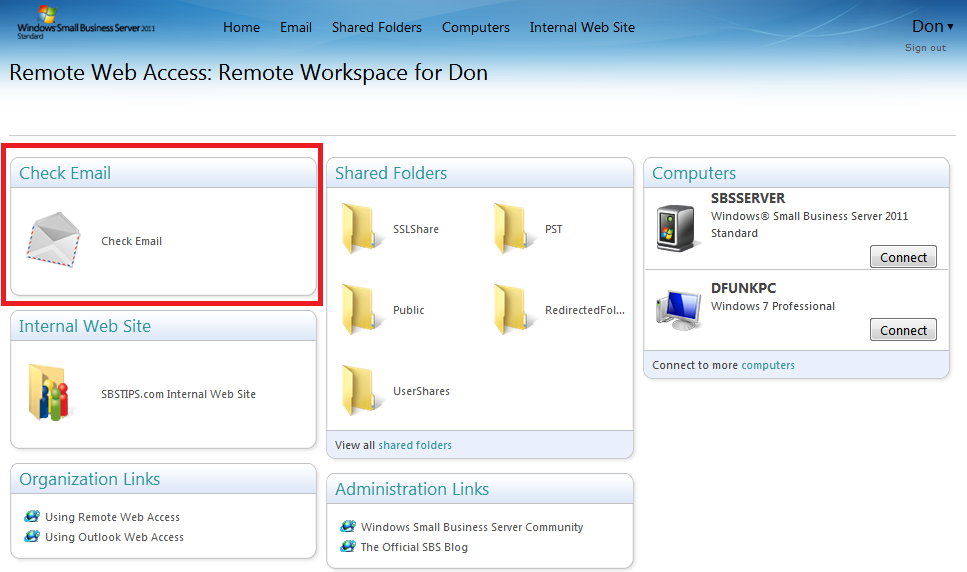
I logged into the SBS RWA (Remote Web App) and logged into Outlook Web App (OWA)

SBS RWA

Clicking on to Options, then More Options, there is a ‘Block or Allow’ option in the menu on the left hand side.

Outlook Web App

Outlook Web App Options

OWA Options

If you click here you can see a list of Allowed Senders, and a list of Blocked Senders.  Scroll Down to see Blocked Senders.

OWA Block or Allow

OWA Blocked Senders

Sure enough the email address being rejected was set to be blocked. Removing the address from this list will allow emails to be received from that address. Make sure to save the changes and that should solve the problem.

Remove Blocked Sender

It wont solve the mystery of how the address ended up as a blocked sender, but that mystery will live on, like the other great mysteries we face, such as using a PC during a power cut, Photocopying a floppy disk to use as a backup, and using the optical drive as a beverage cup holder.

Exchange Anti Spam Tools

You can find the Anti Spam tools on SBS by opening up Exchange Management Console, Navigating to..

Organization Configuration, Hub Transport, Anti Spam Tab

2

And Under …

Server Configuration, Hub Transport, You will find another Anti Spam Tab..

3

Exchange 2010 Anti Spam Related Links

MS TechNet – Enable Anti-Spam on a Hub Transport Server

MS TechNet Managing Anti-Spam Features

Quick Fix : Enable Telnet Client through command line

I am sitting at a fresh install of Windows 7, and i needed to use telnet. I know i can enable Telnet through ‘Turn Windows Features On or Off’ but i wanted to know if i could do it through the command line.

The answer is yes i can.

From an elevated command prompt just type:

dism /online /Enable-Feature /FeatureName:TelnetClient

It seems to complete a lot faster than the ‘Windows Features’ gui as well.

Thanks to the Bing search and this post here